
How To Manage a Vendor's Accounting Information in FRONTSTEPS Manager
How To Manage a Vendor's Accounting Information in FRONTSTEPS Manager
The Accounting tab on a vendor's profile holds the financial setup FRONTSTEPS needs to pay that vendor correctly — its tax and payment settings, any 1099 balance adjustments, and its ACH (direct deposit) information. This guide walks through opening a vendor's Accounting tab and updating each of its three sections: Tax & Payment Settings, 1099 Adjustments, and ACH.
-
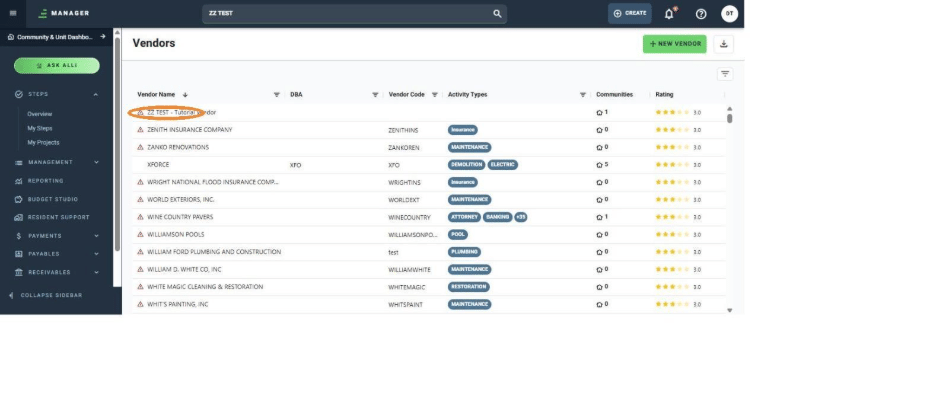
In the vendor list, find the vendor you want to update and click its name.
-
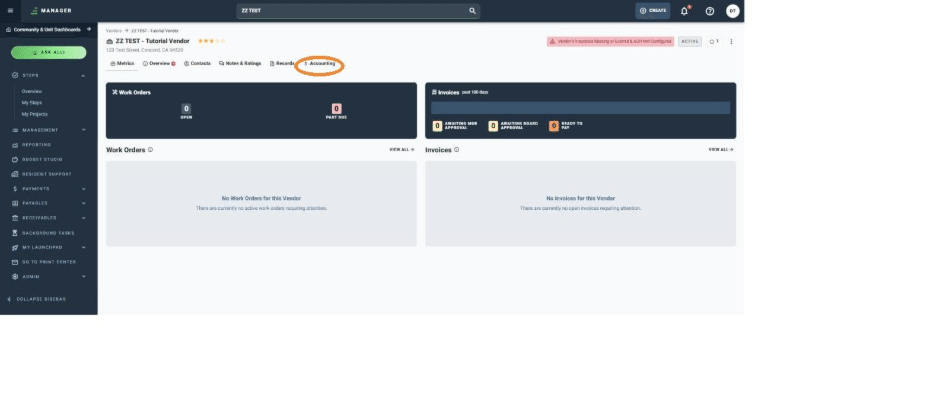
This opens the vendor's profile. Click "Accounting" in the tab bar.
-
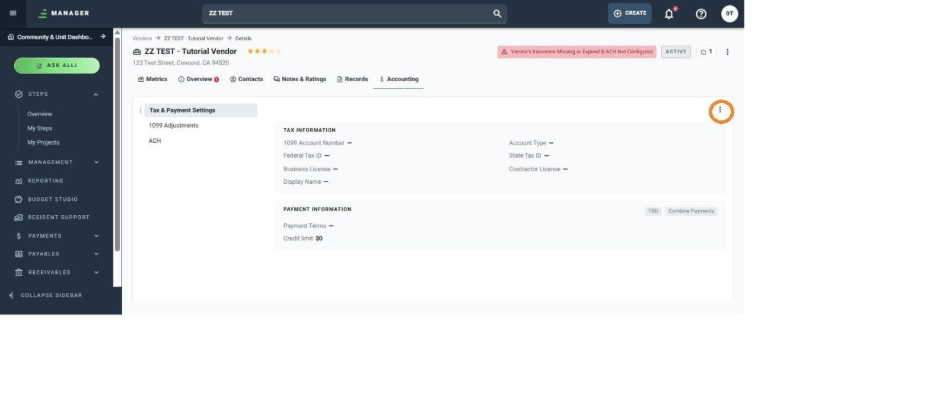
The Accounting tab opens to "Tax & Payment Settings" by default, showing this vendor's tax and payment information. Click the three-dot menu button in the top-right corner to edit it.
-
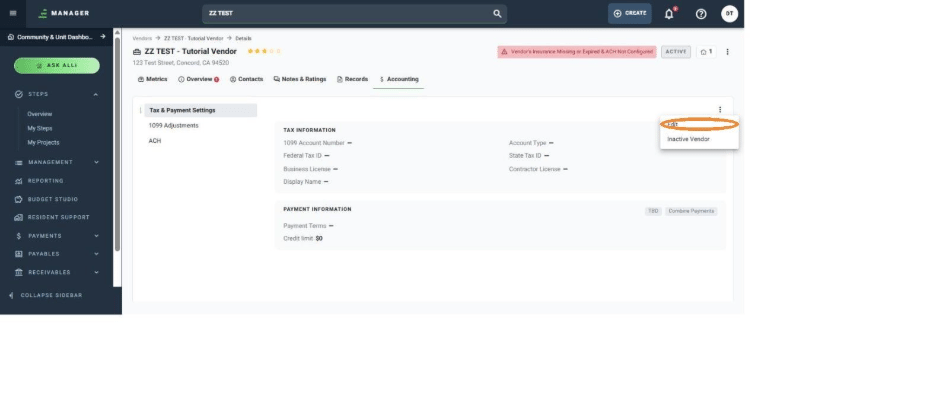
Click "Edit."
-
The Edit Account Information form opens. Fill in or update any of the tax fields — 1099 Account Number, Account Type, Federal Tax ID, State Tax ID, Business License, Contractor License, and Display Name.
-
Click "SAVE" to apply your changes.
-
The vendor's tax information is updated immediately, with a confirmation message at the bottom of the screen. Next, click "1099 Adjustments" in the left sub-nav.
-
This shows any 1099 balance adjustments already on file for this vendor. Click "+ ADJUSTMENT" to add a new one.
-
In the "Add 1099 Adjustment" form, click the "Select Client" dropdown and choose the community or division this adjustment applies to.
-
Fill in a Description, the Balance Forward Amount, and the Balance Forward Date, then click "CREATE."
-
The new adjustment appears in the list. To edit it later, click the three-dot menu button on its row.
-
Click "Edit."
-
Update any field you need — for example, change the Balance Forward Amount — then click "SAVE."
-
The adjustment is updated immediately. Next, click "ACH" in the left sub-nav to manage this vendor's direct deposit information.
-
This shows the vendor's current ACH status and bank details. Click the three-dot menu button to edit them.
-
Click "Edit."
-
Fill in the Bank Name, Account #, and Routing #, then click "SAVE."
-
The vendor's ACH information is saved, with a confirmation message shown at the bottom of the screen. The account and routing numbers are masked on screen for security, showing only their last digits.