
Resident - Linking Multiple Accounts in dwellingLIVE
We’re updating this article. Some screenshots or names may look older than what you see in the product.
All users in dwellingLIVE can link multiple accounts by applying a single set of login credentials to each account.
Steps
As resident a user:
1. Log into community.dwellinglive.com.
2. Select “My Account” in the upper right corner.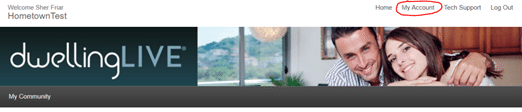
3. Select “Edit” to the right of the user marked with the red L.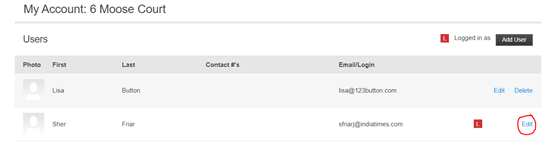
4. Under User Details, enter login credentials by filling out the Email, New Password, and Confirm New Password fields.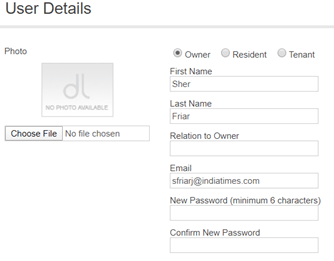
5. Select “Save” at the bottom of the screen when complete.
6. Then log out.
7. Repeat steps 1-6 for each property. On step 4, remember to enter the same email and password for each account.
8. Once complete, log back into community.dwellinglive.com to Select Login Account.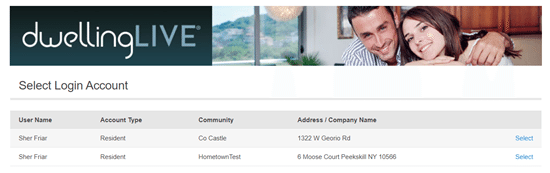
9. Use the “Select” button to log into a specific account.
As a Community Staff Member:
1. Log into community.dwellinglive.com as a community staff member.
2. At the top of the page, select “My Account”.
3. Under Edit Community Staff enter login credentials by filling out the Email, New Password, and Confirm New Password fields.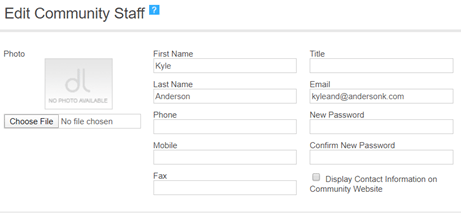
4. Select “Save” when complete.
5. Log out of the site.
6. Repeat steps 1-5. On step 3, remember to enter the same email and password for each account.
7. Once complete, log back in to community.dwellinglive.com to Select Login Account.
8. Use the “Select” button to log into a specific account.
Note: All users can switch between accounts by selecting “Change Account” at the top of any page in dwellingLIVE.