How To Generate Statements in FRONTSTEPS Manager
How To Generate Statements in FRONTSTEPS Manager
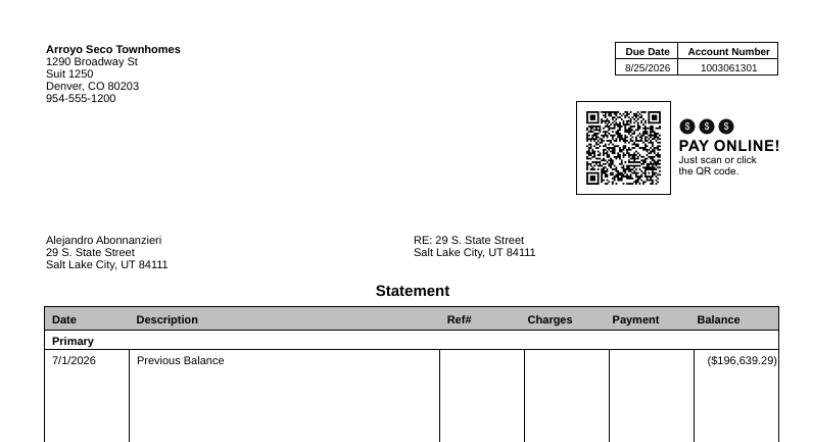
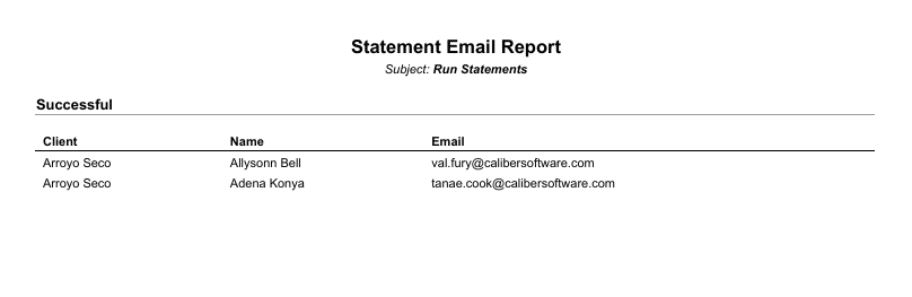
The Statements tool in Receivables lets you generate owner account statements for one or more communities, either for every owner or for a hand-picked list of homeowners. This guide walks through creating a statement run for a single community, selecting specific homeowners, and generating and tracking the run through completion.
-
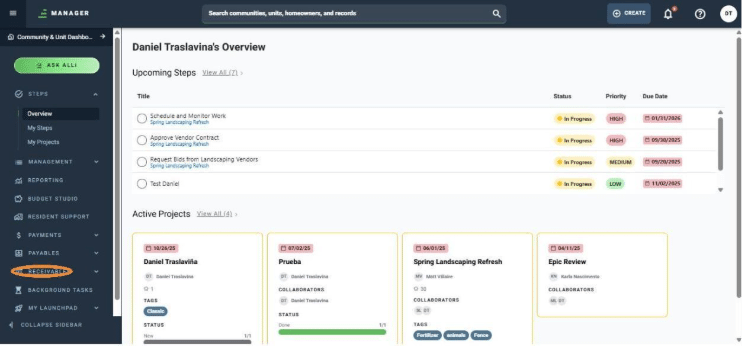
From the main menu, click Receivables.
-
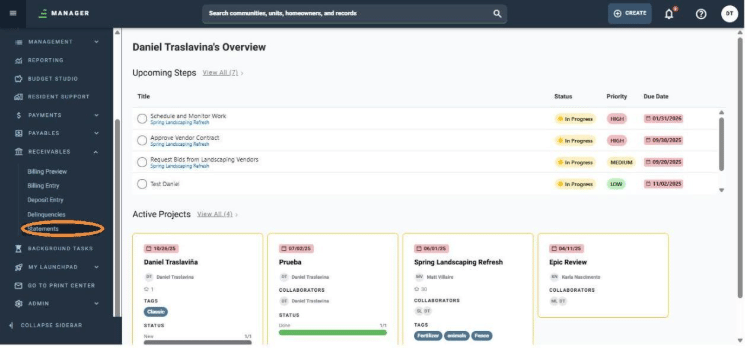
Click Statements.
-
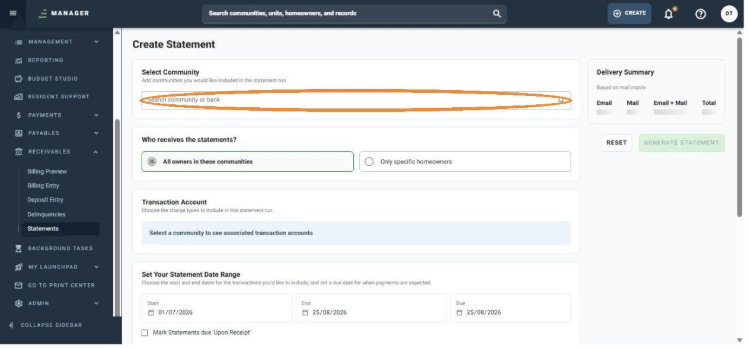
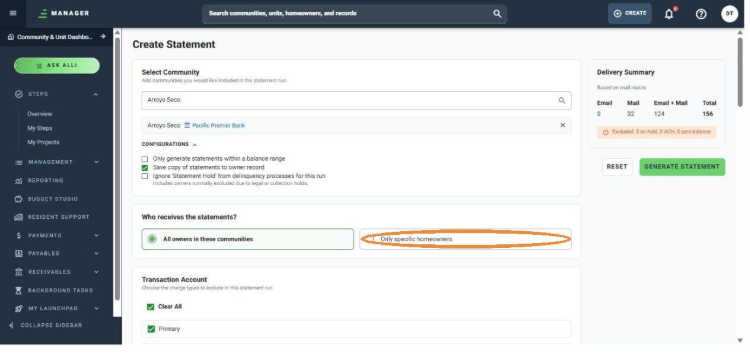
On the Create Statement page, click the Select Community field and search for the community you want to generate statements for. In this example, Arroyo Seco.
-
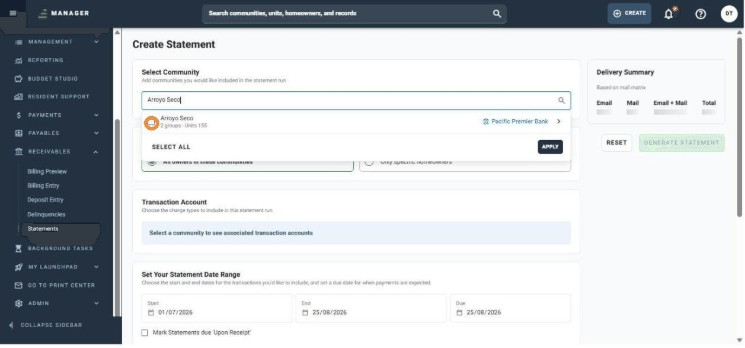
Check the box next to the community name to select it.
-
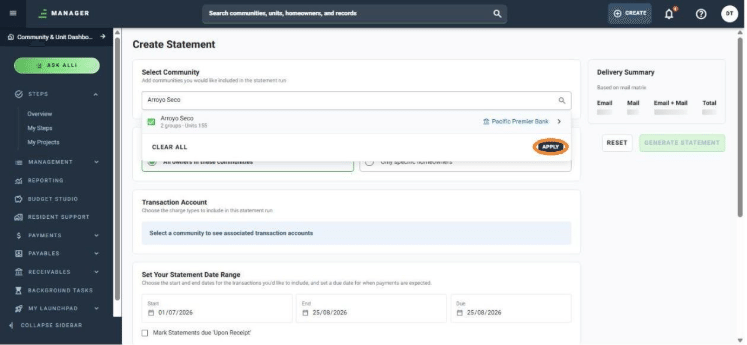
Click Apply to add the community to the statement run.
-
Click Configurations to review the run's settings. For this run, the default option (Save copy of statements to owner record) is kept as is.
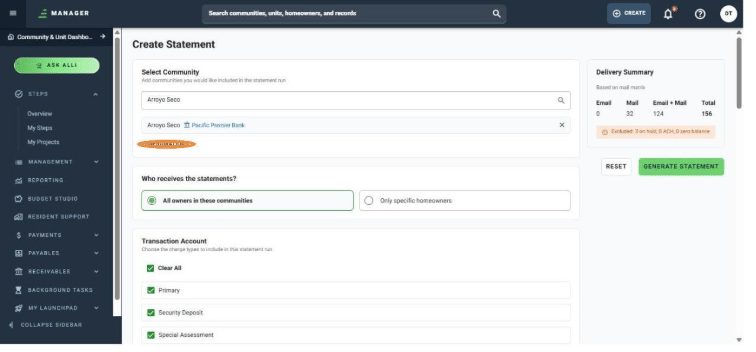
Note: What these options mean:
Only generate statements within a balance range: Limits the run to owners whose account balance falls inside a minimum and maximum you set.
Save copy of statements to owner record: Keeps a copy of each generated statement attached to the homeowner's record, so it can be found later without regenerating it.
Ignore 'Statement Hold' from delinquency processes for this run: Includes owners who are normally left out of statement runs because of an active legal or collection hold.
-
Under "Who receives the statements?", select Only specific homeowners.
Note: What these options mean:
All owners in these communities: Generates a statement for every current owner in the selected community or communities.
Only specific homeowners: Opens a searchable owner list so you can hand-pick exactly which homeowners receive a statement.
-
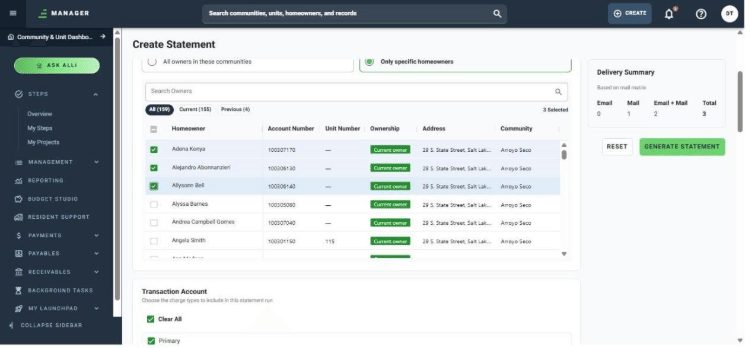
In the owner list, check the boxes for the homeowners you want to include. In this example, the first three homeowners in the list are selected.
-
The selected homeowners are now marked, and the Delivery Summary panel on the right updates to reflect the number of statements that will be generated.
Note: What this panel means:
Email / Mail / Email + Mail / Total: A live count, based on each owner's mail matrix preference, of how many statements will go out by email, by physical mail, by both, and the total number of statements the run will generate.
-
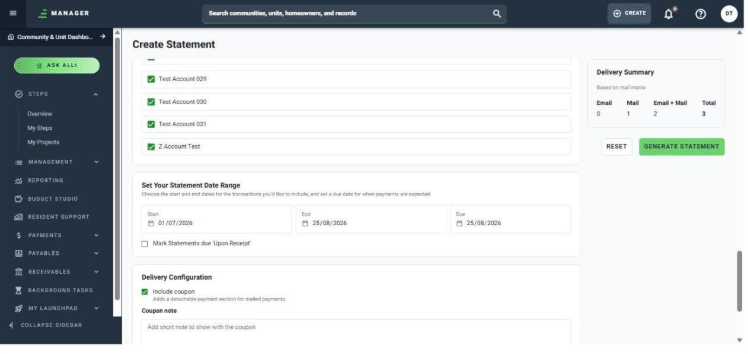
Scroll down to review the Transaction Account and Statement Date Range sections. Unless this run needs different settings, leave them as they are.
Note: What these options mean
Charge type checkboxes: Choose which transaction accounts (Primary, Security Deposit, Special Assessment, and any other accounts set up for the community) are included on the statement. Clear All / Select All toggles every option at once.
Start / End: The date range of transactions that will be pulled onto the statement.
Due: The payment due date printed on the statement.
Mark Statements due 'Upon Receipt': Replaces the Due date with "Due Upon Receipt" on the statement instead of a fixed date.
-
Review the Delivery Configuration and Mail Delivery Preferences sections, leave them as configured, and click Generate Statement
Note: What these options mean:
Include coupon: Adds a detachable payment coupon section to the statement, for owners who mail in a check.
Coupon note: An optional short note (up to 40 characters) that prints alongside the coupon.
Print hard copies for all: Generates a printable copy for every selected owner, ignoring each owner's individual email/mail delivery preference.
Print as an invoice: Formats the statement as an invoice instead of the standard statement layout.
Download and Print / Send to Print Center: Chooses how mailed copies are produced: download the file and print it yourself, or (coming soon) send it directly to FRONTSTEPS' Print Center service.
-
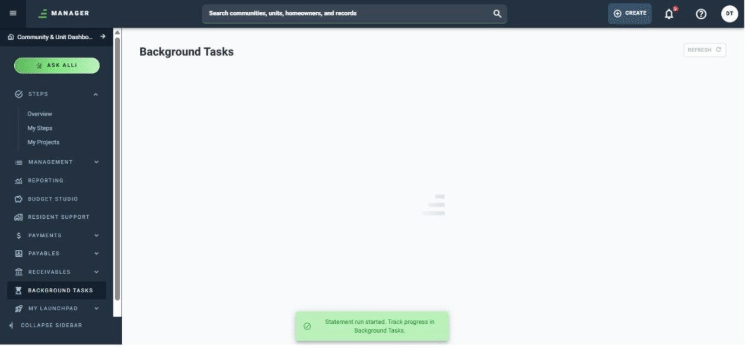
A confirmation message appears letting you know the statement run has started and can be tracked from Background Tasks
-
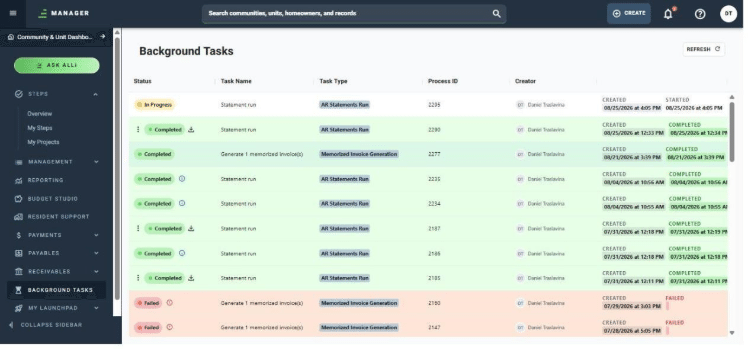
FRONTSTEPS Manager automatically opens Background Tasks, where the new statement run appears at the top of the list with an In Progress status while it processes.
-
Once the status changes to Completed, click the download icon next to the task to download and print the generated statements.
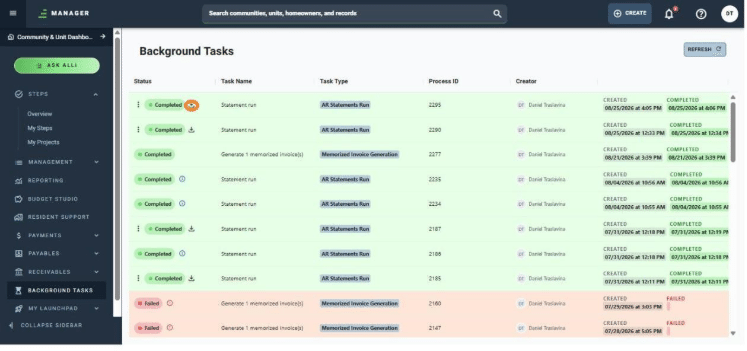
Note: The download opens a PDF with the generated statements ready to review or print.