How To Edit a Step in a Project
How To Edit a Step in a Project in FRONTSTEPS Manager
This guide provides a straightforward process for editing steps within a project in FRONTSTEPS Manager, making it essential for users looking to streamline their project management tasks. By following the outlined steps, users can efficiently update project details, ensuring accuracy and relevance. The guide is particularly useful for those new to the platform or needing a quick reference to enhance their workflow. Accessing this guide will empower users to manage their projects more effectively.
1. Navigate to FRONTSTEPS Manager
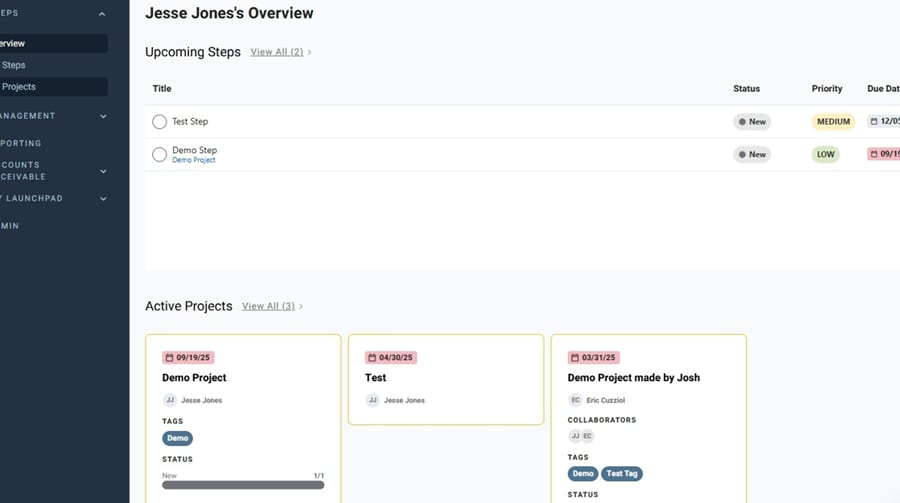
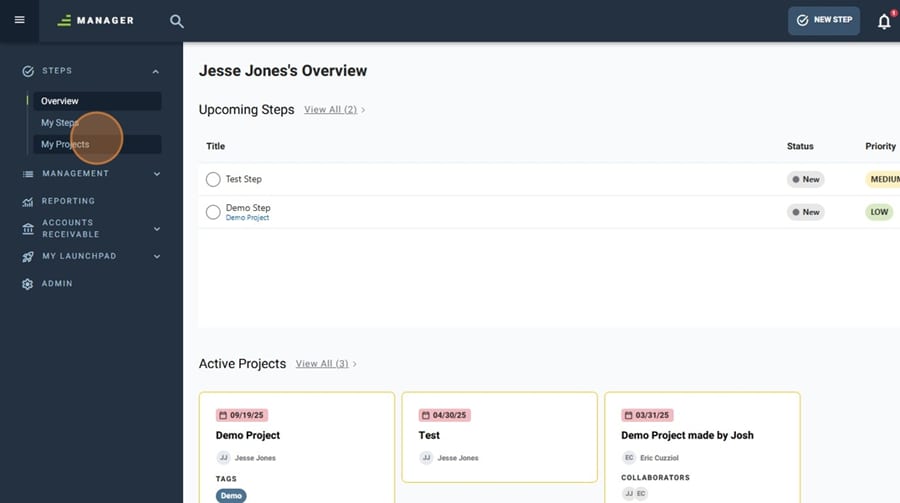
2. Navigate to "My Projects"
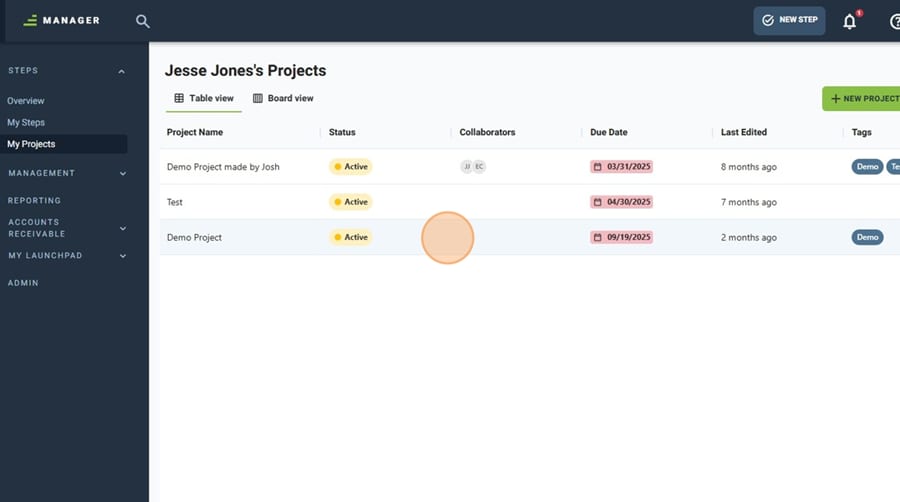
3. Select the Project you wish to update
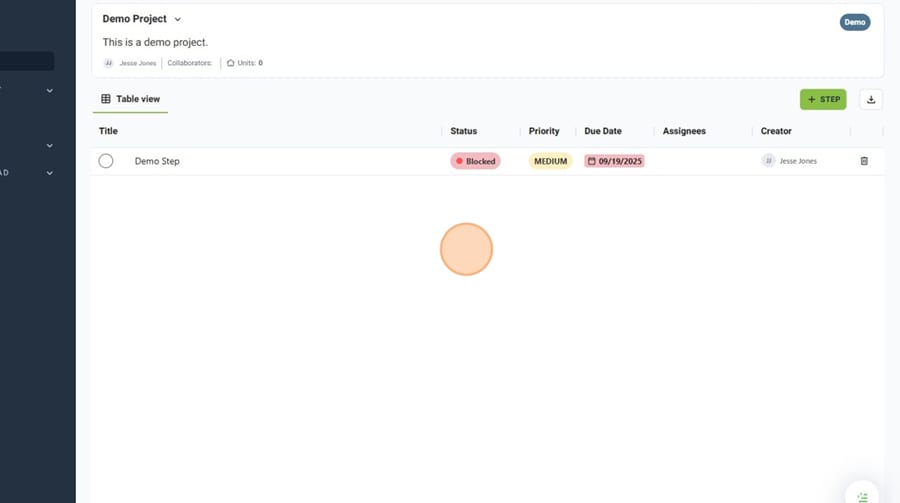
4. Select the Step you wish to edit
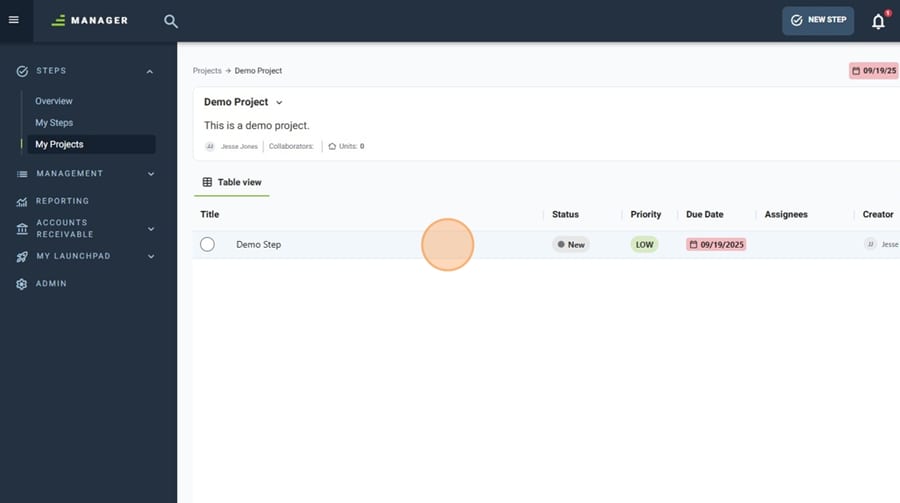
5. You can update the Title of the Step using the "Title:" field
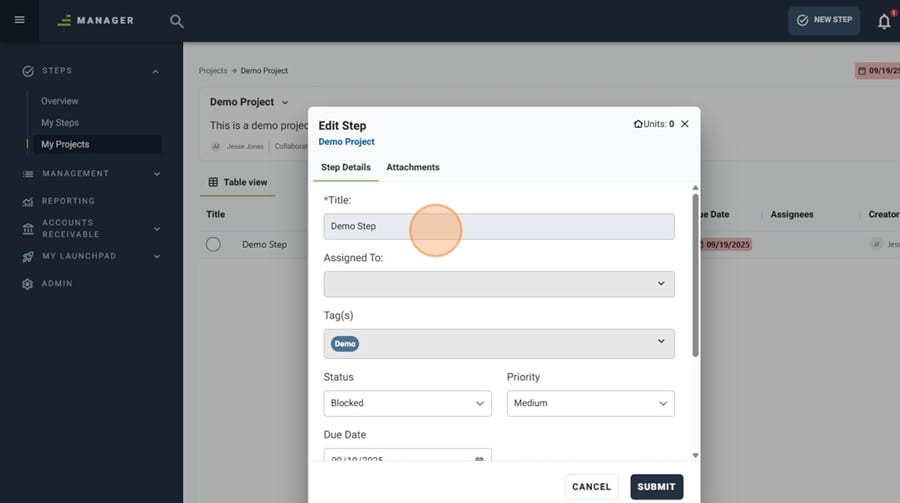
6. Use the "Status" dropdown if you need to update the status of the Step
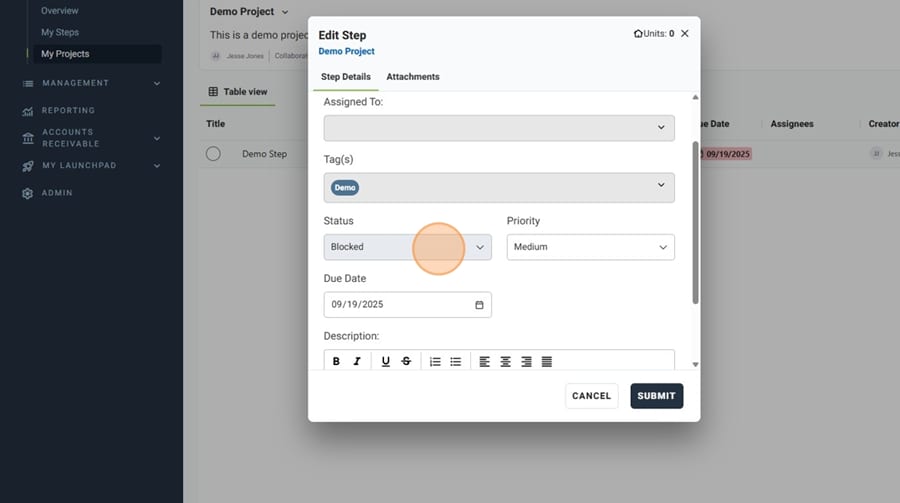
7. Use the "Priority" dropdown to adjust the Step's priority, if needed
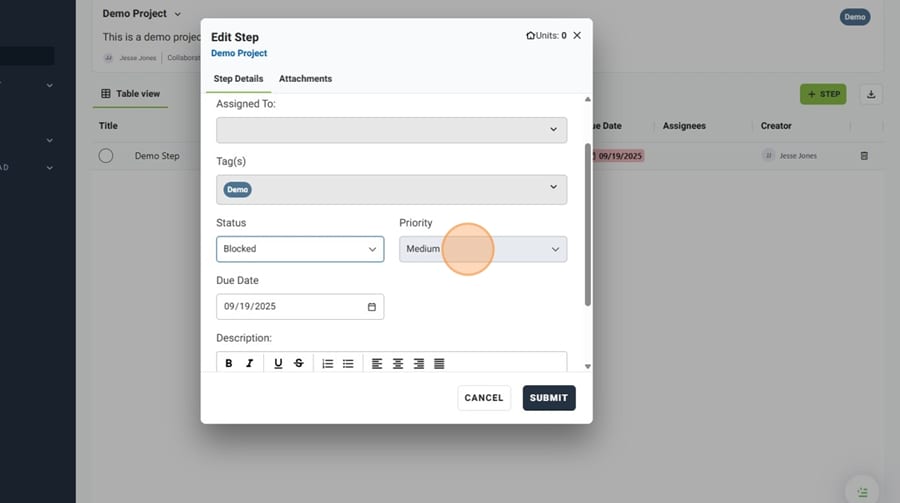
8. Use the "Due Date" date selector to update the due date of your Step
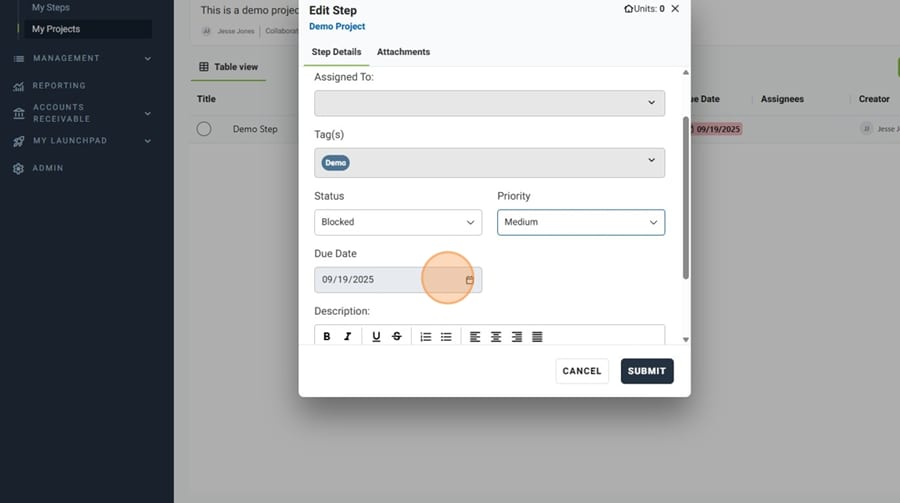
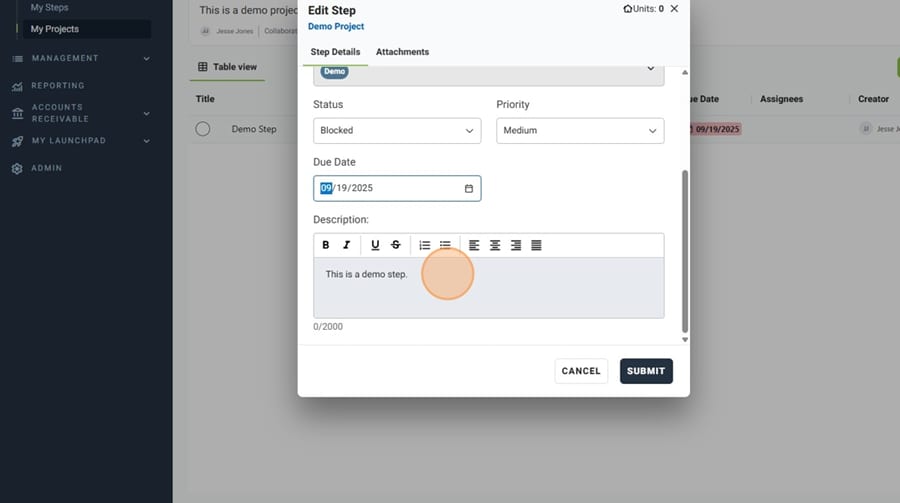
9. You can update the description of your Step using the "Description:" field
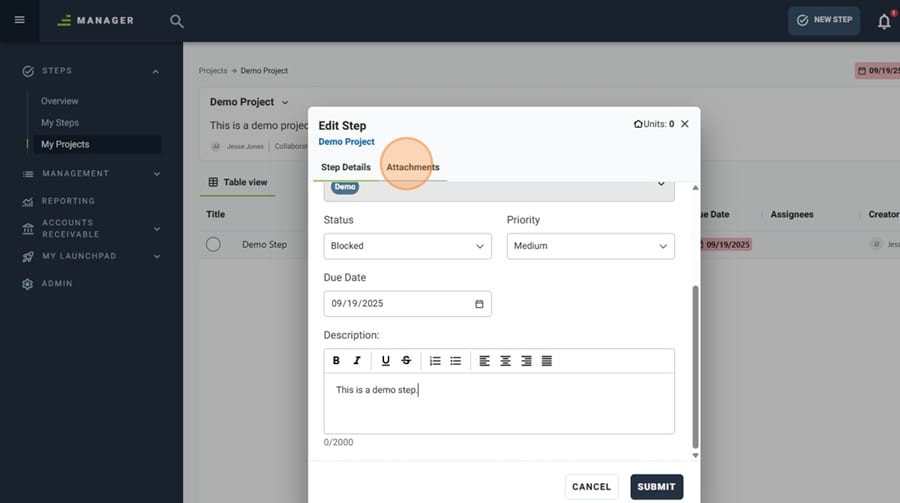
10. If you wish to upload any new attachments to a Step, click the "Attachments" tab
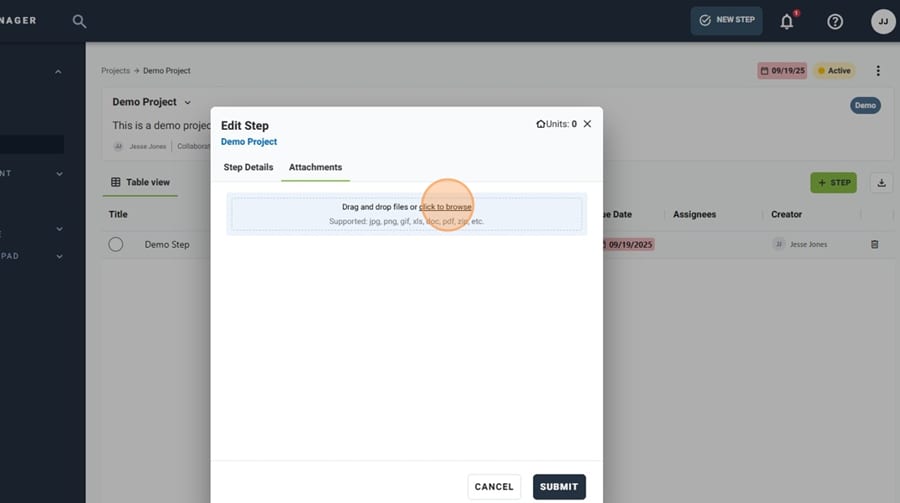
11. Drag and drop your files or select "click to browse" to browse for your files
12. Once you have finished editing your Step, click "SUBMIT"
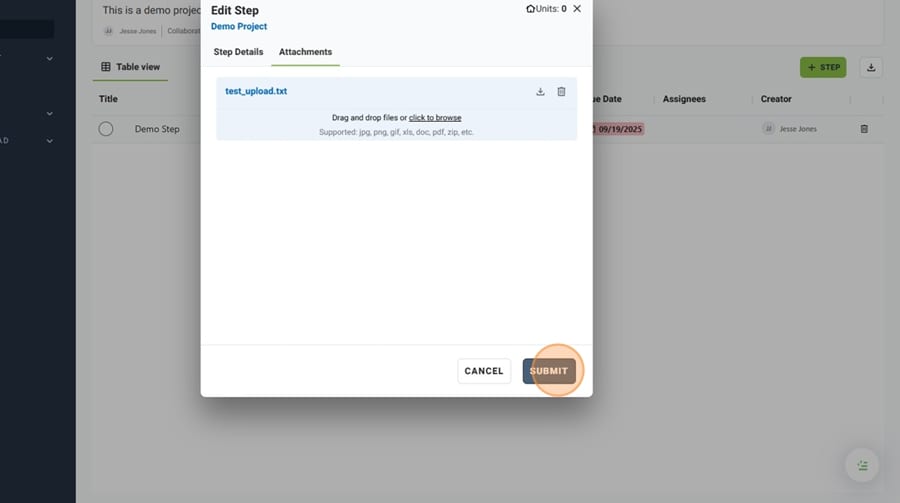
13. You have successfully updated a Step within a Project!