
How to Create or Import Budgets
Budgeting Toolbox
This Toolbox is used to create, update, import, and export budgets. Caliber makes it easy to enter and review budget data in a customizable layout.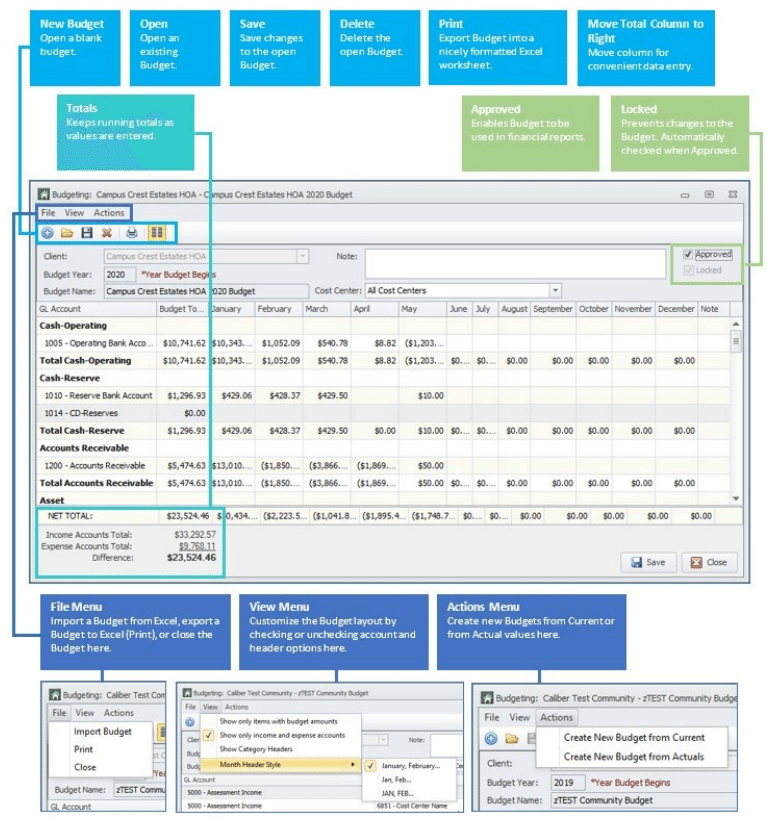
Creating a Budget
Before a budget can be created for a client, a Chart of Accounts must be in place for that client. If a Chart of Accounts already exists, but the budget includes a new account, the new account must be created for the client in the Chart of Accounts before an amount can be entered for it.Once started, budgets can be saved and closed at any time, even if not yet complete.
Creating a New Budget Manually
To create a new budget in Caliber manually:1. Go to the top ribbon and select Accounting > Budgeting.
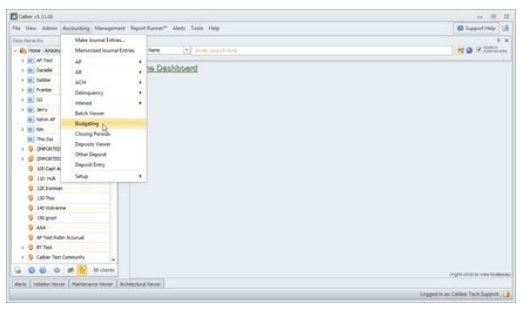
2. Click the New Budget icon at the top left of the Budgeting Toolbox.
3. Use the pull-down menu to select the client. The client’s Chart of Accounts will automatically be populated.
If accounts do not automatically populate, you may have the ‘Show only items with budget amount’s option selected. Open the View menu at the top to deselect this option.
4. Enter the Budget Year.
The Budget Year is the year that the budget is effective as of, regardless of the client being using a fiscal or calendar accounting year. Using the wrong year may affect the Budget Comparison report and result in a ‘No approved budget for the specified year’ message being displayed.
5. Enter a Budget Name.
6. If the total budgeted amount for a GL Account is dispersed equally each month, enter the total amount in the Budget Total column to the left. Caliber will automatically populate the monthly values for the account.
7. If the amounts are not dispersed equally each month, each amount must be entered manually. The Move Total Column to Right icon can be used to move the Budget Total column to the far right, if desired.
8. Click Save once the budget has been entered.
9. To prevent users from accidentally changing the budget once it has been entered, the ‘Locked’ option at the top right can be checked before saving the budget.
10. Once the budget has been approved, the ‘Approved’ option must be checked and the budget saved before the budget can be used for financial reports.
If this is not done, a ‘No approved budget for the specified year’ message will be displayed when the Budget Comparison report is run.
Creating a New Budget from the Current Budget
A new budget can be created by making a copy of the current budget. This new budget can be an exact copy, or the amounts can be increased by a percentage. If a percentage is entered, it applies to all accounts. If the percentage only applies to some accounts, the amounts for those accounts will need to be entered manually.To create a new budget from the current budget:
1. Go to the Budgeting Toolbox and use the pull-down menu to select the client as before.
2. If the client has more than one prior budget, select the current one.
3. At the top ribbon, click Actions > Create New Budget from Current.
4. The Budget Increase/Decrease Toolbox will open.
If the current budget is to be used without making any changes, enter a zero in the Percent Change field
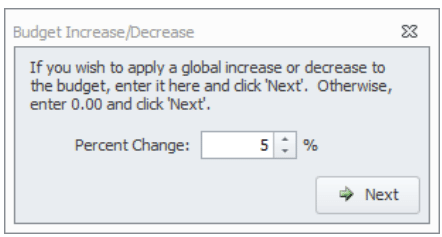
To increase the current budget by a certain percentage, enter the percentage in the Percent Change field.
To decrease the current budget by a certain percentage, enter the percentage as a negative in the Percent Change field. This is one of only a few exceptions to the Do Not Use Negative Numbers rule in Caliber.
5. Click Next.
6. The new Budget opens and the Budget Year is increased by one. From here, the process described above is used.
7. Click Save when done. If the budget is not named before saving, a default name is assigned in the following format: “[Budget Year] – Budget”.
8. To prevent users from accidentally changing the budget once it has been entered, the ‘Locked’ option at the top right can be checked before saving the budget.
9. Once the budget has been approved, the ‘Approved’ option must be checked and the budget saved before the budget can be used for financial reports.
If this is not done, a ‘No approved budget for the specified year’ message will be displayed when the Budget Comparison report is run.
Creating a New Budget from Current Year to Date Actuals
A new budget can be created from the actual account values for the current year. If the current year is not complete, the amounts used will be for the current Year to Date.To create a new budget from the actual values:
1. Go to the Budgeting Toolbox and use the pull-down menu to select the client as before.
2. At the top ribbon, select Actions > Create New Budget from Actuals.
3. Select the client and period from the dropdown menus.
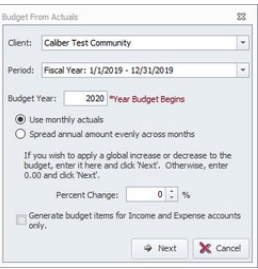
4. Enter the Budget Year.
5. Choose an option for monthly amounts – ‘Use monthly actuals’ or ‘Spread annual amount evenly across months.’
6. If there is to be no increase from the actuals, leave the Percent Change field The Budget Increase/Decrease Toolbox will open.
If a percentage is entered, it applies to all accounts. If the percentage only applies to some accounts, the amounts for those accounts will need to be entered manually.
If there is to be a percent increase from the actuals, by a certain percentage, enter the percentage in the Percent Change field. If there is to be a percent decrease from the actuals, enter the percentage as a negative in the Percent Change field. This is one of only a few exceptions to the Do Not Use Negative Numbers rule in Caliber.
7. If filtering the budget to only income and expense accounts, check the box for Generate budget items for Income and Expense account only.
8. Click Next.
9. Enter a Budget Name.
10. Click OK.
11. Click Save when complete.
12. To prevent users from accidentally changing the budget once it has been entered, the ‘Locked’ option at the top right can be checked before saving the budget.
13. Once the budget has been approved, both the ‘Locked’ and ‘Approved’ options need to be checked and the budget saved before the budget can be used for financial reports.
If this is not done, a ‘No approved budget for the specified year’ message will be displayed when the Budget Comparison report is run.
Importing a Budget from Excel
A new budget can be created in Caliber by importing an Excel spreadsheet using a data import process that can be saved for future use. If Cost Centers are being used, they can all be on the same spreadsheet.
To import an Excel spreadsheet, it must be in an Excel 97-2003 (*.xls) format.
To use the saved import process, all future spreadsheets must have the exactly the same column order as the original spreadsheet. If the columns are in a different order, the data will not be imported into the correct fields.
To import a budget from Excel:
1. From the Budgeting Toolbox click File > Import Budget.
2. Select New Process, then click Open. The Data Import Configuration Toolbox will open.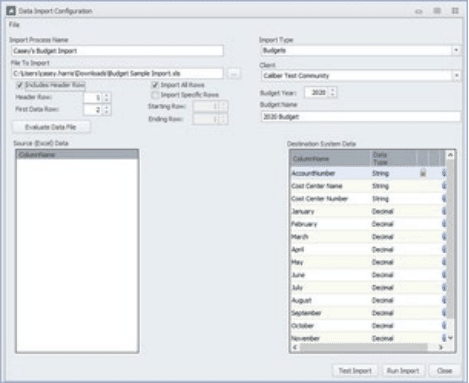
3. Enter an Import Process Name that the import will be saved under.
4. Click the browse icon to select the Excel spreadsheet containing budget data.
5. Check the boxes for ‘Includes Header Row’ and ‘Import All Rows.’
6. Select the client that the budget is for.
7. Select the Budget Year.
8. Enter a Budget Name.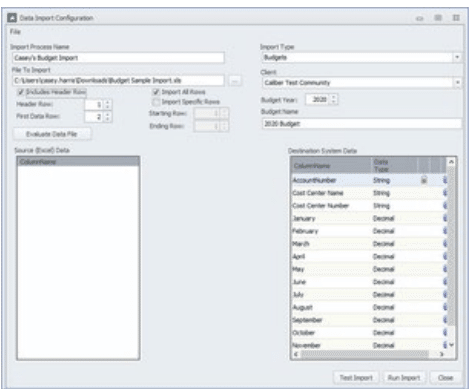
9. Click the Evaluate Data File button. The column headers from the Excel worksheet will populate into the Source (Excel) Data list.
10. Click and drag the column names from Source (Excel) Data list to the corresponding column names in Destination System Data list. This creates a link between the data and the field that the data will be imported into. Repeat until all necessary columns have been mapped.
If a specific link gets mapped to the wrong field. click either end of a link to select it. Then right-click for the options to ‘Delete Selected Link’ or ‘Clear all Links.’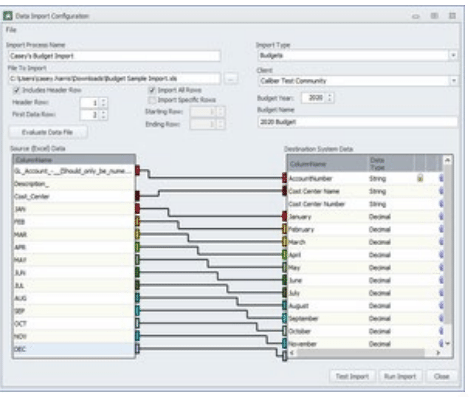
11. Click the Test Import button to verify the links between the columns.
12. Click Yes to view the results of the import.
13. Verify that the Source Data and Output Data columns match appropriately.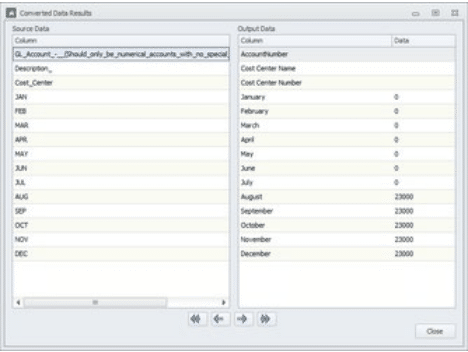
14. Click Close to return to the Data Import Configuration window.
15. Click Run Import.
16. Click Yes to acknowledge the statement that multiple rows per account will not be imported.
17. Click OK to confirm that the import has been completed successfully.
18. Click Close to return to the Budgeting Toolbox.
19. Click the Open icon to view the budget that was imported.
20. To prevent users from accidentally changing the budget once it has been entered, the ‘Locked’ option at the top right can be checked before saving the budget.
21. Once the budget has been approved, both the ‘Locked’ and ‘Approved’ options need to be checked and the budget saved before the budget can be used for financial reports.
If this is not done, a ‘No approved budget for the specified year’ message will be displayed when the Budget Comparison report is run.
Budget Reports
Once a budget has been approved, the Approved and Locked boxes must be checked in order to use that Budget with any of the Budget-based reports.
When that has been done, the reports below can be generated from the Reporting Toolbox at the Client Dashboard:
- Annual Budget Report Page
- Budget Comparison 12 Months
- Budget Comparison Report
- Budget Comparison Report Alternate Sort
- Budget Comparison Report by CC (Cost Center)
- Budget Comparison Summary Report
- Budget Evaluation Report
- Client Approved Budget Report
Frequently Asked Budget Questions
- Our fiscal year is October – September, not a calendar year. What Budget Year do I specify?
- The Budget Year is the year that the budget is effective as of, regardless of the client being using a fiscal or calendar accounting year. Using the wrong year may affect the Budget Comparison report and result in a ‘No approved budget for the specified year’ message being displayed.
- Why am I seeing a message box stating, "There is no approved budget for the selected Client, this report cannot be run until an approved budget is selected," when attempting to run a Budget Comparison report?
- Make sure that both the ‘Locked’ and ‘Approved’ boxes are checked in the top right corner of the Budgeting Toolbox. Also make sure that the Budget Year is correct.
- Why don’t GL accounts appear after I select the Client when creating a new budget?
- The ‘Show only items with budget amounts’ option may be selected. Open the View menu to deselect this option. When selected, this option hides accounts that do not have a value entered.
- How do I remove extra lines with $0 amounts after entering a budget?
- In the Budgeting window, open the View menu and select the ‘Show only items with budget amounts option.’ This option hides accounts that do not have a value entered.
- What can I send to my board members to review and approve the budget?
- You can generate any of the reports mentioned in the Budget Reports section above or export the budget into an Excel worksheet by clicking the Print icon.