How To Create and Edit a Vendor
How To Create and Edit a Vendor in FRONTSTEPS Manager
This guide walks you through creating a new vendor in FRONTSTEPS Manager, focusing on entering and later editing the vendor's General Information. It also covers the optional step of assigning the vendor to specific communities or divisions while creating it.
-
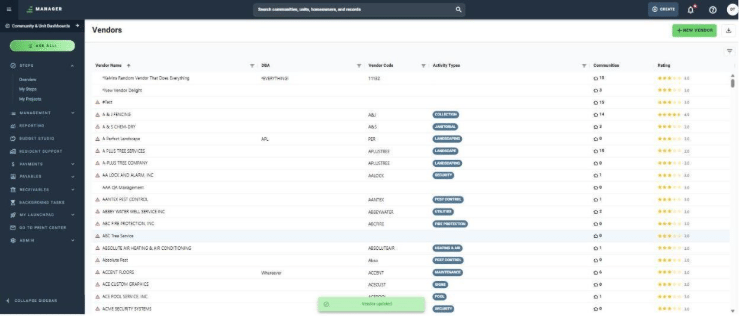
In the left-hand menu, click "Payables," then click "Vendors" to open the vendor list.
-
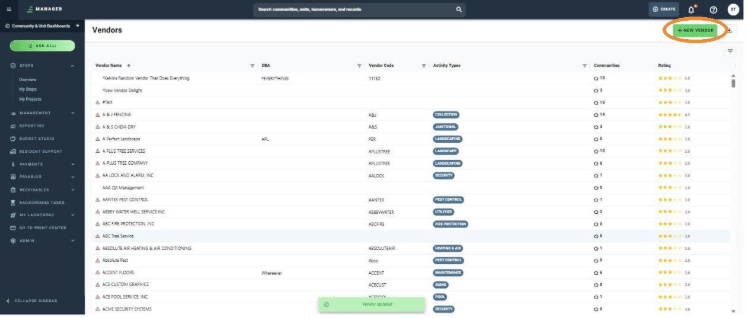
Click "+ NEW VENDOR" to open the new vendor form.
-
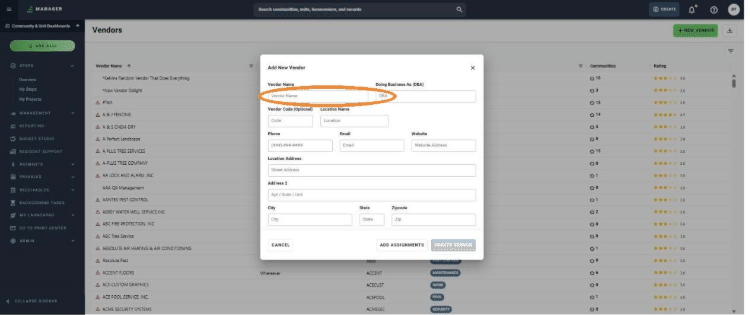
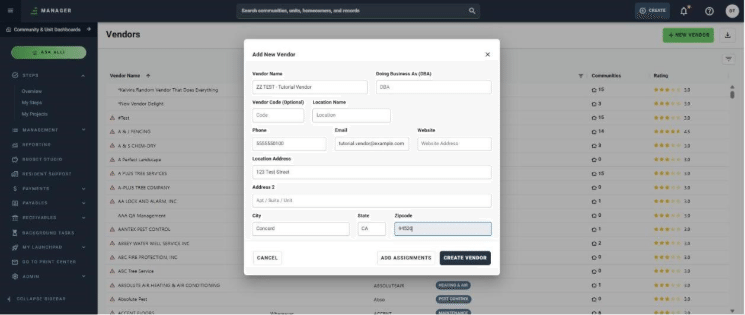
The "Add New Vendor" form opens. Enter the vendor's name in the "Vendor Name" field — this is the only field required to create the vendor.
-
Fill in any additional General Info you have on hand — Doing Business As (DBA), Vendor Code, Location Name, Phone, Email, Website, and Location Address. None of these are required, but entering them now saves you from adding them later.
-
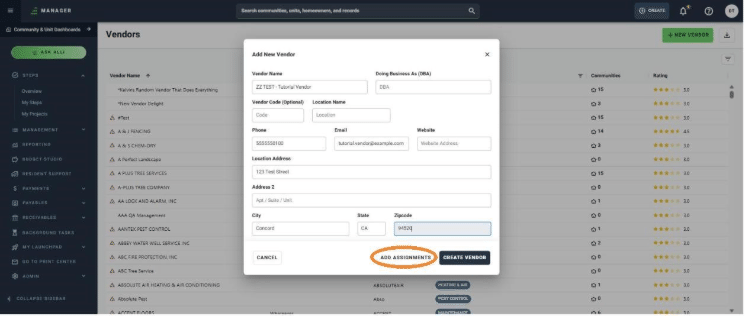
(Optional) To assign this vendor to specific communities or divisions right away, click "ADD ASSIGNMENTS." If you'd rather skip this for now, go to step 8 — you can always assign communities later from the vendor's "Community Assignments" tab.
-
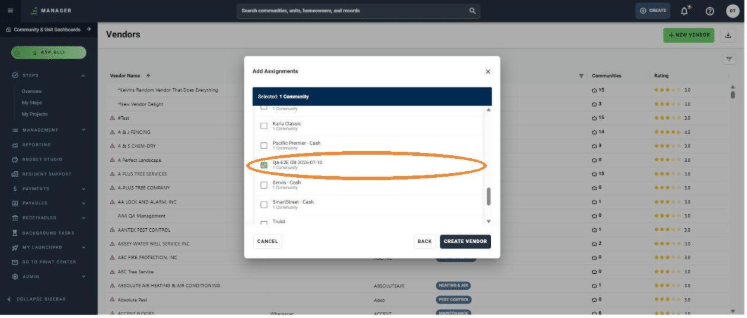
Check the box next to each community or division you want to assign to this vendor. The header updates to show how many communities are currently selected.
-
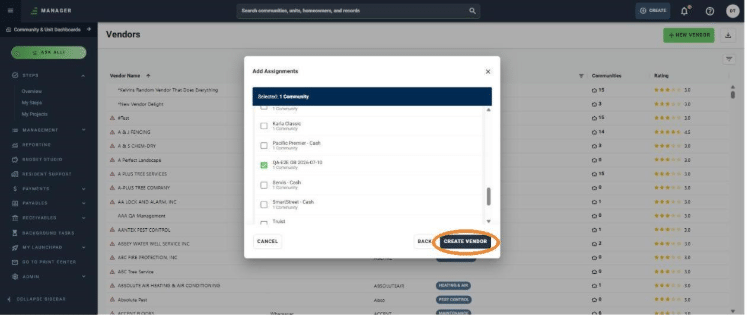
Once you've made your selections, click "CREATE VENDOR" to save the vendor with its assignments.
-
If you skipped assignments, click "CREATE VENDOR" directly from the main form instead to save the vendor.
Note: You can assign communities to a vendor at any time, whether or not you did it during creation — see step 15 at the end of this guide.
-
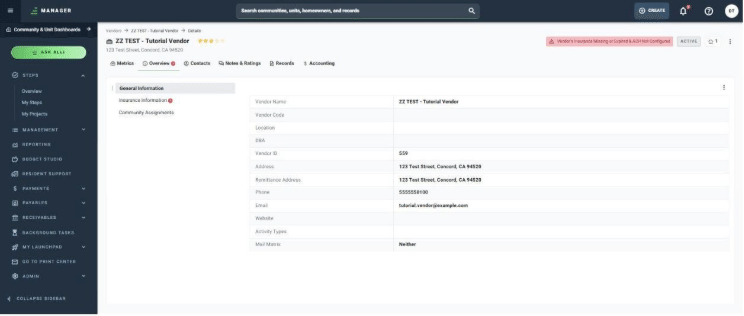
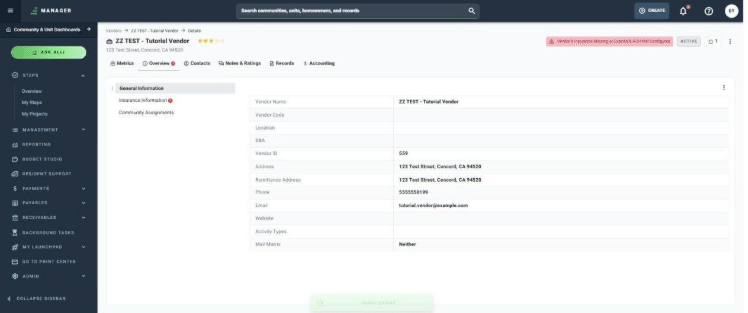
Once the vendor is created, you'll land on its General Information page, showing everything you entered.
-
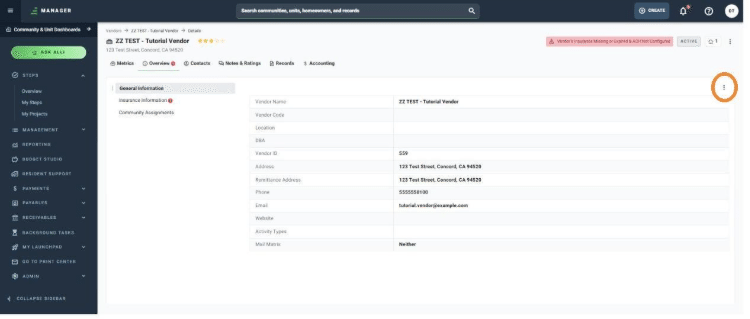
To edit General Info later, open the vendor's Overview tab and click the three-dot menu button in the top-right corner of the General Information panel.
-
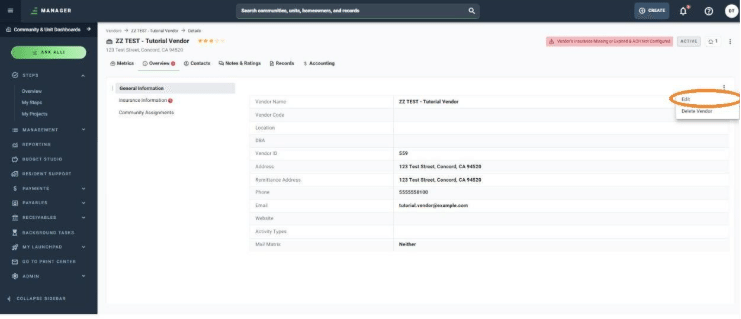
Click "Edit" from the menu.
-
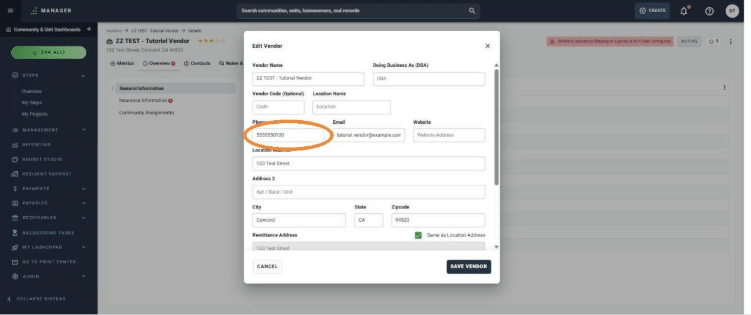
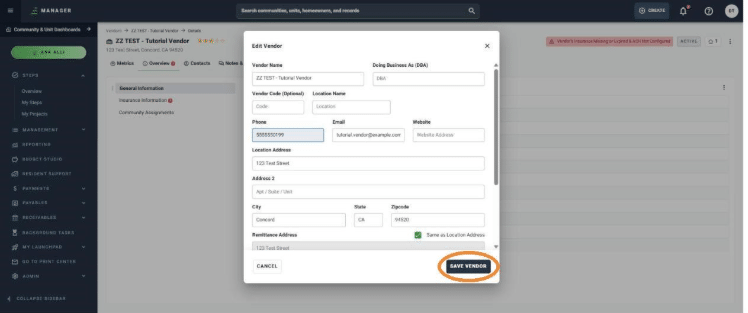
The Edit Vendor form opens, pre-filled with the vendor's current information. Update any field you need — for example, click into the Phone field to correct a phone number.
-
After making your changes, click "SAVE VENDOR."
-
The vendor's information updates immediately, and a confirmation message appears at the top of the screen.
-
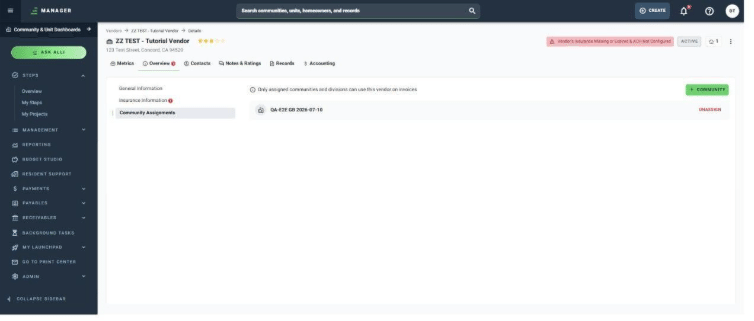
You can view or change a vendor's community and division assignments at any time from the "Community Assignments" tab on their profile, using "+ COMMUNITY" to add more or "UNASSIGN" to remove one.