How-to
FRONTSTEPS Manager
Managers & CAMs
How To Create a New Work Order
Article 000002222 · Updated Mar 31, 2026
How To Create a New Work Order in FRONTSTEPS Manager
This guide provides a straightforward, step-by-step process for creating a work order in FRONTSTEPS Manager, making it easy for users to report issues efficiently. By following these instructions, users can ensure that maintenance requests are submitted accurately and promptly, enhancing communication and service within their community. Whether you're a homeowner or a property manager, this guide simplifies the work order creation process, saving time and reducing frustration.
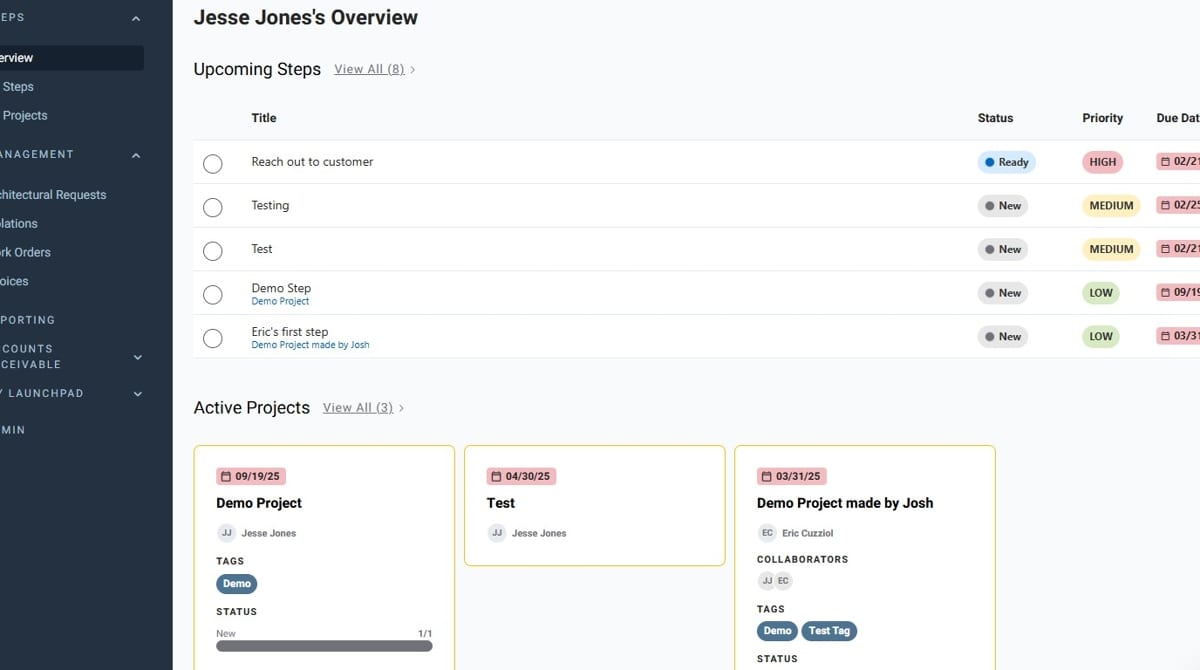
- Navigate to FRONTSTEPS Manager
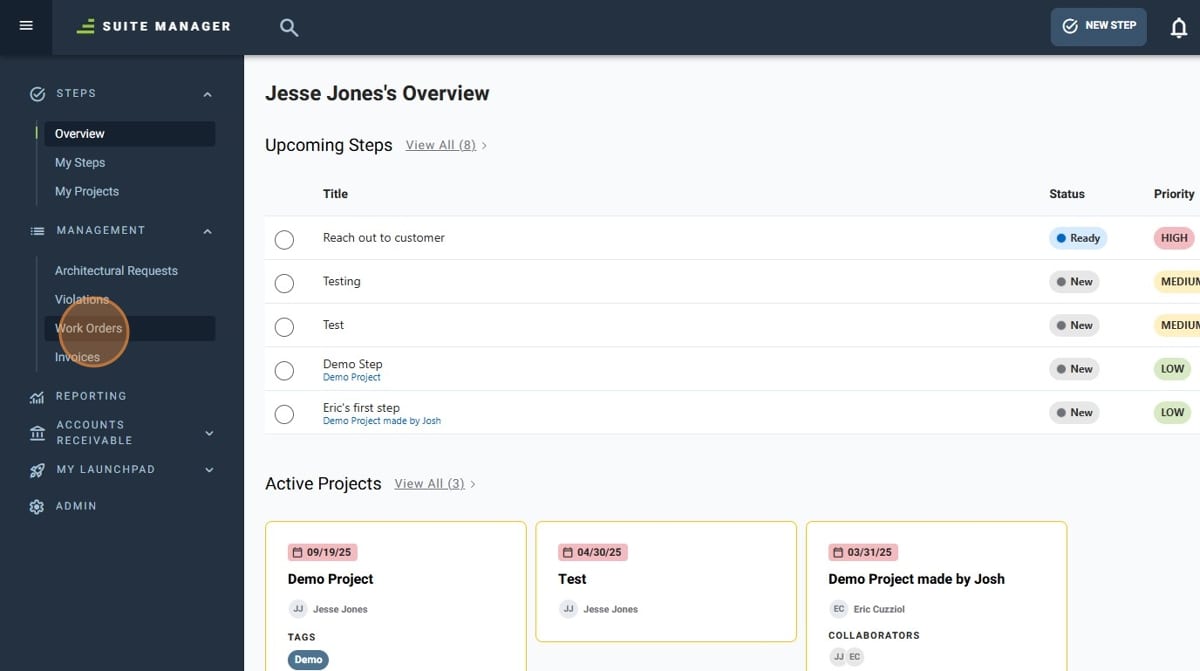
- Click "Work Orders" under the "Management" tab
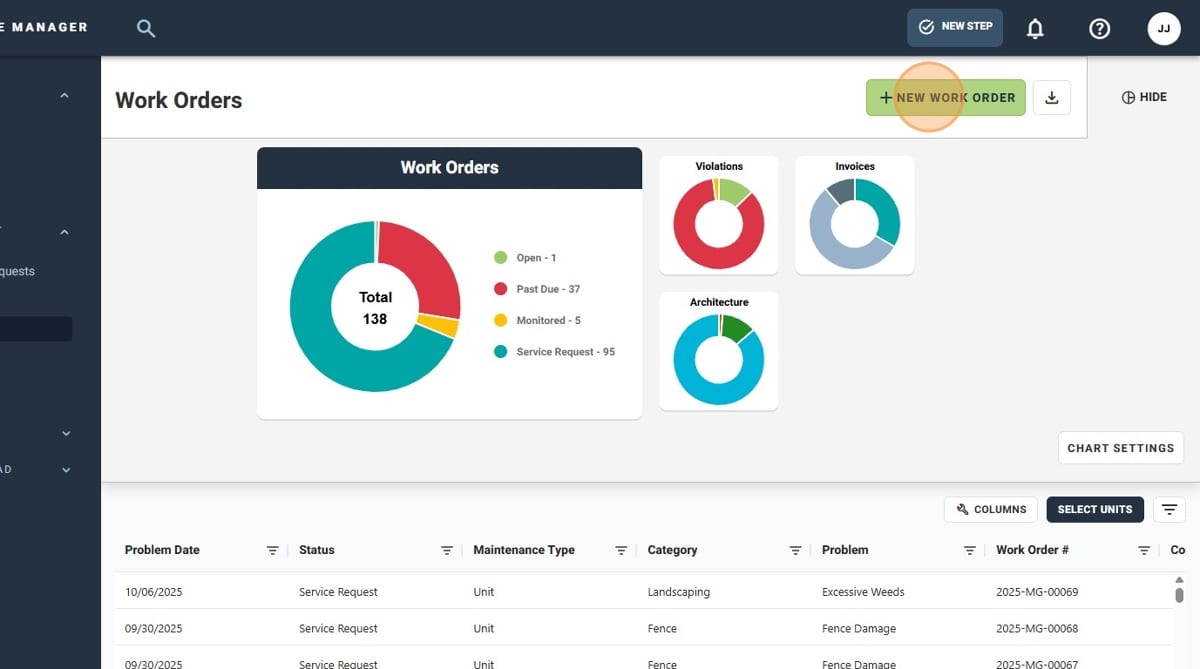
- Click "New Work Order"
- Using the search bar, search and select the unit the work order is being created for
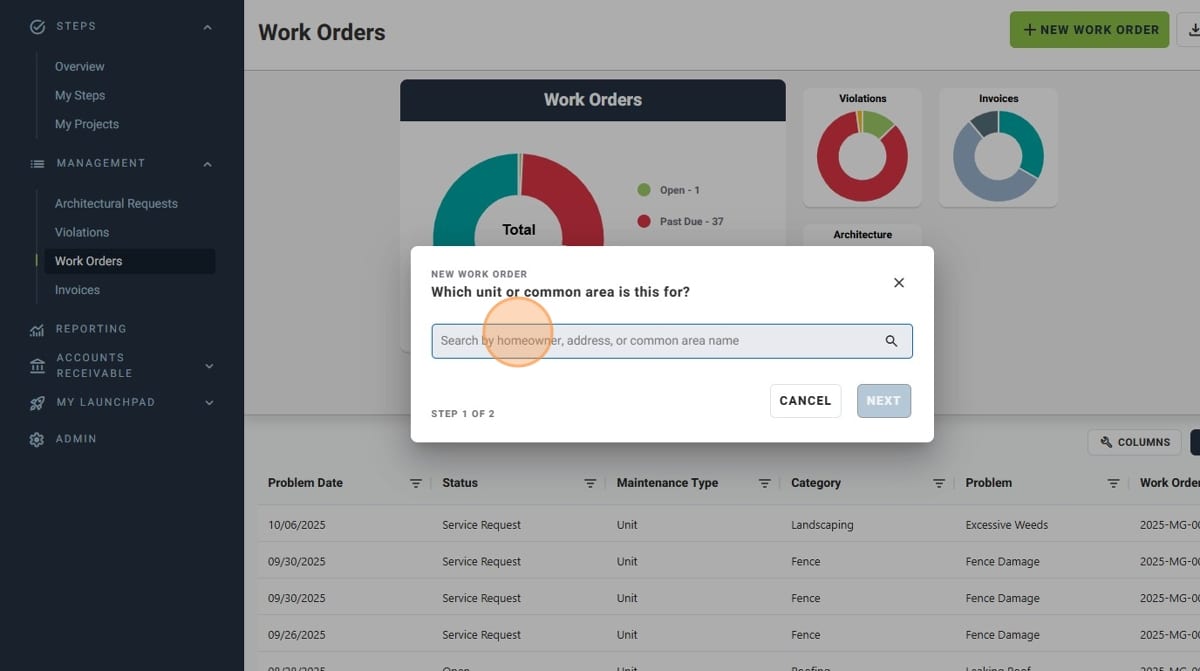
- Once you have selected the proper unit, click "Next"
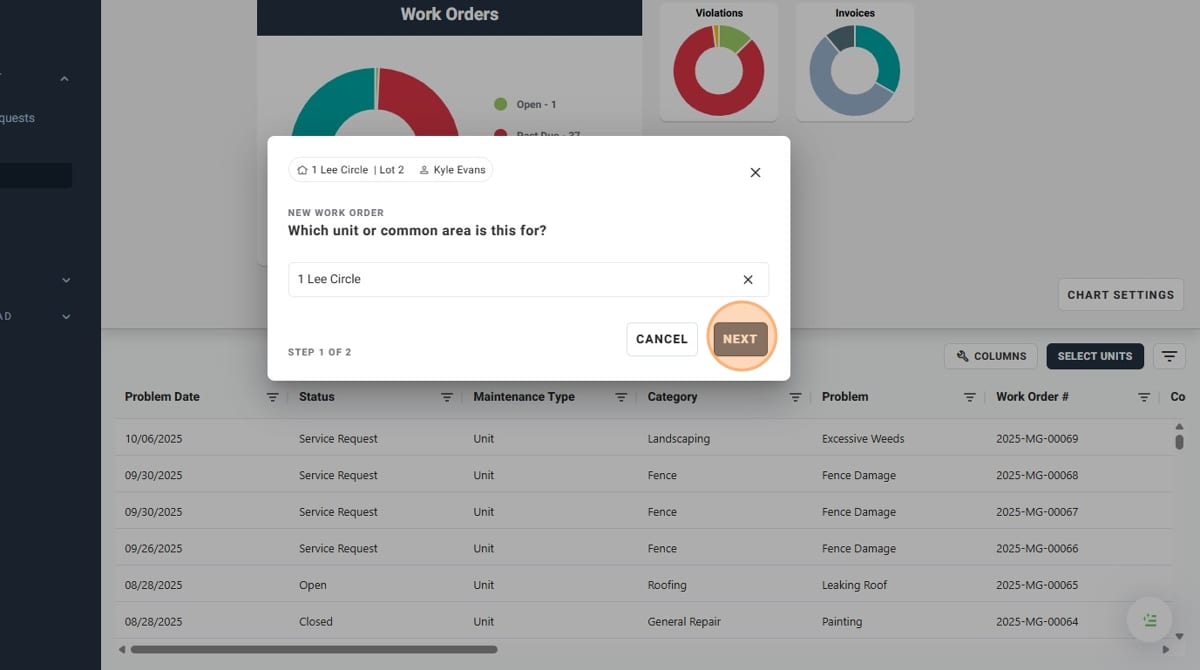
- Using the "Category" dropdown, select a category for your work order
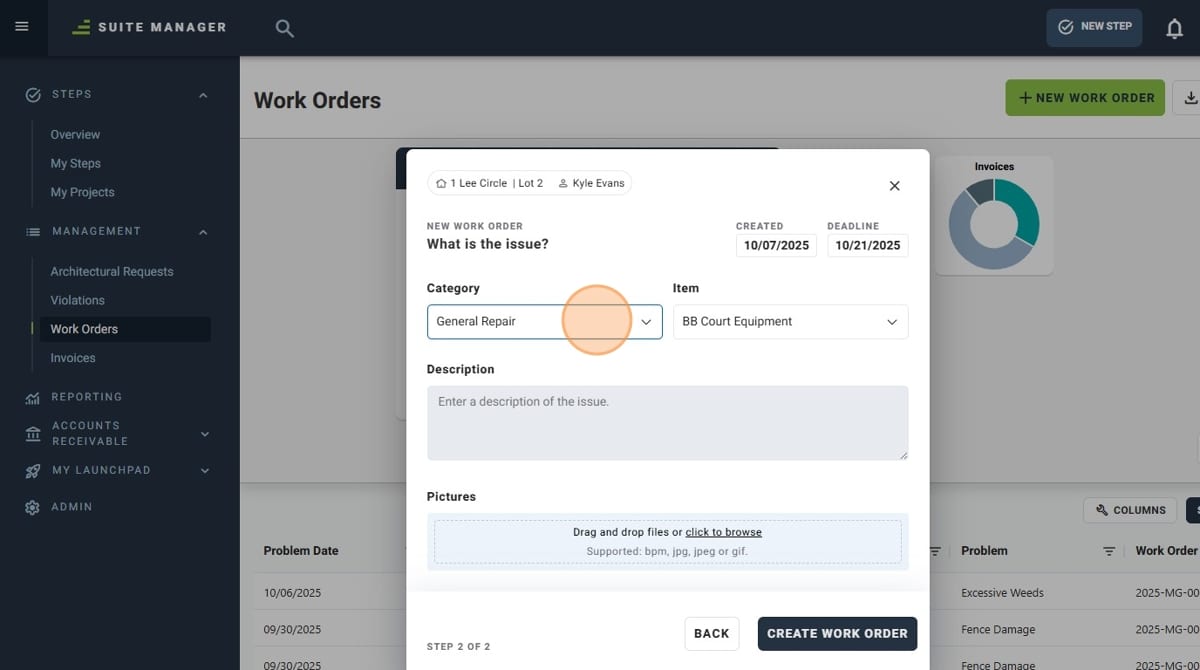
- After selecting a category, the "Item" dropdown will populate with options related to the category selected. Select the appropriate item
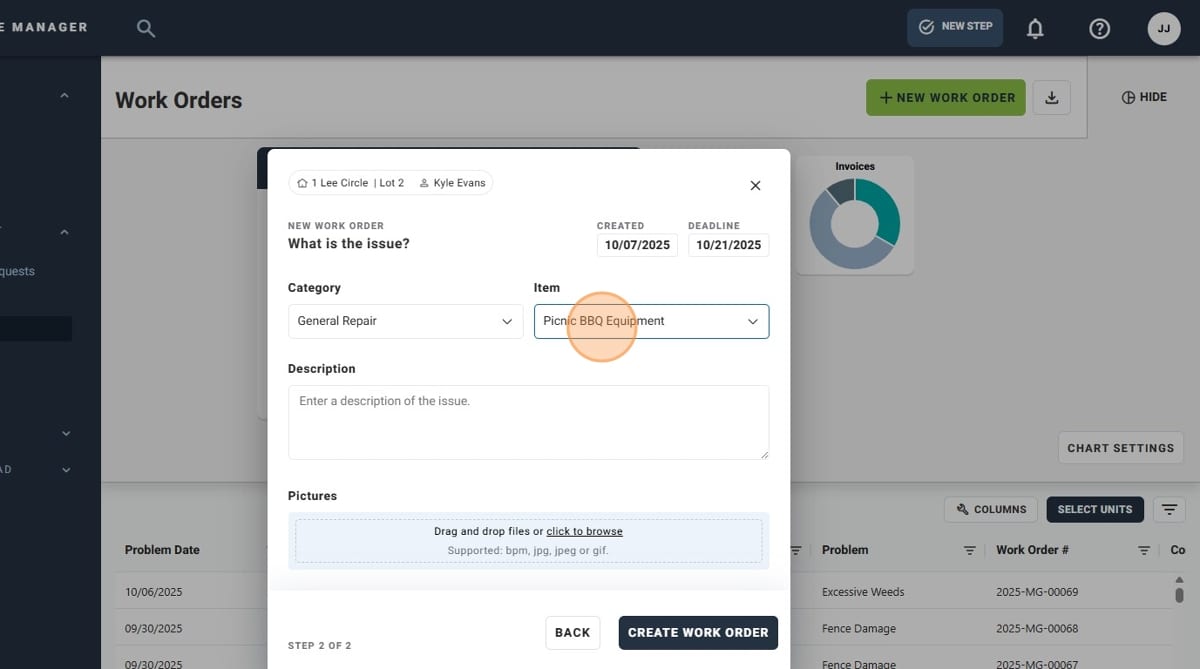
- Use the "Description" field to enter a description for your work order
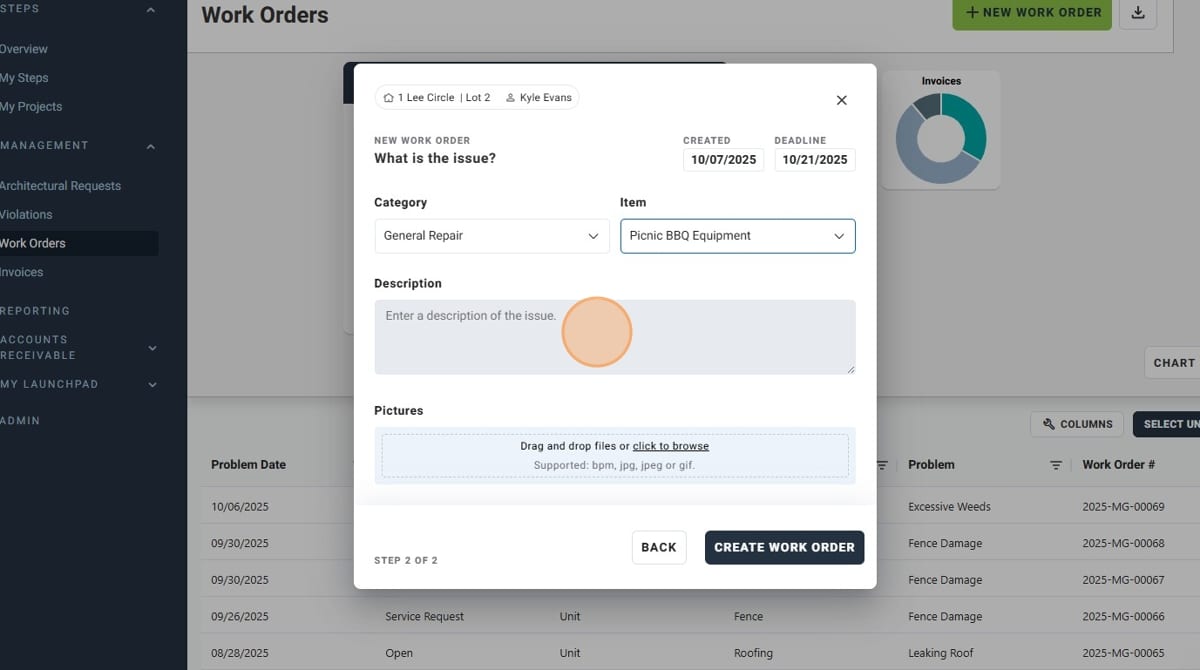
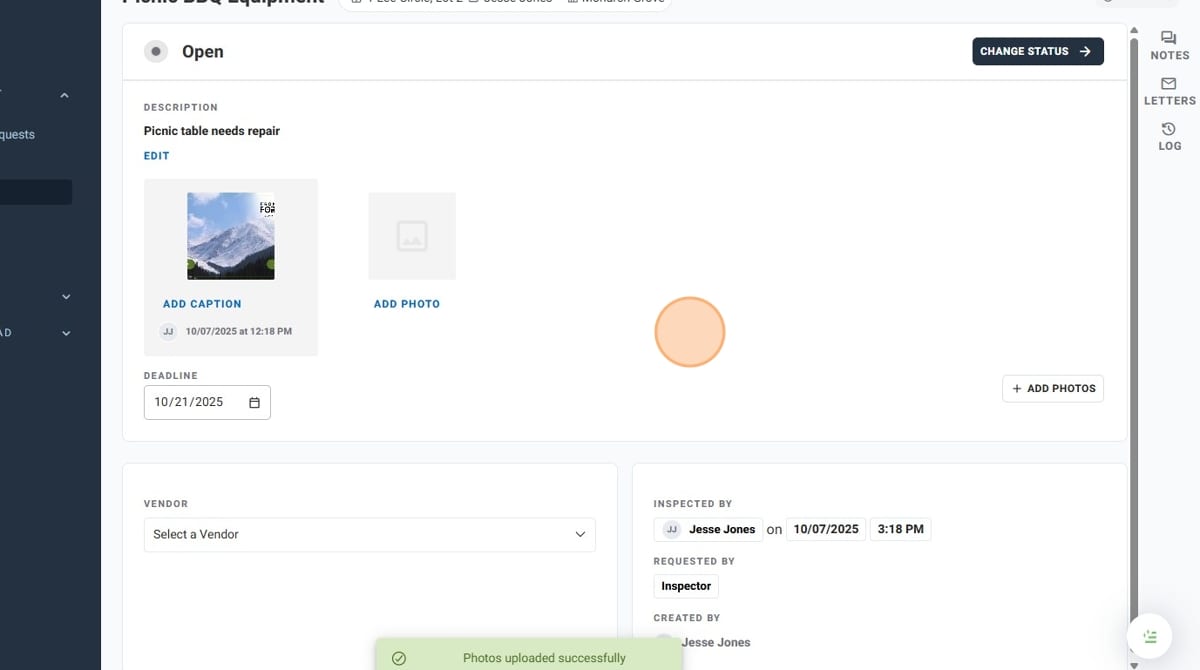
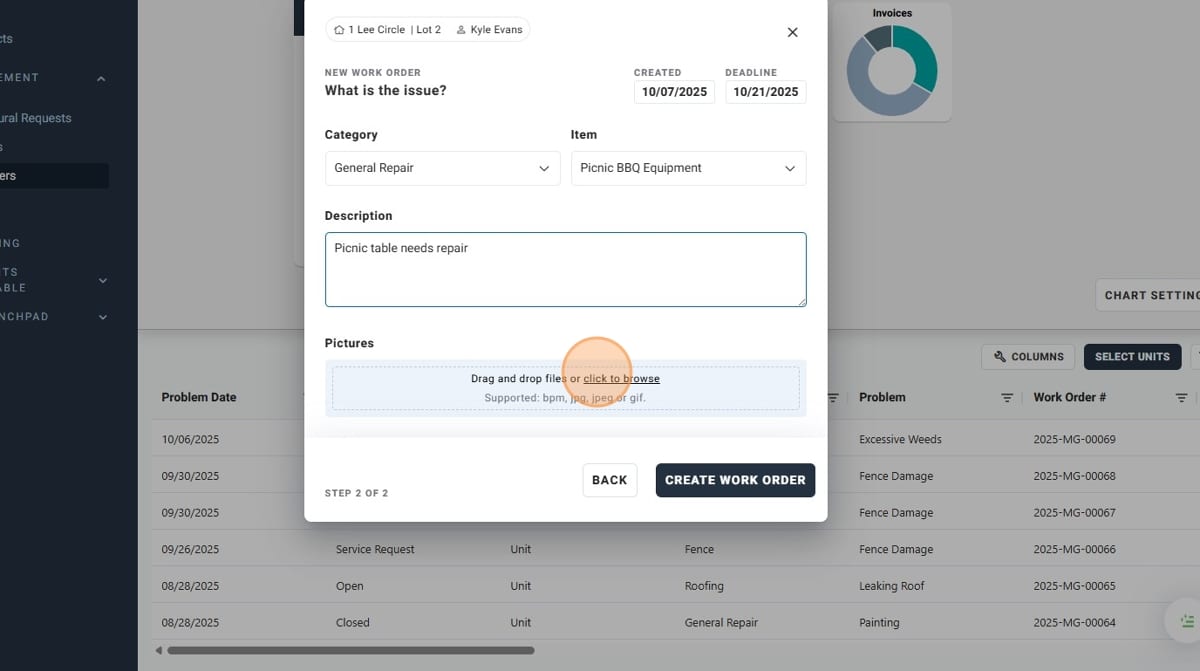
- If you need to add photos to your new work order, you can do so using the "Pictures" field. Either drag-and-drop or click to upload your photos
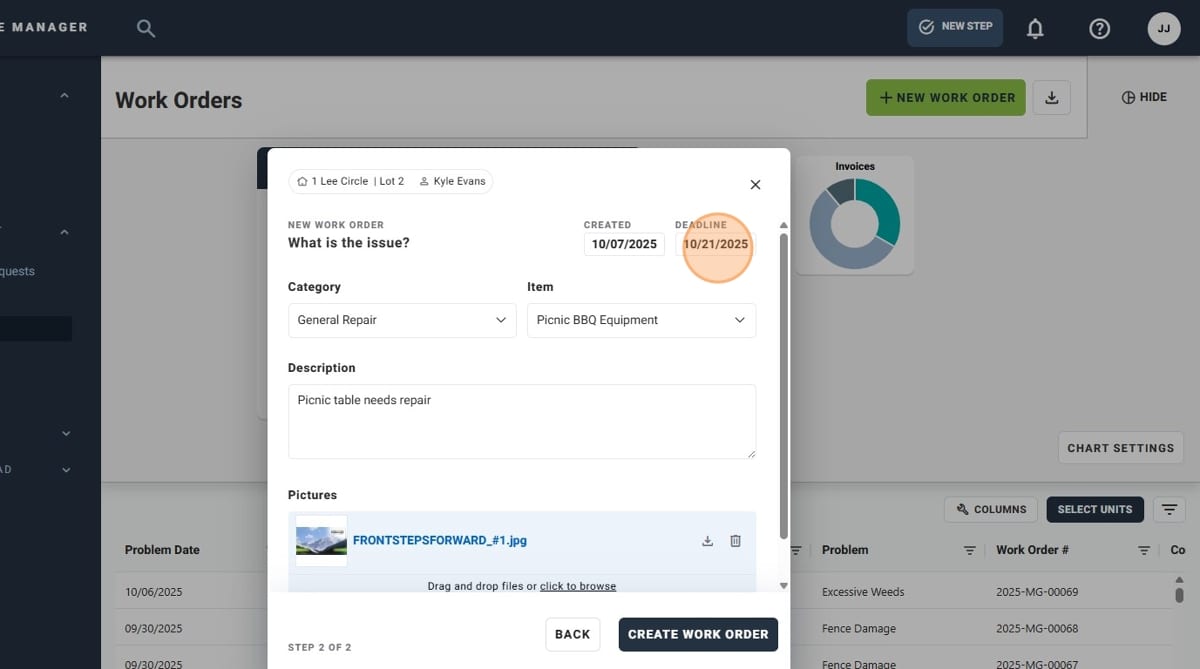
- You can change the "Deadline" by clicking the date. This will populate a calendar to select a deadline. By default, the deadline is set for 2 weeks from the "Created" date
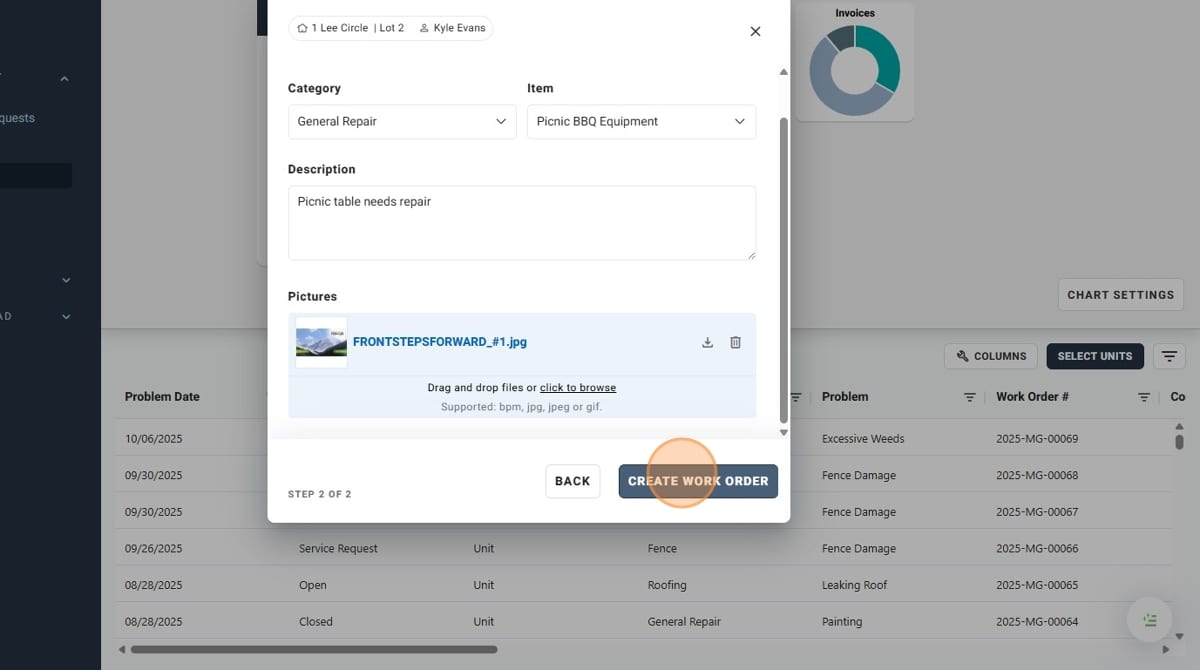
- When you are finished, double-check that the information is proper and click "Create Work Order"
- You have successfully created a new Work Order!