How To Create a New Step
How To Create a New Step in FRONTSTEPS Manager
This guide provides a straightforward, step-by-step process for creating a new step in the FRONTSTEPS Manager, making it easy for users to navigate and utilize the system effectively. By following these instructions, users can efficiently set up tasks, assign them to individuals, and manage related resources, enhancing their community management experience. Whether you're a beginner or looking to streamline your workflow, this guide is an essential resource for maximizing the platform's capabilities.
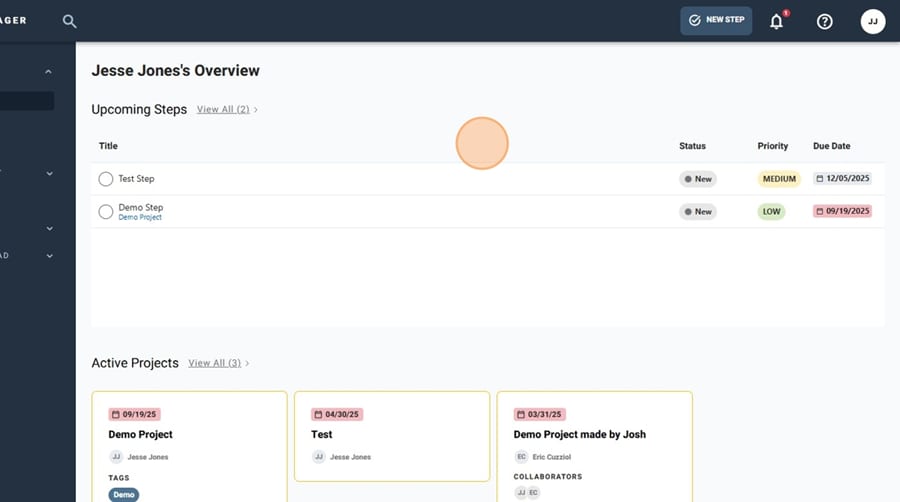
1. Navigate to FRONTSTEPS Manager
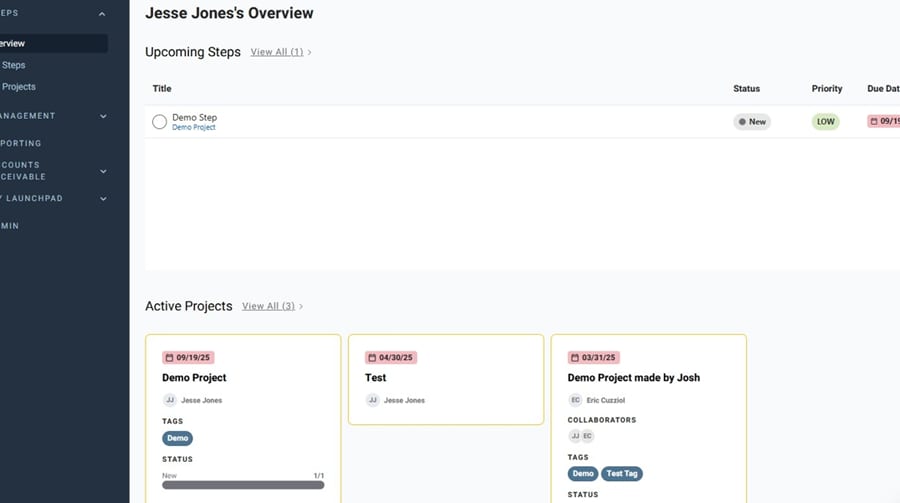
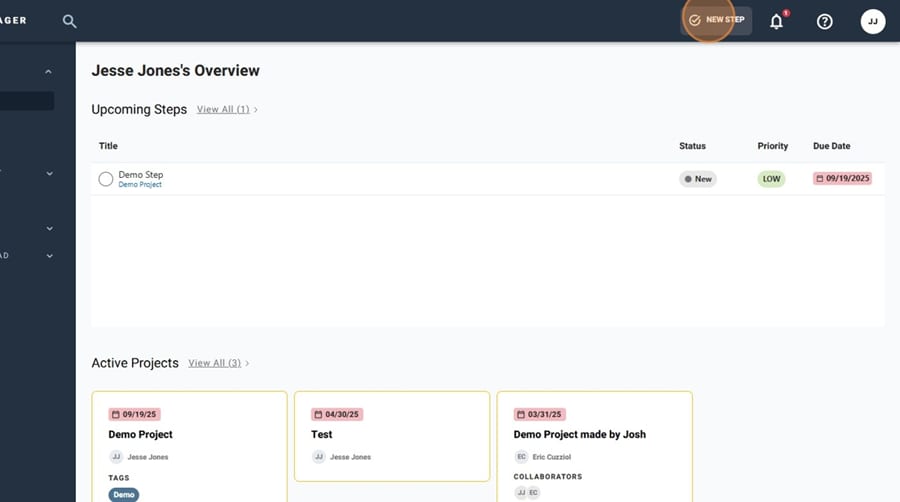
2. Click "New Step" in the upper right
3. Give your new Step a title
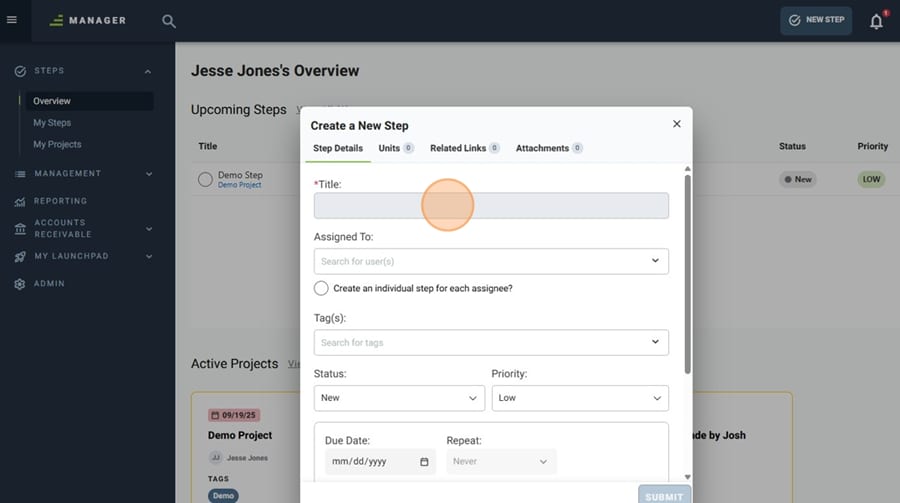
4. Use the "Assigned To:" dropdown to assign the Step to the desired users
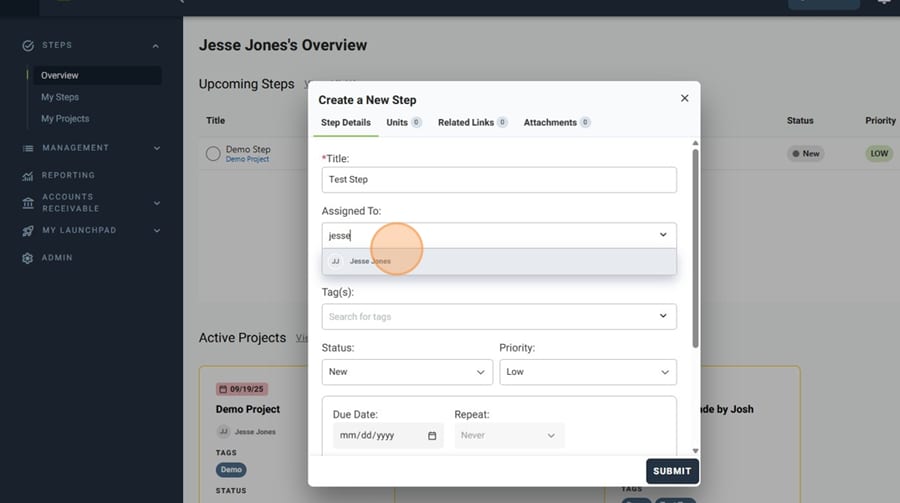
5. Use the "Tag(s):" field to add tags to your new Step
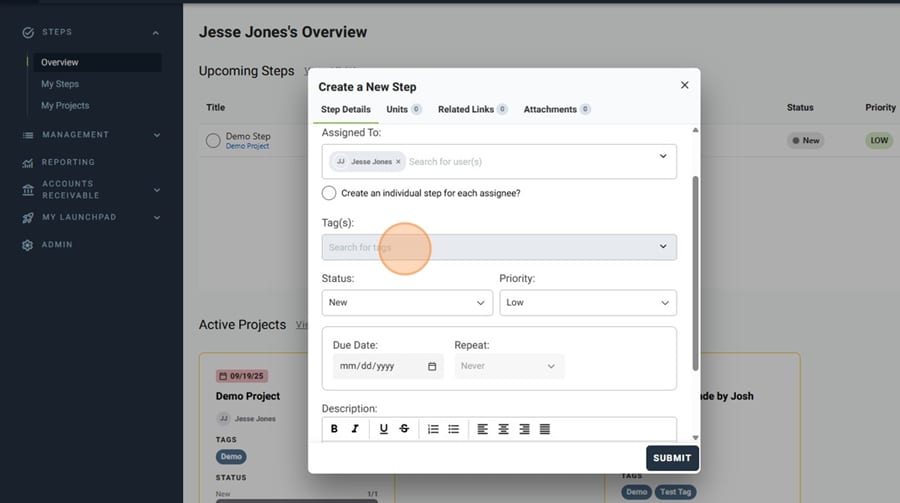
6. If needed, you can change the status of your new Step using the "Status:" dropdown
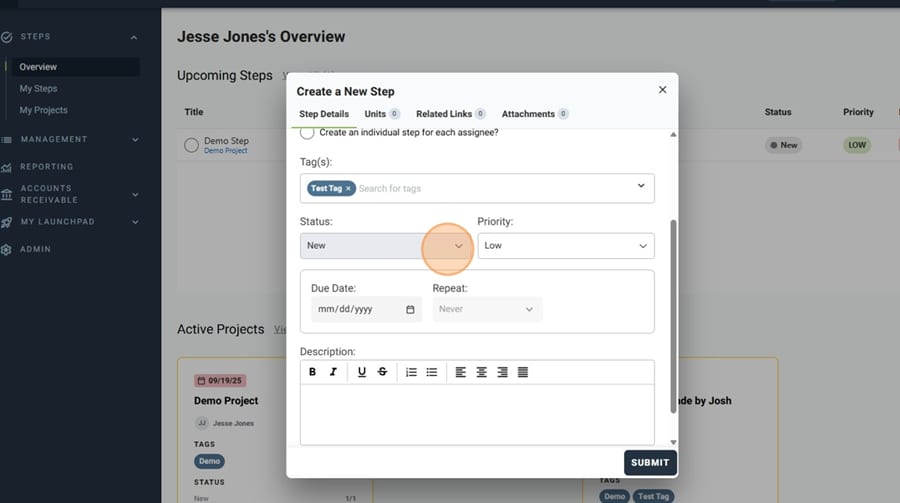
7. Use the "Priority:" dropdown to set the priority for your new Step
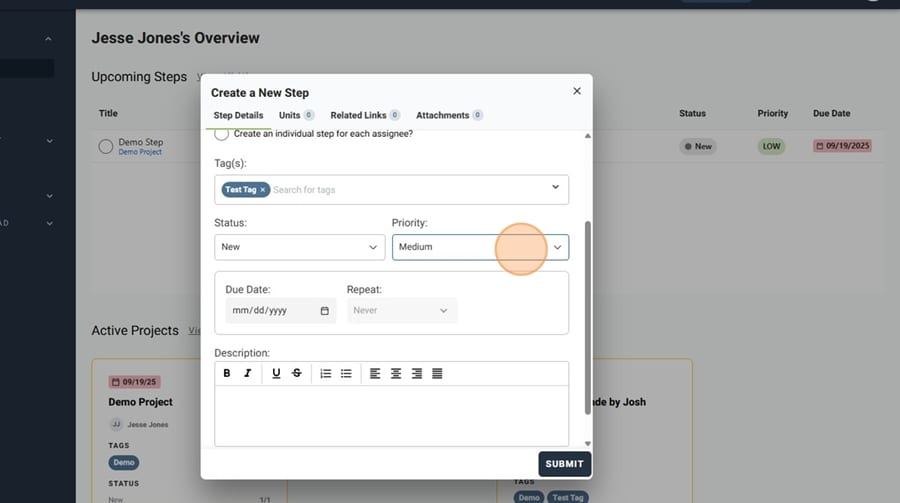
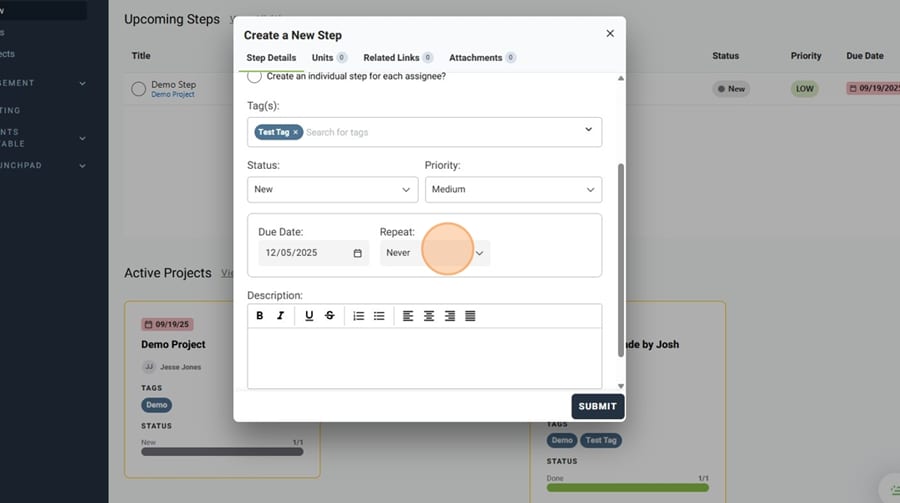
8. Use the "Due Date:" date selector to set a due date for your new Step
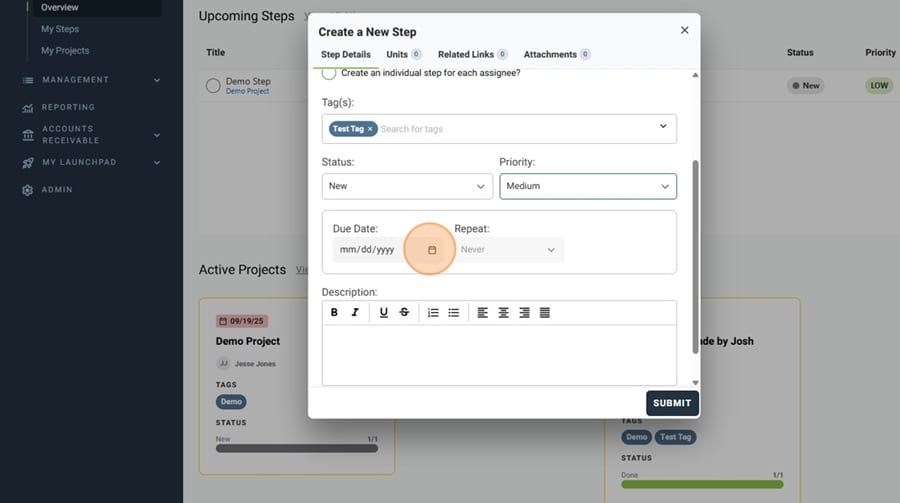
9. If this new Step will be recurring, you can set it up to repeat using the "Repeat:" dropdown
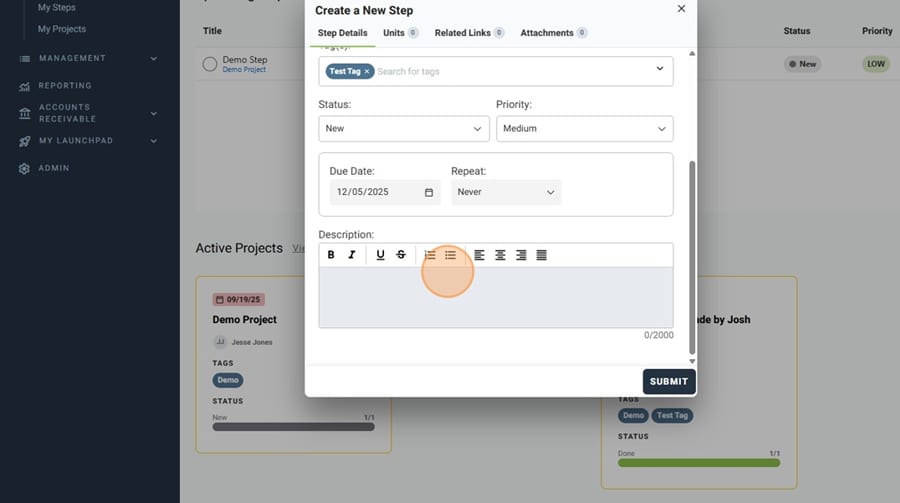
10. Give your new Step a description
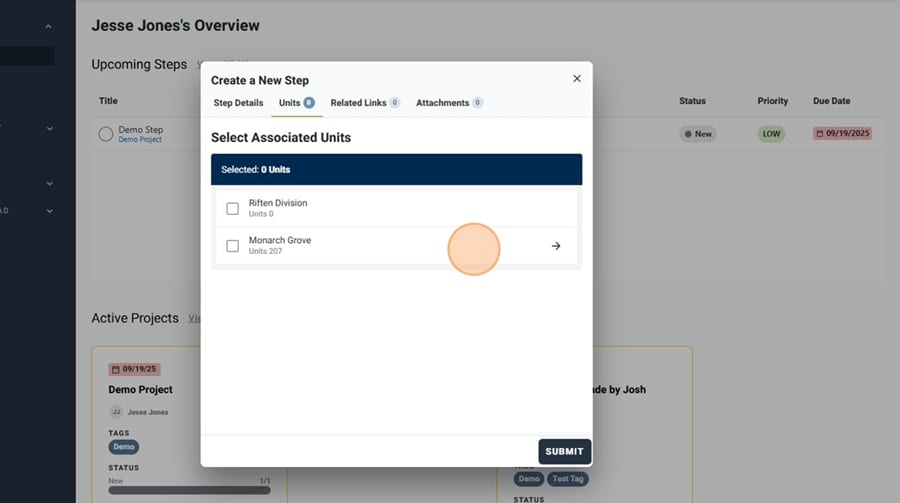
11. Navigate to the "Units" tab to attach the desired units to your new Step, if needed
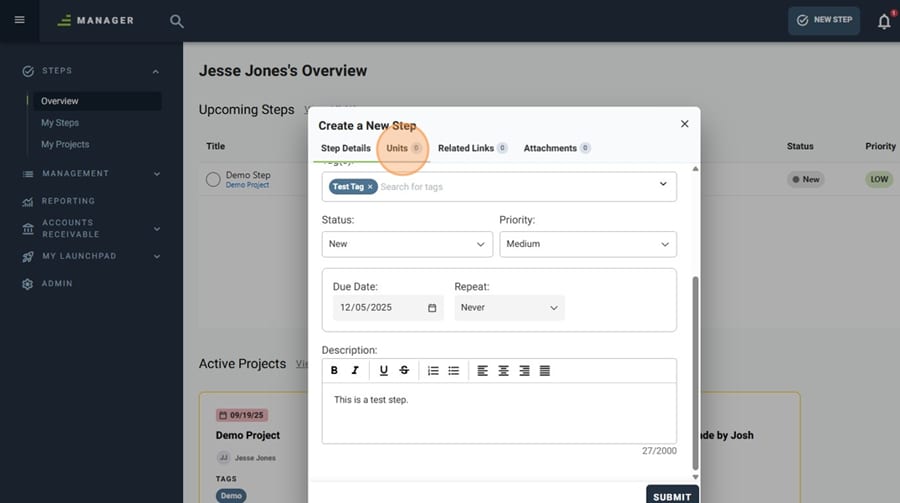
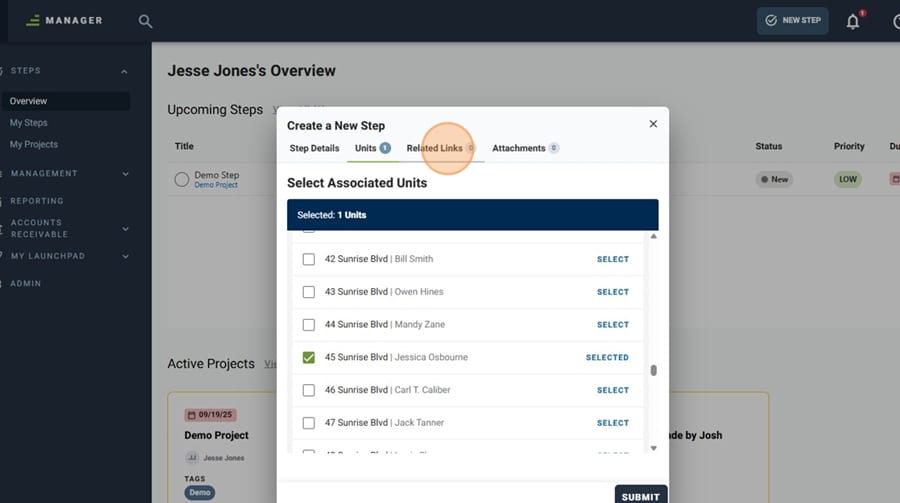
12. Using the dropdown, select the proper units
13. The "Related Links" tab is used to relate items to your new Step
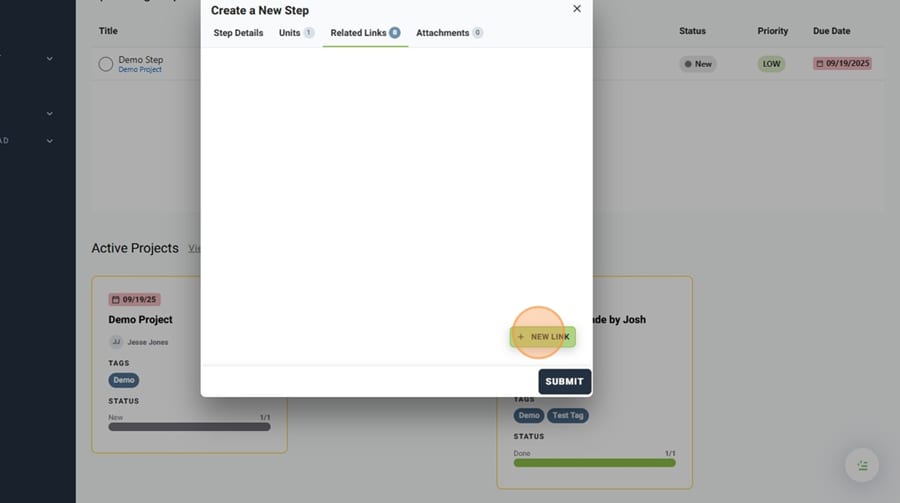
14. Click the "NEW LINK" button
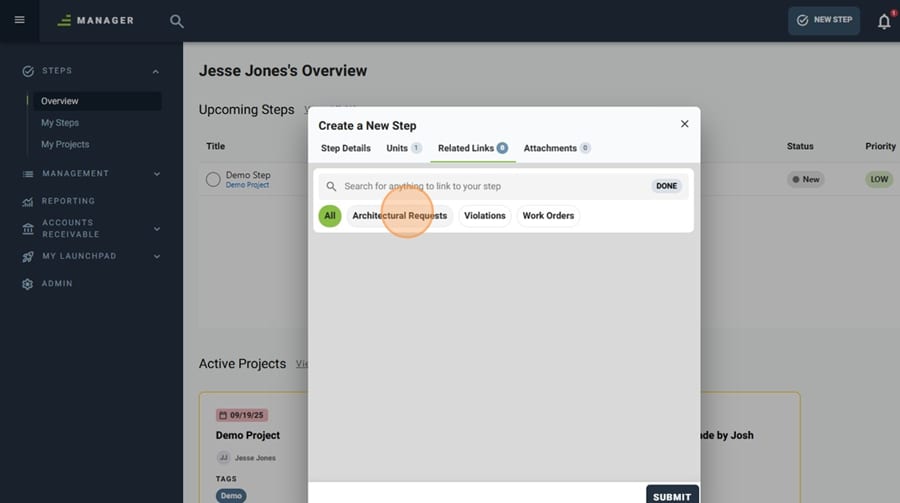
15. Using the populated search field, you can search for specific items to relate to your new Step if desired
16. If you need to add any attachments to your new Step, you can do so from the "Attachments" tab
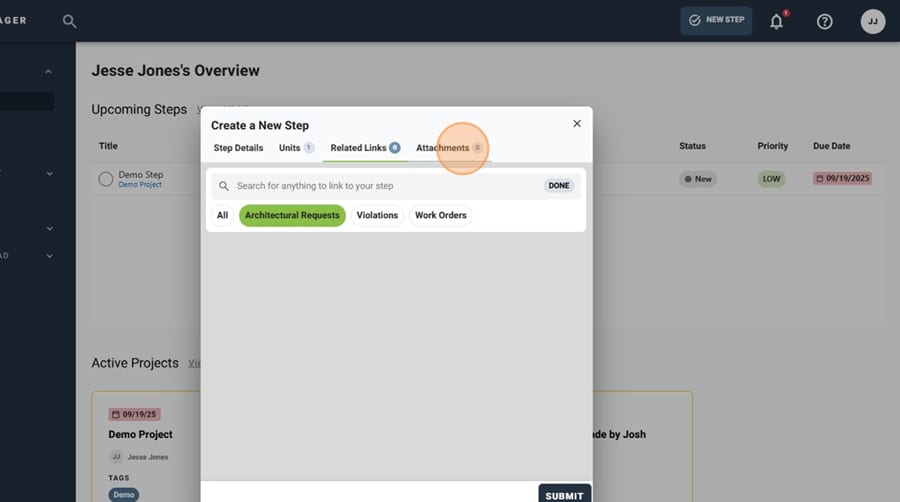
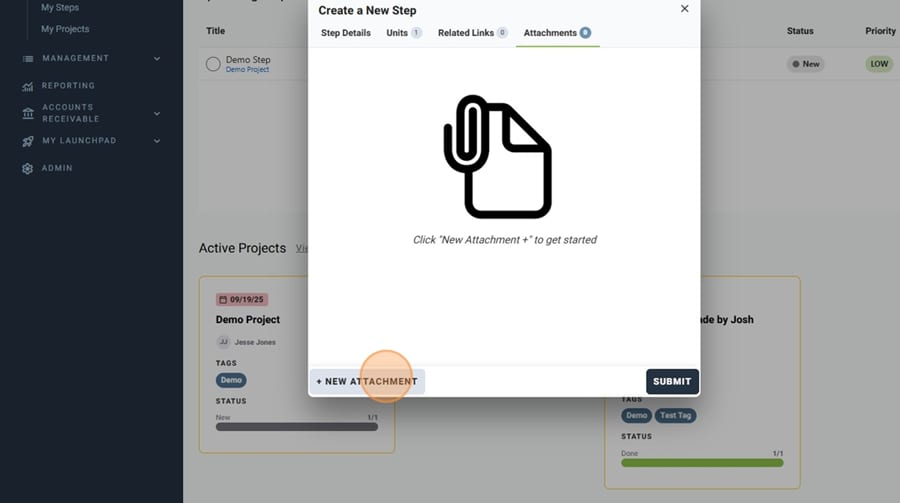
17. Click the "NEW ATTACHMENT" button. A pop-up window will appear that will allow you to select which items you wish to upload
18. Once you have completed all required items for your new Step, click the "SUBMIT" button
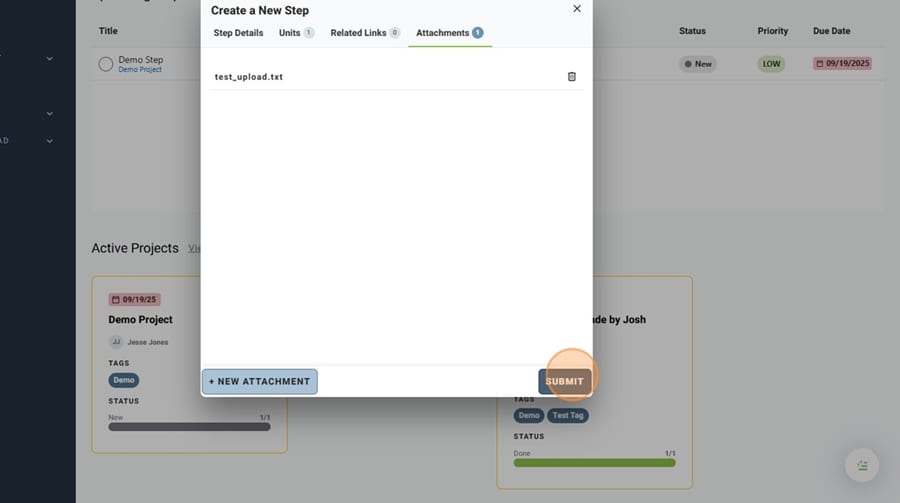
19. Your new Step has been created!