How To Add a Note to an Architectural Request
How To Add a Note to an Architectural Request in FRONTSTEPS Manager
This guide provides a straightforward process for adding notes to architectural requests in FRONTSTEPS Manager, ensuring that important information is documented efficiently. By following these steps, users can enhance communication and tracking within their projects, making it easier to manage requests and collaborate with team members. It's an essential resource for anyone looking to streamline their workflow and maintain organized records in architectural management.
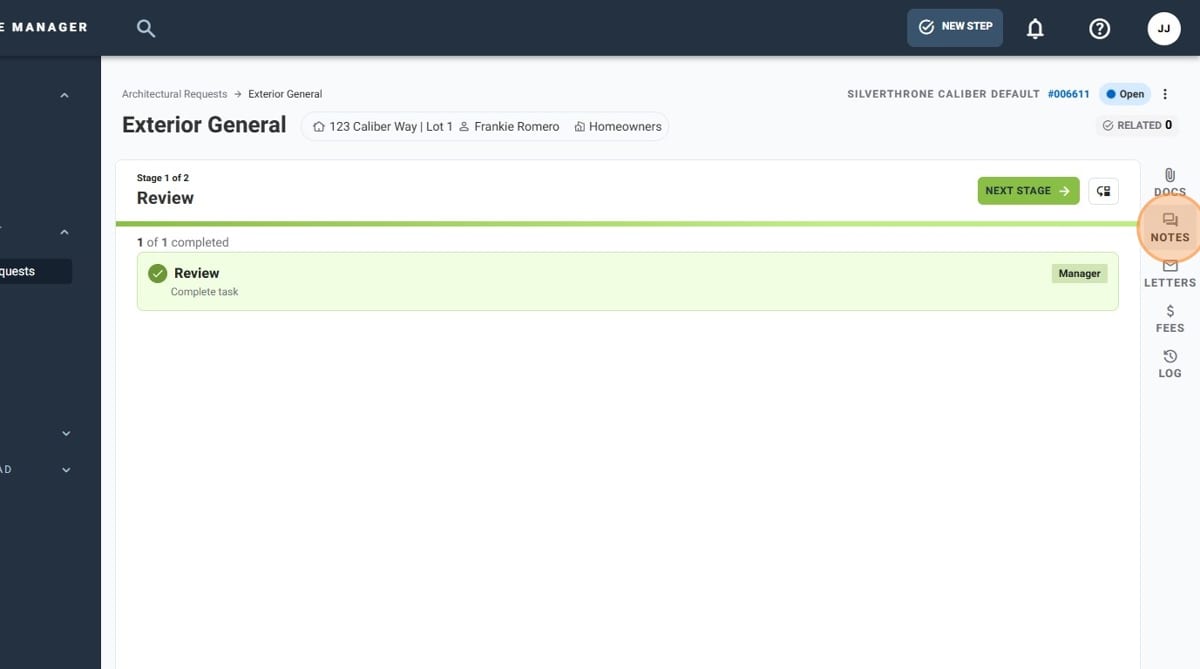
- From within the Architectural Request, Click "NOTES" in the right sidebar
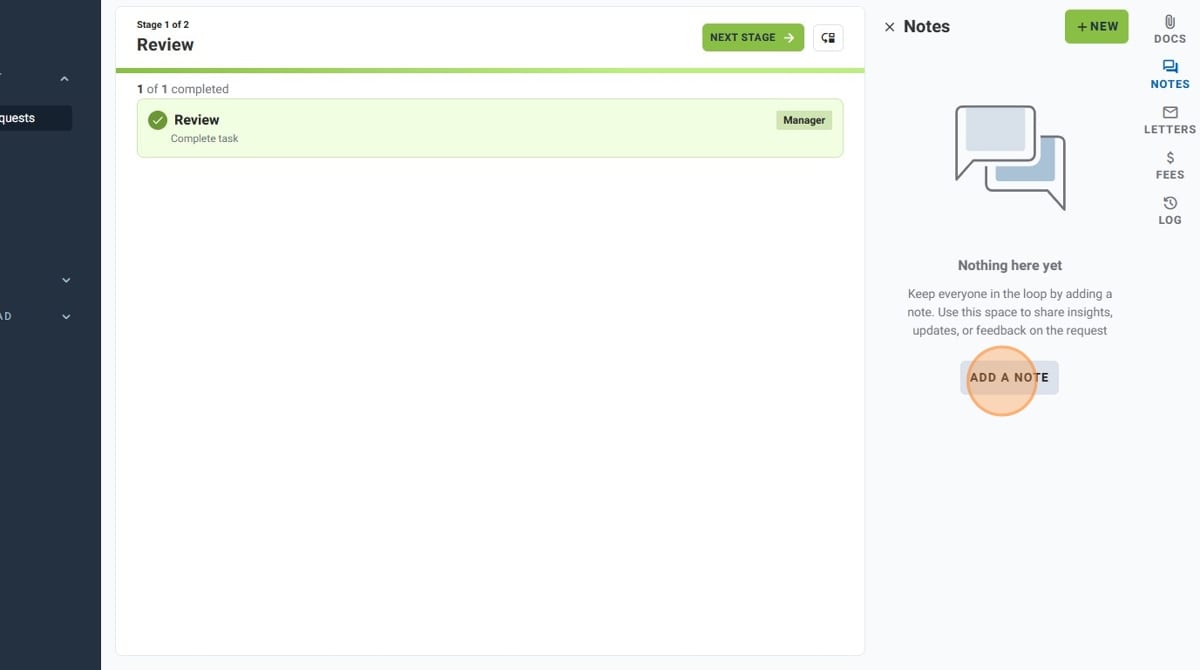
- Click "ADD A NOTE"
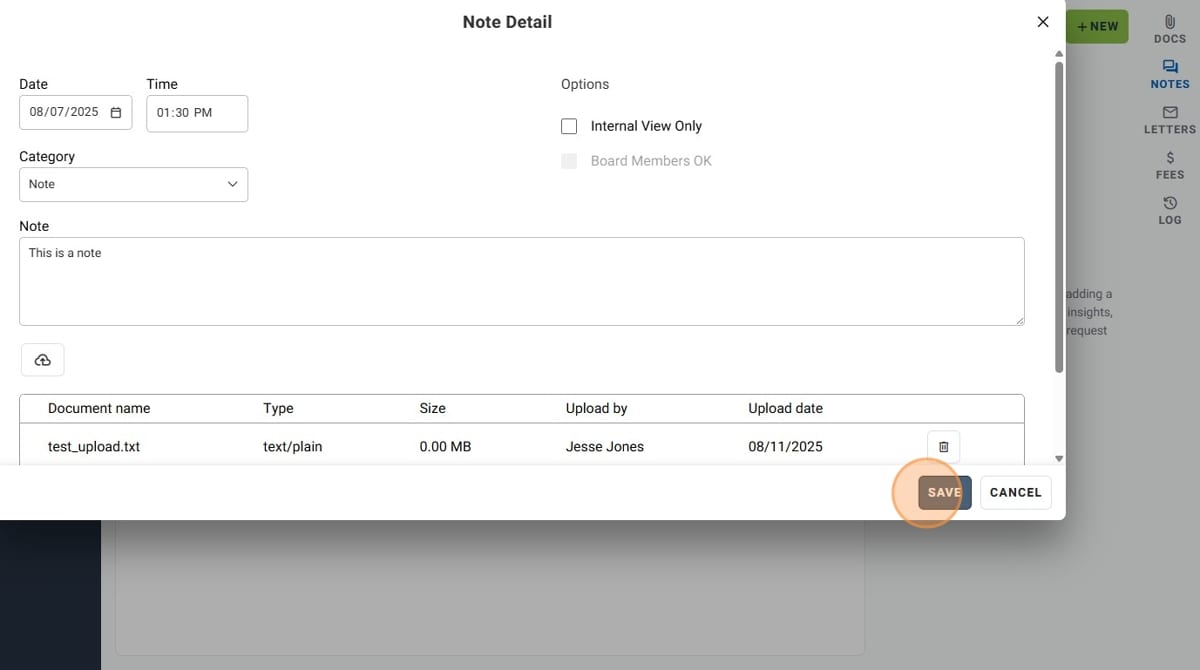
- Set the date for your note
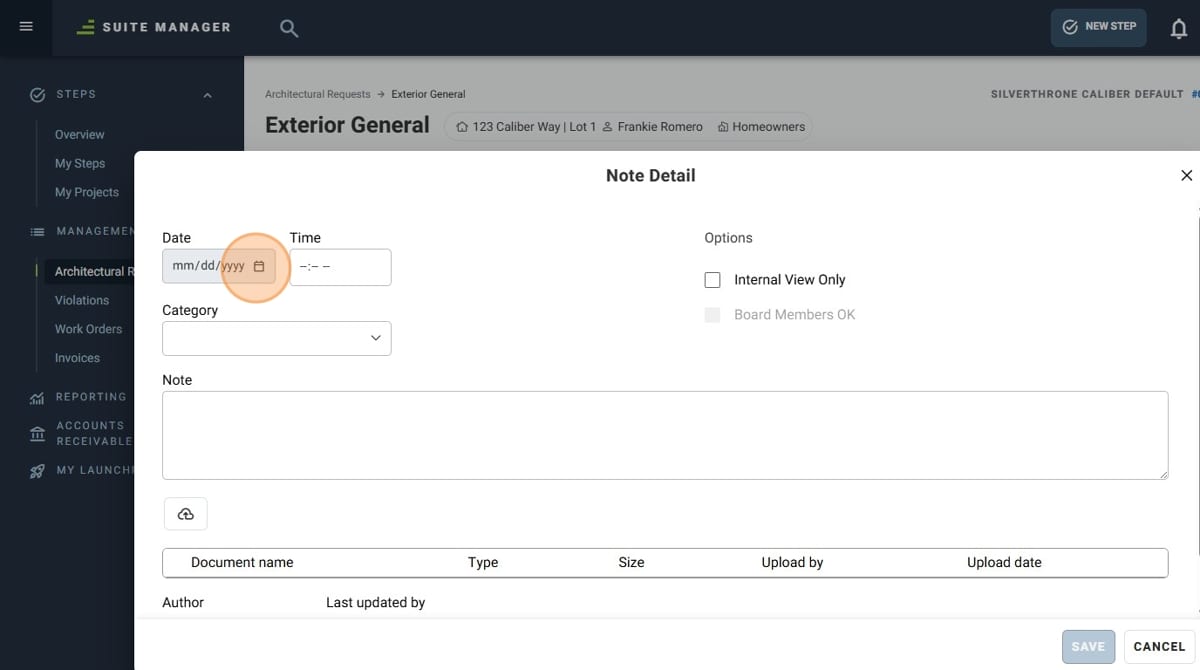
- Set the time for your note
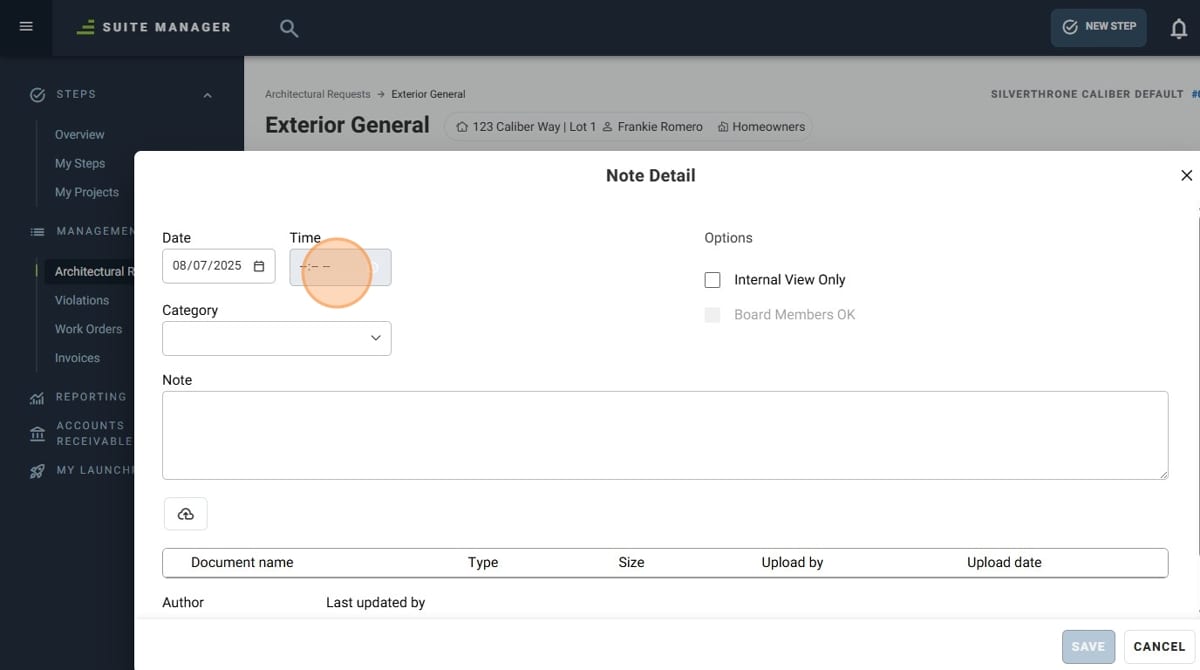
- Select the Category for your note
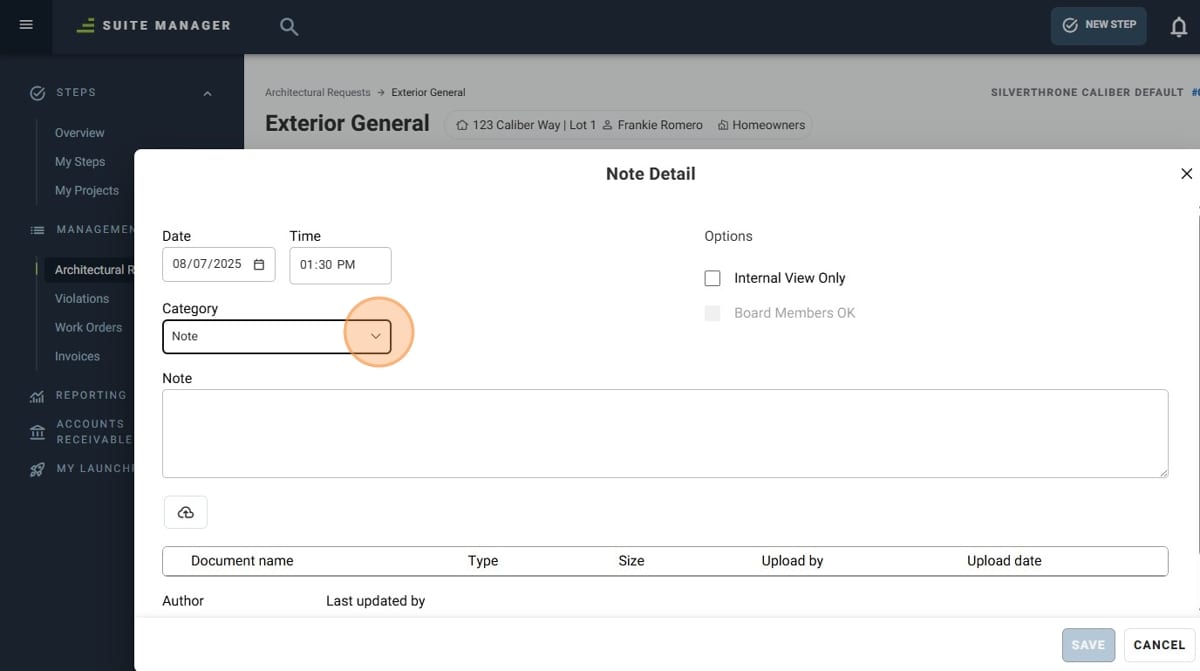
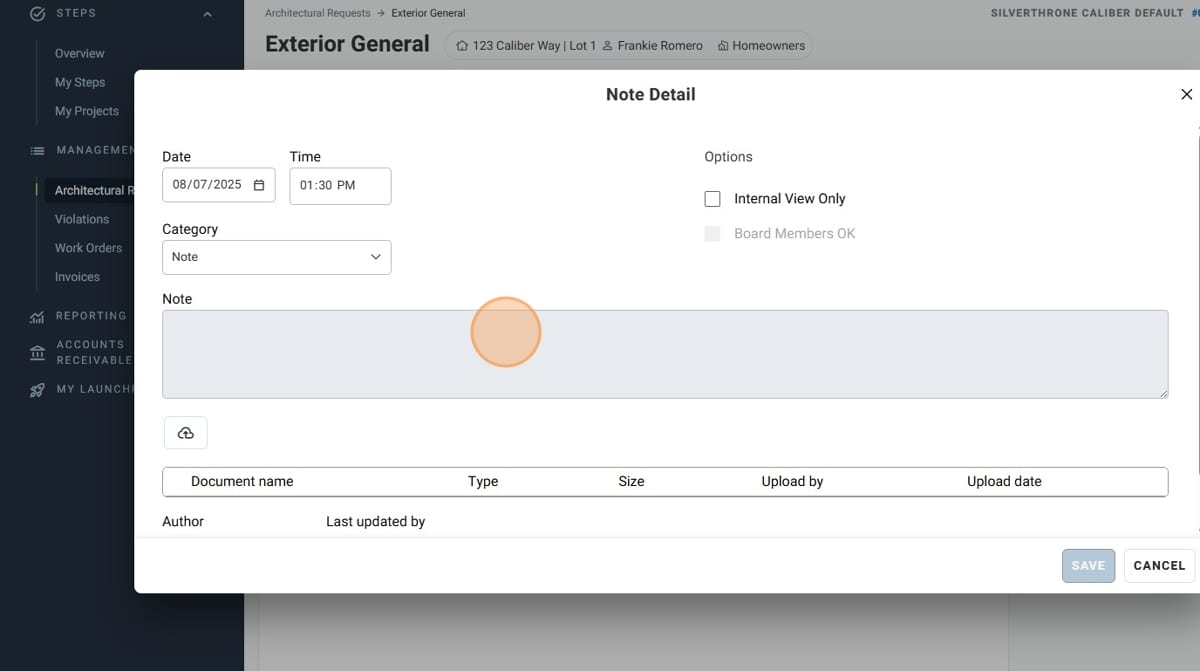
- Click the "Note" field and type your note
- You also have the option to upload documents to your Note*. Simply click the "Upload" button and follow the prompts.
* If your Note does not need any documents uploaded, you can skip this step.
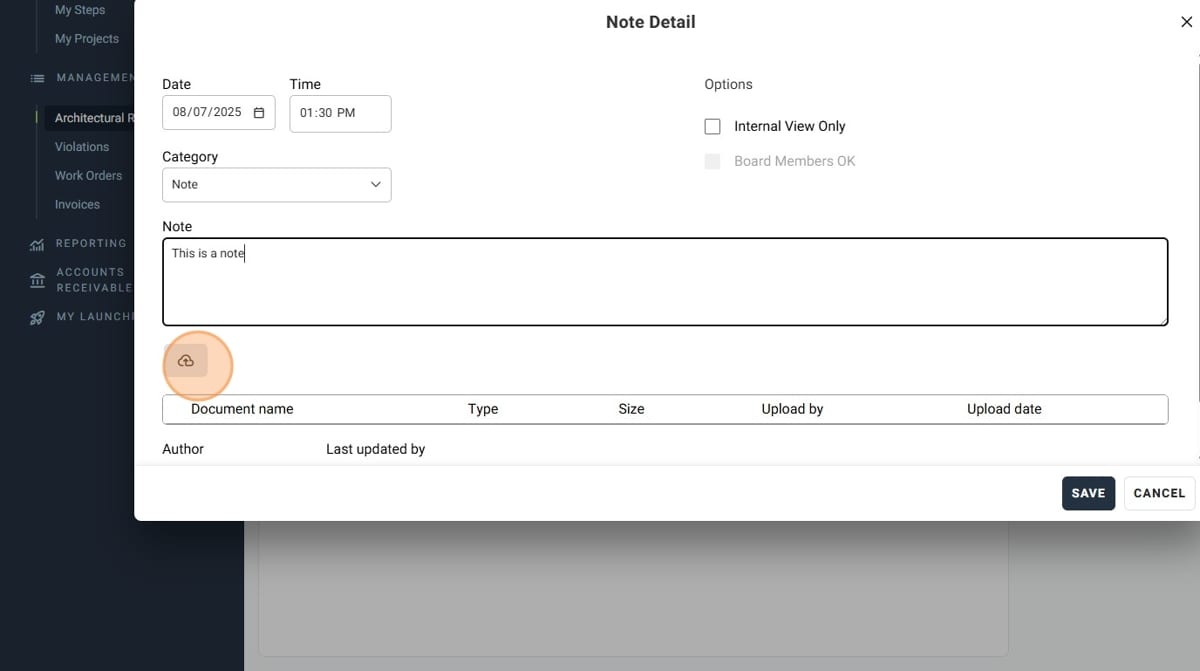
- Click "Save"
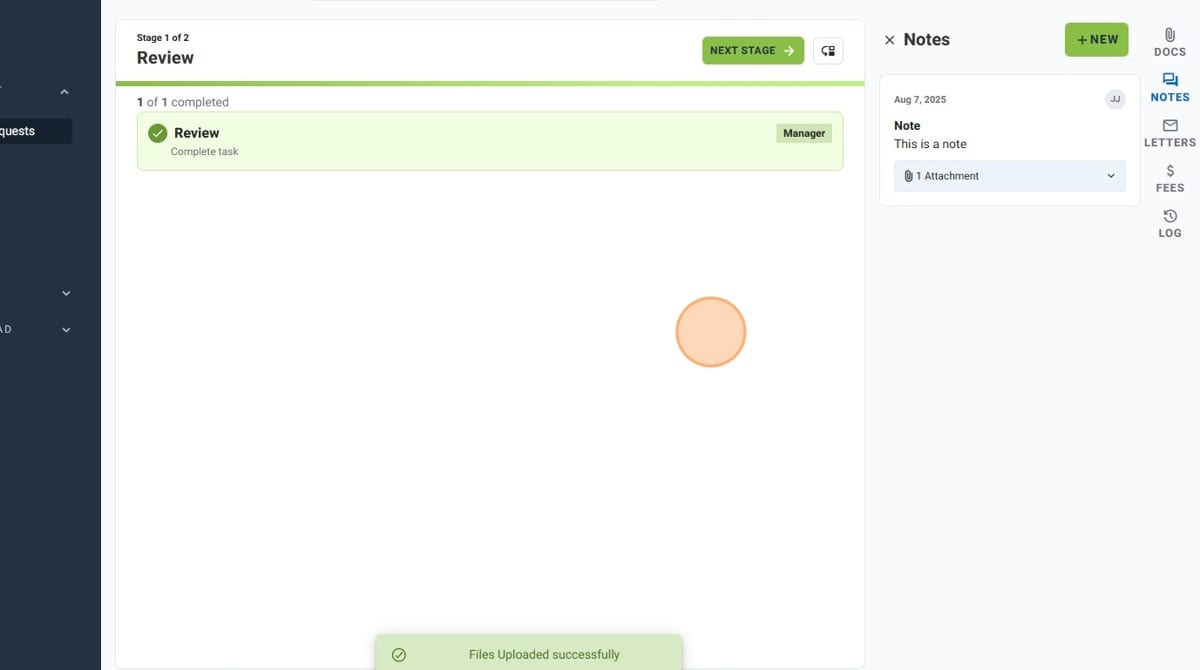
- You have successfully added a Note to an Architectural Request!