How-to
FRONTSTEPS Manager
Managers & CAMs
How To Add a New Step to a Project
Article 000002223 · Updated Mar 31, 2026
How To Add a New Step to a Project
This guide provides a straightforward process for adding a step to a project in FRONTSTEPS Manager, ensuring you can enhance project organization and task management efficiently. By following these simple steps, you can prioritize tasks, provide clear descriptions, and streamline your workflow. Perfect for team leaders and project managers looking to improve project execution, this guide helps maximize productivity. Don't miss out on optimizing your project management skills!
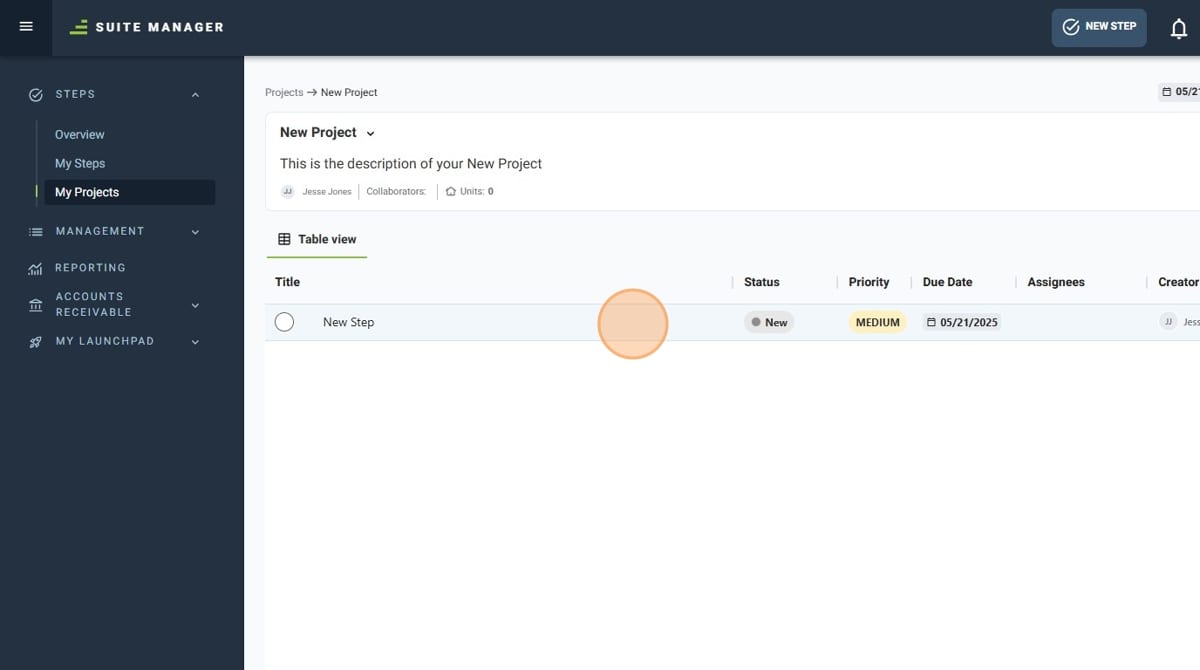
- Navigate to Projects and select the Project you wish to add a step to
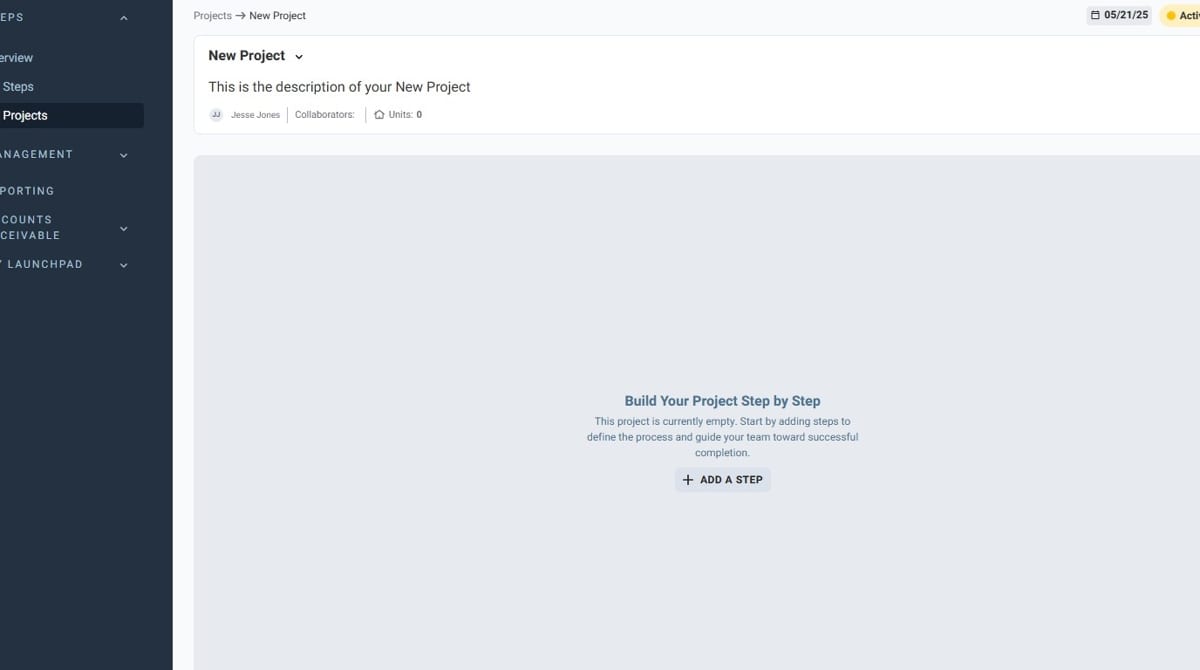
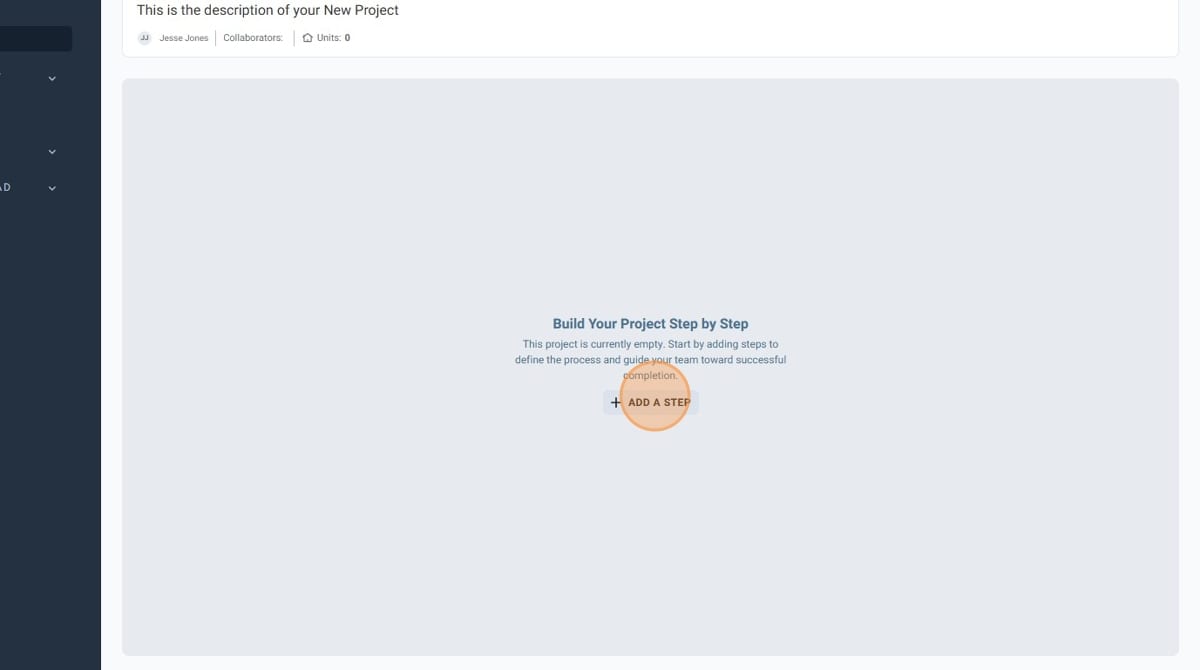
- Click "Add A Step"
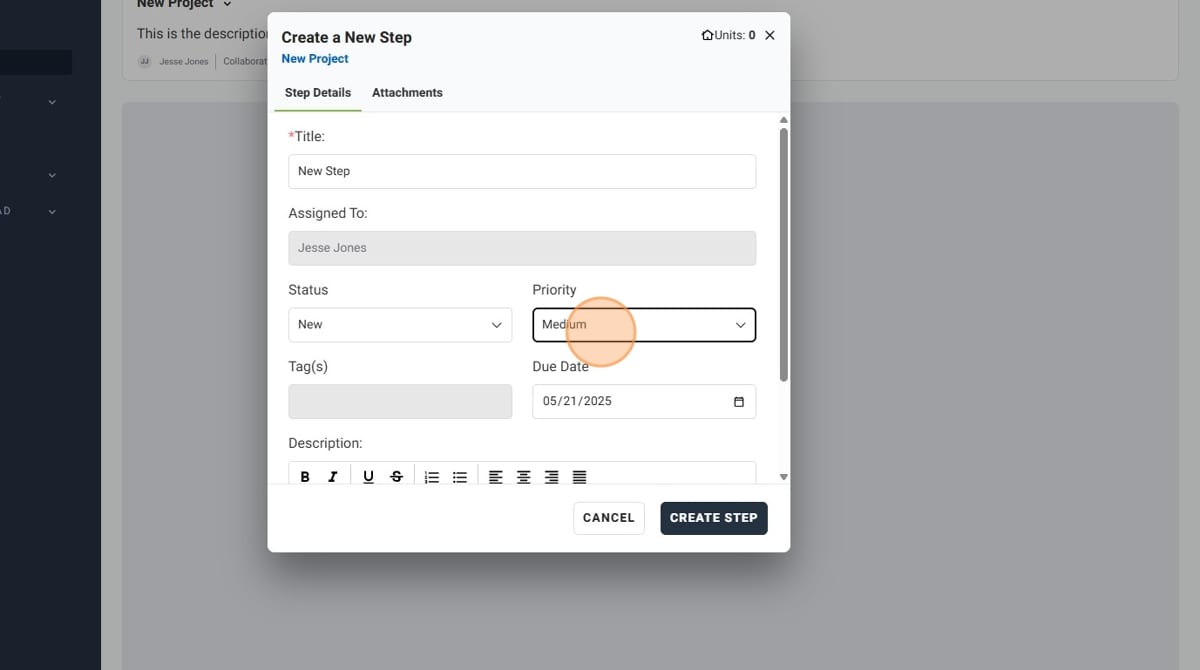
- Give your new step a title
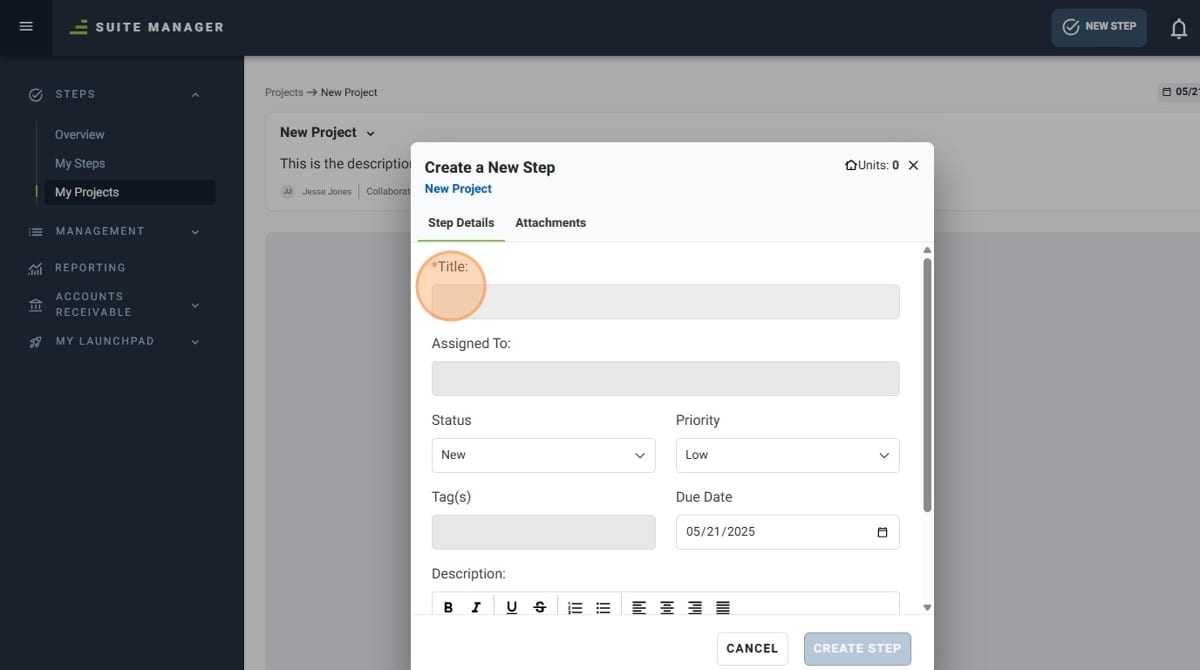
- Set the priority of your new step
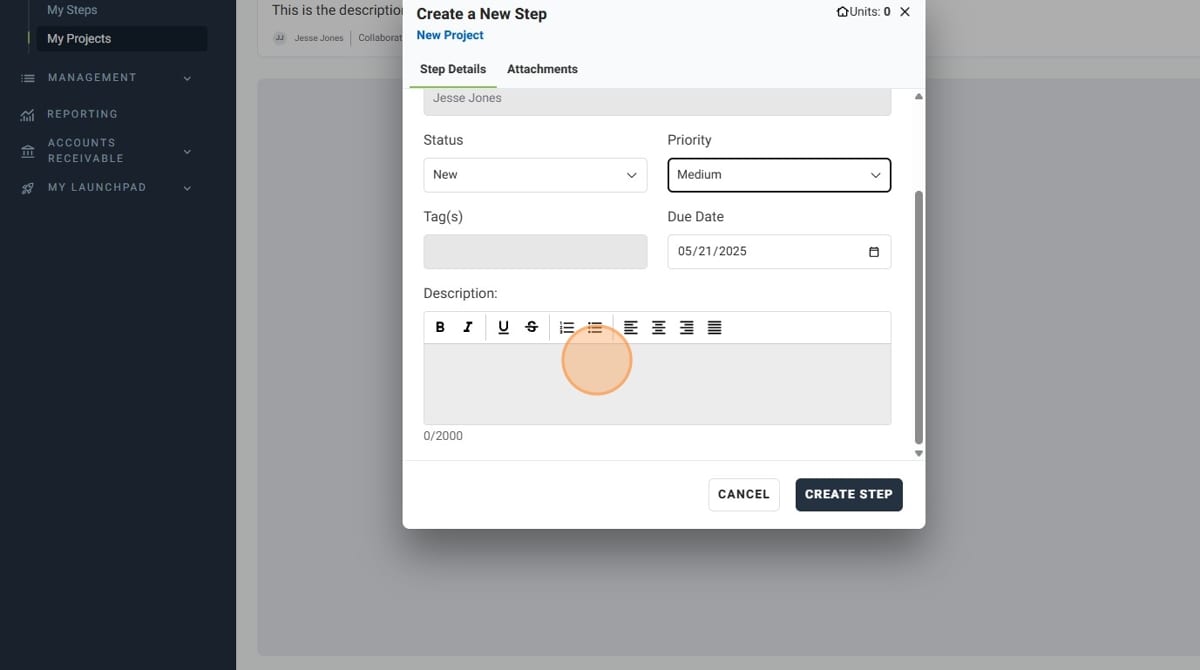
- Give your new step a description
- Click "CREATE STEP"
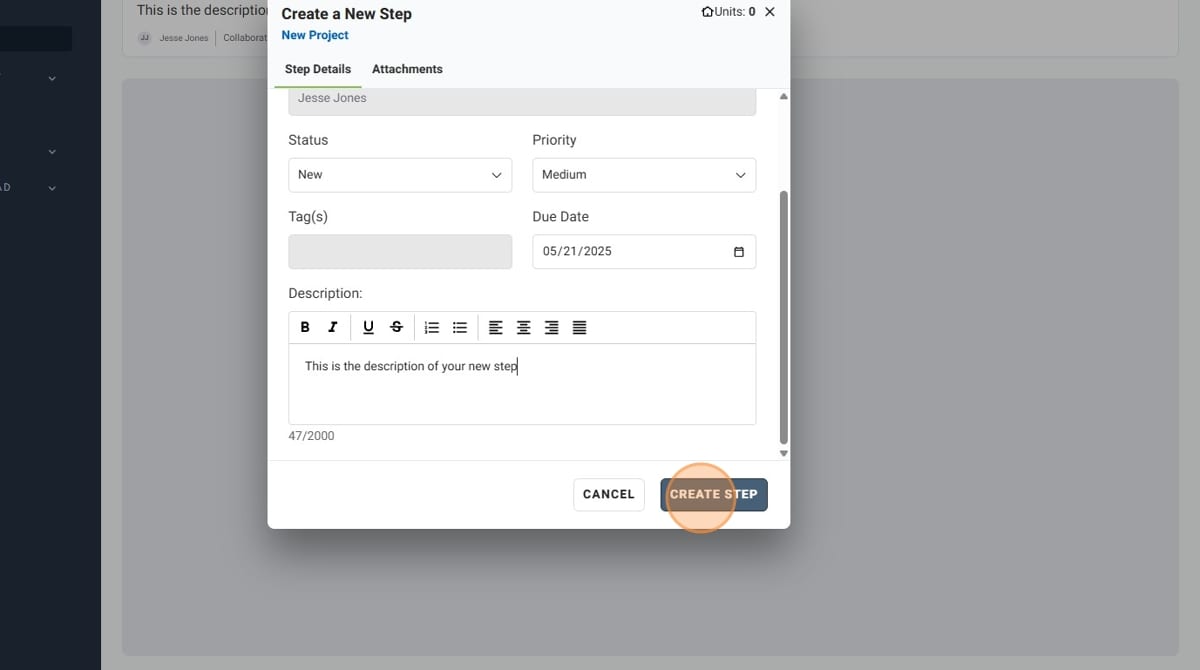
- Your New Step is now created!