How to Access Community and Owner/Unit Pages via Search and More
How to Access Community and Owner Unit Pages through Search and More
This guide shows step-by-step how to quickly find a community and drill down to specific units, violations, and past-due work orders in Frontsteps. It saves time by pointing out which search filters and metric tiles to use to reach community-level data and unit-level details (e.g., a resident or unit owner). Follow it to locate incidents and work order history efficiently.
Search for a Community, and Navigate to a Community page.
-
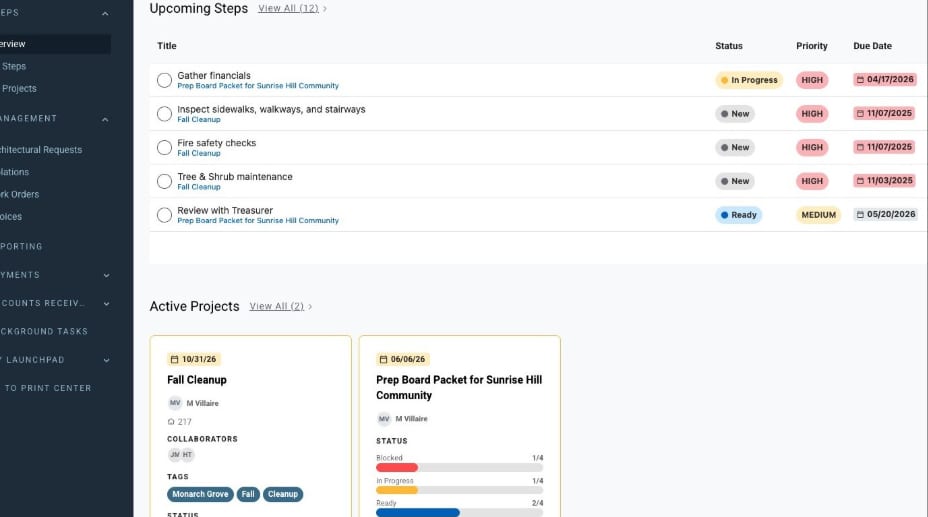
Navigate to https://suite.frontsteps.com/
-
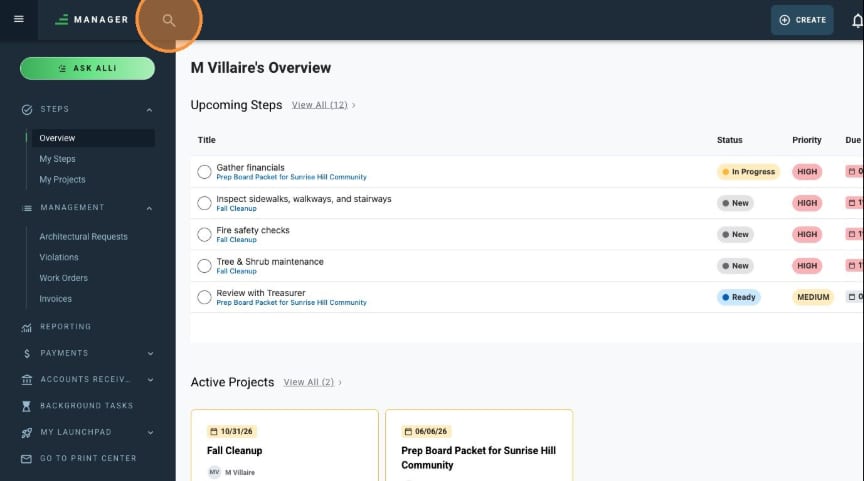
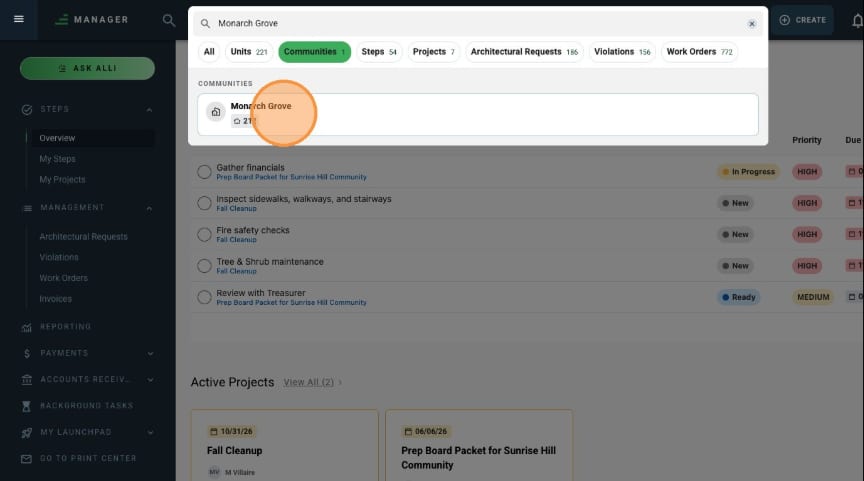
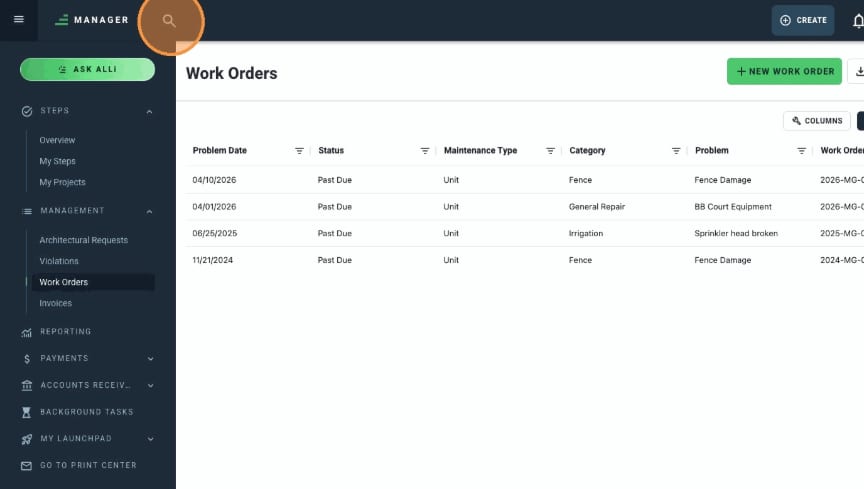
Search for a Community by name in the global search bar.
-
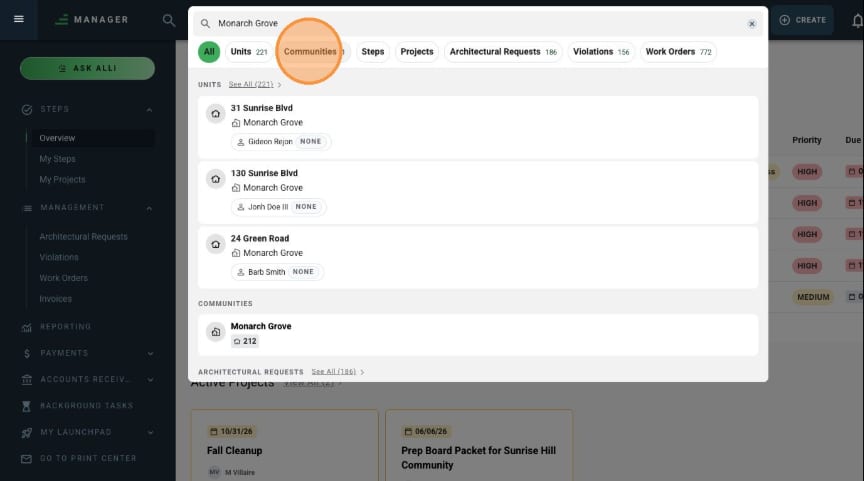
Click on the Community name in the All results or filter search results by Communities.
-
Click on the Community search result from the community list.
View Violations for that Community
-
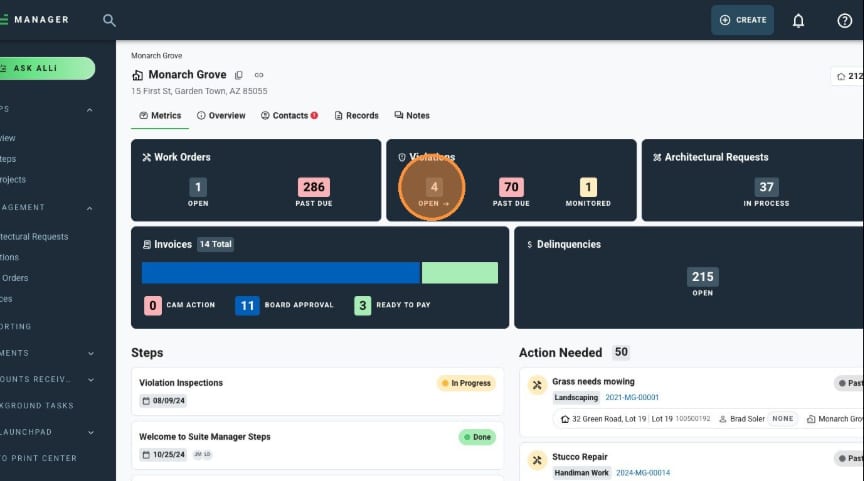
From the Community page, click any of the violations metric tiles to view a filtered list of those violations, work orders, or architectural requests. In this example, I want to see all “Open” violations for this community.
-
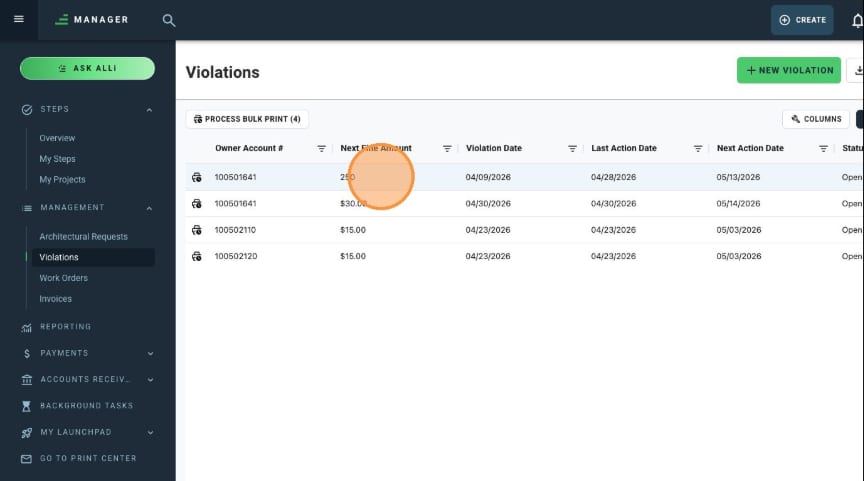
Select a violation entry from the list.
Navigate to the Unit page from the Violation page
-
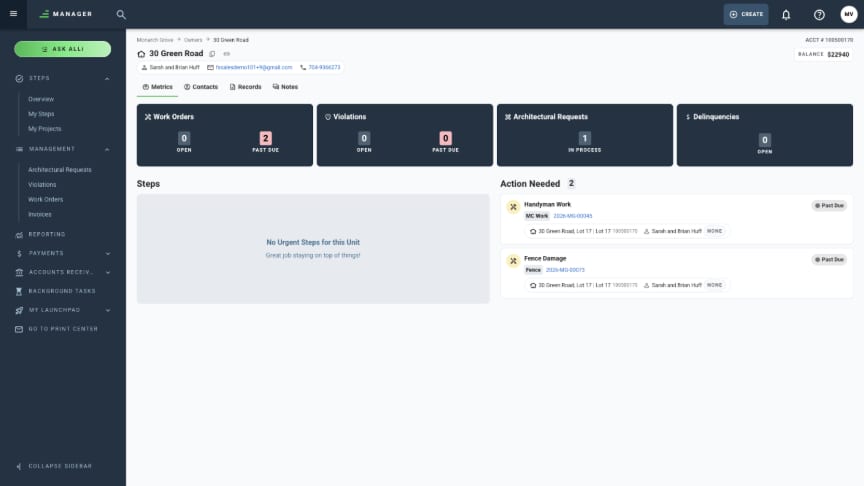
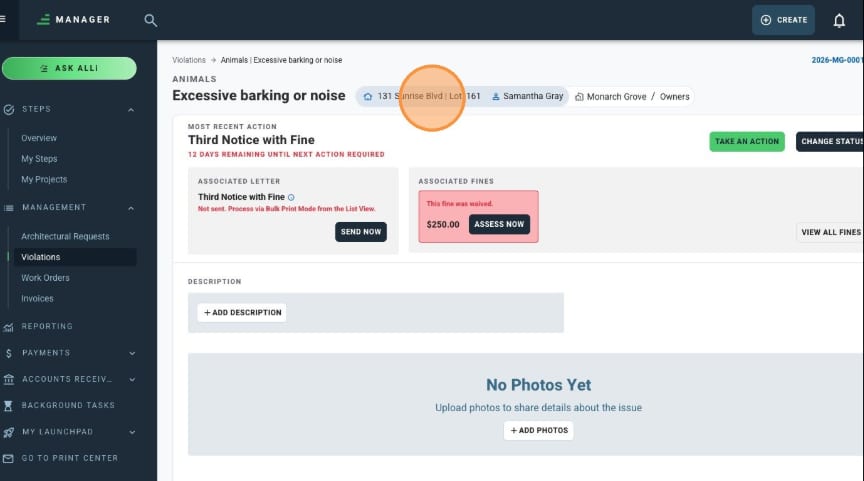
Click the unit address to navigate to the unit landing page. You can do this from any of the violations, architectural requests, or work order pages.
Search for a homeowner and navigate to the Unit page
-
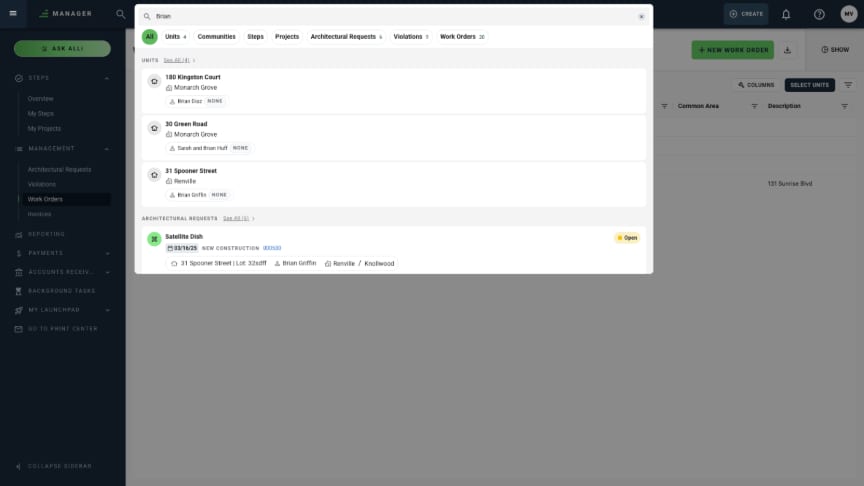
Back at the search bar, search for a name, address, email, phone number or account nuimber to find a homeowner, and navigate to their landing page.
-
See homeowner results in All results.
-
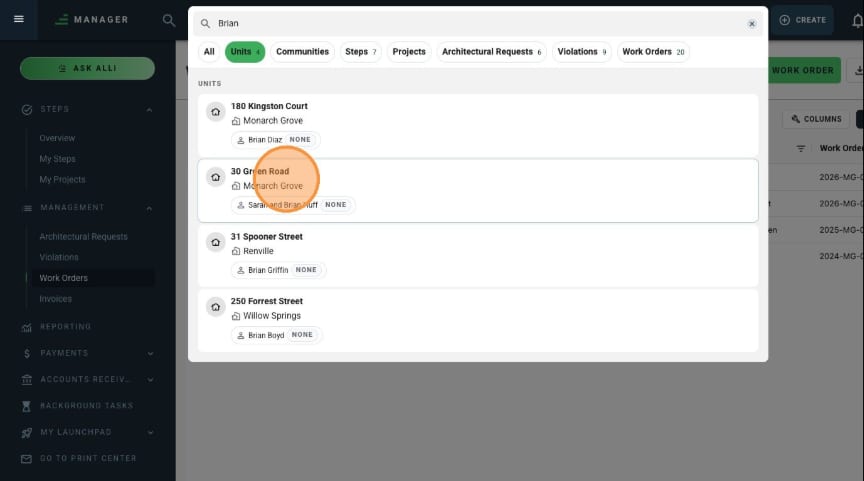
Or filter the results by Units
-
-
Click the result for the desired homeowner to be navigated to the unit landing page.