
Manager - Editing a User's Information
Managers can edit a User’s information using the Directory feature.
To do so navigate to the ‘Directory’ menu (1) and select the ‘Directory’ (2) option.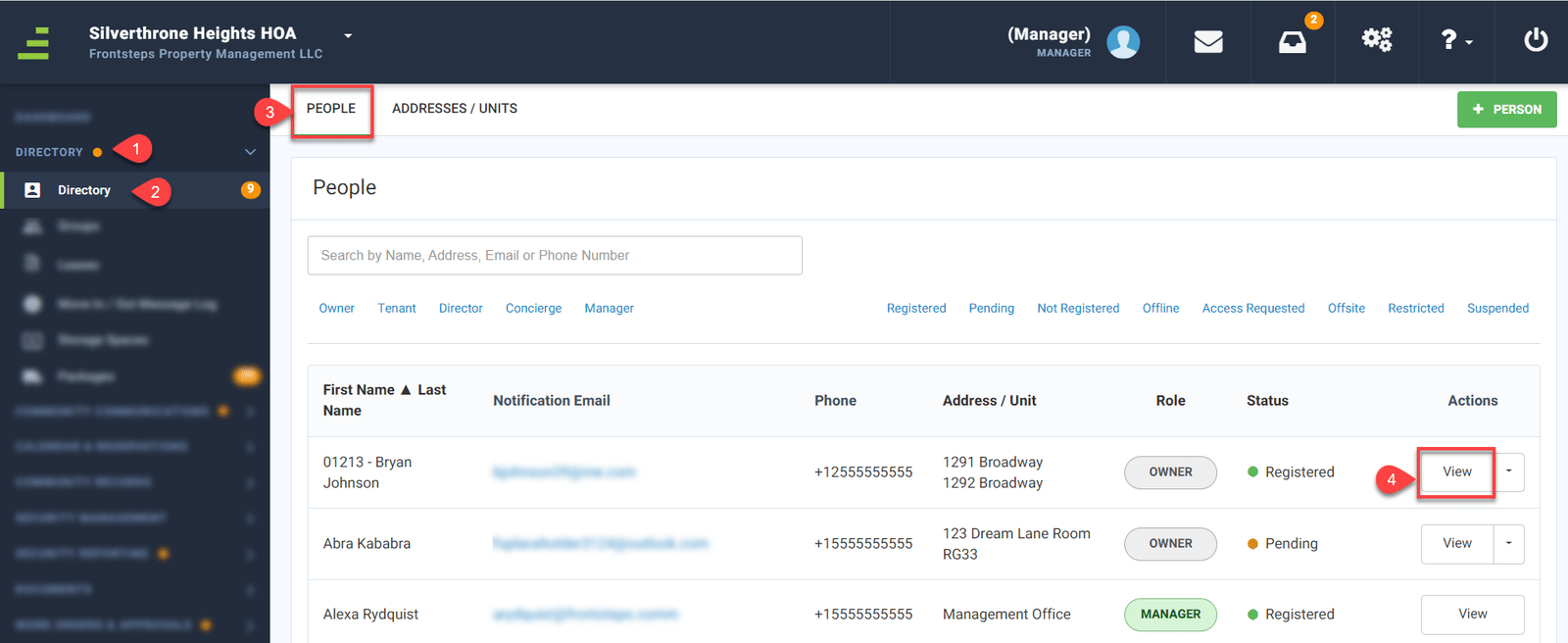
This will default to the ‘People’ tab (3), where you can view all User’s of the Community. To edit a Users information click the ‘View’ button (4) within the Actions column.
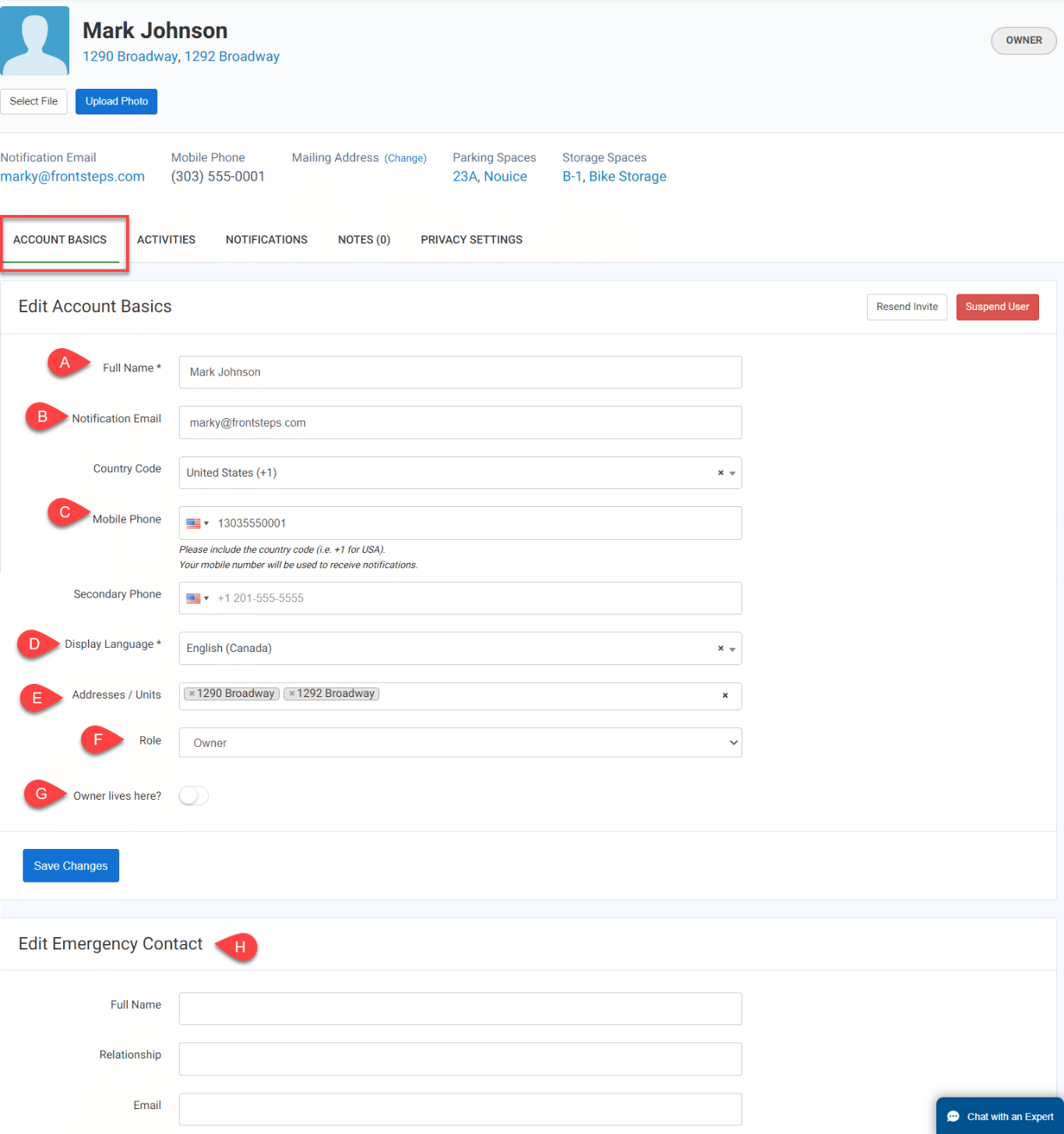
Using the ‘Account Basics’ tab, Managers can edit the following information for a User:
Managers can add ‘Notes’ to a User profile as well. To do so navigate to the ‘Notes’ tab.
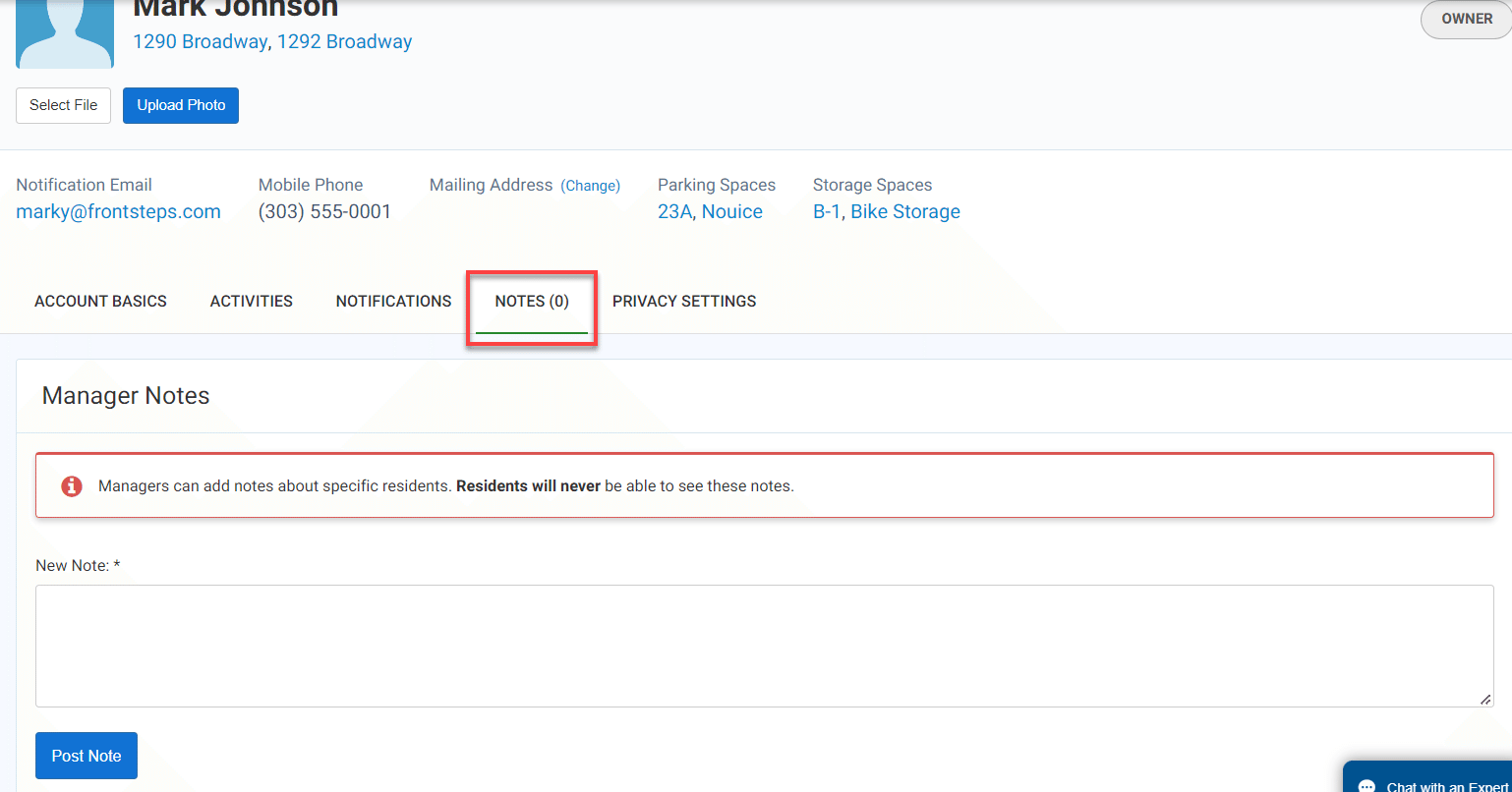
Please notes, that these notes do not appear to Users.
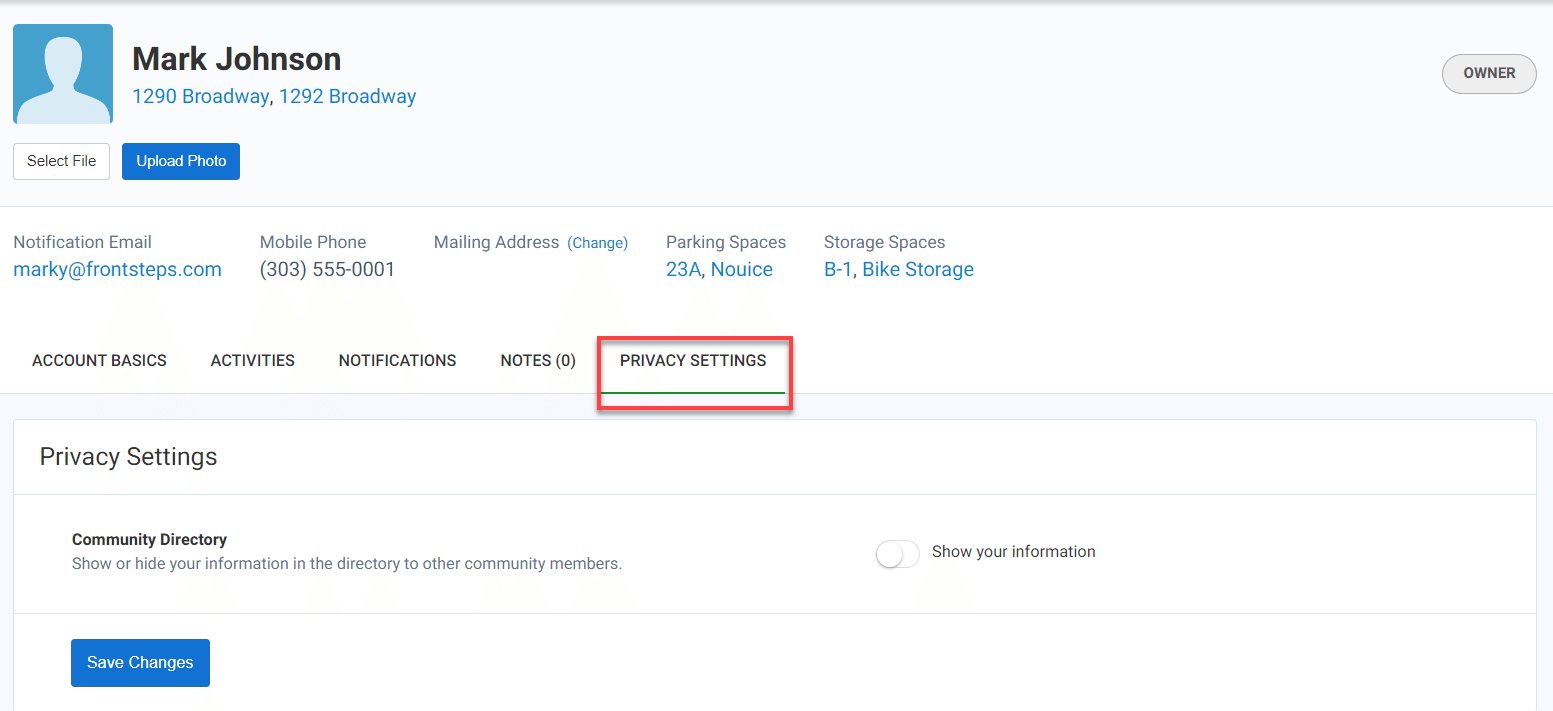
Managers will also have the ability to edit a Users privacy settings. This will allow you to display or hide their information on the Directory.
To do so navigate to the ‘Directory’ menu (1) and select the ‘Directory’ (2) option.
This will default to the ‘People’ tab (3), where you can view all User’s of the Community. To edit a Users information click the ‘View’ button (4) within the Actions column.
Using the ‘Account Basics’ tab, Managers can edit the following information for a User:
- Full Name
- Notification Email
- Please note that if you change a Users Notification Email, the User will need to approve the change and you will see the following message appear once you edit the email address.
- Mobile Phone
- Display Language
- Address/Units. Note: Managers can add more that one Address/Unit to each User.
- Role
- Owner Lives here
- Emergency Contact Information
Managers can add ‘Notes’ to a User profile as well. To do so navigate to the ‘Notes’ tab.
Please notes, that these notes do not appear to Users.
Managers will also have the ability to edit a Users privacy settings. This will allow you to display or hide their information on the Directory.