
Guard-dwellingLIVE- Manage Guests
We’re updating this article. Some screenshots or names may look older than what you see in the product.
Background
The Visitor Management module now integrates with the FRONTSTEPS Community module.Notes
- The feature is available to all users as follows:
- Guard with dwellingLIVE
- Availability - This enhancement will be activated and available to all customers who purchase the Visitor Management Product integration.
Features
- Guards can add and manage guests on behalf of homeowners.
The Search Tab
The Search tab allows the Guard to view, for the entire community: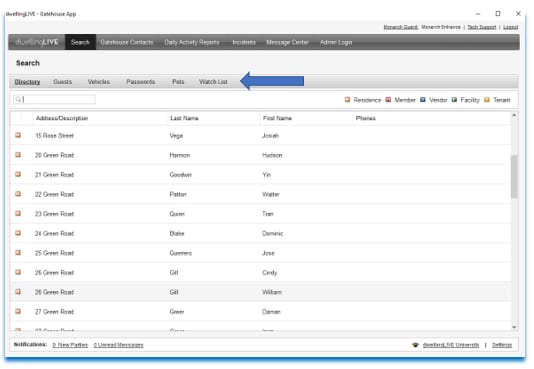
The Directory
When the Guard selects an Address from the Directory, the Guard can: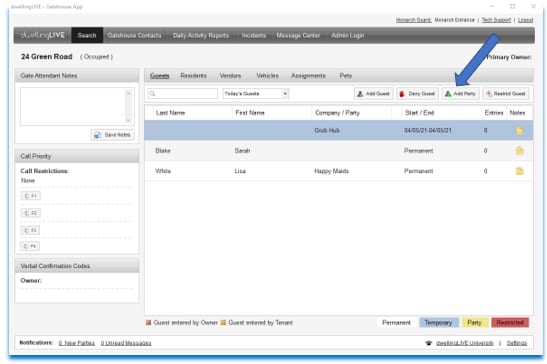
To Add a Guest: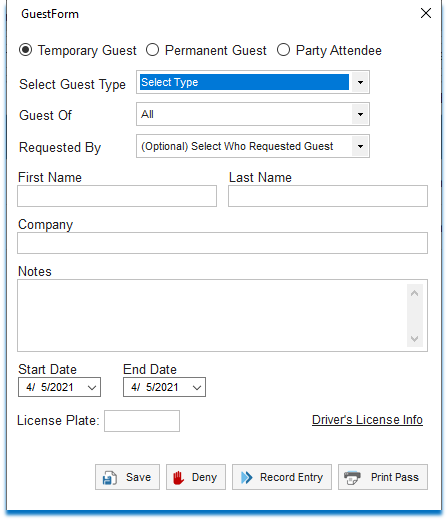
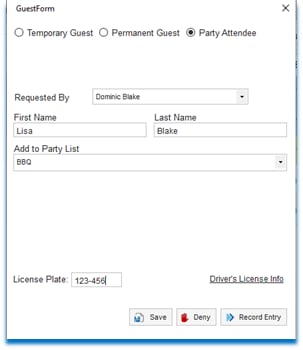
For Party Attendees:
The Search tab allows the Guard to view, for the entire community:
- The Directory
- Guests
- Vehicles
- Passwords
- Pets
- Watch List (Restricted Guests)
The Directory
When the Guard selects an Address from the Directory, the Guard can:
- View Gate Attendant Notes
- View the homeowner’s Call Priority (the order by which they wish to be contacted)
- View the homeowner’s Verbal Confirmation Code
- View Residents, Vendors, Vehicles, Assignments and Pets associated with the Address, using the respective tabs
- View, Add, Deny and Restrict Guests for an Address, and Add a Party when the Guest tab is selected
To Add a Guest:
- Select the Search tab on the top ribbon.
- Select the Directory tab.
- Select the Address.
- Select the Guest tab.
- Select the Add Guest button.
- Using the radio-dial buttons, select the type of Guest (Temporary, Permanent, Party Attendee). Note: The GuestForm will vary, depending which option is selected.
- Enter the Select Guest Type from the dropdown. This is dropdown is customizable. Case us examples include a guest for that comes Monday -Wednesday, a Vendor, a food delivery person. These are set up on the Admin log on>Visitor Management> Pass Types.
- Enter the Guest of from the dropdown.
- Enter the First and Last Name of the Guest
- Enter the Company of the Guest, if applicable.
- Enter any Notes.
- Enter the Start and End Date of the visit for a Temporary Guest or the Days Permitted for a Permanent Guest.
- Enter the License Plate number.
- If applicable enter Driver’s License Info.
- Save the information using the Save button.
- Deny entry using the Deny button.
- Record that the Guest entered using the Record Entry button.
- Print a Pass, using the Print Pass button.
For Party Attendees:
- Select the Party Attendee radio-dial.
- Select the Requested By from the dropdown.
- Enter the First and Last Name of the Guest
- Choose the Party from the Add to Party List dropdown.
- Enter the License Plate number.
- Add any Driver’s License Information by selecting the link.
- Save the Guest, Deny Entry or Record the Entry using the respective buttons.