FSPay 3.0 - FSC - Guide to Making Payments
We’re updating this article. Some screenshots or names may look older than what you see in the product.
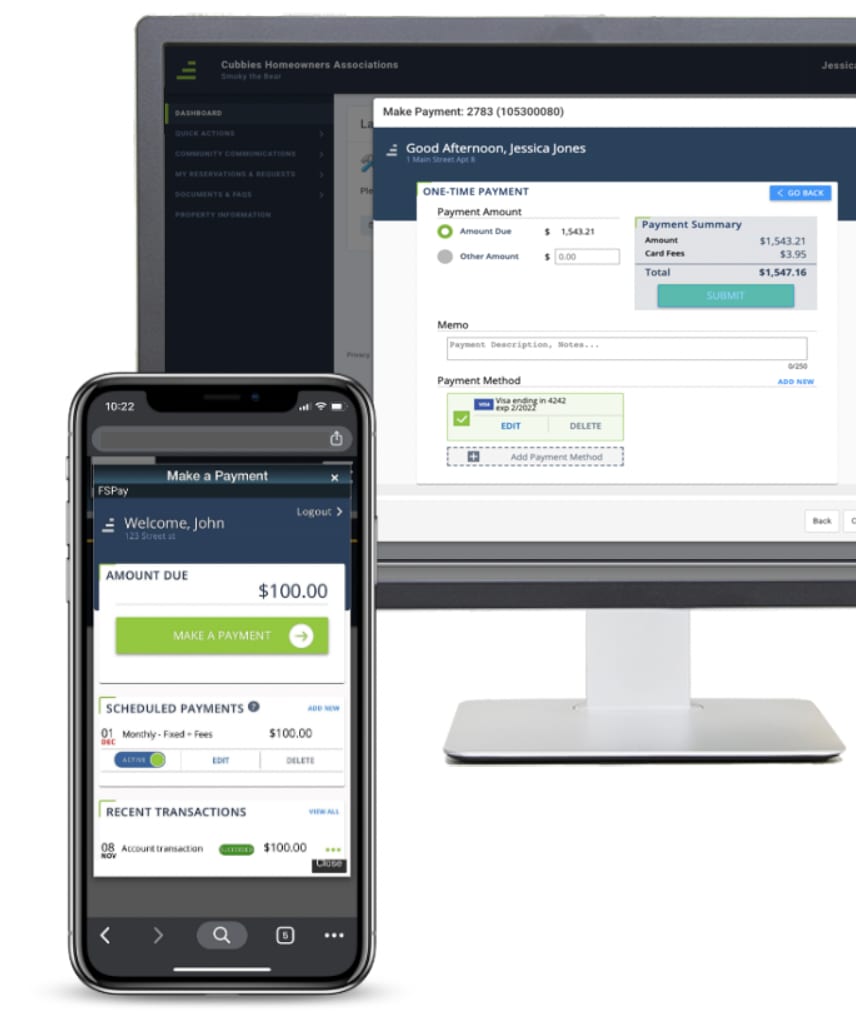 Simply navigate to your FRONTSTEPS Community portal from your computer or phone and log in.
Before making a payment, confirm that your Profile contains your most up-to-date email address so that you receive email receipts.
Table of Contents
Adding Your First Payment Method
How to Make a One-Time Payment
How to Add, Edit, or Delete a Payment Method
How to Add, Edit, or Delete a Scheduled
Payment View Recent Transactions
Adding Your First Payment Method
- From your browser, log in to your community portal.
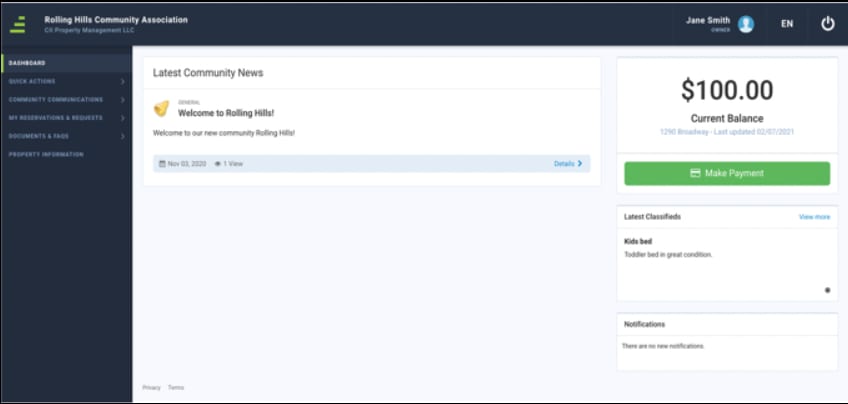
- Click Make a Payment.
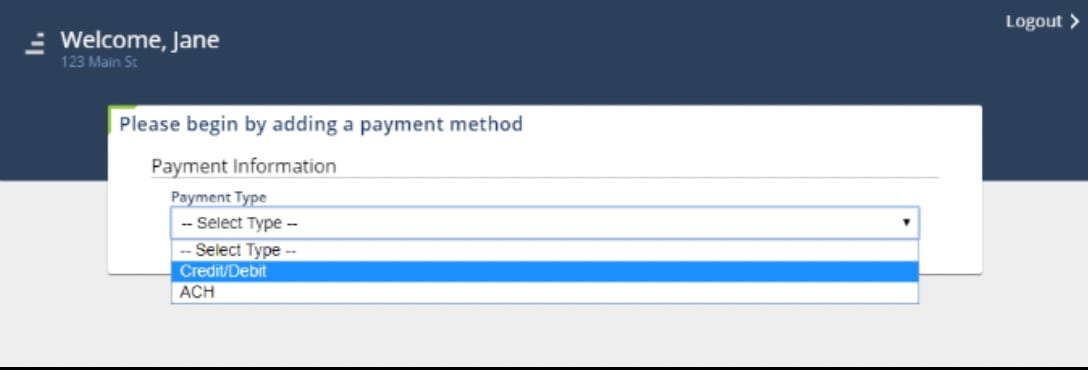
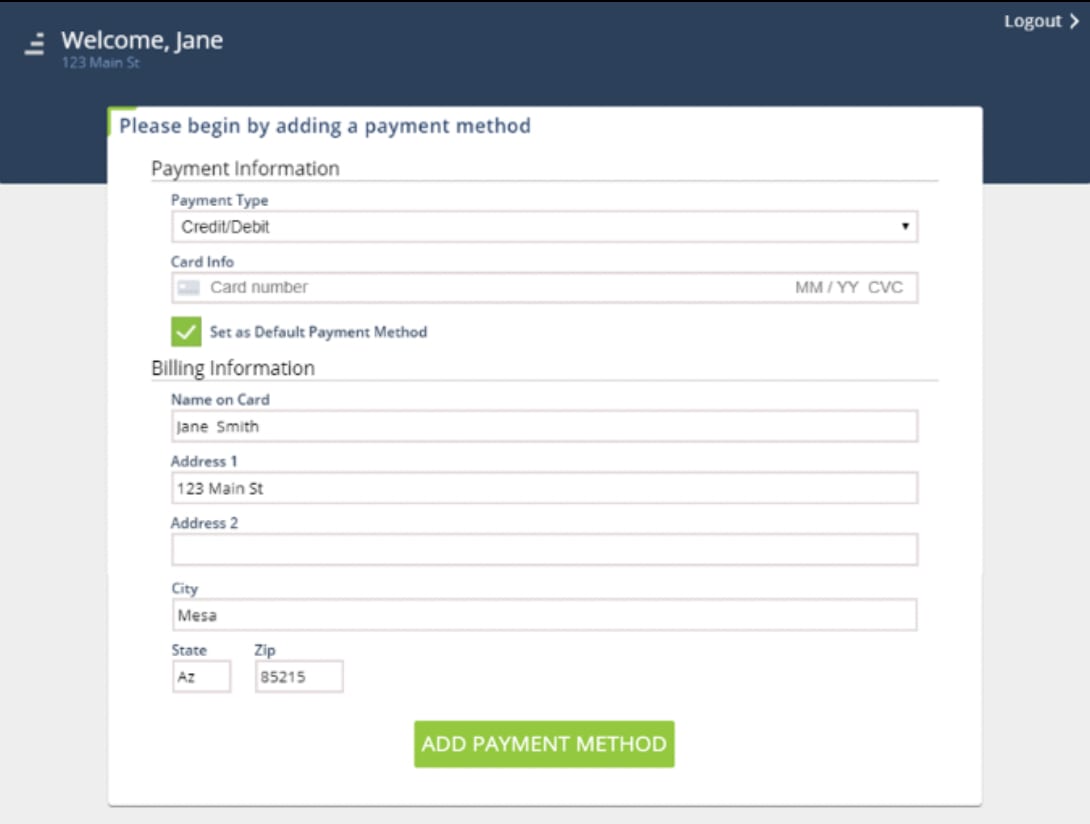
- Select a Payment Type: Credit/Debit or ACH (eCheck).
- Enter your Payment Information.
• For Credit/Debit: Card Number, Expiration
Date (MM/YY), and CVC.• For ACH (eCheck): Routing Number and
Account Number. - For Credit/Debit, enter your Billing Information: Name on Card, Address, City, State, and Zip.
- Click Add Payment Method.
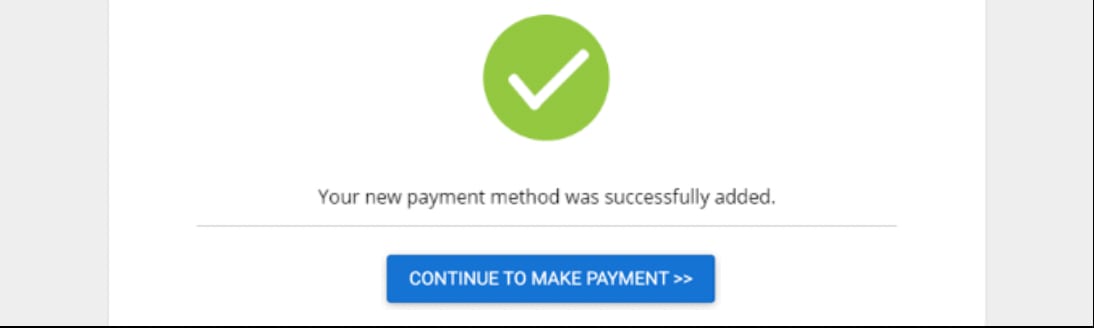
- Click Continue to Make Payment.
How to Make a One-Time Payment
- Click Make a Payment.
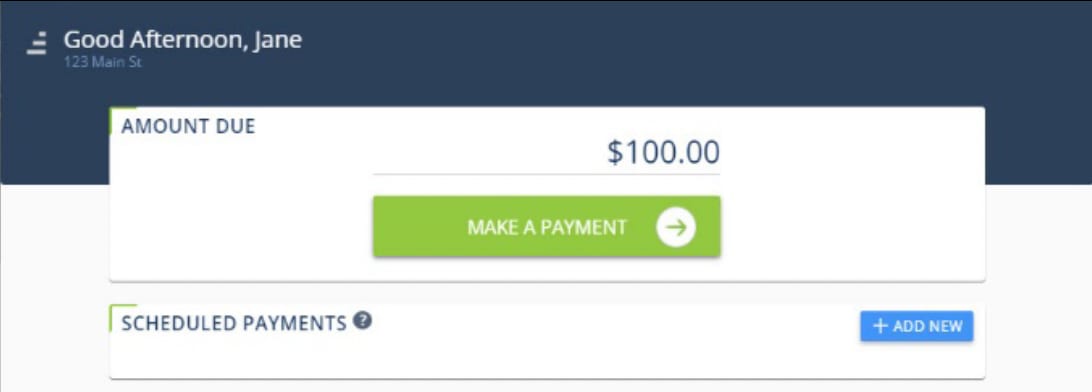
- Select Amount Due or Other Amount. If selecting Other Amount, enter the amount you want to pay.
- Enter a Memo. This will appear on your email receipt and on your Transaction History.
- Select a previously added Payment Method or Add Payment Method.
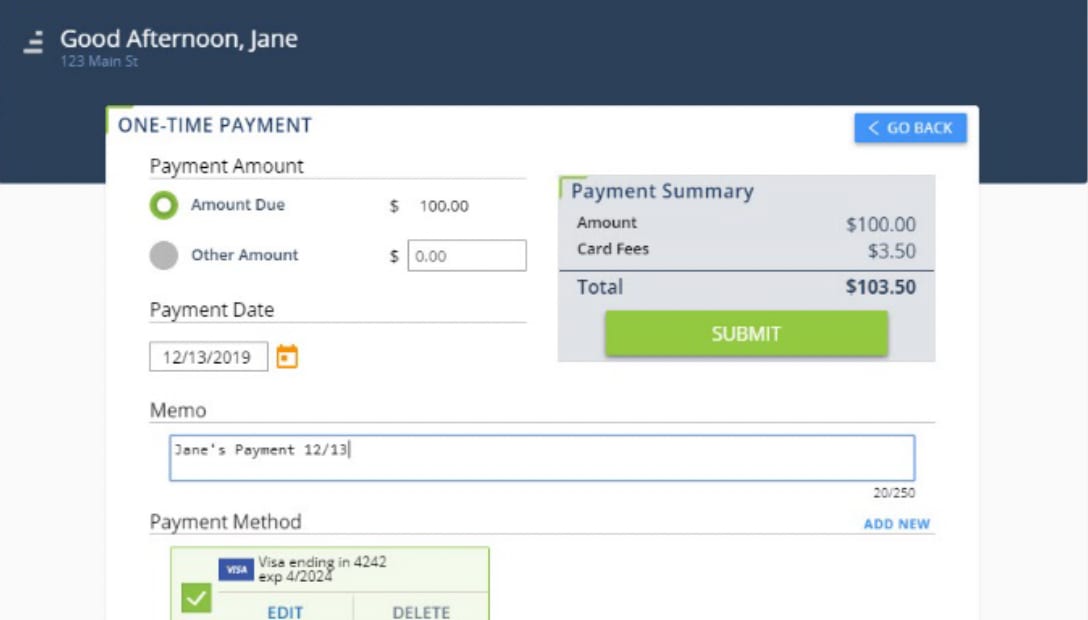
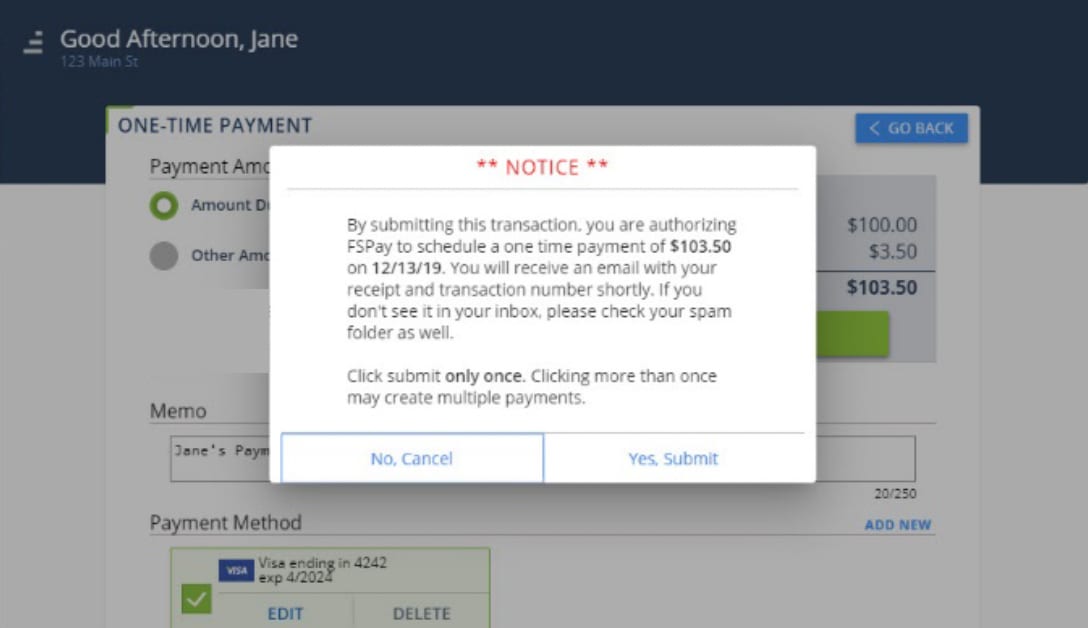
- Review the payment summary and click Submit.
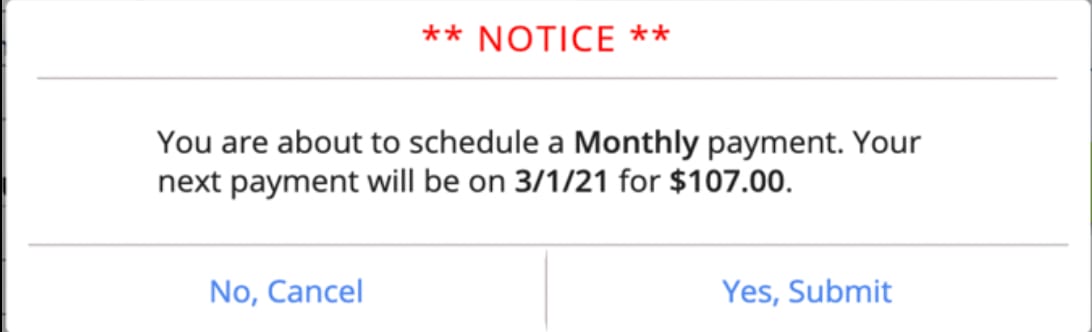
- Click Yes, Submit to confirm your payment.
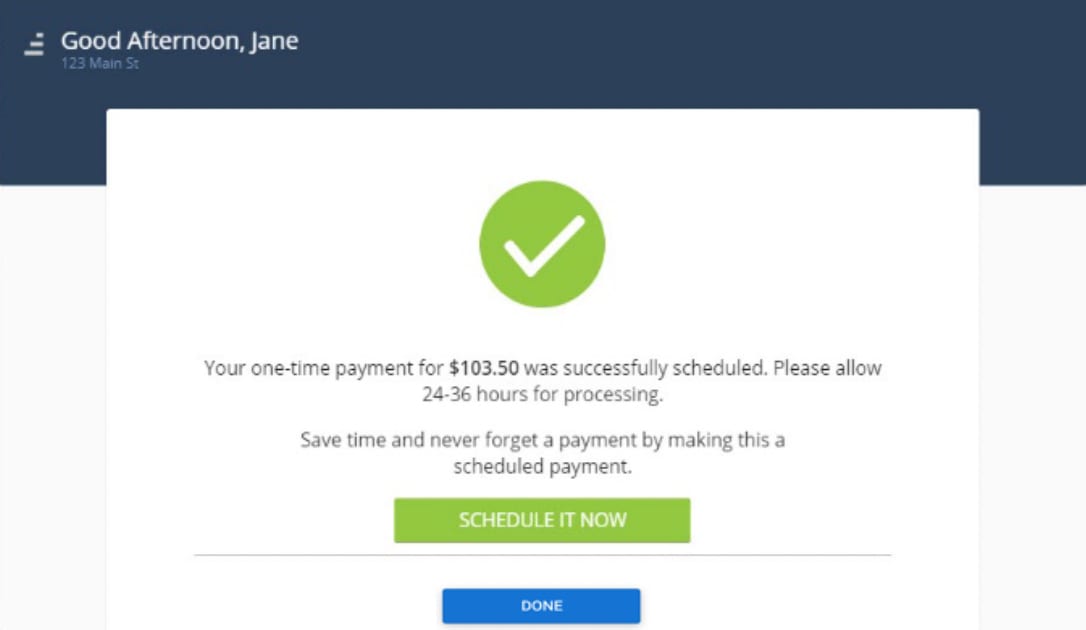
- To set up a recurring payment, click Schedule It Now and continue to #9.
If you do not want to schedule a recurring payment, click Done to return to the Payments Dashboard. You will receive an email confirming your payment.
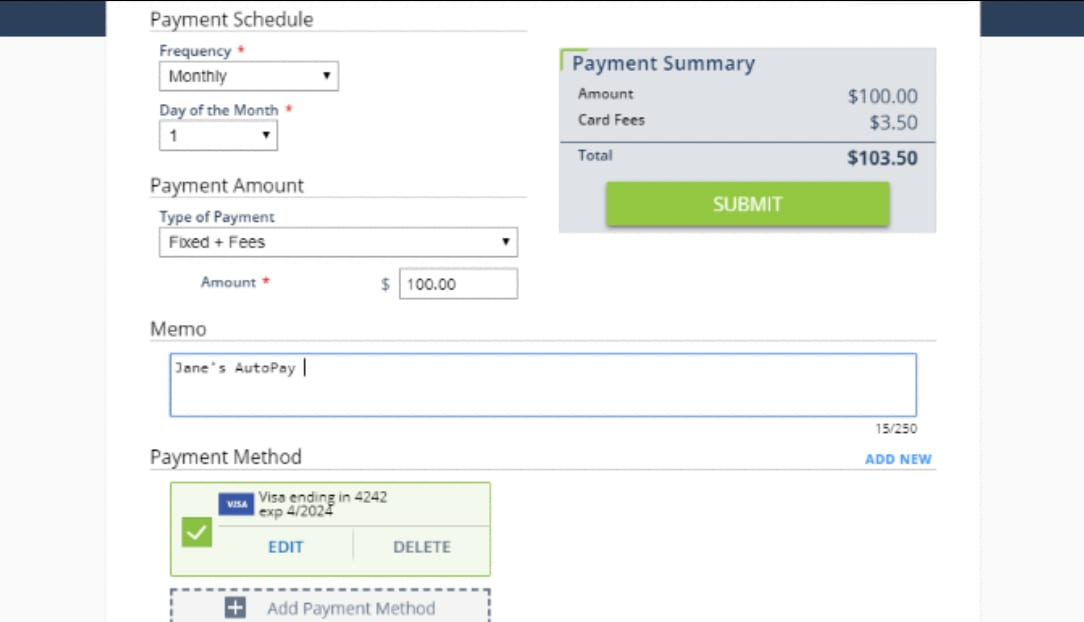
- Select a Frequency (Monthly, Quarterly, Semi-Annually, or Annually).
- Select a Day of the Month or Start Date.
- Select and enter the payment Amount.
- Enter a Memo (if applicable).
- Select a previously added Payment Method or Add New.
- Review the Payment Summary and click Submit.
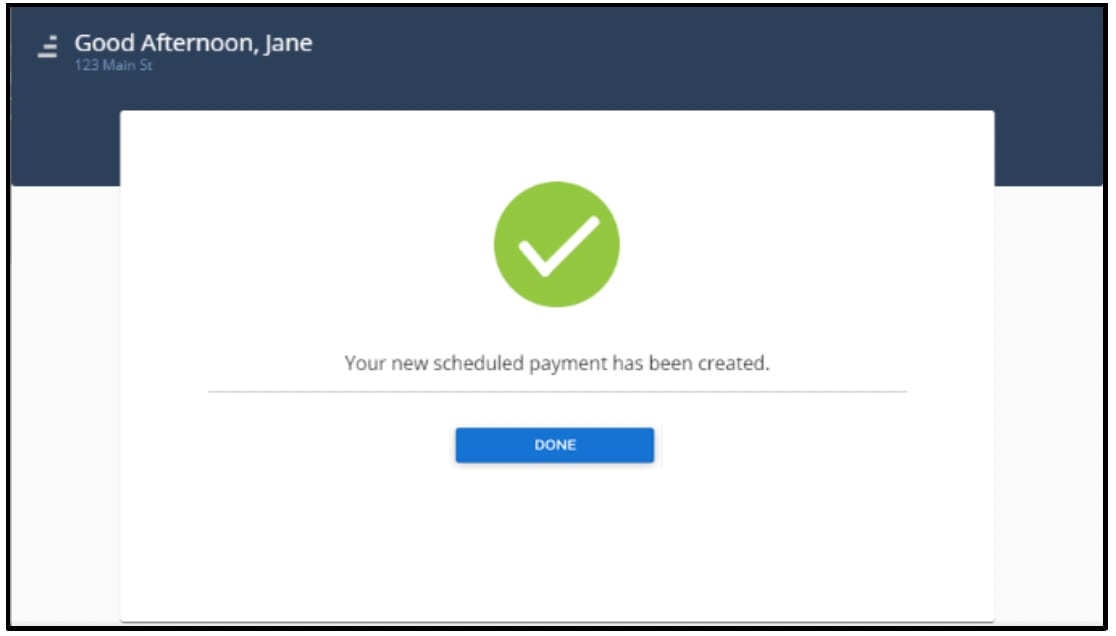
- Click Done to return to the main Payments screen.
How to Add, Edit, or Delete a Payment Method
- Click Make a Payment
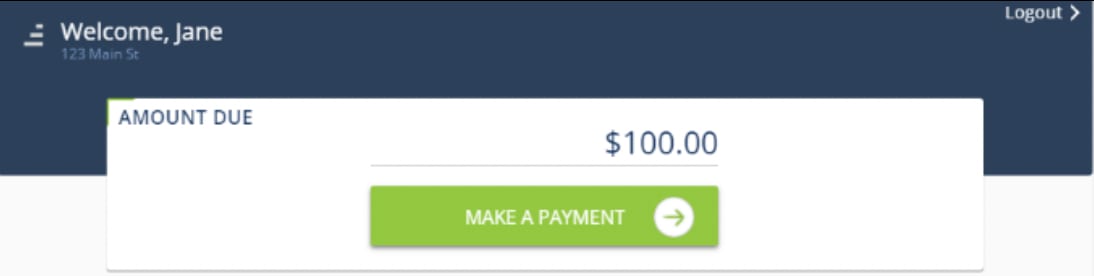
- Click Add Payment Method, Edit, or Delete to update a payment method.
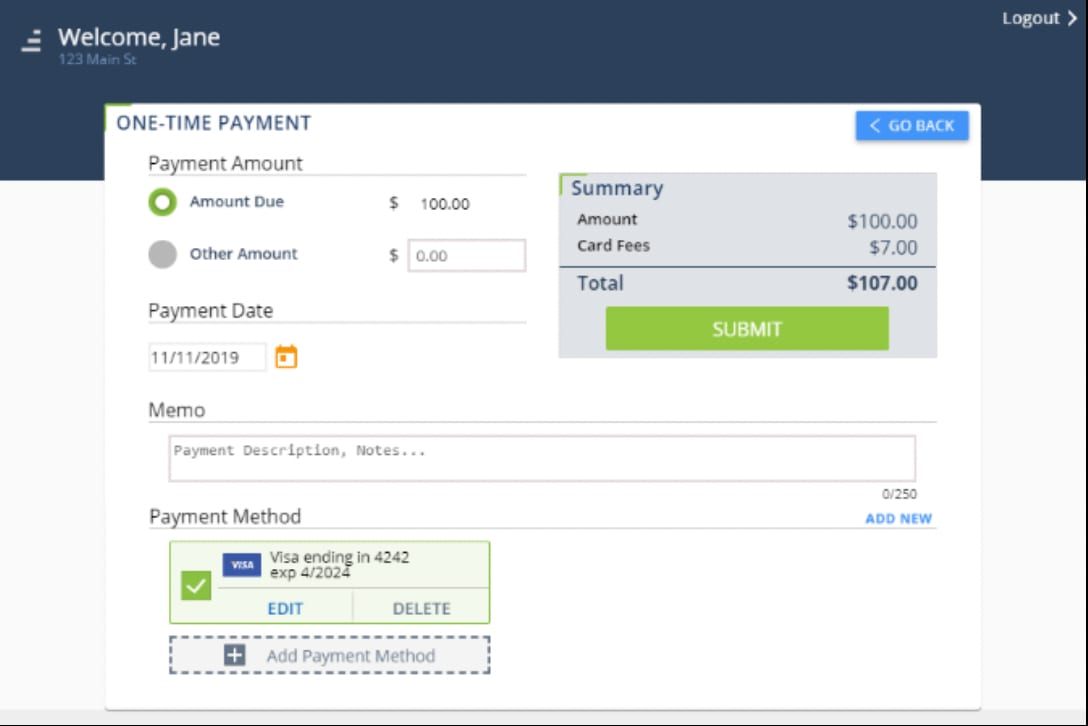
How to Add, Edit, or Delete a Scheduled Payment
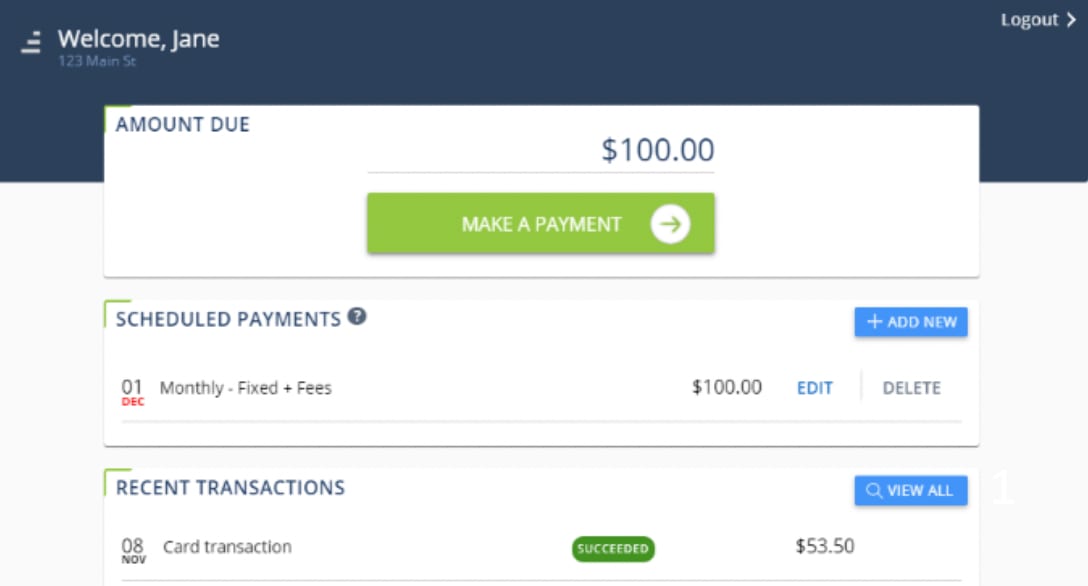
- Under Scheduled Payments, click Add New.
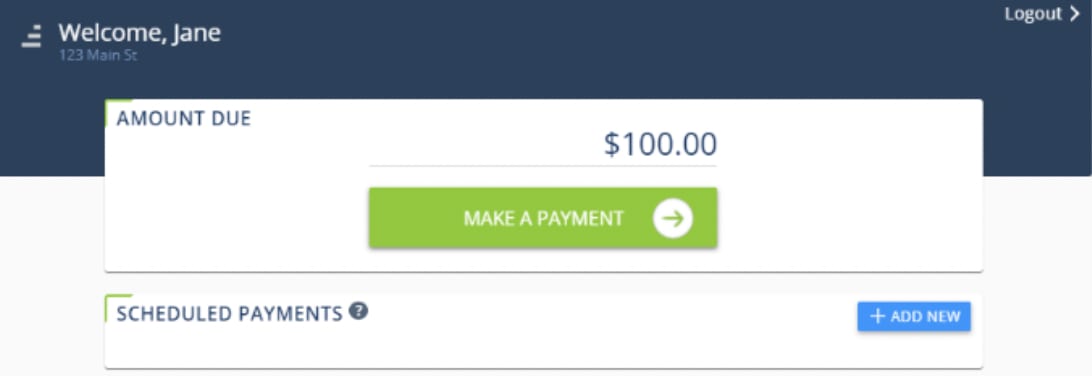
- Select a Frequency (Monthly, Quarterly, SemiAnnually, Annually, or One-Time).
- Select a Day of the Month or Start Date.
- Select a Type of Payment.
- Enter the payment Amount.
- Enter a Memo. This will appear on your email receipt and on your Transaction History.
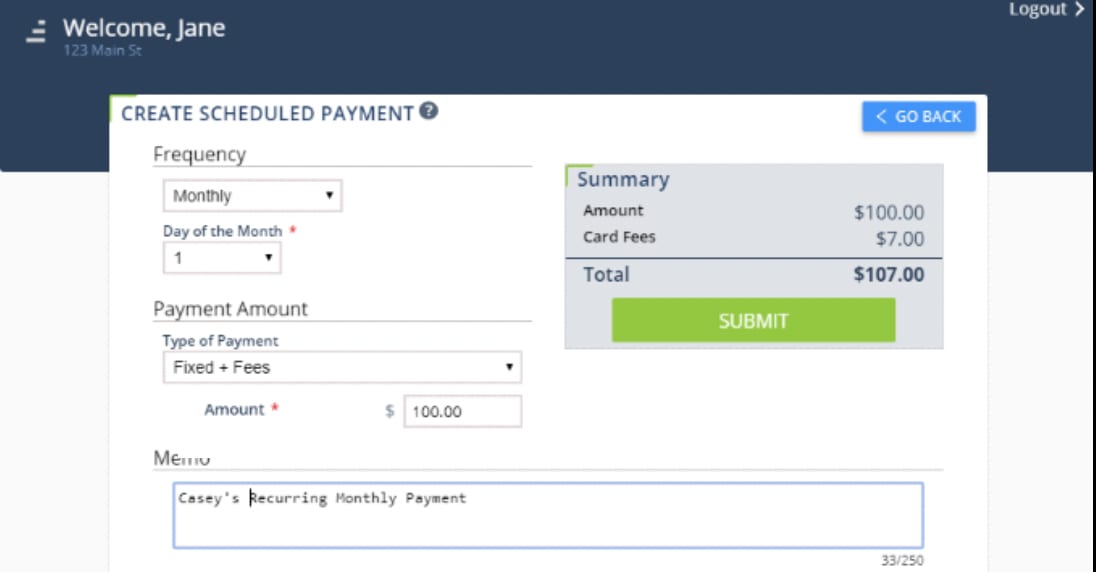
- Select a Payment Method or Add New.
- Review the Payment Summary and click Submit.
- Click Yes, Submit.
View Recent Transactions
- Under Recent Transactions, click View All.
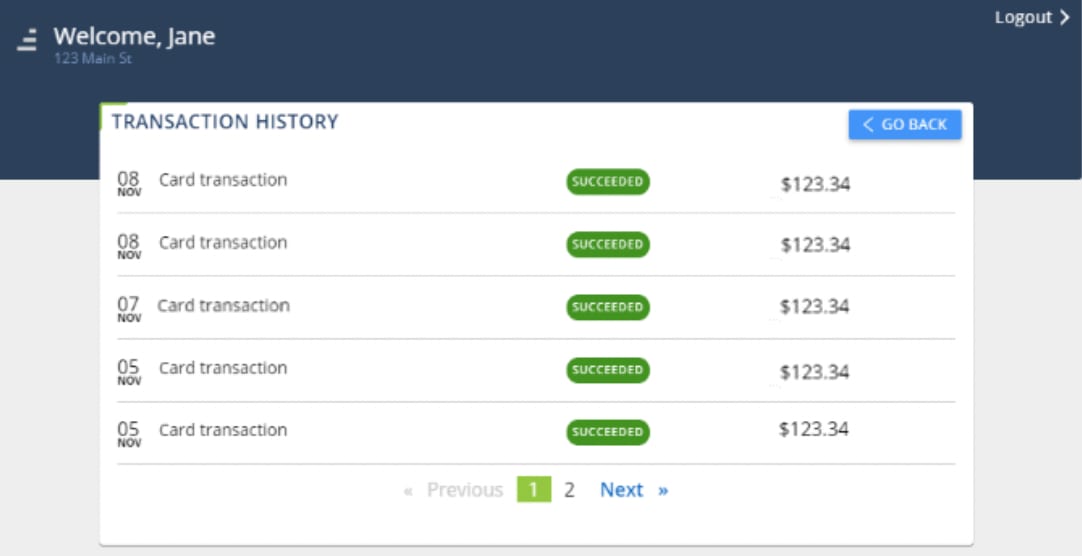
- Click Previous and Next to navigate the pages of your Transaction History.