
FS Pay 3.0 Dashboard Guide
We’re updating this article. Some screenshots or names may look older than what you see in the product.
A complete guide to FRONTSTEPS Pay 3.0 Dashboard
Table of Contents
First Time Accessing FS Pay Dashboard
Payments
Payment Details
Refunds
Homeowners
Homeowner Details
Payouts
View Dashboard Users
Tax Forms
FS Pay Dashboard FAQs & Roadmap
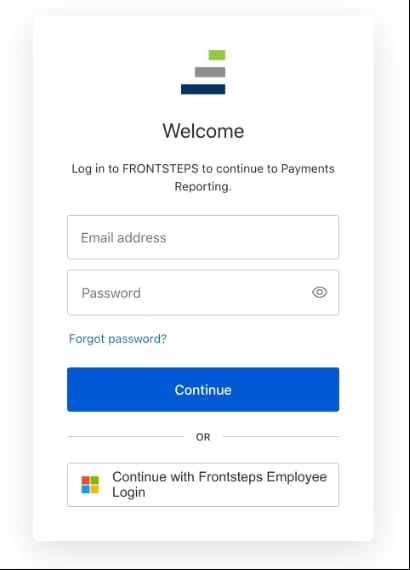
First Time Accessing FS Pay Dashboard
- Go to: https://fspay-dashboard.frontsteps.com/
- Click Forgot Password.
- Enter your email address.
- You should receive and email to create your password.
- Login!
If you don’t have an existing login, please send request to [email protected] and we will get one set up for you.
Payments
After logging in, the first screen is Payments, which displays all of the homeowner payments made across all communities.
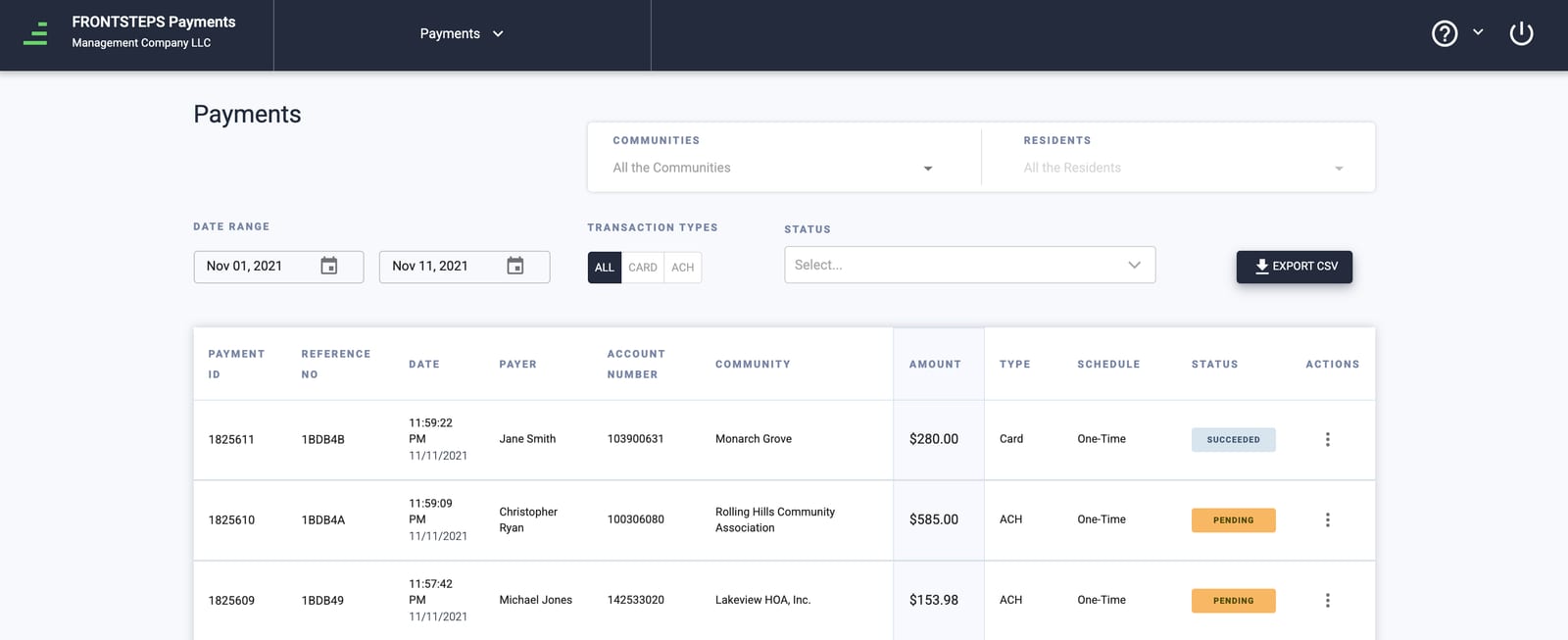
The following filters are available:
- Community - Search and limit the payments for one specific community.
- Resident - Search and limit the payments for one specific homeowner. A community must first be selected before searching for a homeowner.
- Date Range - By default, the date range will be for the current month. This can be changed to any time period.
- Transaction Type - Filters the payments to ACH or Credit/Debit.
- Status - Filter by the payment status. Choose multiple statuses to see payments for all of the selected.
To get a report of Payments, use the 'Export CSV' button. This button will download a comma-separated file (CSV) of the payment data, with any selected filters. To see all payments, make sure to remove all filters.
Payment Details
PAYMENT AMOUNTS
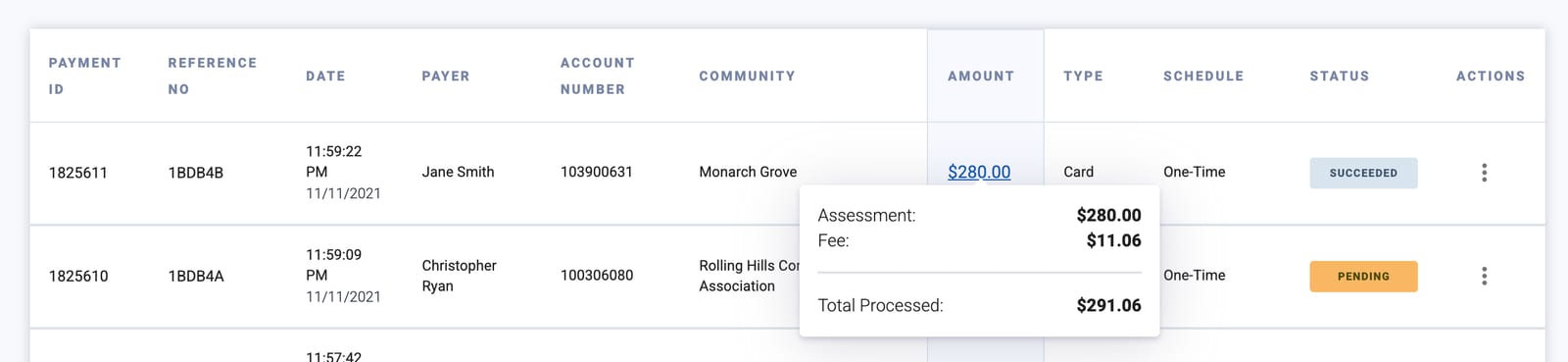
To view additional information about a homeowner's payment, click on the amount to view:
- The Assessment Amount
- The Fee Amount
- The Total Amount Paid by the Homeowner
FAILED & RETURNED PAYMENTS
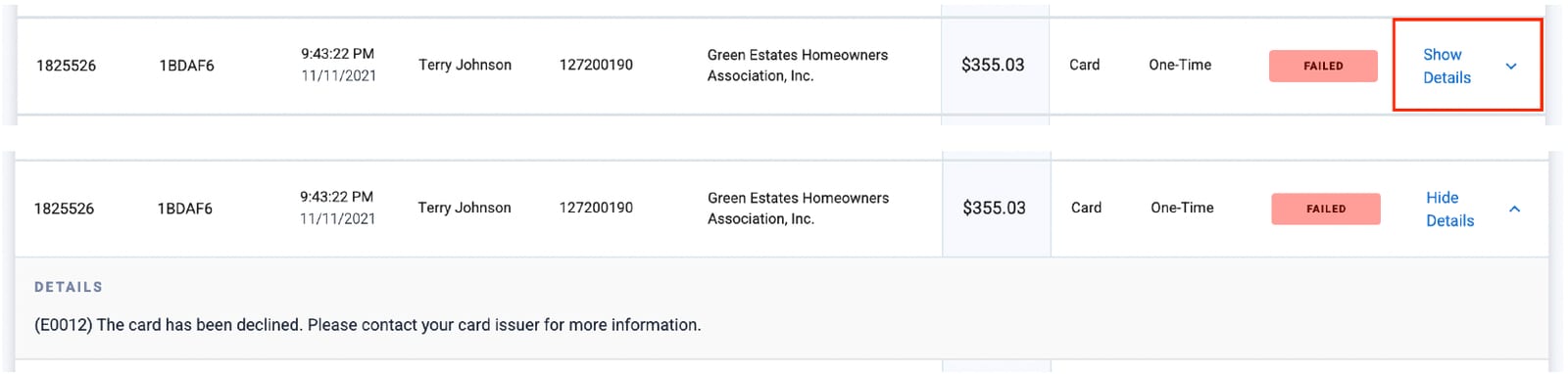
To view details about why a payment has failed, click on the ‘Show Details’ action and the failure reason will be displayed.
Note, some payment failures will have a generic code of (E9999). In cases of potential fraud, details are not given on what specifically is causing the error to prevent further attempts. If more details are required on why a payment has failed, please reach out to the FS Pay support team and we will be happy to assist.
Receipts
Payments can be viewed or re-sent from the Payments dashboard. 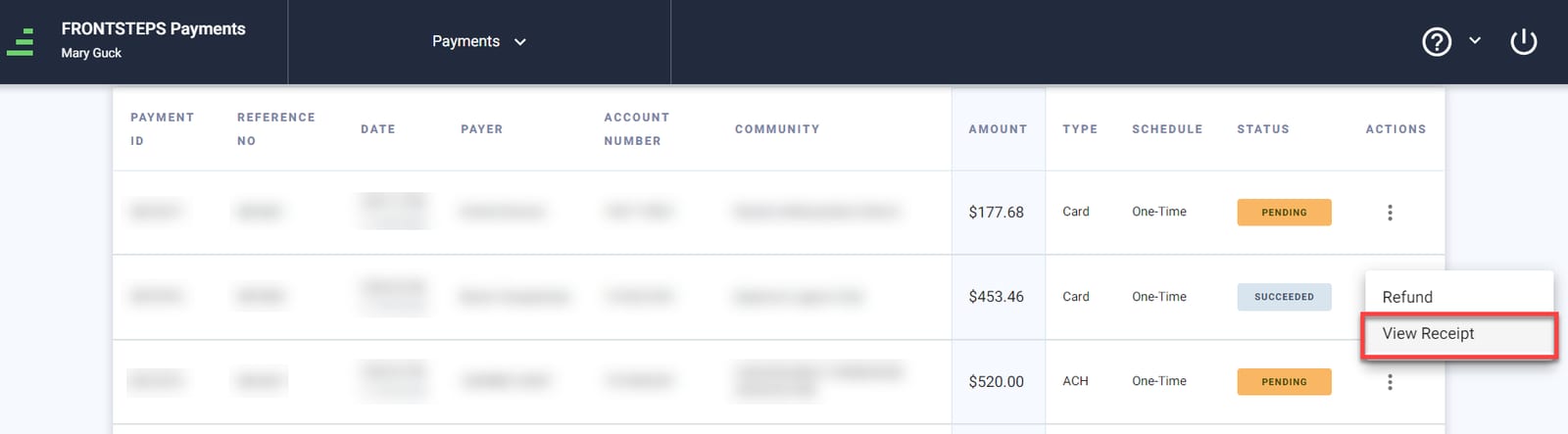
To view a receipt for a payment:
- Search for and find the payment.
- Click on the action button and 'View Receipt'
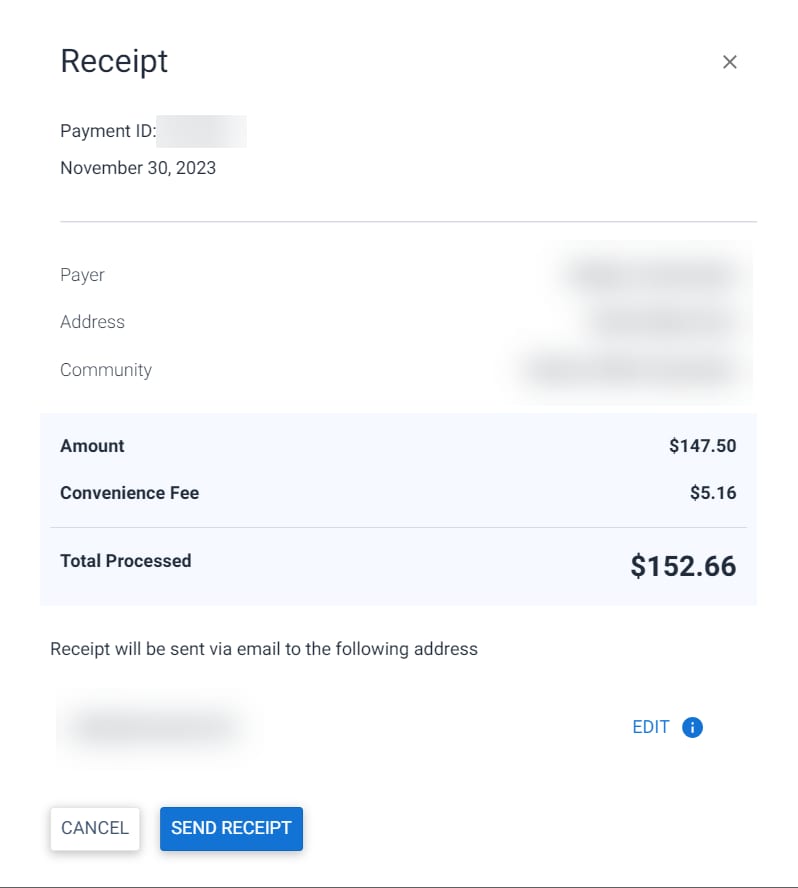
- From here you can view the receipt details and re-send the receipt
- To send the receipt again, click the 'Send Receipt' button.
Refunds
Refunds can be initiated through the FSPay Dashboard on the Payments screen and can only be initiated for payments that have a status of SUCCEEDED.
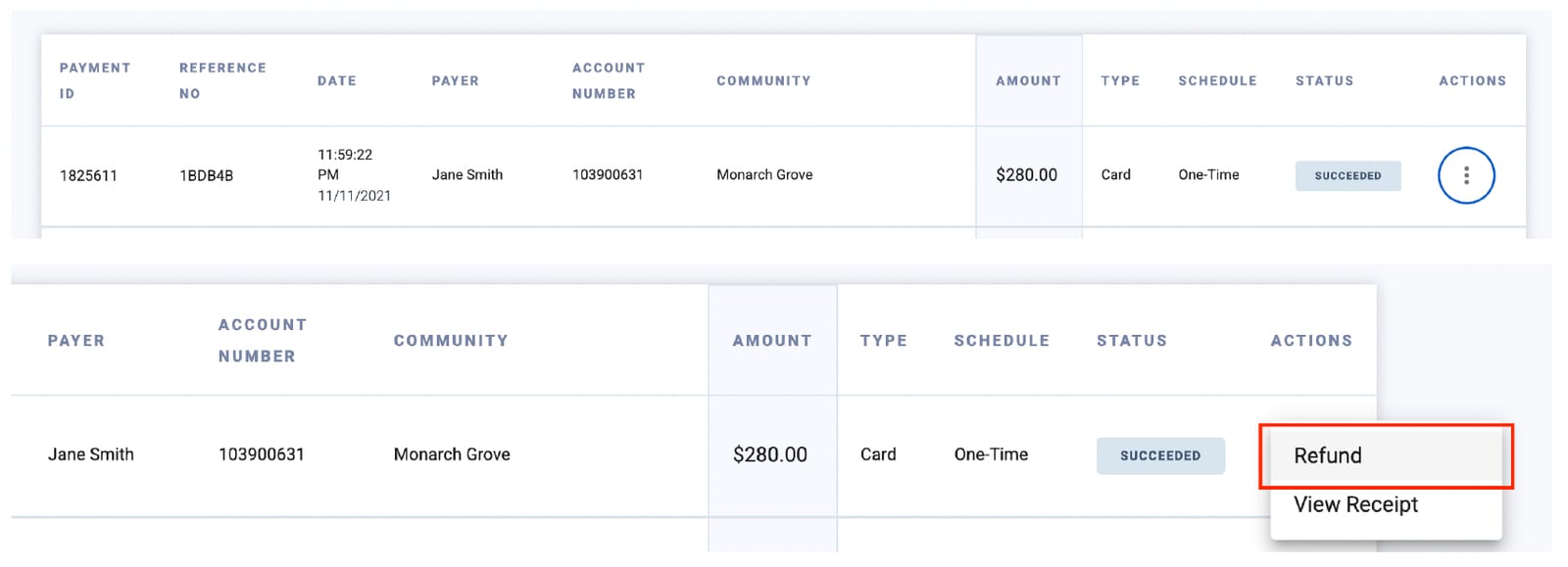
To initiate a refund for a payment:
- Search for and find the payment to refund.
- Click on the action options and select Refund
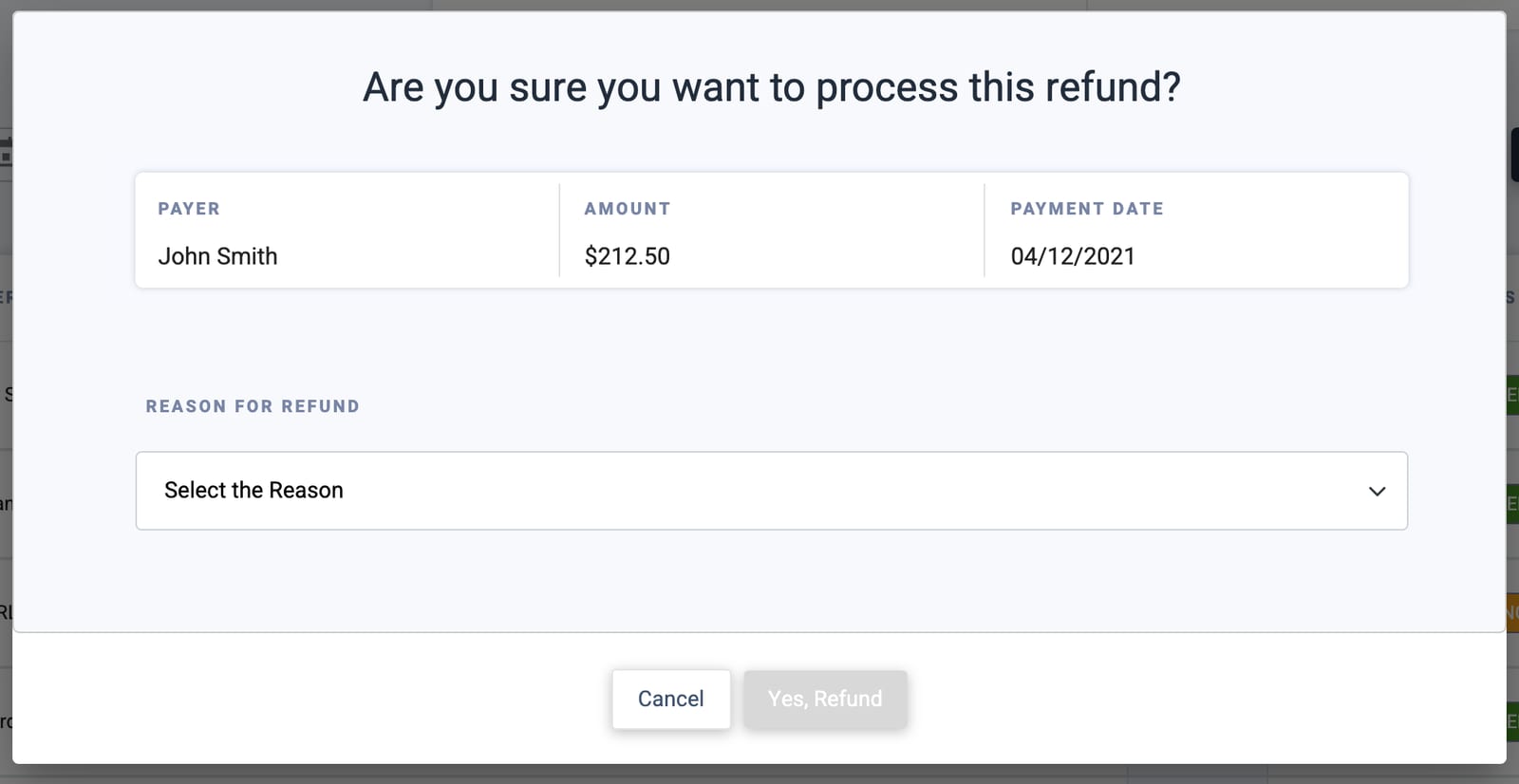
- A prompt will appear to:
- Confirm the details of the payment to refund.
- You will need to select a reason for the refund.
- Once a reason is selected, Yes, Refund will be available to initiate the refund.
Note, refunds for ACH (eCheck) payments can take 5-10 business days to be posted back into the homeowner’s bank account.
Homeowners
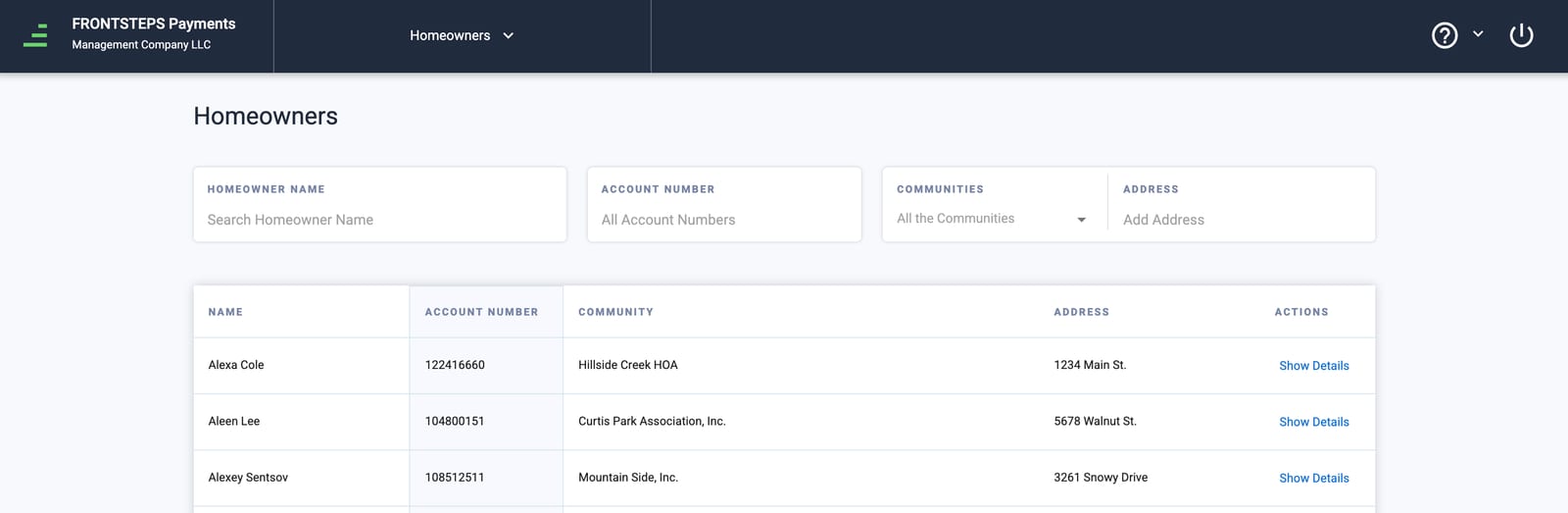
To view details about homeowners, select the Homeowners option from the drop-down menu in the title bar.

The following filters are available to search for a specific homeowner(s):
- Homeowner Name - Search for a specific homeowner by typing in their name. First and/or last name can be used.
- Account Number - Search for a homeowner by their Account Number.
- Community - Search and limit the list of homeowners for one specific community.
- Address - Search for a homeowner by the building/house number, street name, and unit number.
Homeowner Details
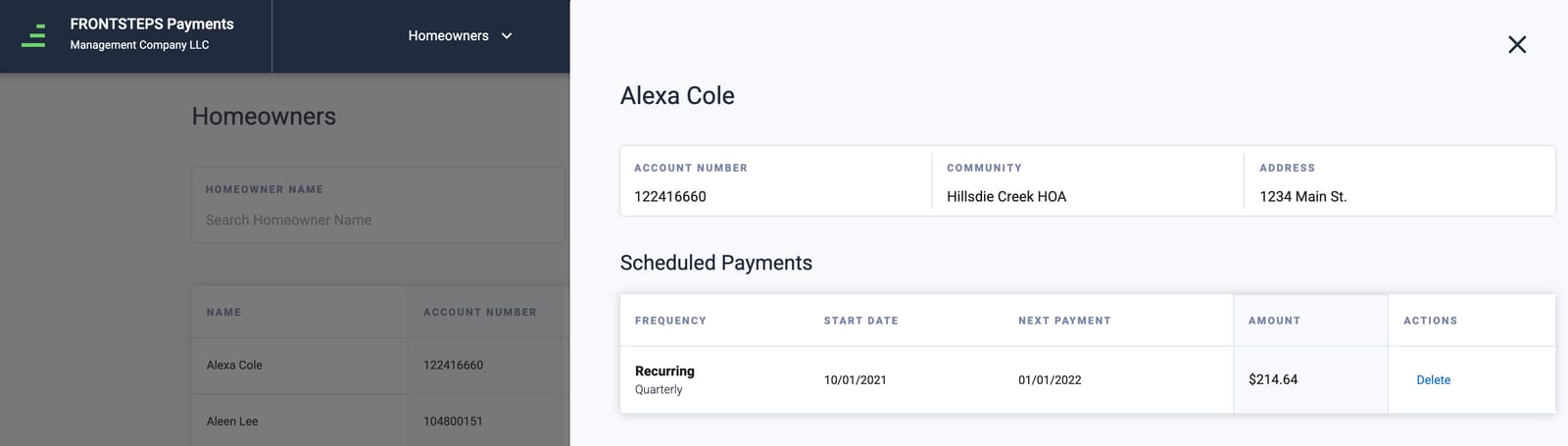
To view additional details about a specific homeowner, click Show Details. A screen appears with details about the homeowner and their scheduled payments.
DELETE SCHEDULED PAYMENTS
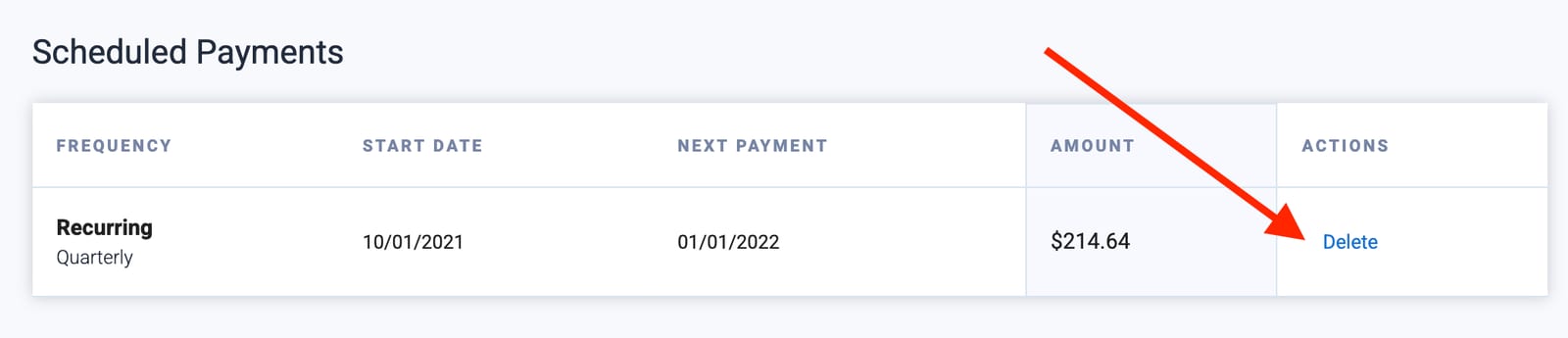
To delete one, or more, scheduled payment(s) for a homeowner, click Delete.
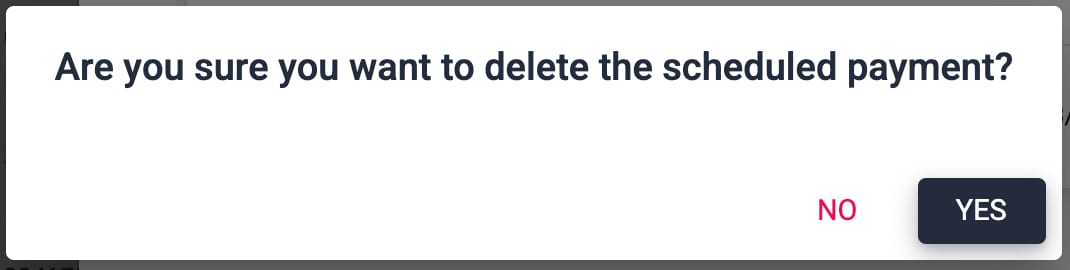
Click to Yes when asked “Are you sure you want to delete the scheduled payment?” to proceed in deleting the scheduled payment. Otherwise, click No to cancel and return to the screen.
Payouts
To view payouts (aka. Deposits or Batches) received, select the Payouts option from the drop-down menu in the title bar.

The following filters are available to search for a specific payout:
- Community - Search and limit the payments for one specific community.
- Date Range - By default, the date range will be for the current month. This can be changed to any time period.
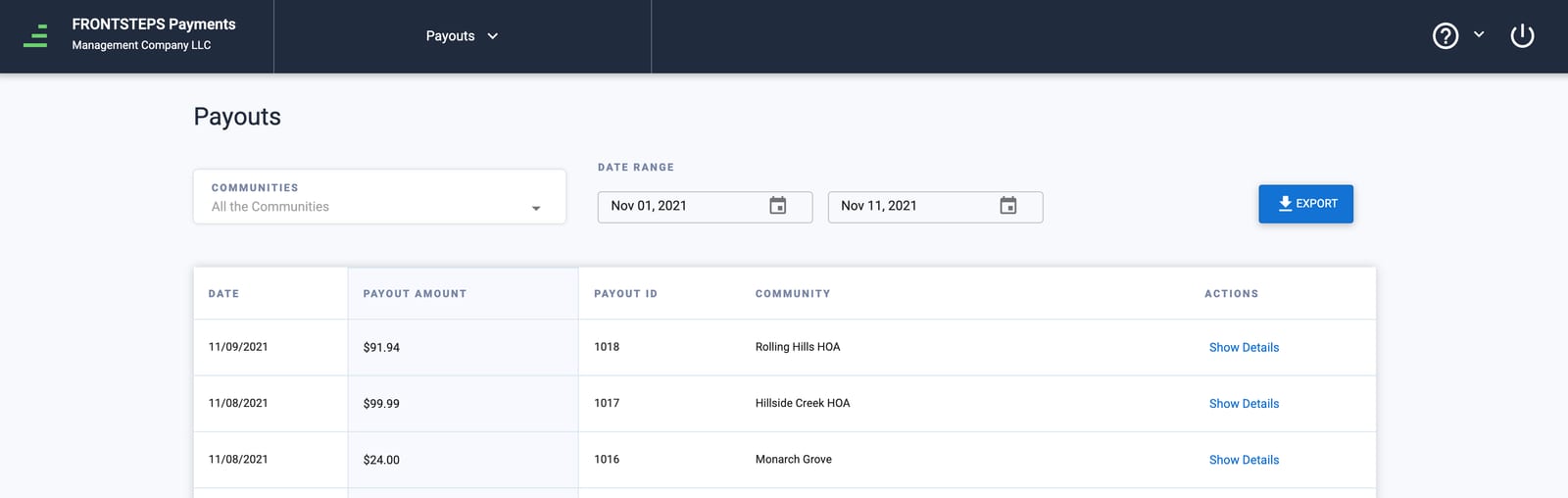
The EXPORT CSV button will download a comma-separated file (CSV) of the payout data, with any selected filters. To see all payouts, make sure to remove all filters.
Payout Details
To view additional details about a specific payout, click Show Details. A screen appears with details about the payout and the payments that make up the payout.
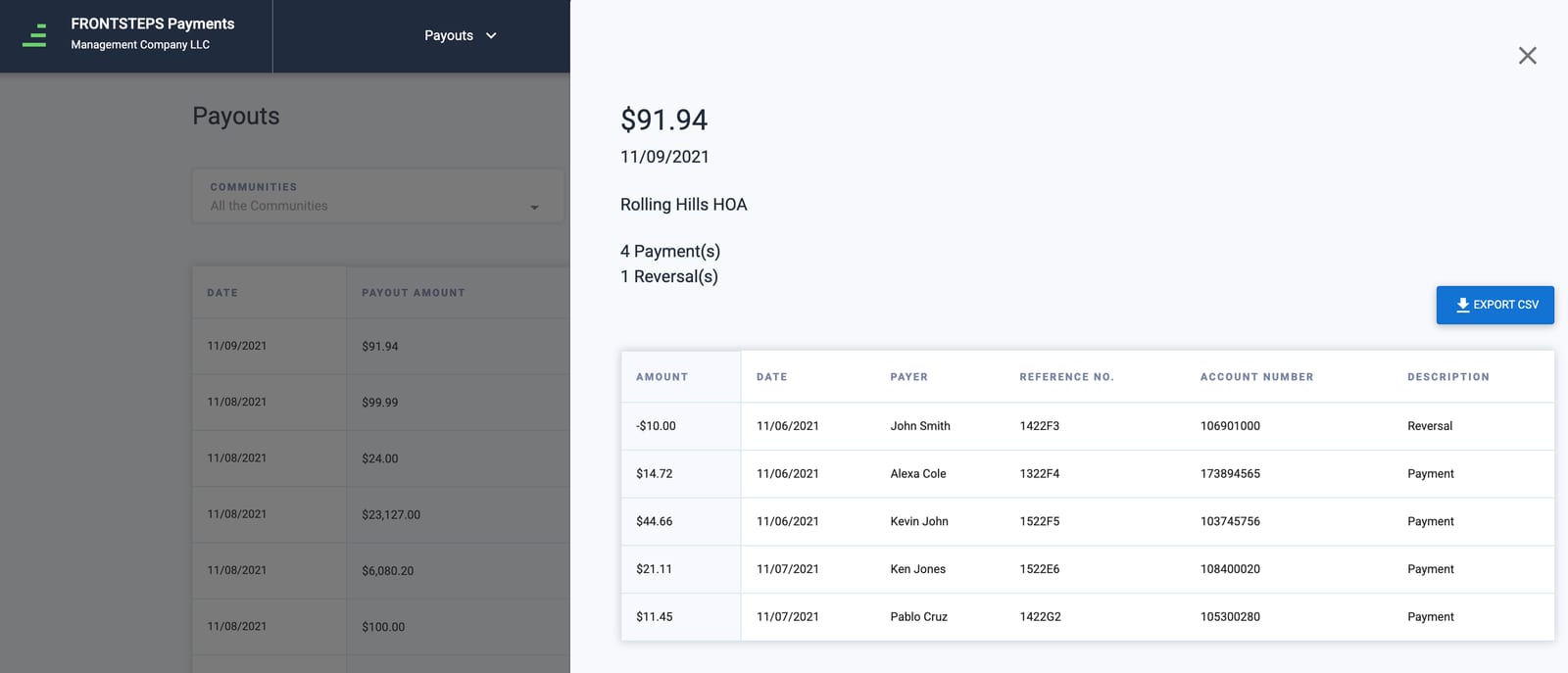
In addition to the payout amount and date, there will be a summary of the total number of payments and the total number of reversals.
Reversals are payments that have previously been paid to the association but have since failed or returned.
Payments that can be reversed are payments with the status of:
- FAILED or RETURNED
- DISPUTED
- REFUNDED
The EXPORT CSV button will download a comma-separated file (CSV) of the payout details.
View Dashboard Users
You can view, search, and add users to the FSPay Dashboard.
Add User
You can add new users to access the dashboard by clicking the blue Add Person Icon.
-
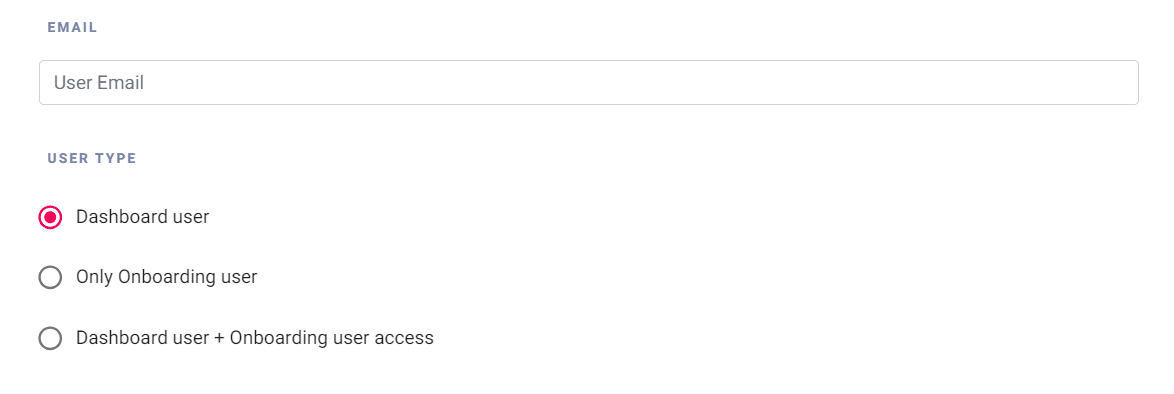
Add the user's email.
-
Select the ‘User Type’
- Dashboard User: View reporting, payments, payouts, and fees, perform refunds, delete scheduled payments, and block owners.
-
Only Onboarding User: Access to perform onboarding tasks.
-
Dashboard User + Onboarding User Access: The user will have access to both reporting and Onboarding tasks.
-
Click Send
-
The user will receive an email to set a password and log in.

Search User
You will find the list of users with access to the dashboard in a list.
-
You can search for a user using the email search field.
-
You can edit a user's email or access it by clicking ‘Edit’ in the action column.
-
You can delete a user's access by clicking ‘Delete’ in the action column.

Tax Forms
FRONTSTEPS Payments is introducing a new ‘Tax Forms’ Tab within the FSPay Dashboard. This feature allows users to download their 1099-K tax forms for the 2023 tax year.
Note: The has IRS announced that the 1099-K filing threshold will remain at $20,000 USD and 200 transactions for the 2023 tax year.
Download Forms
To download your 1099- K form from the FSPay Dashboard, follow the steps below:
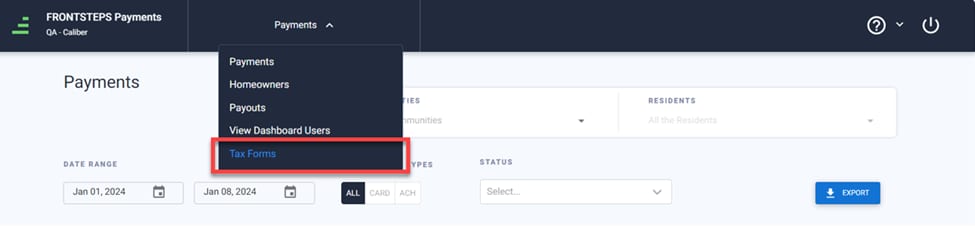
- Login to the FSPay Dashboard. This may also be called ‘Payments Reporting’.
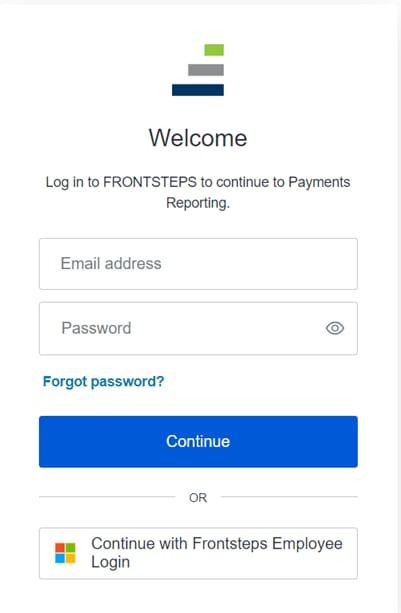
- Once logged in, navigate to the ‘Tax Forms’ tab.
Download All 1099-K Forms
- To download qualified 1099-K forms for all Communities, click on ‘Download All’ button.
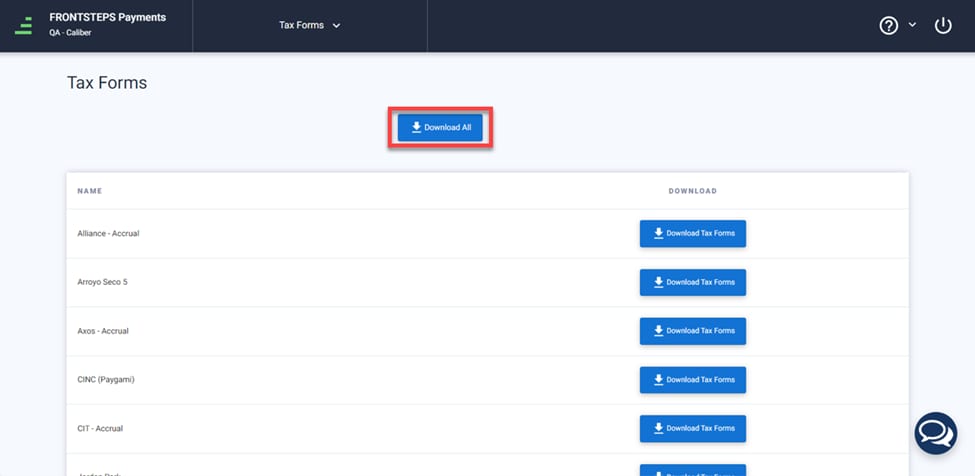
- This will download one zip folder, containing the qualified 1099-K forms for all Communities.
It is important to note the only Communities that meet the IRS Announced Threshold for the 2023 year will have a 1099-K form.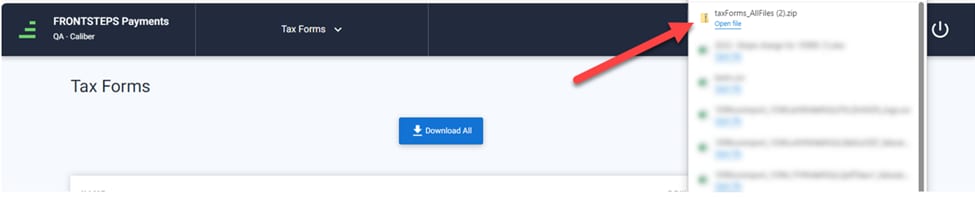
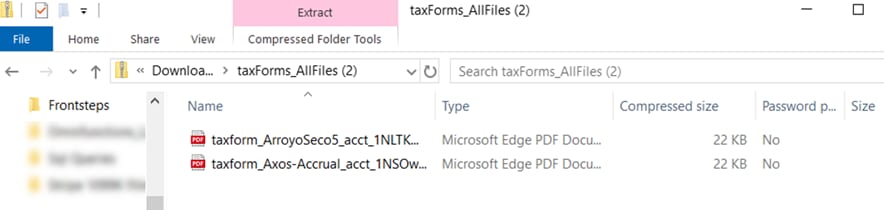
- Once you open the folder you will see a form for each Community that met the announced IRS Threshold.
- The file names of each tax form follow this naming convention: Taxform_CommunityName_processorID
Download 1099-K form for one Community
- If you would like to download a 1099-K form for only one Community, click the ‘Download Tax Forms’ button to the right of the Community. This will download a single file fir the 1099-K form.
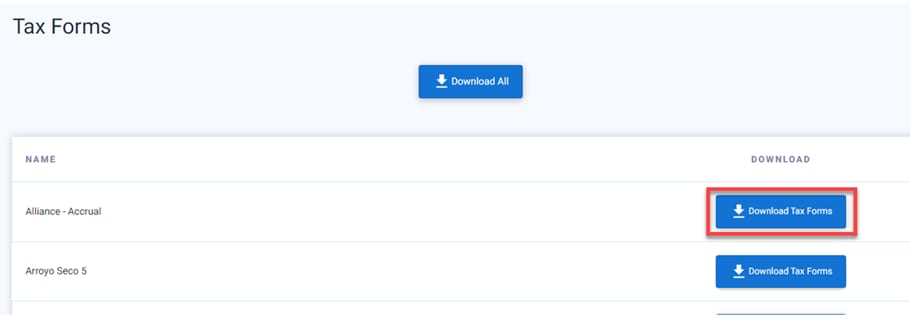
- If the tax forms are not available due to the Community not meeting the announced IRS threshold or State thresholds, they will not be filed and will not be available to download.
The following pop-up will appear to notify you if a Community does not have the tax from available.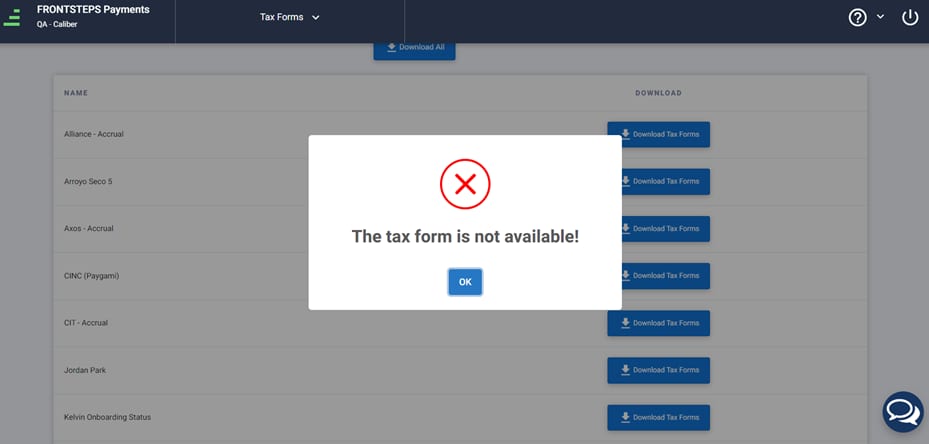
FS Pay Dashboard FAQs & Roadmap
To find out more information, click on the ? icon.

You will find a FAQs page to help answer your questions!
And, if you're interested in seeing what is coming for FRONTSTEPS Payments, click on the FRONTSTEPS Roadmap option.