FRONTSTEPS Community & FRONTSTEPS Caliber- Invoice Functionality
Background
FRONTSTEPS has built out the Invoice, experience as part of our best-in-class integration between FRONTSTEPS Community and FRONTSTEPS Caliber. Directors have the ability to View and Approve Invoices for their community and the granular details of each invoice.Accessibility
The feature is available to all users as follows:- Board Members/Directors: Board Members/Directors can view all Invoices and details for the Community, as well as Approve them.
- Managers: Managers can view all Invoices.
Features
This enhancement provides the following features:- Invoice Search – an search by various data points to find the invoice you may be looking for.
- Invoice View – Displays invoices that have been created in FRONTSTEPS Caliber.
- Invoice Approval – Board members who have been given approval access within FRONTSTEPS Caliber will be able to Approve/Reject Invoices.
View in FRONTSTEPS Community
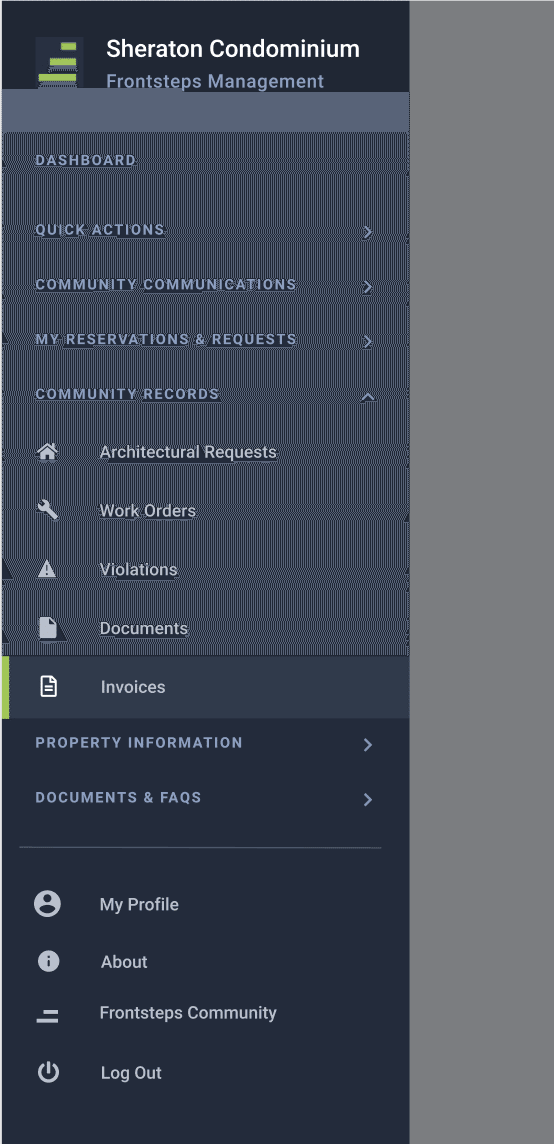
To View Invoices, click the Community Records Menu option > Invoices.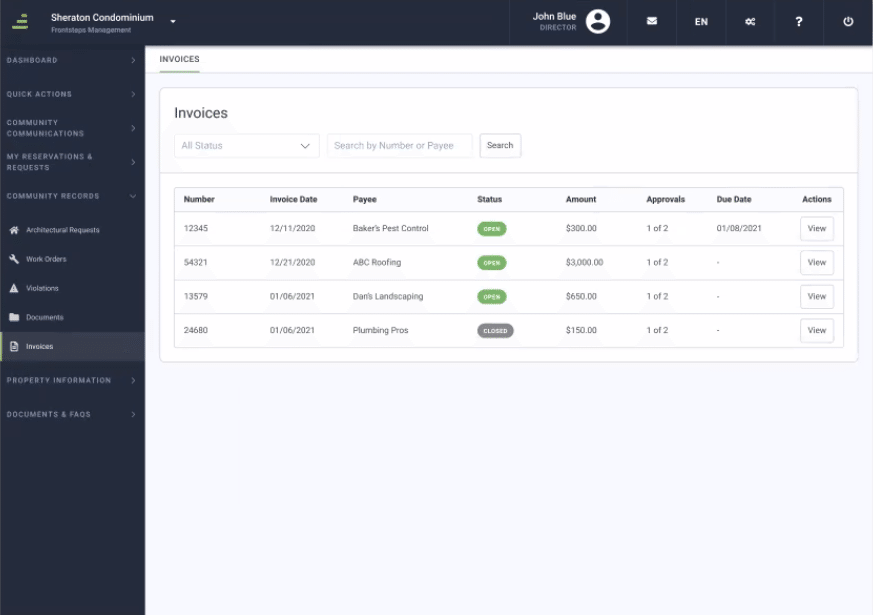
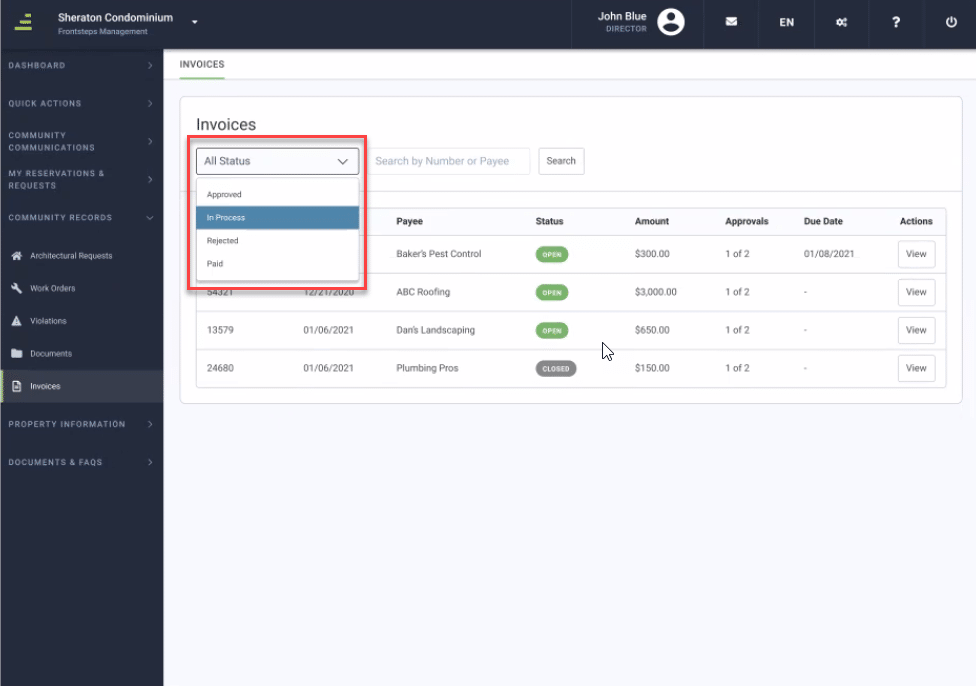
Users can filter by Status to see only invoices in that Status
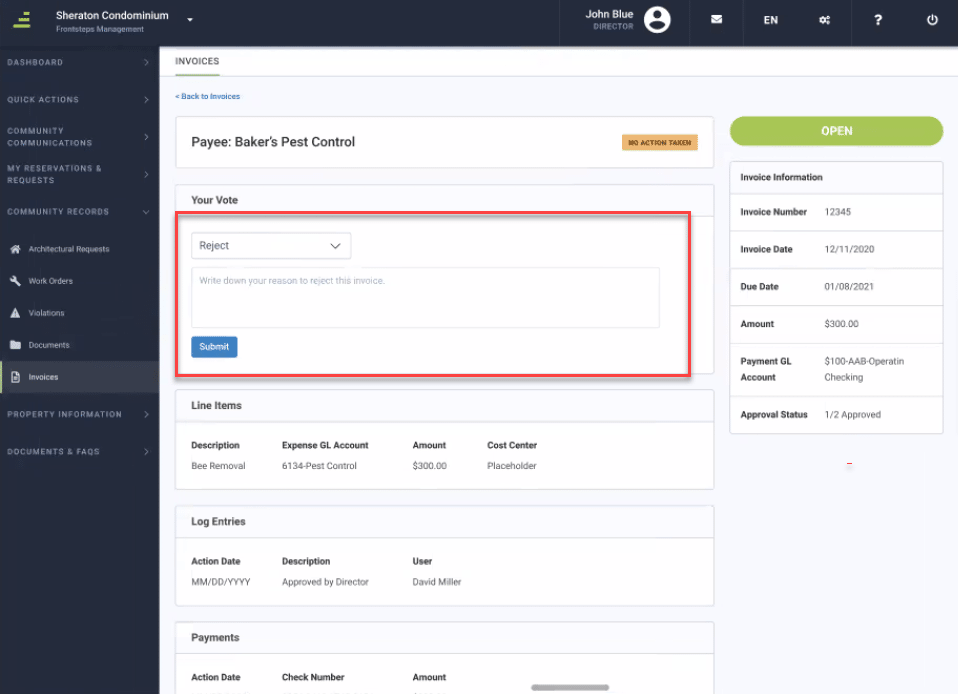
To View details and Approve/Reject an invoice, click the View button. Once the Invoice details are open, you will have the ability to make your decision to Approve or Reject the invoice.
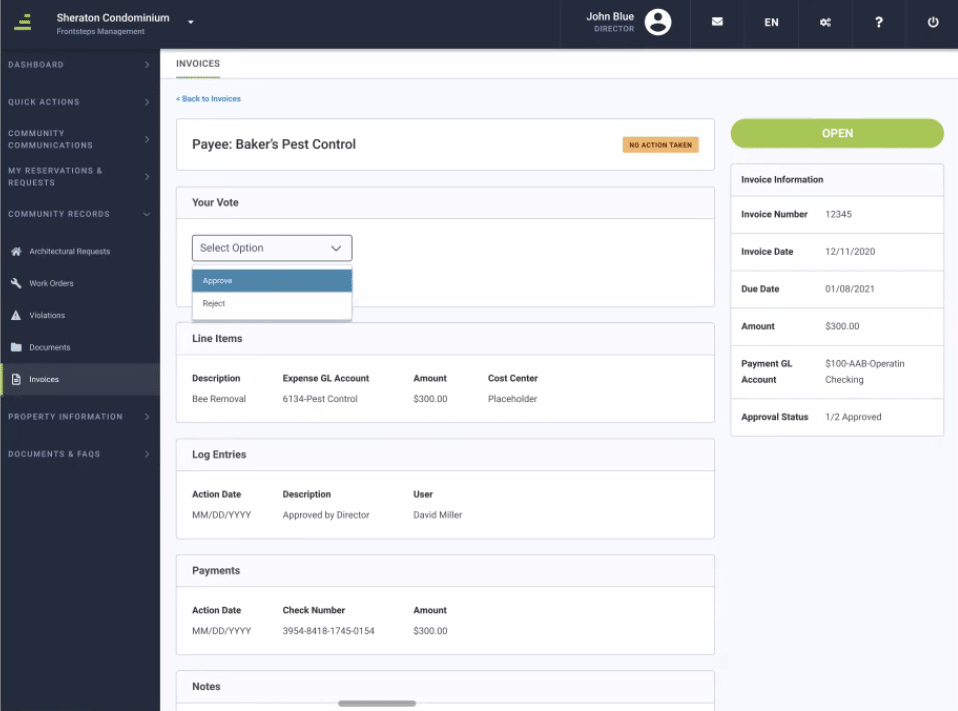
If you choose to Reject the invoice, a text box will pop up allowing you to type in your reason for Rejection, or any other notes.
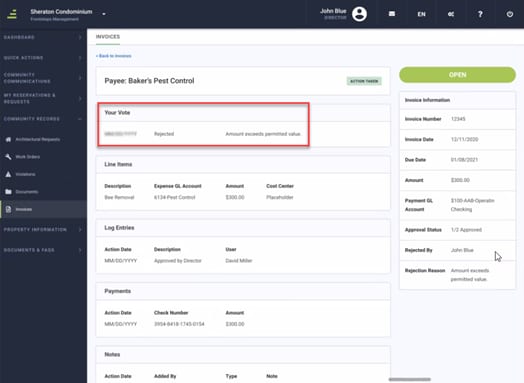
After you click submit, it will show your Vote as Rejected and display your note.
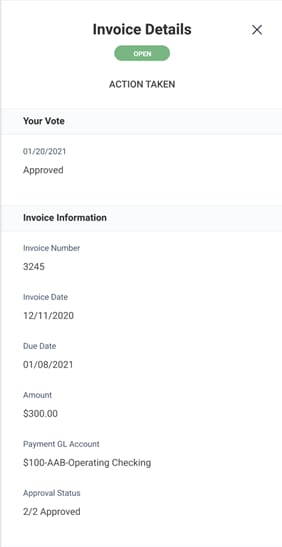
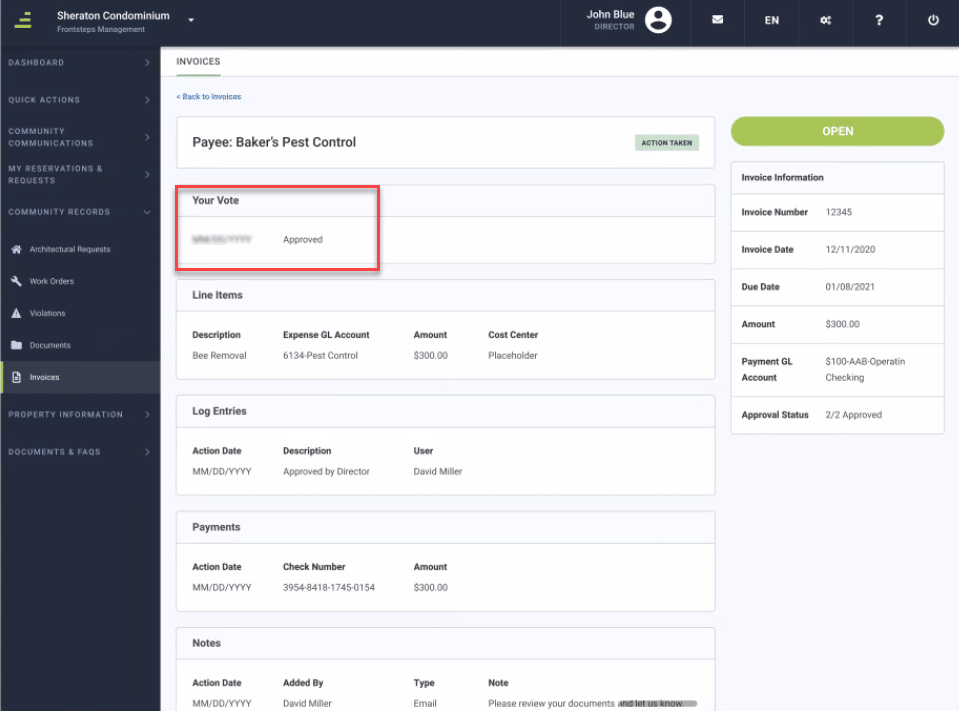
If you choose to Approve the invoice, it will show your vote as Approved.
View in FRONTSTEPS Community Mobile
The functions and capabilities in the Community Mobile App, are going to be the same as in Web:To View Invoices, click the Community Records Menu option > Invoices
Users can filter by Status to see only invoices in that Status
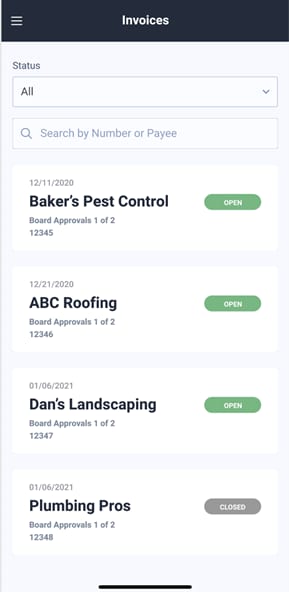
To View details and Approve/Reject an invoice, click the View button. Once the Invoice details are open, you will have the ability to make your decision to Approve or Reject the invoice.
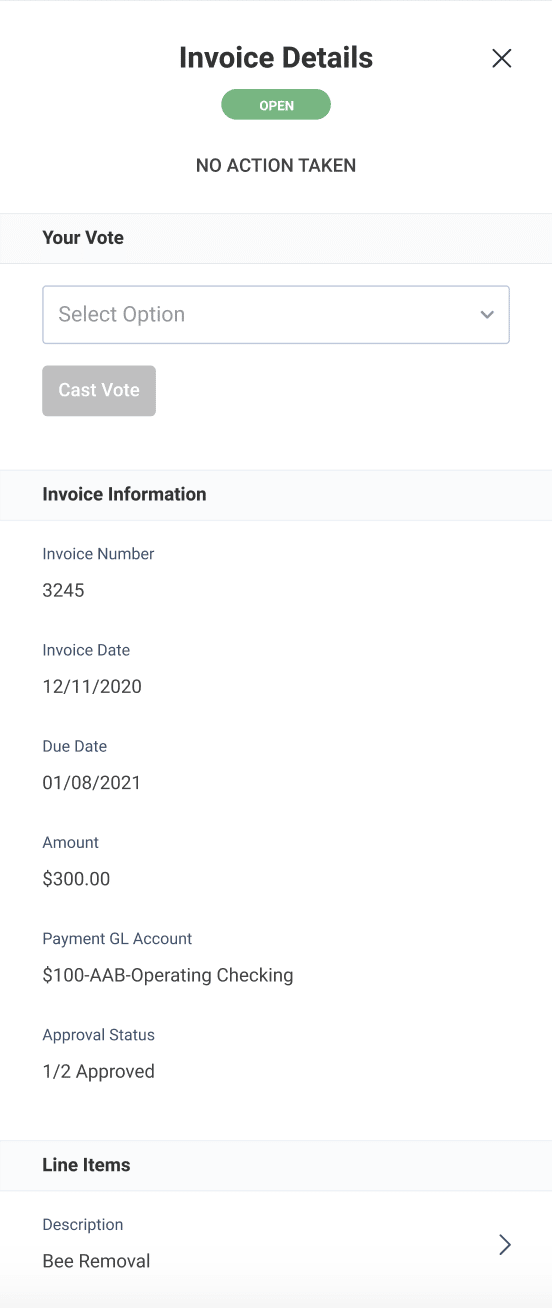
If you choose to Reject the invoice, a text box will pop up allowing you to type in your reason for Rejection, or any other notes.
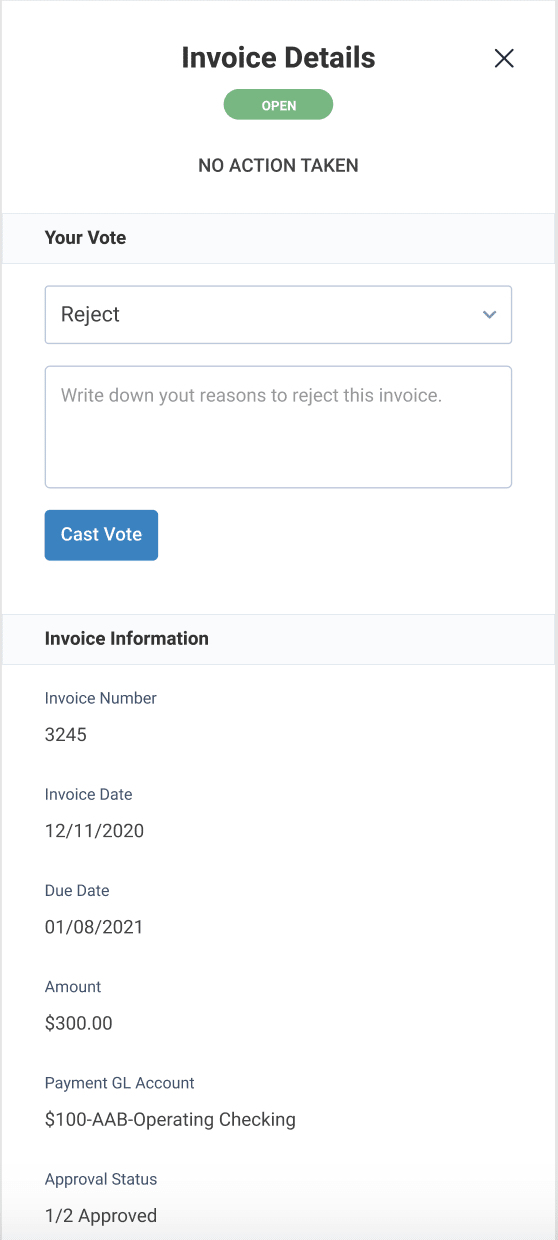
After you click Cast Vote, it will show your Vote as Rejected and display your note.
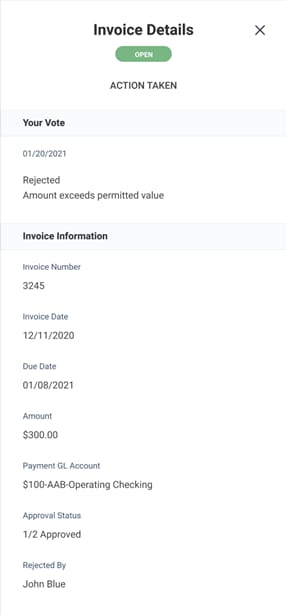
If you choose to Approve the invoice, it will show your vote as Approved.