
Managers - Color Coding a Calendar Event
We’re updating this article. Some screenshots or names may look older than what you see in the product.
As a default, Events are displayed on the Community Calendar with a blue background and white text. Managers can use different colors for different types of Events, for both the background and text.
Adding Color Coding to an Event
From the Manager Dashboard, select Community Events.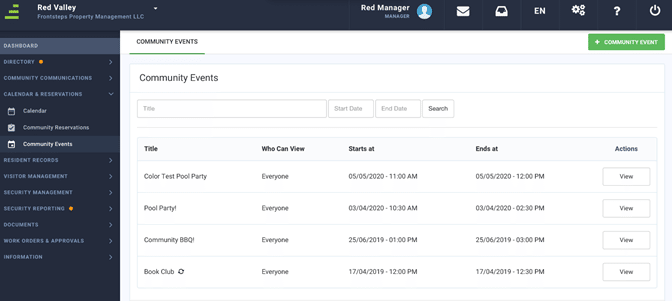
To add a new Event, select + COMMUNITY EVENT.
Complete the Event details, description, date and time.
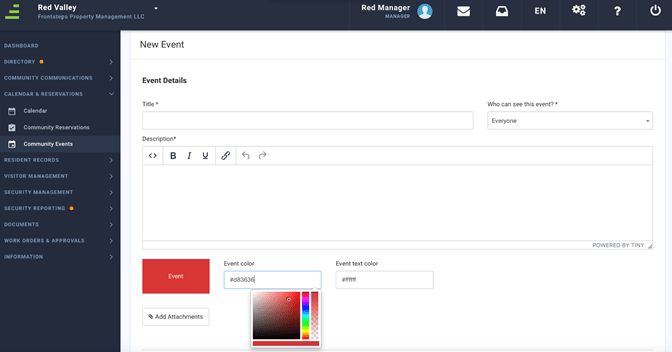
To color code the background of the calendar display of the Event, select the Event Color field, then select the color from the displayed options.
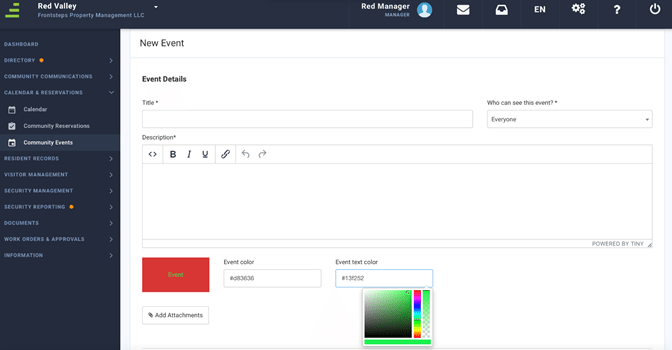
To color code the text of the calendar display of the Event, select the Event Text Color field, then select the color from the displayed options. Select Create Event.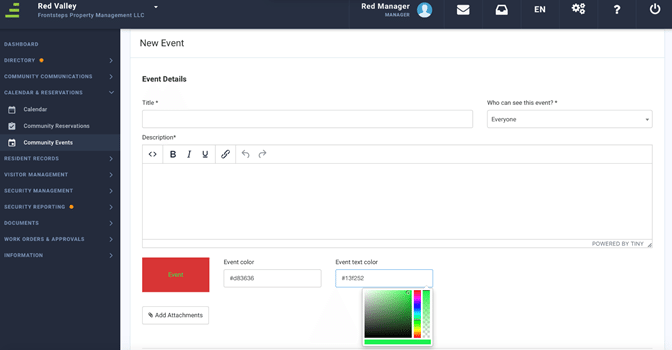
The new Event is displayed with the selected color coding.
Note: You can also edit an existing Event to include color coding by selecting the View option next to the Event, then selecting the Edit option.