
Resident - Editing/Deleting Photos in a Photo Gallery
To edit or delete photos in a Photo Gallery:
- Click on a Group Page
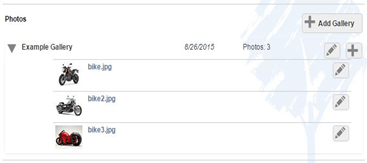
- In the Photos section of the Group Page, click the arrow next to the photo gallery name to expand it
- Click on the Pencil icon (Edit button) next to a photo
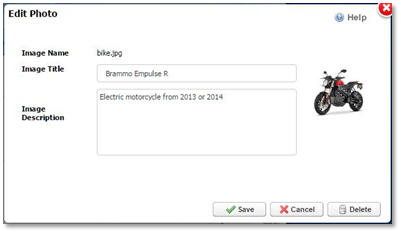
- The Edit Photo window, will contain the following:
- Image Name: Uploaded file name
- Image Title: Title appears next to image listed on Group Page
- Image Description: Appears below the Title listed on Group Page
- Save: Save changes made
- Delete: Deletes the individual image