
Manager - Editing Recurring Events
We’re updating this article. Some screenshots or names may look older than what you see in the product.
Managers can edit previously posted recurring events. This feature provides edits to 1) one event in the series, 2) an event and all those that follow, and 3) all events - past, current and future.
Recurring Event Edits
From the Calendar and Reservations menu option, select Calendar.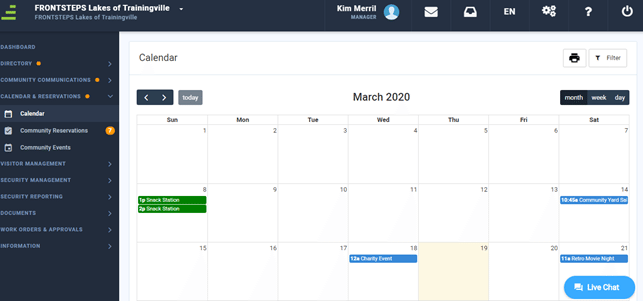
To edit a Recurring Event, select the Event from the Calendar.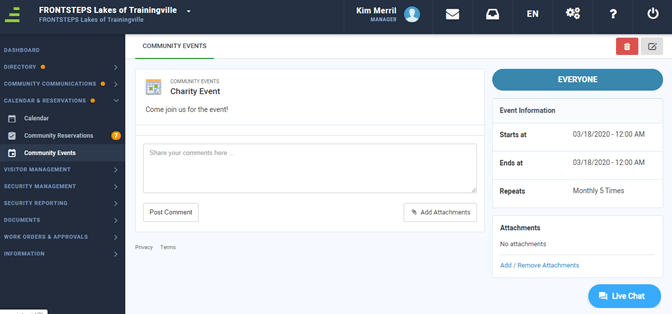
Select the Edit option. The Edit Recurring Event window will display.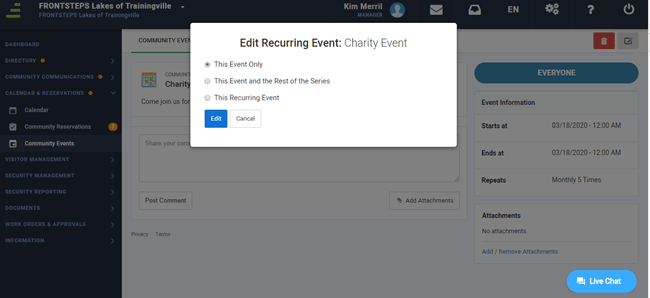
1. Select This Event Only, This Event and the Rest of the Series or This Recurring Event.
2. Select Edit.
This screen will display when This Event Only is selected. Edits apply only to this Event. 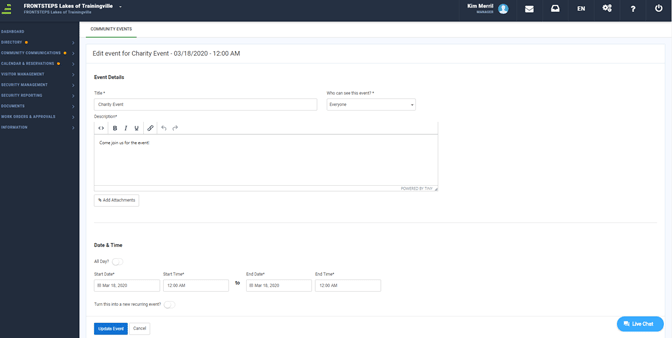
This screen will display when This Event and the Rest of the Series is selected. Edits apply to this event and all future events in the series.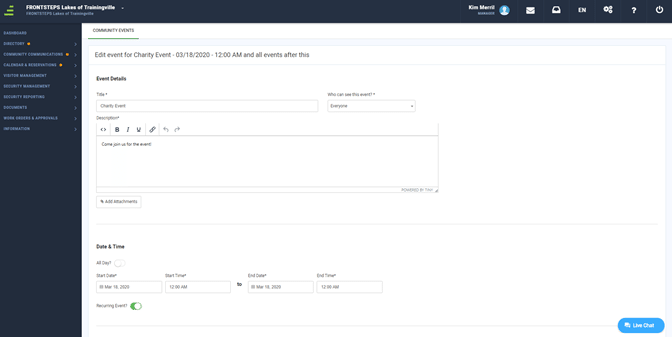
This screen will display when This Recurring Event is selected. Edits will apply to all past, current and future events in the series. 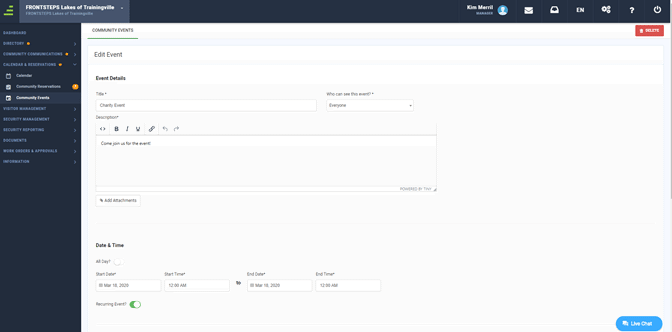
3. Modify the Event.
4. Select Update the Event.
5. You will receive a message in the upper right corner of the screen, indicating that your modification has been made.