Edenred Advanced AP Integration
Background
Edenred, formerly CSI (payments) and IPS (Invoice processing), is an invoice and payments automation provider that our customers are able to use for vendor and third-party payments.
While there is an existing Edenred integration that is better known as VendorPay (formerly C-VendorPay, formerly MutualPay), that is an end-to-end solution for First Citizens Bank (FCB, formerly CIT Bank, formerly Mutual of Omaha Bank) customers only. It is not available with any other bank.
Frontsteps is establishing its own business relationship with Edenred for customers that are interested in their services but may not be a CIT customer, want the entire VendorPay solution, or both, allowing our customers to make use of the Edenred services without those dependencies.
The new implementation will support customers who want the full end-to-end solution or just one half of it (typically, just the payments side).
Set-Up
Outside of Caliber
The customer must have an account set up at Edenred. This is set-up by the customer directly with Edenred outside of Caliber and will include providing the appropriate Payment GL Accounts to be set-up in their system.
Note that the customer is NOT required to use the Edenred Invoice automation.
Inside Caliber
Advanced Automation Scheduled Task
First, an Edenred Advanced Automation scheduled task must be created and made Active. This requires that Advanced Automation be enabled for the customer by Caliber.
Once Advanced Automation is enabled, go to Management > Advanced Automation.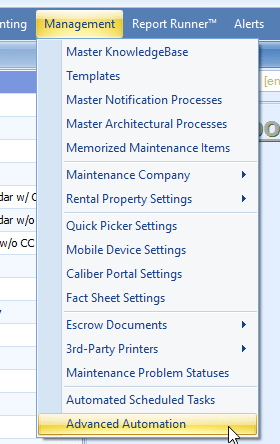
In the Advanced Automation Tasks Toolbox, click on the ‘Add New’ icon.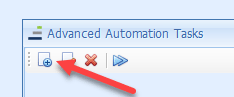
Select the CSI option.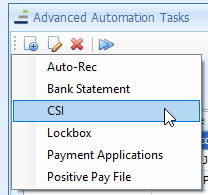
Enter the Edenred provided API credentials.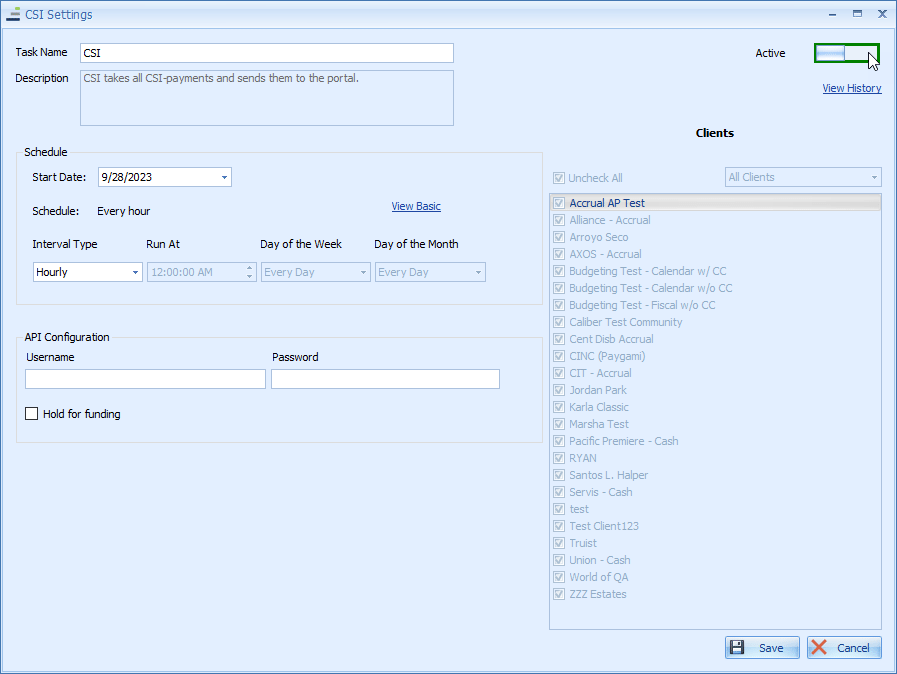
The Interval Type should be ‘Hourly.’
‘Hold for Funding’ is a feature offered by Edenred. It should not be selected unless it has already been cleared with Edenred.
When done, click Save.
Enable the Edenred Payment Method
Next, the Edenred payment type needs to be enabled.
Go to Accounting -> Setup -> Configure AP Payment Types.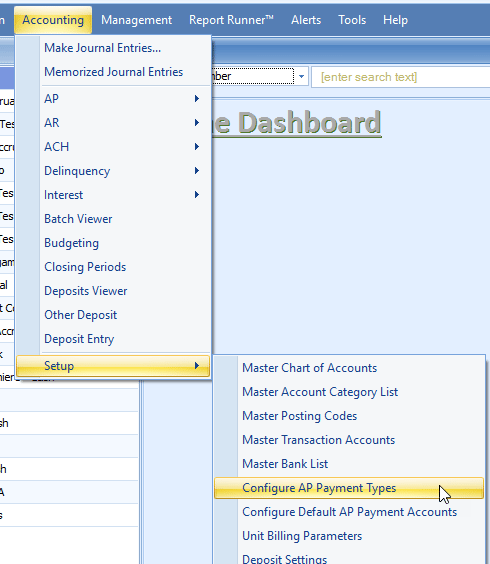
In the AP Payment Types Toolbox, check ‘Edenred,’ and save. This enables the payment type for all vendors.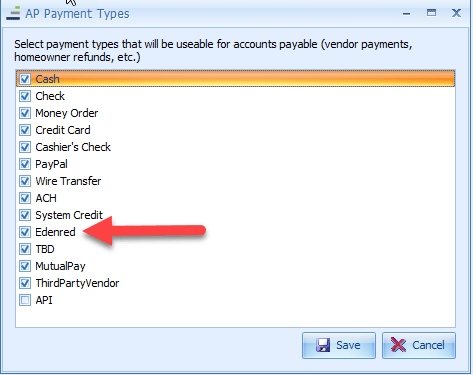
Enable the Edenred Alerts
There are two Alerts, one for successful batch submissions and one for failures, which are available for users. These will provide updates on the batch submissions that can save the users from having to check for them in Advanced Automation.
Go to Alerts at the top ribbon and select ‘Configure System Alerts.’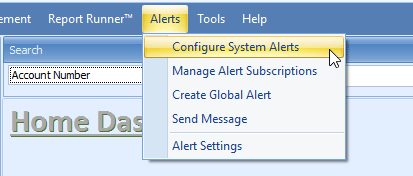
Scroll through the System Alerts list, check the two Edenred Batch Alert, and Save.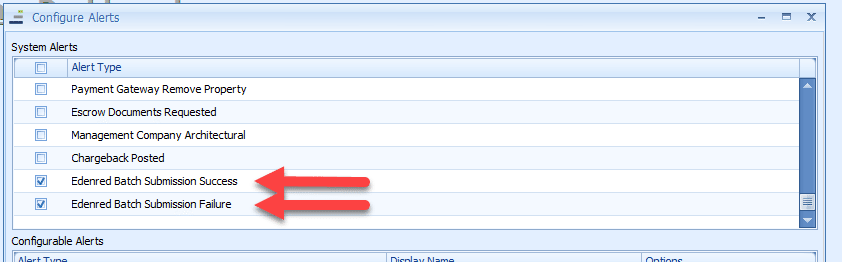
Users who need to receive these Alerts Individual users then need to go to Alerts at the top ribbon and select ‘Manager Alert Subscriptions’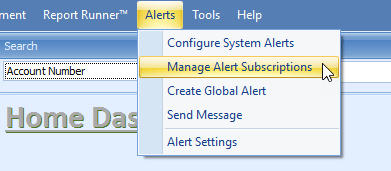
There they will check the two Edenred Batch Alerts and Save.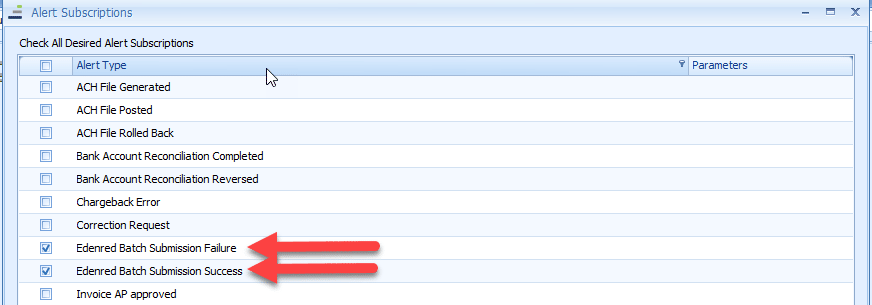
Should there be a batch submission failure, the Alert should provide information as to why the batch failed. These can be seen in the Alerts Viewer.
In most cases, the additional information is what has been reported back from the Edenred system.
Set-up is now complete.
Using the Edenred Integration
Creating an Invoice
Invoices are created in Caliber for clients in the normal manner with the following differences:
- Edenred is selected for the Payment Type
- The Payment GL account selected for the client must exist on Edenred’s site.
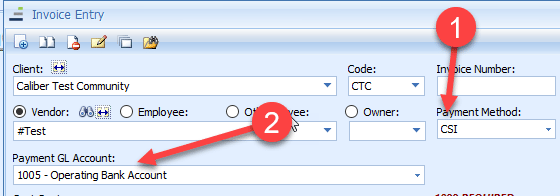
Invoices should follow the client’s AP Approval process until it has reached ‘Ready to Pay’ status.
Paying an Invoice
Once the invoice is in ‘Ready to Pay’ status, it can be paid either through the invoice viewer or through the invoice entry screen, as normal.
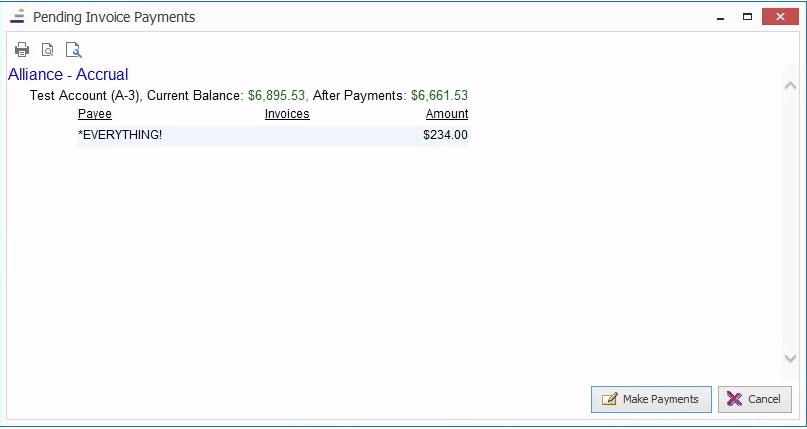
When paying through the invoice viewer, the user will still be presented with a summary of the items to be paid.
Click ‘Make Payments.’ This will mark the invoices as Paid and the payment information will be submitted to Edenred through the scheduled task.
When paying through the invoice entry screen, after clicking on the ‘Make Payment’ icon, the user will still be presented with a mock check image. It will show Edenred in the upper right corner.
Selecting ‘Pay Invoice’ here will mark the invoice as Paid and the payment information will be submitted to Edenred through the scheduled task. The user will not be prompted to print an actual check.
When using the Edenred payment type, paying the invoice immediately flags the payment information to be sent to Edenred through the scheduled task in Advanced Automation when it next runs.
After the Edenred Task Runs
Users can see which payments were submitted by the scheduled task by logging into the Edenred Portal and selecting the appropriate Payment GL Account. This will only be available after the scheduled task completes its next run.
Submitted batches can be found in the ‘Account Activity’ section.
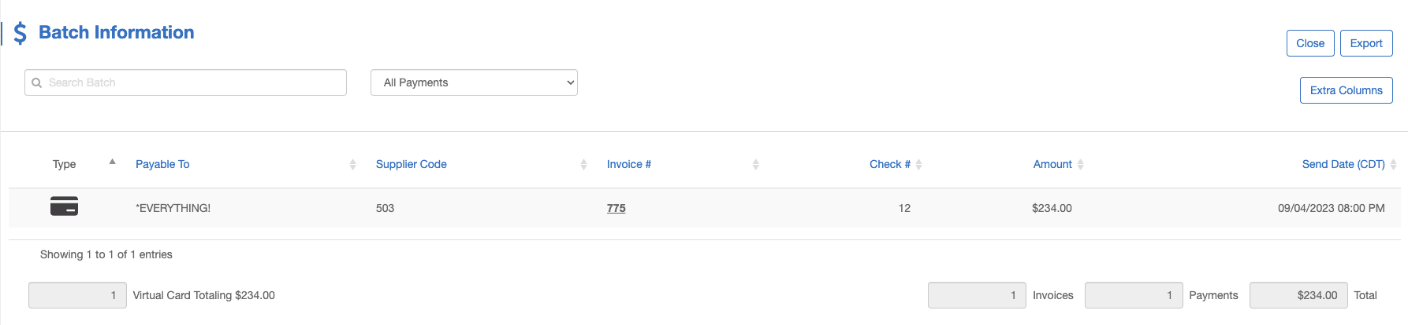
Selecting the batch will allow the user to see the individual payments submitted with that batch.