
Directory Listing
We’re updating this article. Some screenshots or names may look older than what you see in the product.
Master Setup
To create a master setting for the Directory Listing, go to Management > Caliber Portal Settings and navigate to the Directory Listing tab. Any selections that are made here will filter down to the clients. Changes can then be made at the Client level, if needed.
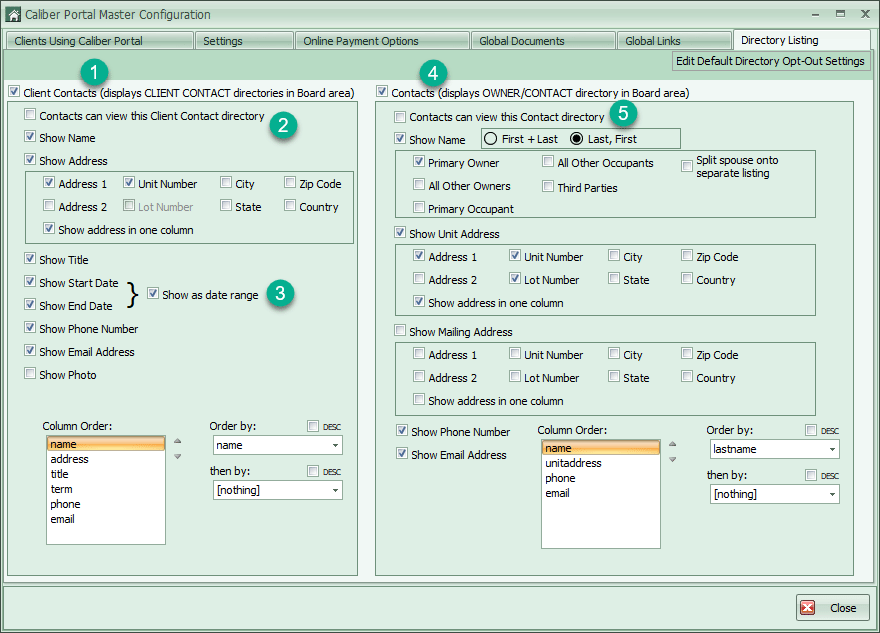
1. Checking this box allows Client Contacts (i.e., Board Members) to be included in the Directory Listing on the Portal.
2. All displayed directory information is viewable by Client Contacts. Checking this box allows Contacts (i.e., Owners) to view the Client Contact information as well.
3. The option is available to list the Start and/or End Dates for the Client Contact or the user can choose to ‘Show as date range’ instead.
4. Checking this box allows Contacts (i.e., Owners) to be included in the Directory Listing on the Portal.
5. All displayed directory information is viewable by Client Contacts. Checking this box allows Contacts (i.e., Owners) to view the Contacts information as well.
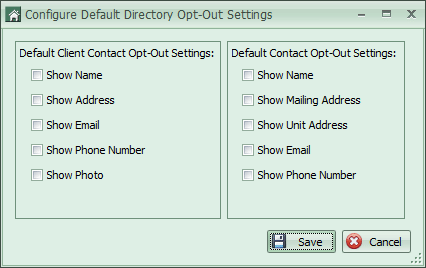
By clicking the button in the upper right hand corner that says Edit Default Directory Opt-Out Settings, the user can choose what information to show by default. The Client Contacts/Contacts can then elect to opt-out of those, if they would like.
Client Setup
The Client Setup is accessed by clicking on the Caliber Portal button at the Client Dashboard and navigating to the Directory Listing tab. The same options are available from the master, but there are a few additional settings at the client.
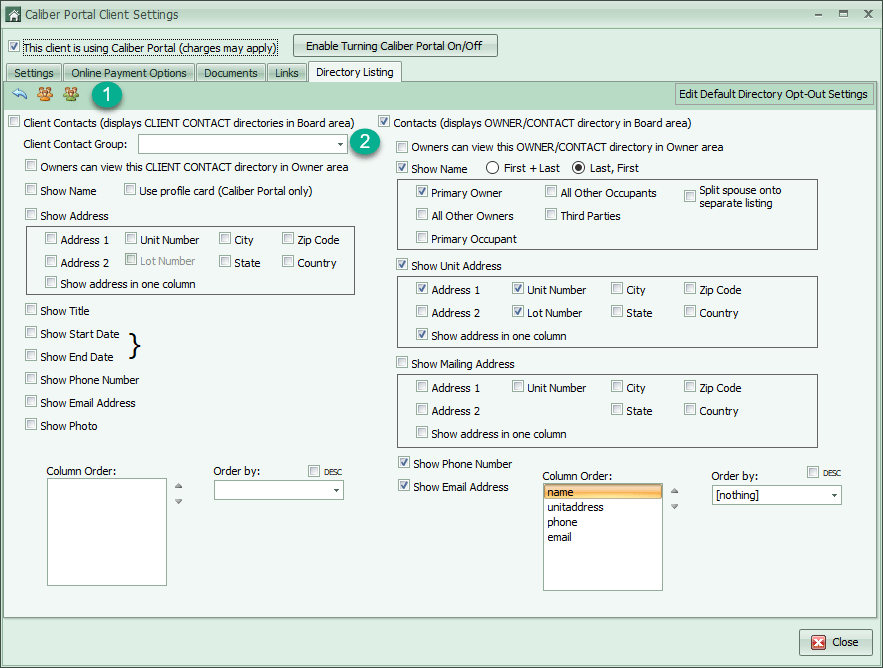
1. These buttons allow the user to see a preview of the Client Contact Directory and of the Contact Directory.
2. The user has the ability to set different options for different Client Contact groups. Make sure to create settings for each of them from the dropdown.
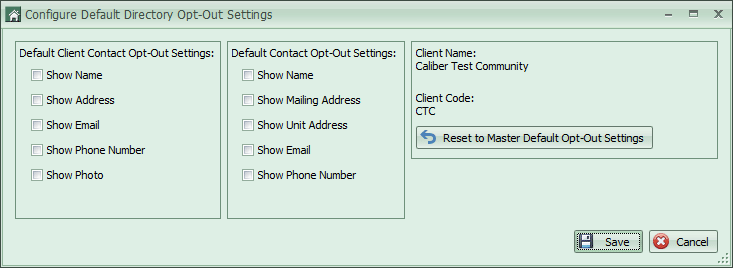
Default Directory Opt-Out Settings are available at the Client level as well.
Owner Account
There is a tab within the Owner Account to set specific Directory settings for the owner/contact. These settings are only for this specific owner/contact.
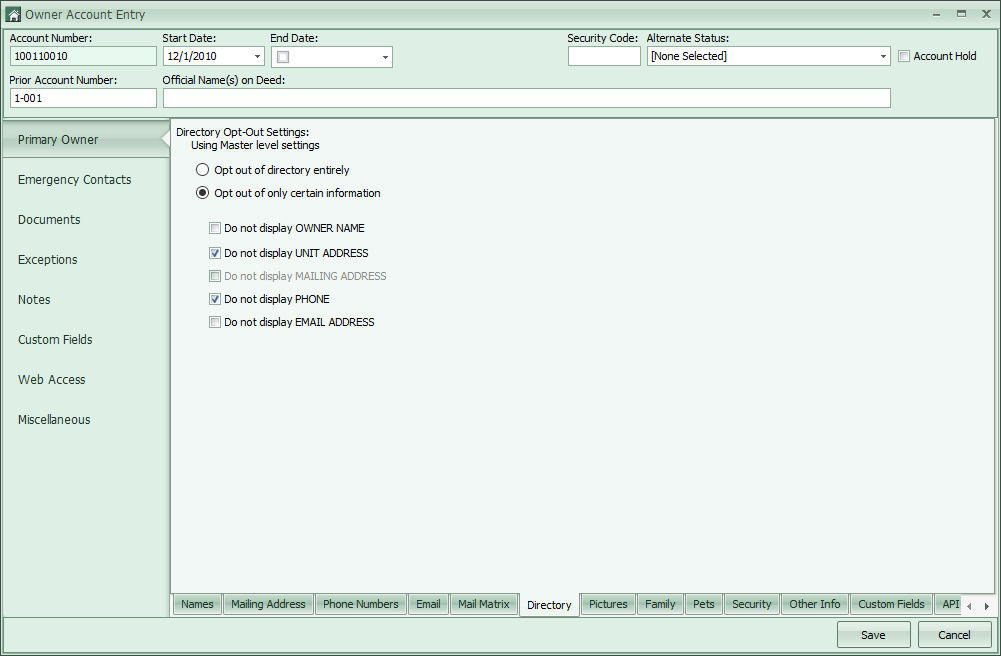
The options include the ability to opt-out of certain information, or to be removed from the directory completely.
If any of the items appear ‘greyed out’, this is due to the settings for that client. If the box to include that information is not checked within the client setup, then the option will not be available at the owner level.