
Director (Board Member/Arch Committee)- Architectural Notes
We’re updating this article. Some screenshots or names may look older than what you see in the product.
For Board Members (Directors) or Architectural committee members they now have the ability to add Notes to any architectural request, regardless of status.
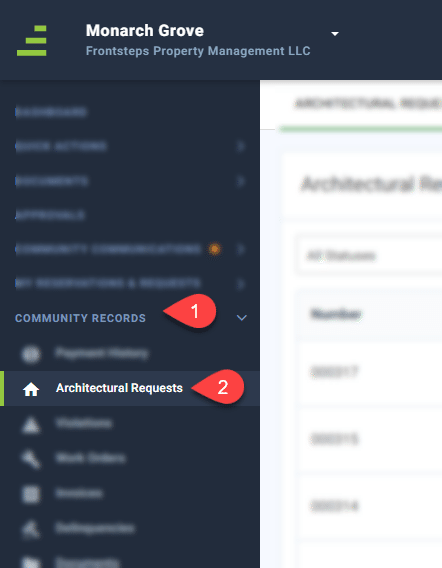
To add a note to an Architectural Request, navigate to the ‘Community Records’ menu (1), select the ‘Architectural Requests’ menu (2) and then select the ‘View’ button to the right of the request.
From here you can view past notes and add new ones.
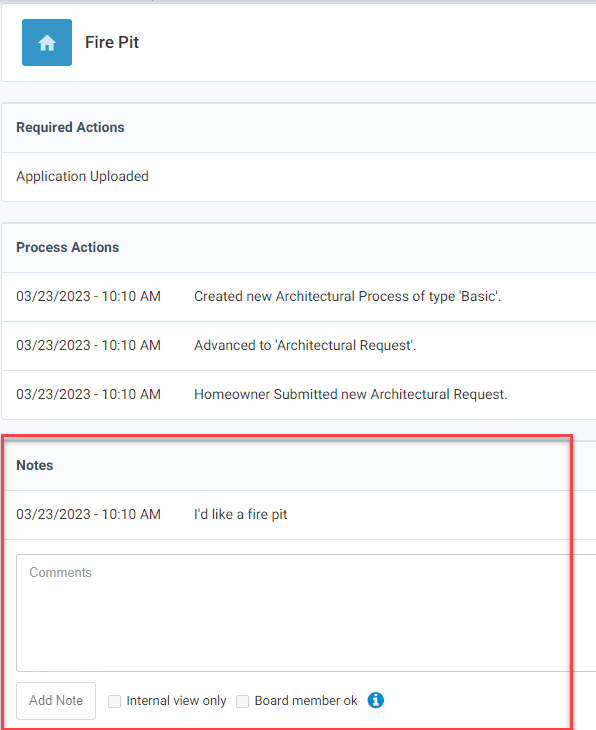
Type the note into the ‘Comments’ section.
Next choose whether you want to limit who this note is visible to.
The “Internal view only” checkbox will limit this note to be visible ONLY to community managers.
If you would like other board members (directors) or arch committee members to view the note, you will also need to check the box for “Board members ok”.
If you do not check either of these boxes, the note will be visible to all managers, board members (directors) and the resident who submitted the request.
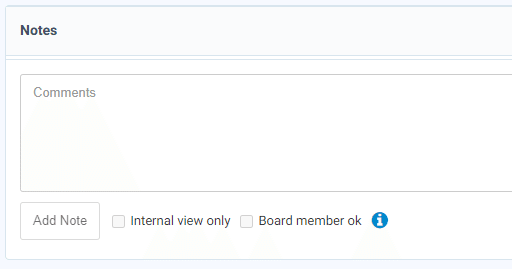
When complete click the ‘Add Note’ button.
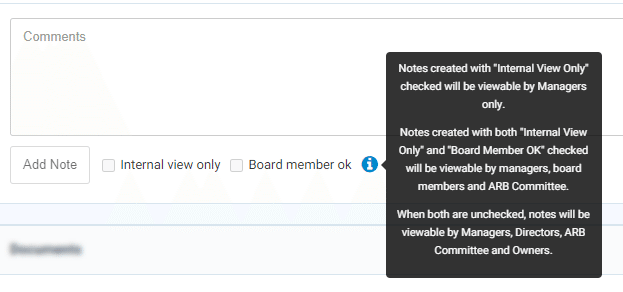
If a User needs more information about the view options available when adding a note they can hover their mouse over the blue ‘I’ icon. This will display a tooltip with information regarding each option.
This note feature is also available on the Community Mobile App
Once logged into the Community Mobile App, board members (directors) or arch committee members, will have the ability to add notes to any architectural requests.
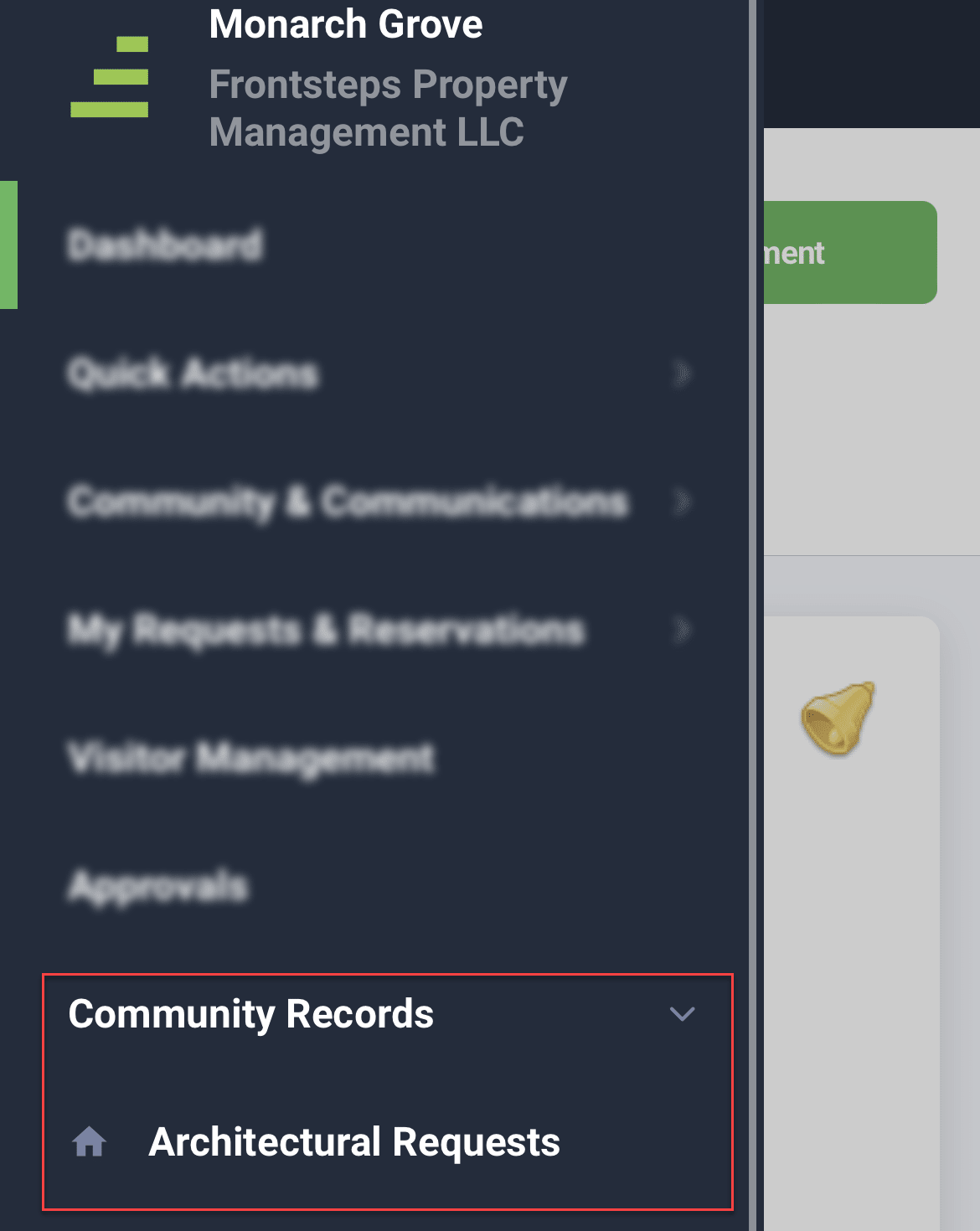
To access the requests navigate to the ‘Community Records’ menu and select the ‘Architectural Requests’ option.
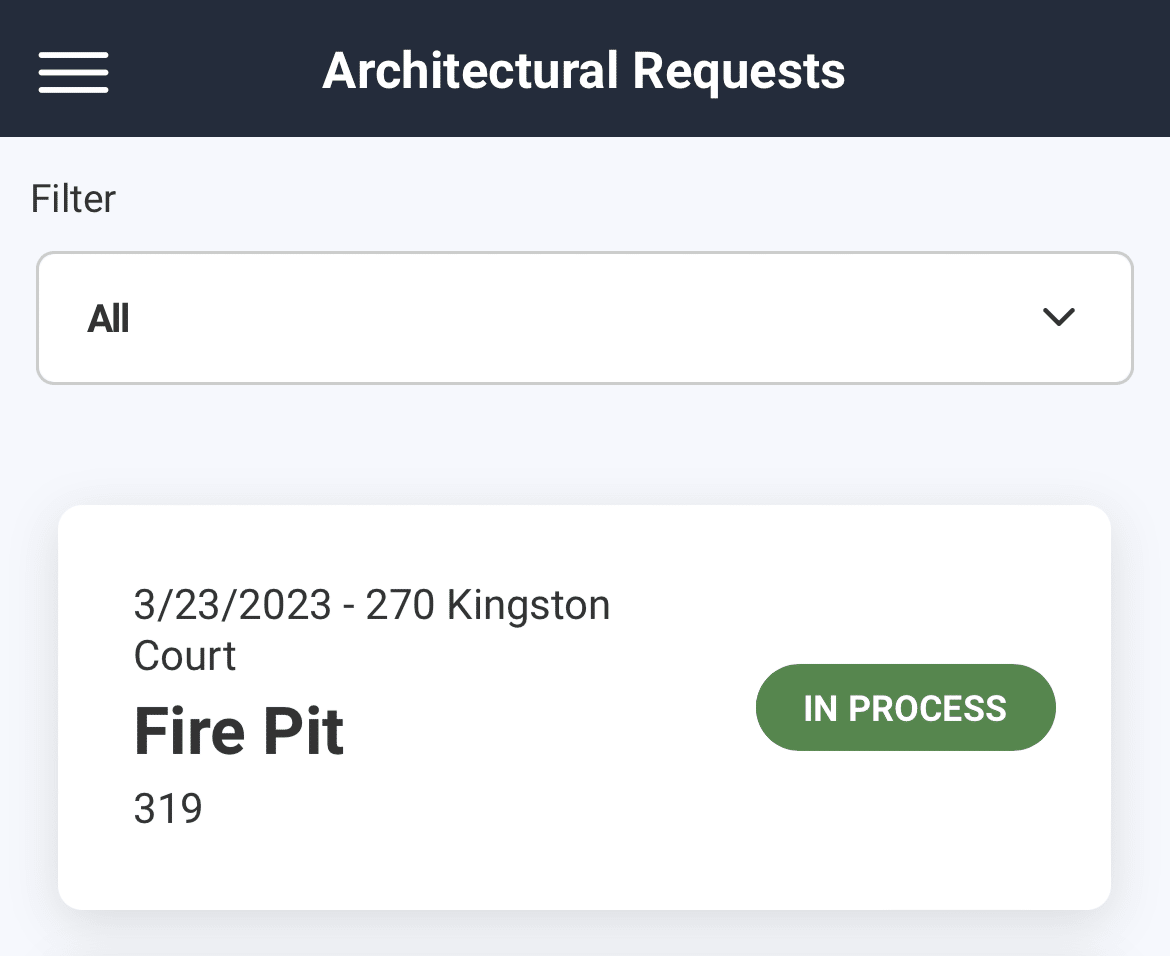
From here tap on the request you would like to add a note to.
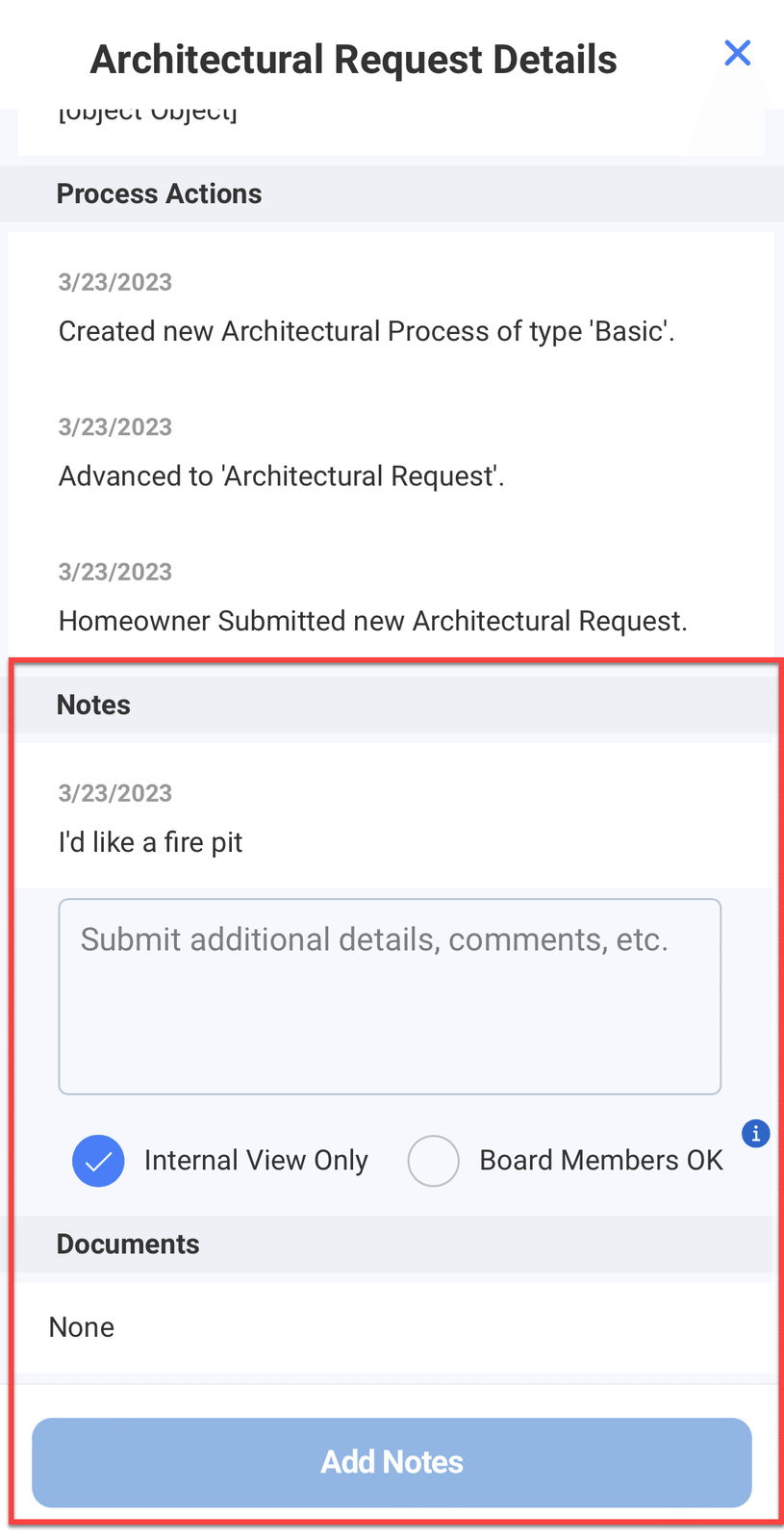
Within the ‘Notes’ section you can enter in your note in the ‘Comments’ section, select the level of visibility you’d like the note to have and click ‘Add Notes’ when complete.
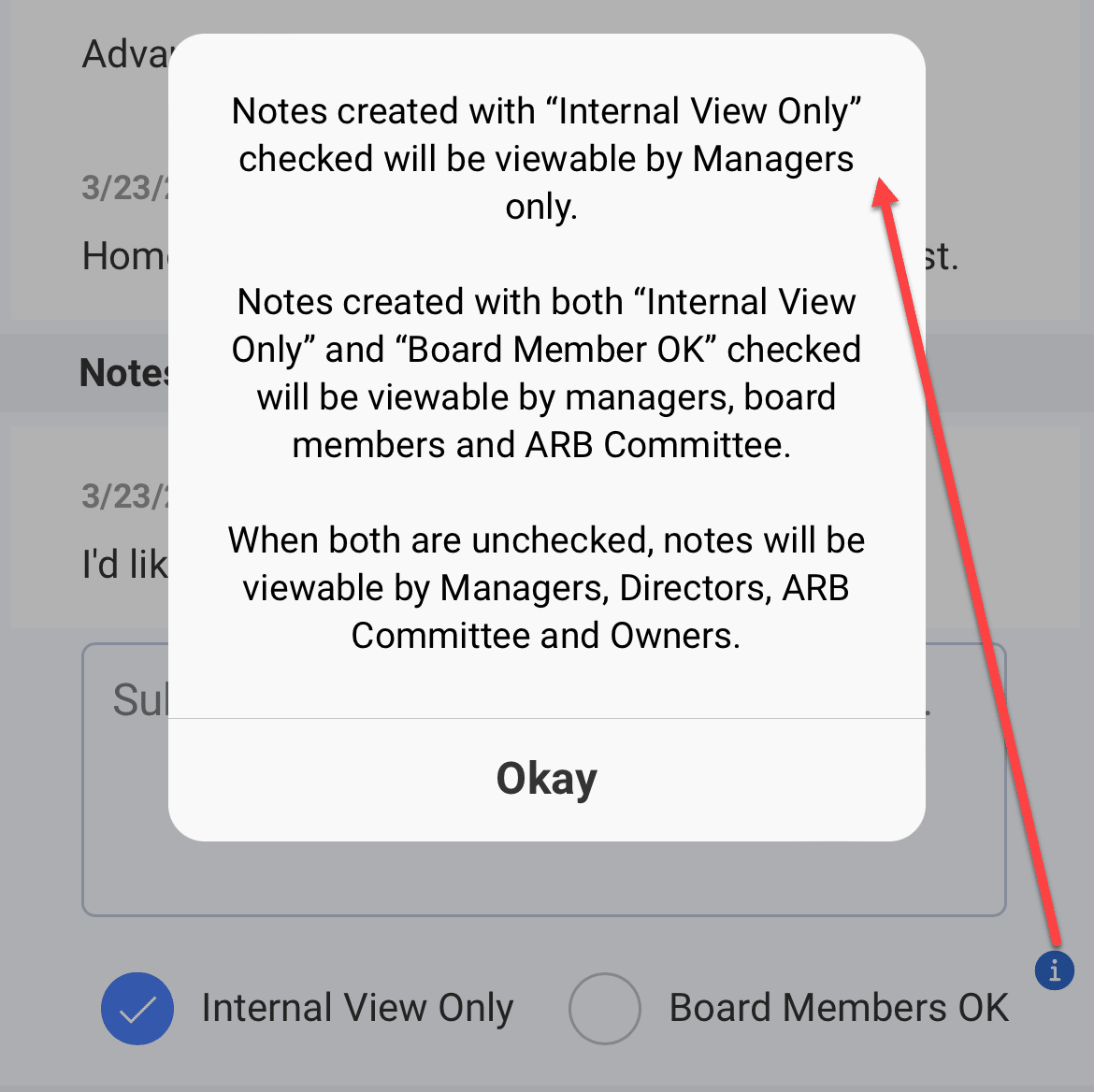
If users need more information about the view option available when adding a note they can tap on the blue ‘I’ icon. This will display a tool tip with information regarding what each option does.
To add a note to an Architectural Request, navigate to the ‘Community Records’ menu (1), select the ‘Architectural Requests’ menu (2) and then select the ‘View’ button to the right of the request.
From here you can view past notes and add new ones.
Type the note into the ‘Comments’ section.
Next choose whether you want to limit who this note is visible to.
The “Internal view only” checkbox will limit this note to be visible ONLY to community managers.
If you would like other board members (directors) or arch committee members to view the note, you will also need to check the box for “Board members ok”.
If you do not check either of these boxes, the note will be visible to all managers, board members (directors) and the resident who submitted the request.
When complete click the ‘Add Note’ button.
If a User needs more information about the view options available when adding a note they can hover their mouse over the blue ‘I’ icon. This will display a tooltip with information regarding each option.
This note feature is also available on the Community Mobile App
Once logged into the Community Mobile App, board members (directors) or arch committee members, will have the ability to add notes to any architectural requests.
To access the requests navigate to the ‘Community Records’ menu and select the ‘Architectural Requests’ option.
From here tap on the request you would like to add a note to.
Within the ‘Notes’ section you can enter in your note in the ‘Comments’ section, select the level of visibility you’d like the note to have and click ‘Add Notes’ when complete.
If users need more information about the view option available when adding a note they can tap on the blue ‘I’ icon. This will display a tool tip with information regarding what each option does.