
Delinquency Run
Caliber users typically run the Delinquency Process once a month on the day when homeowners officially become late on their payments.
Follow steps 1 – 27 below to run the Delinquency Process.
Select Clients and Stages
We begin the Delinquency Process by selecting which clients we want to run the process for, and which stages we want to include in this delinquency run.
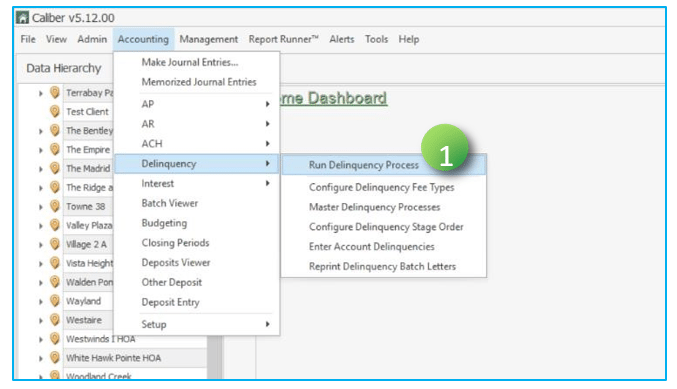
- From the Global Menu Ribbon, click Accounting > Delinquency > Run Delinquency Process.
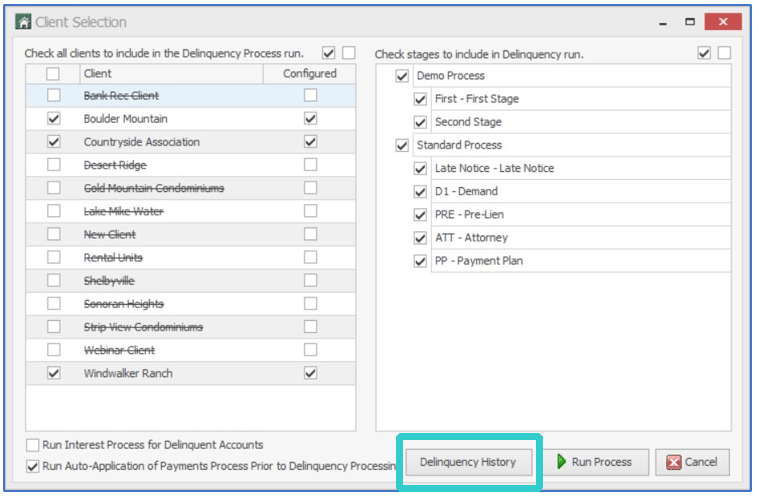
- From the Client Selection window, check the boxes for the clients you want to run the Delinquency Process for. All clients in Caliber are listed here. Clients that do not have a Delinquency Process configured appear crossed-out in the list.
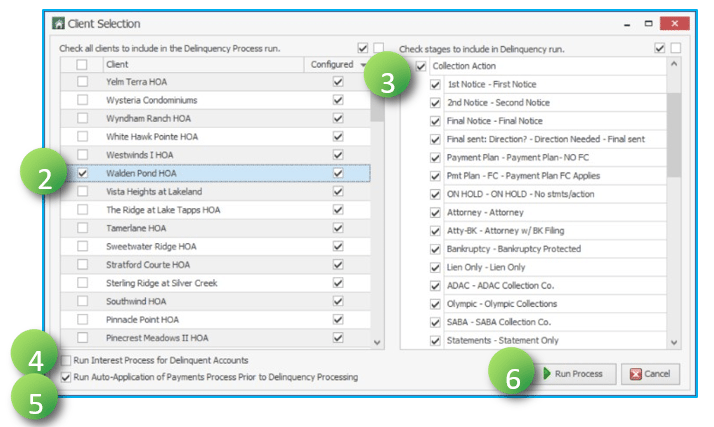
- Check the boxes for all stages you want to include in this delinquency run. We recommend including all stages belonging to the process you select.
- If your interest process applies to the same Posting Codes as delinquency, check the box for Run Interest Process for Delinquent Accounts (this feature must be enabled by management).
- We recommend keeping the Run Auto-Application of Payments Process Prior to Delinquency Processing box checked to apply any payments that may have come in overnight.
- Click Run Process to continue.
Choose Delinquency Dates
In the Delinquency window, use the four calendars to select your processing dates.
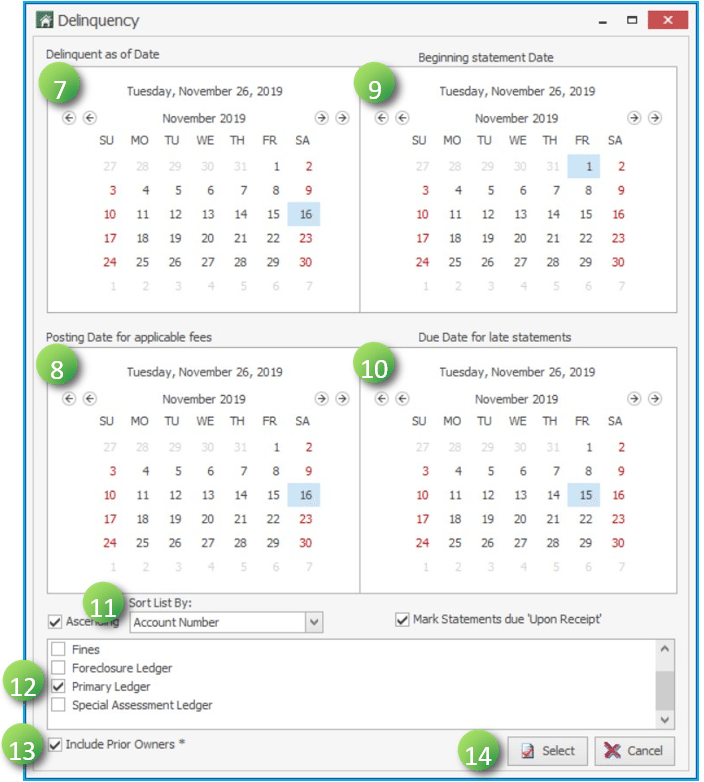
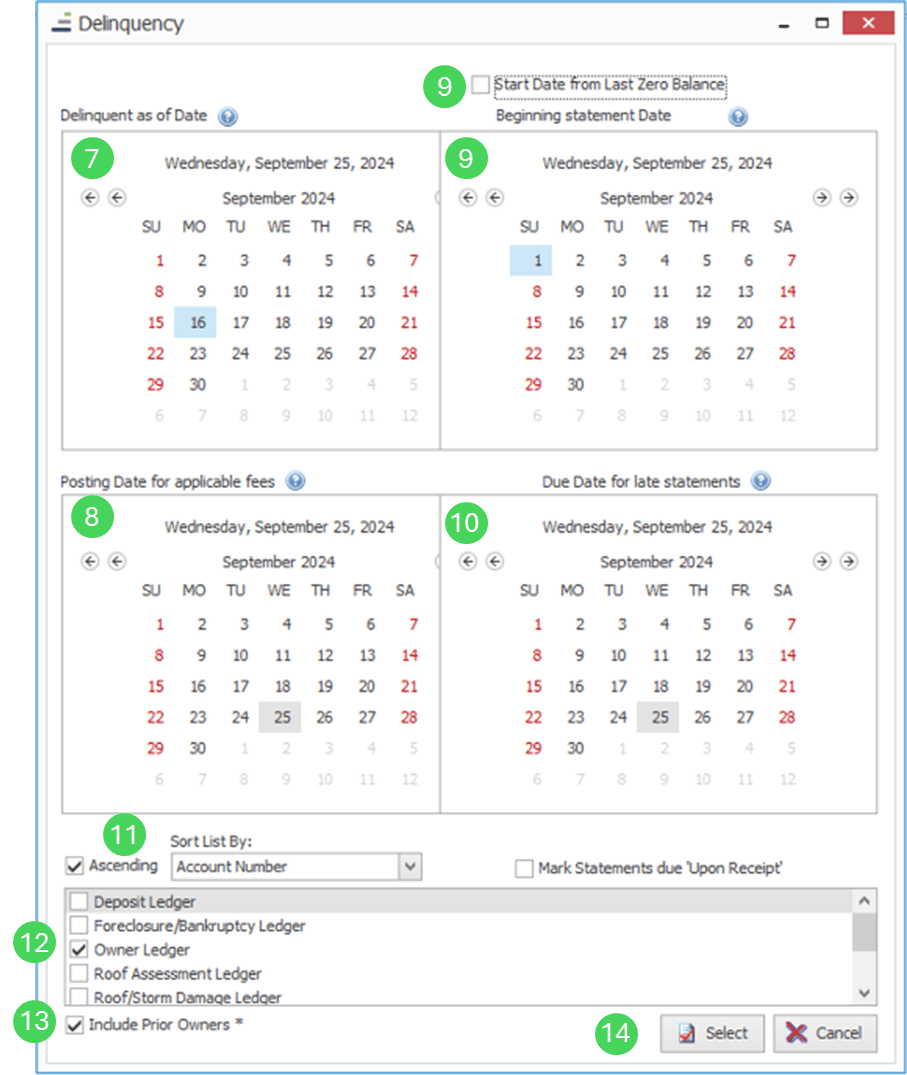
- Select a date for Delinquent as of Date. This is the date, usually after a grace period, that the homeowner’s charges officially become delinquent.
- Select the same date as above for the Posting Date for applicable fees. This the same date as the Delinquent as of Date. It is important that these days are the same so that your delinquency letters include the fees being assessed.
- Select a start date for Beginning Statement Date. This date determines how much of their transaction history is displayed on their statement.
-
Alternatively, select "Start Date from Last Zero Balance". This will generate a statement with all transaction history since the account's last zero (or negative) balance.
-
- Select an end date for Due Date for late Statements or check the box for Mark Statements Due Upon Receipt.
- Select a Sort List By option from the dropdown.
- Check the box(es) for the ledger you want to run the Delinquency Process against. While this is usually the Primary Ledger, some states are required by law to post certain charges on other ledgers.
- Check the box for Include Prior Owners if you continue to track prior owner charges.
- Click Select to continue.
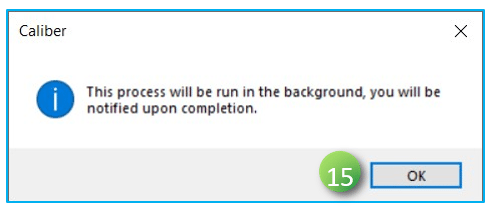
- Click OK to confirm that the report window will open when the background process is complete. You must click OK before the process will complete.
Preview Report
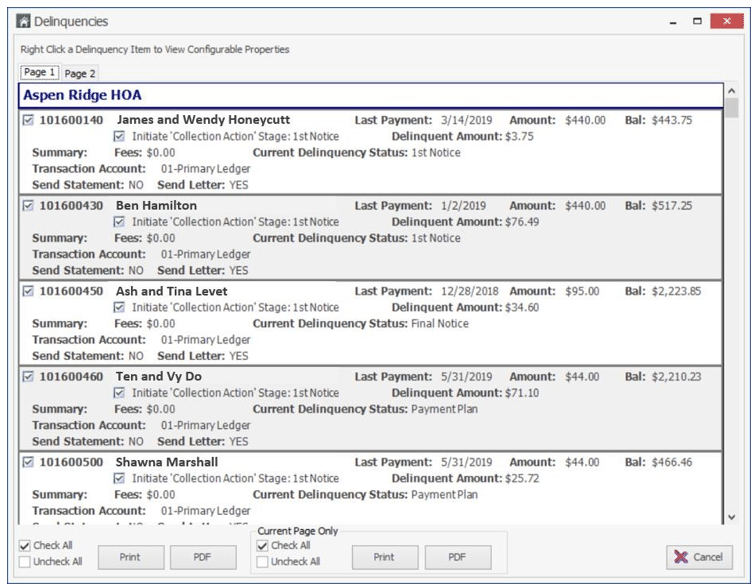
From the Delinquencies window, you can preview which delinquencies are going to be posted, deselect any homeowners or actions, or cancel the process completely without posting. If something appears incorrect or changes need to be made to an account, simply click Cancel.
Each record in this report represents homeowners that will be affected by this delinquency run, which actions will be taken, and transaction information.
Click the Binoculars icon ( ) to view each delinquency charge belonging to the homeowner. From the Select Delinquency to View window, you can select a charge and further edit that delinquency’s information.
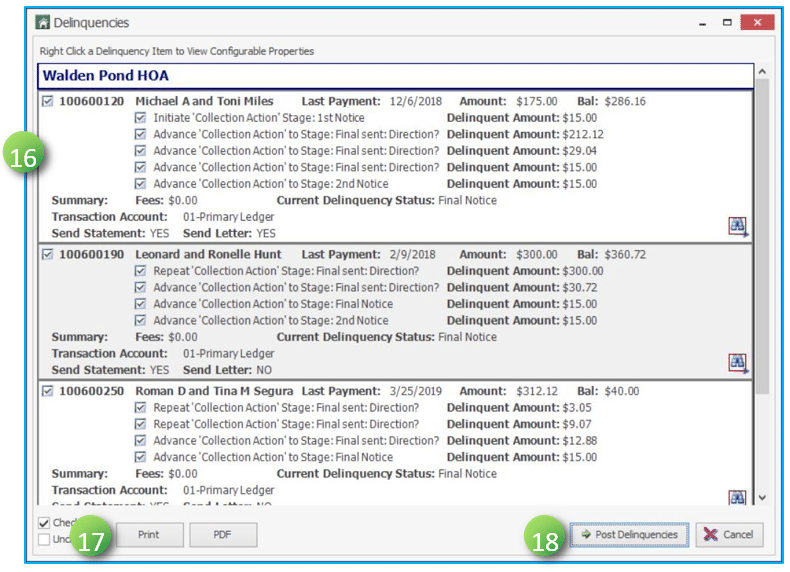
16. If necessary, uncheck any homeowner or delinquency action to exclude it from this delinquency run.
17. We recommend that you click Print or PDF to print or save this report. This report cannot be retrieved after posting.
18. Click Post Delinquencies to continue.
❖ When you click Post Delinquencies, the following events occur in this order:
- Fees are assessed to homeowner accounts.
- Statements are generated.
- Letters are generated.
Statements and Letters
Once the delinquencies have been posted, statements and letters will open for you to review, save, and/or print.
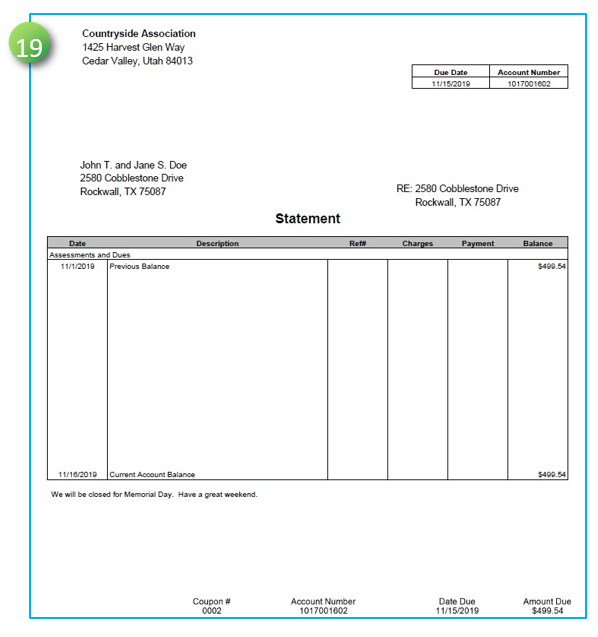
- If Send Statement indicated YES for any homeowner on the Preview Report, these statements will automatically open in PDF format for you to review.
- The statement will display account history from the Beginning Statement date selected in step 9.
- The statement will display either the Due Date for late Statements or display ‘Due Date Upon Receipt’ if you checked the Mark Statements Due Upon Receipt box in step 10.
- Print or save these statements to your computer. If you do not print or save from this step, you can only retrieve these statements from each homeowner’s account.
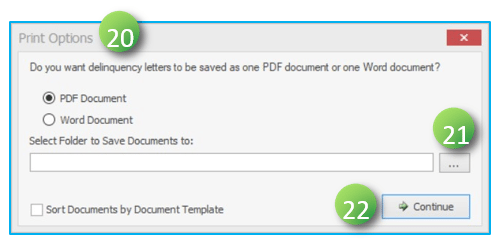
- If Send Letter indicated YES for any homeowner on the Preview Report, the Print Options window will appear. Click to save the letters as either PDF Documents or Word Documents.
CAUTION: Any letters you edit in Word DO NOT AUTOMATICALLY SAVE to the homeowner’s account. You are responsible for manually attaching the edited letter to the homeowner’s account.
21. Click Browse ( ) to specify where to save the letters.
22. Click Continue.
23. Click Yes or No when asked to view the letters.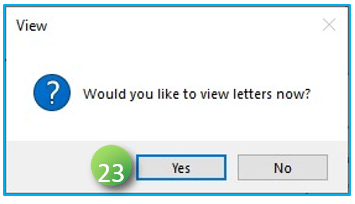
24. Click Yes on the process confirmation message to view the summary report. 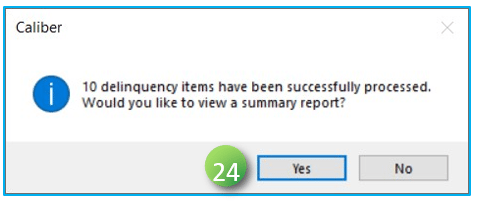
Send Letter / Delinquency Post Report
The Report Viewer window opens with the Send Letter Report and Delinquency Post Report.
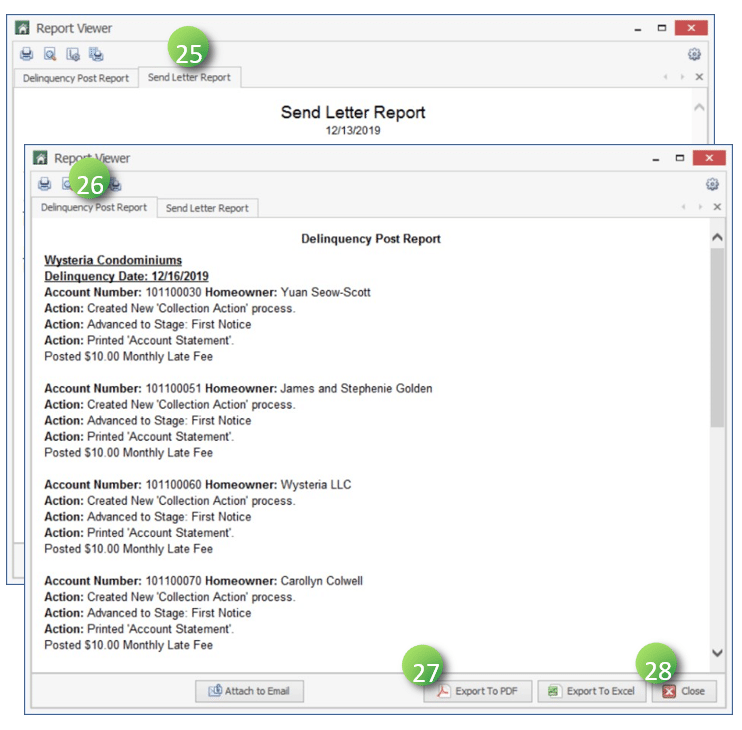
- Review the Send Letter Report. This report displays all letter recipients (mail and email) and lists any letters that may have failed to send.
- Click the Delinquency Post Report tab to view a summary of what actions took place in this delinquency run.
- We recommend that you click Export to PDF or Export to Excel to save these reports. These reports cannot be retrieved after closing.
- Click Close when complete. This is the final step in running the Delinquency Process.
Flags on Accounts
There are several indicators in Caliber that display a homeowner’s delinquent status.
- On the Accounting Summary toolbox, the Status column displays the most advanced stage of delinquency that the homeowner is currently in.

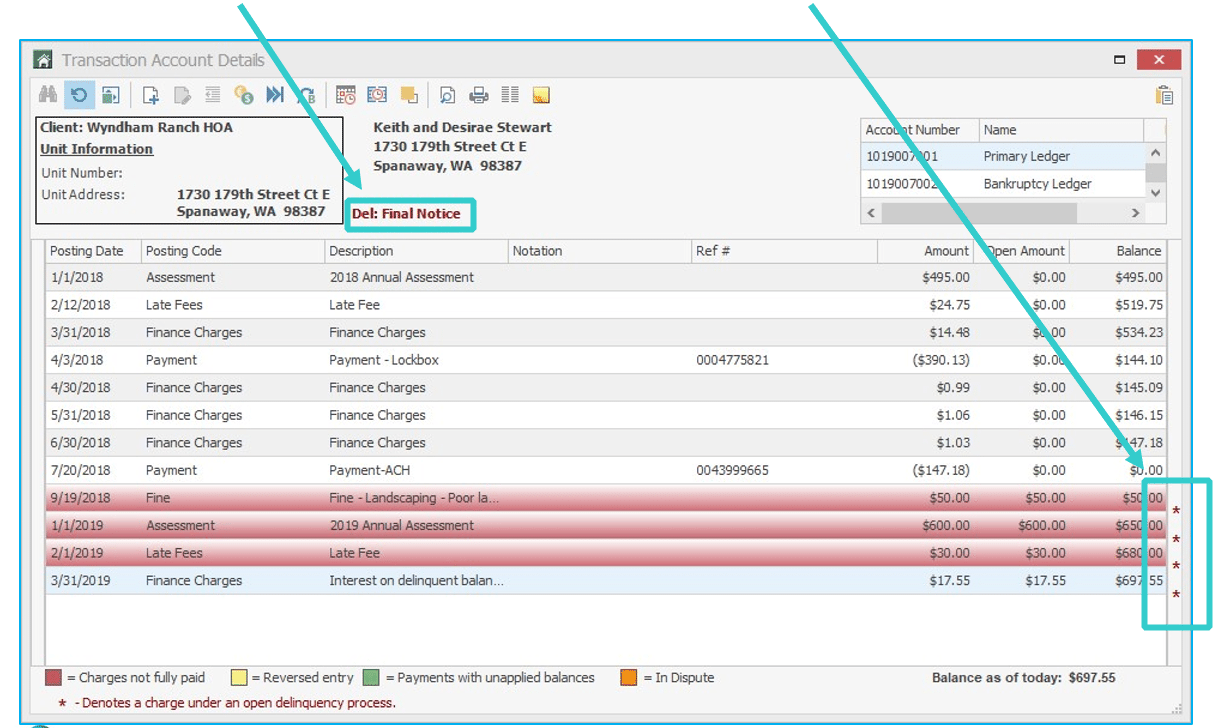
- On the homeowner’s ledger, under their contact information, a delinquency label appears in red text. This label displays the most advanced stage of delinquency that the homeowner is currently in.
- Also on the homeowner’s ledger, charges in an open delinquency are marked with a red asterisk (*) on the right side of the window.
Delinquency History Button
You can now easily audit your delinquency process activity from the past three months using the Delinquency History button, including all delinquencies, options, fees, letters, and more that were posted to Homeowner accounts. Flags for prior owners, payment plans, and manual charges also appear in this list. Delinquency History is organized per delinquency run (by date and user).
How to Review Your Delinquency History
- From the Top Ribbon, click Accounting > Delinquency > Run Delinquency Process.
- Click Delinquency History at the bottom of the Client Selection window.
- Click the dropdown arrow on the Select From List window.
- Choose a date to review.
- Click Select.
- Review the history on the Delinquencies window. Use the tabs at the top to navigate between pages.
Frequently Asked Questions
- Can I set the Delinquency Process to run automatically?
You will need to contact Caliber Support so that we can help you set this up. The entire process cannot be set to run automatically, but certain parts can be.
- Why didn’t a letter/statement print?
The homeowner’s Mail Matrix settings must include Mail for Delinquency Letters (Account Dashboard > Owner Accounts toolbox > Double-click on the owner > Mail Matrix tab > Delinquency Letters).
- A homeowner is in delinquency, but no fee/letter/statement posted during the delinquency run. Why?
The homeowner may be in a ‘Manual Advance Only’ stage. In manual stages, fees/letters/statements do not automatically generate during a delinquency run.
- Why doesn’t the letter I just generated include the fee that was assessed to the homeowner during this delinquency run?
To include fees that were assessed, you must select the same date for both the Delinquent as of Date and Posting Date for applicable fees in the Delinquency window (the four calendars).
- A homeowner who has a credit balance was put into the delinquency run. Why?
There are a few possibilities when this occurs, depending on when you ran the Delinquency Process and how payments were applied/reapplied. Review the homeowner’s transactions and the Client’s Payment Application Precedence (Client Dashboard > Posting Codes toolbox > Set Payment Application Precedence).
- We are required to track Prior Owner delinquencies – what happens to those?
All Prior Owner delinquencies automatically enter into a Manual Advance Only stage. This cannot be changed. All actions will have to be performed manually – generating letters/statements and assessing fees.