
Defined (Custom) Reports
Reporting – Defined Reports
The Reporting Toolbox is accessible at the Home, Division, Client, Group and Account Dashboards. However, customer reports can only be created at the Client level.
To create a defined (custom) report, navigate to the Client Dashboard and open the Reporting toolbox.
From there select the Define Reports icon (percent with an eraser) to begin.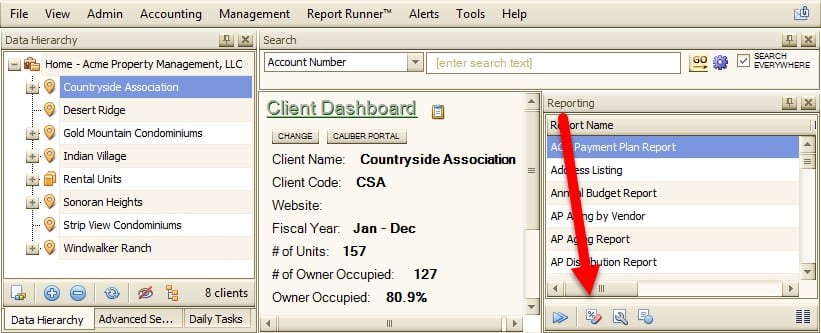
To add a new Report, select Add.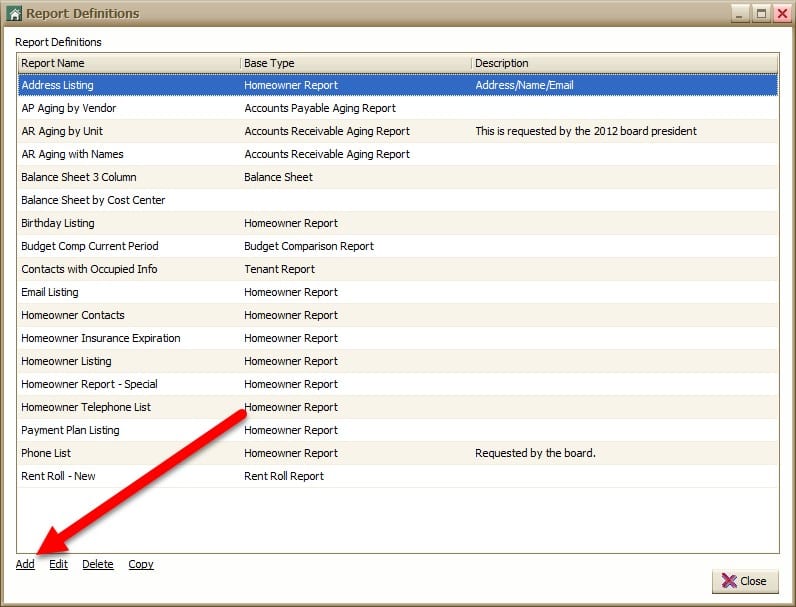
Page | 1
- Enter in a Report Name. The description field is optional.
- Determine the Base Type that needs to be edited. The Base Types are all standard reports from the Client Dashboard Reporting toolbox.
- Use the check boxes to select the columns to be included. After highlighting a row, the order may be changed by using the arrows to the right (highlighted in green).
- Enter any additional overrides that should be added. These options may change depending on the Base Type selected.
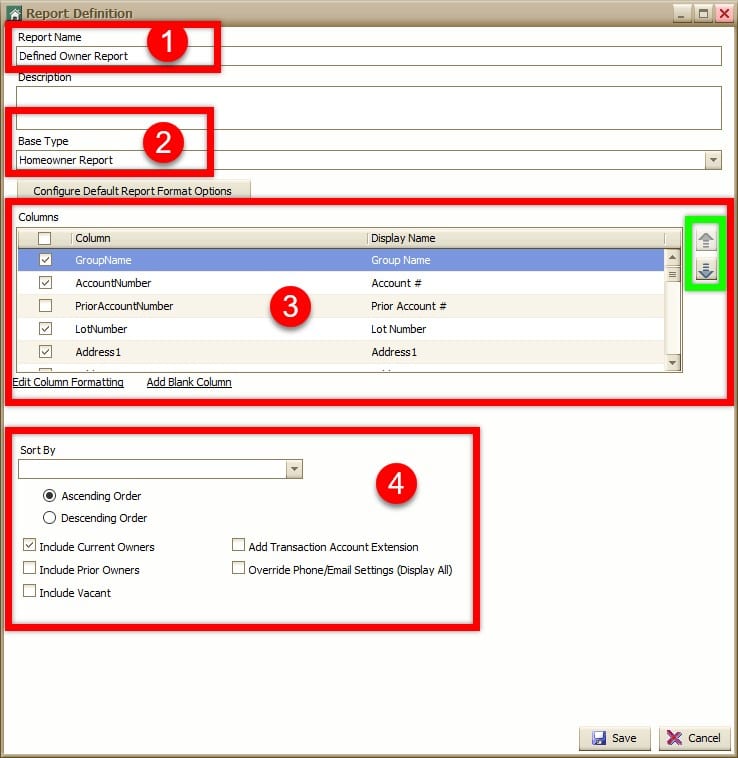
Don’t forget to Save when all edits have been made. The report will now show in the Reporting toolbox at all Client Dashboards.