Credentialed Access- Hardware Installation Process
PROCESSES TO INSTALL CREDENTIALED ACCESS HARDWARE
There are two options for installation: supported gate hardware purchased from FRONTSTEPS or from a third party.


Both options are supported for installations. Our recommendation is that the installation be done by a qualified technician able to confirm wiring on site and who can manually access any network hardware. We are unable to assist any users other than a qualified installer for credentialed access hardware.

Process for installation:
-
1. Purchase the hardware to be installed.
-
2. If remote assistance is needed, schedule a remote assistance call with the FRONTSTEPS Support team. If no remote assistance is needed, proceed to the next step
-
3. Before visiting the site, make sure the MAC address for the controller is valid. This is done by accessing the ‘Hardware’ page under ‘Credentialed access’ for the community that will use the controller and clicking ‘Add controller’ (see add controller window below).
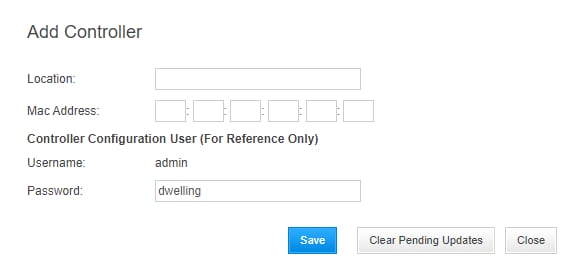
Figure 6 - Add controller.
-
4. Add the location for the gate controller and MAC address; Then click save. Controller should show ‘Offline’.


-
5. Once on-site, bring a laptop with an ethernet port on-site when finalizing the installation.
-
6. If a remote assistance scheduled call has been made, the remote technician will need to know the network settings required for the controller. If not using remote support, proceed to the next step.

-
7. The on-site technician will need a functioning ethernet cable to connect to the network hardware or directly to the controller that is being installed.
-
8. Once connected directly to the controller the next step is to make sure all dip switches in the upper left corner are off (pulled towards the front plate of the controller)
-
9. Push dip switch one away from the front plate (turning it on) (this enables default user and password)
-
10. Push dip switch two away from the front plate (turning it on) (this enables the default network settings so you can access the default IP Address 192.168.0.251 to see the internal settings page).

-
11. Due to step 9, once you access 192.168.0.251, you will be able to login using 'admin' as the login and 'password' - 5-minute time limit, once the limit is up, the controller needs to be reset.
-
12. Once logged in, click the 'users' page
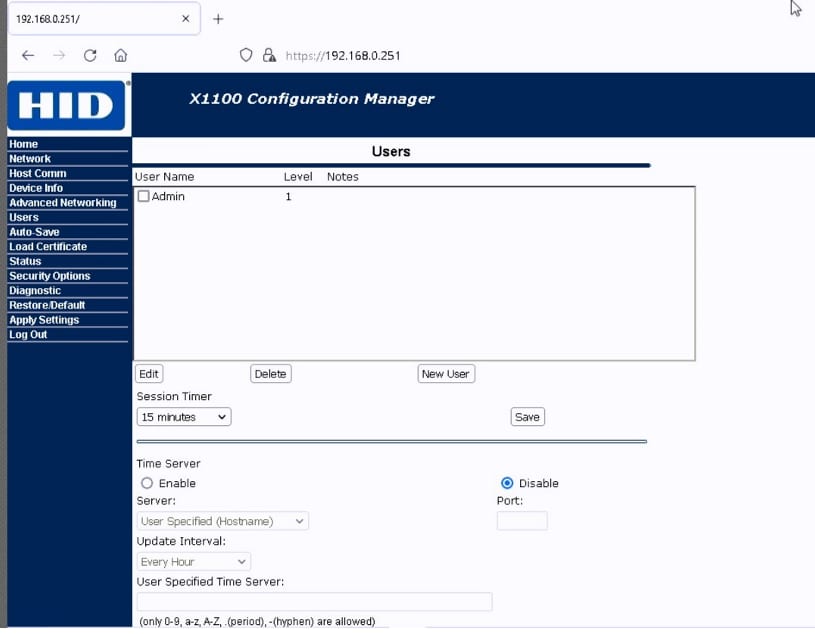
Figure 7 - Internal settings page to setup users for the HID Aero X1100
-
13. Add new user.
-
14. Use 'admin' as login for new user and a new password.

-
15. Click ‘save’
-
16. Click ‘Apply settings’ in the internal site menu on the left side of the screen. Controller will restart.
-
17. Click proceed anyway (if any dip switch is on, a warning will appear)
-
18. Once restarted, make sure all dip switches in the upper left corner are off (pulled towards the front plate of the controller).
-
19. Access the controller with the new user credentials.
-
20. Click ‘Network’ in the left menu.
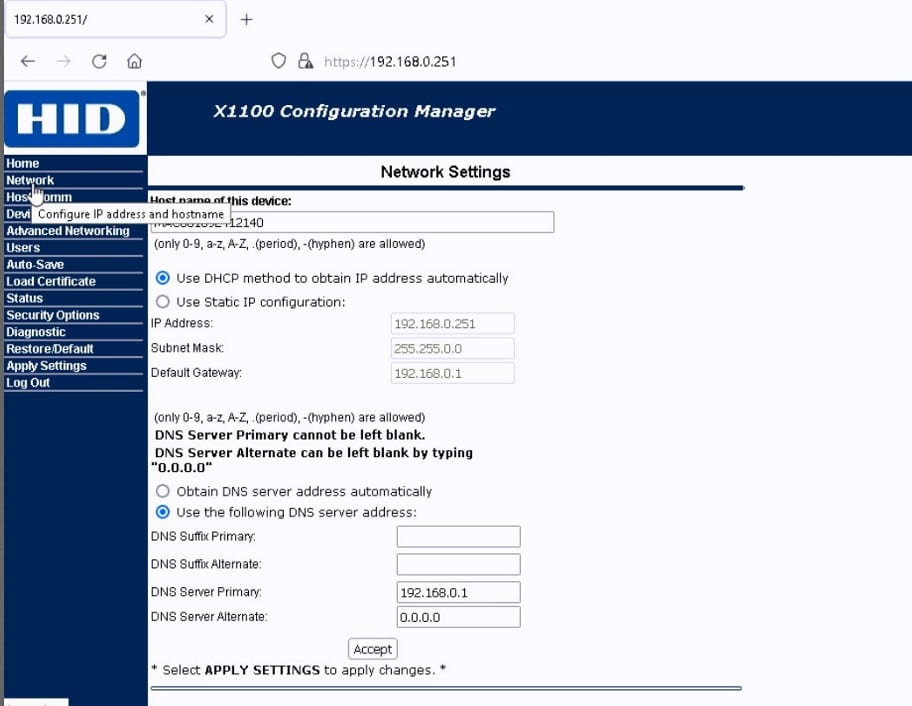
Figure 8 - Network page
-
21. Set the addressing and DNS information to what the local network requires; only the local network administrator has this information.
-
22. Click 'accept'.
-
23. Access the ‘Host comm’ page in the left menu.
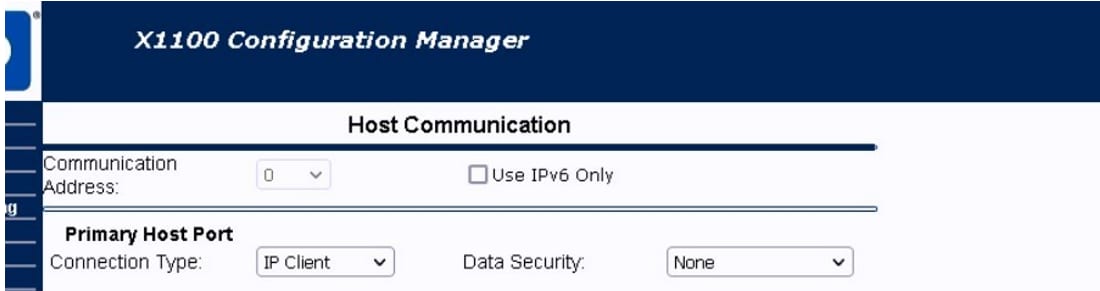
Figure 9 - Host Comm page
-
24. Change ‘IP server’ value to ‘IP client’.
-
25. Change data security to 'none'.
-
26. Port is 3001.
-
27. Copy the hostname URL listed on the hardware page in the FRONTSTEPS Dwelling Portal (example: syncservice5.frontsteps.com). This hostname is set up differently for each community.

Figure 10 - Hostname listed on the FRONTSTEPS Dwelling Portal
-
28. Paste that URL address into 'HOST IP' field
-
29. Click 'accept'.
-
30. Apply settings in the left menu.
-
31. Click apply settings to reboot the controller.
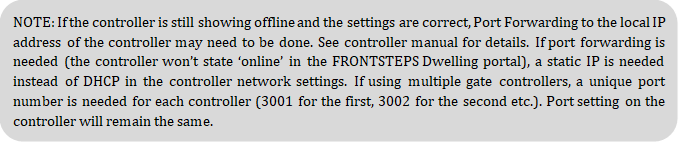
-
32. Once all settings are ready, the on-site technician will need to confirm the gate/door functionality with an access device. The controller should show ‘online’ in the portal if all settings are correct.