Creating Global Architectural Request Forms
The enhancements to the architectural feature enable Managers to design custom forms tailored to their specific request types, streamlining access for residents without relying on PDF documents. By following these steps, users can effectively customize forms that align with their community's requirements, fostering improved communication and organization for home improvement projects.
These forms can be tailored for individual communities or developed on a global scale, allowing for easy importation into various communities and reducing the need for duplicate creations.
- Creating Global Forms
- Assigning Forms to Request Types
- Publishing Forms for Resident Use
I. Creating Global Forms
- Navigate to your Admin Dashboard
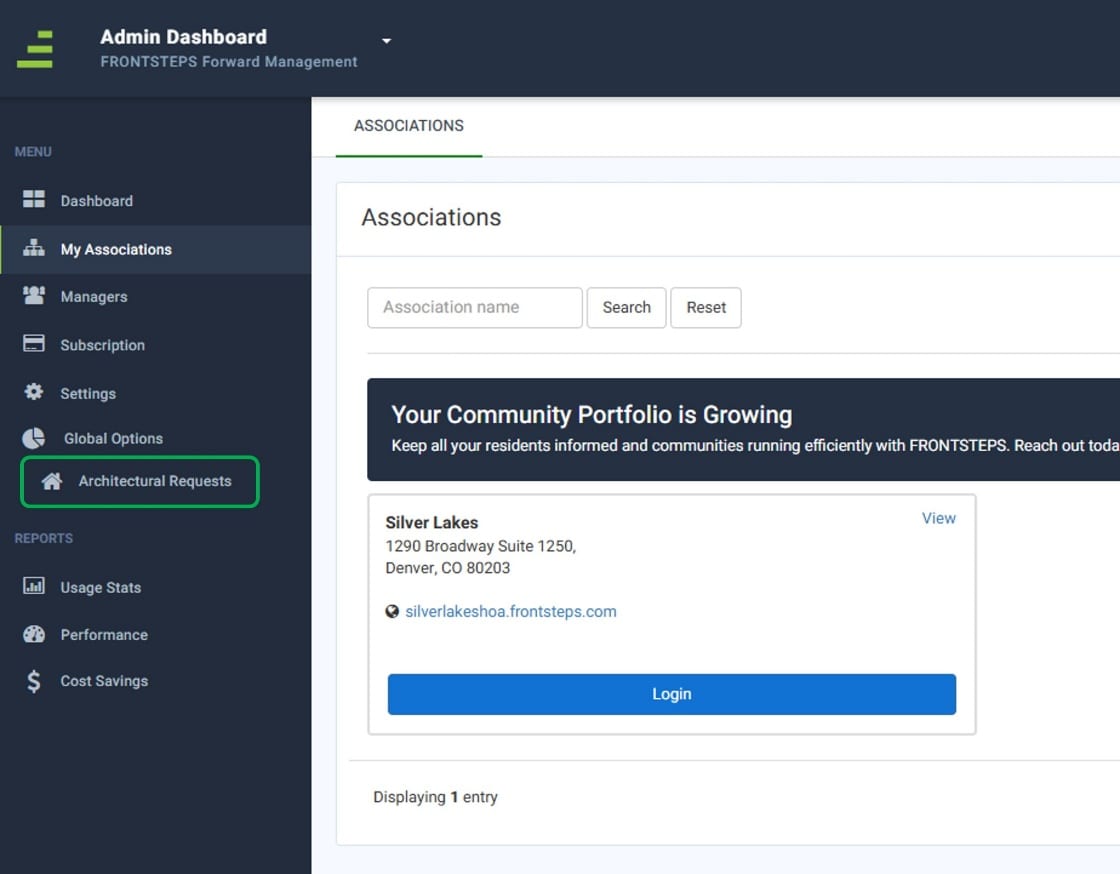
- On the left side menu, click “Architectural Requests”
- Click
 in the top right corner
 - Enter a name for your form, then click “Start Building”
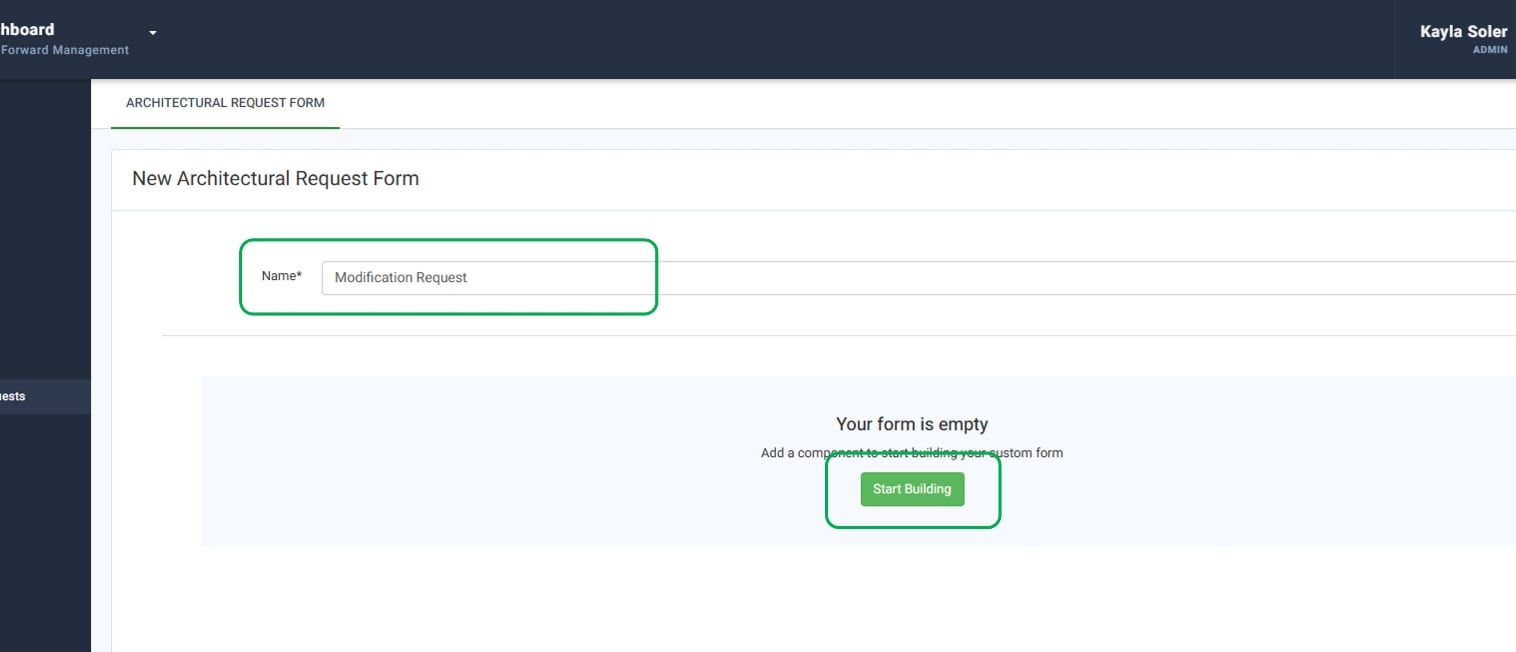
5. When you click “Start Building”, you will see options for various field types you can include in your form. You can decide what fields are required or optional.
Note: the following information is automatically added to the document that is created from submission – homeowner name, email address, phone number, and community address. Additionally, the homeowner’s signature will be collected during the submission process.
-
- Email – requires an email address to be entered
- Date - date field with calendar option to select a date, or typed manually
- Long Text – open text field with no character limits, used for longer responses
- Short Text – open text field used for shorter responses
- Time - field with time selection option (5-minute increments), or typed manually
- Checkbox – a clickable checkbox will be added to the question/label you assign
- Radio – residents can choose one option from a list established during setup. Only one can be selected at a time.
- Dropdown – residents can choose one option from a drop-down list established during setup.
- Text Block – allows custom verbiage to be added to the form. No action is needed for this field during submission
6. Click  to continue adding fields until your form is completely built out.
7. Once you have completed building, click Save.
Repeat the steps above until all necessary forms have been created. You will have the ability to make any community-specific configurations when you import your forms to your communities.
II. Assigning Forms to Request Types
- Log into your community portal
- Click on the three gears and go to Accounting Settings
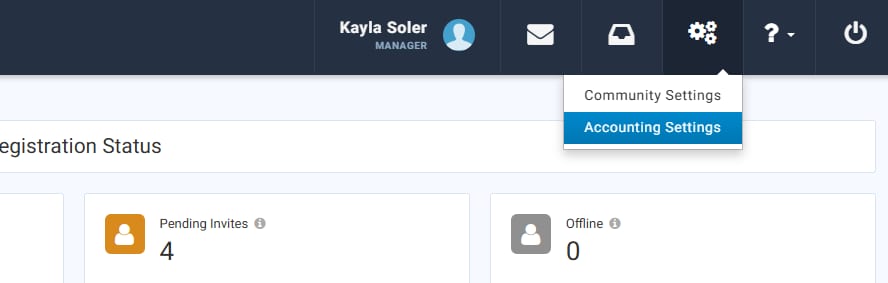
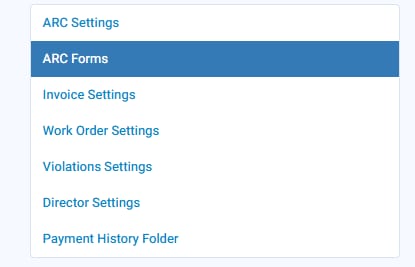
- Go to ARC Forms
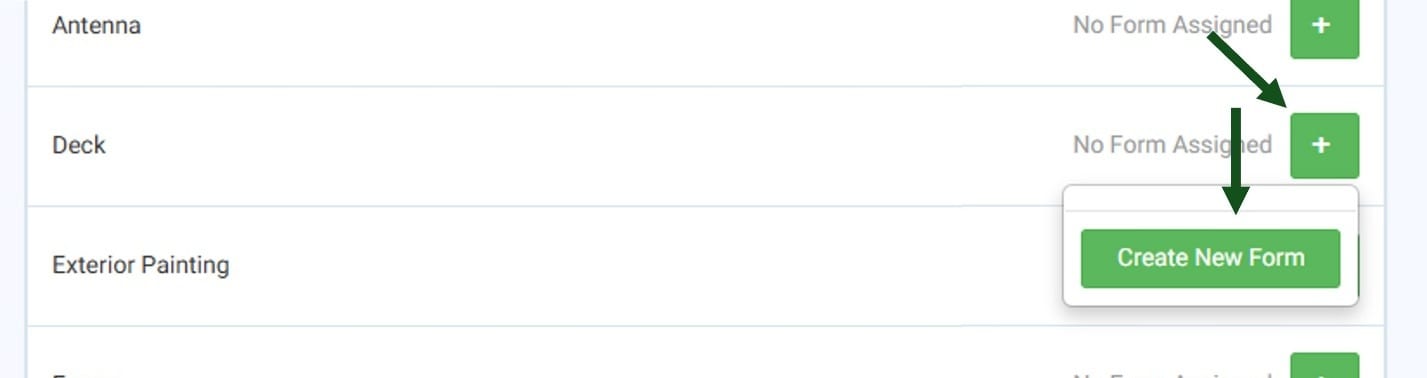
- Click the + icon to the right of a request type for which you want to assign a form and click “Create new Form”
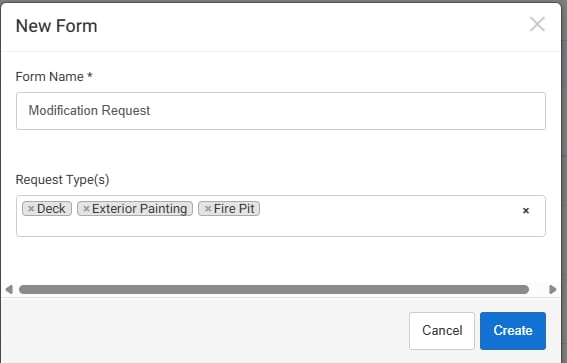
- Enter a name for this form. You can use the same name as the global form or create a community-specific name.
- Use the “Request Type(s)” field to assign your form to the appropriate request type. You can also assign it to multiple request types at once. Click “Create.”
- To import one of your global forms, click “importing an existing form”
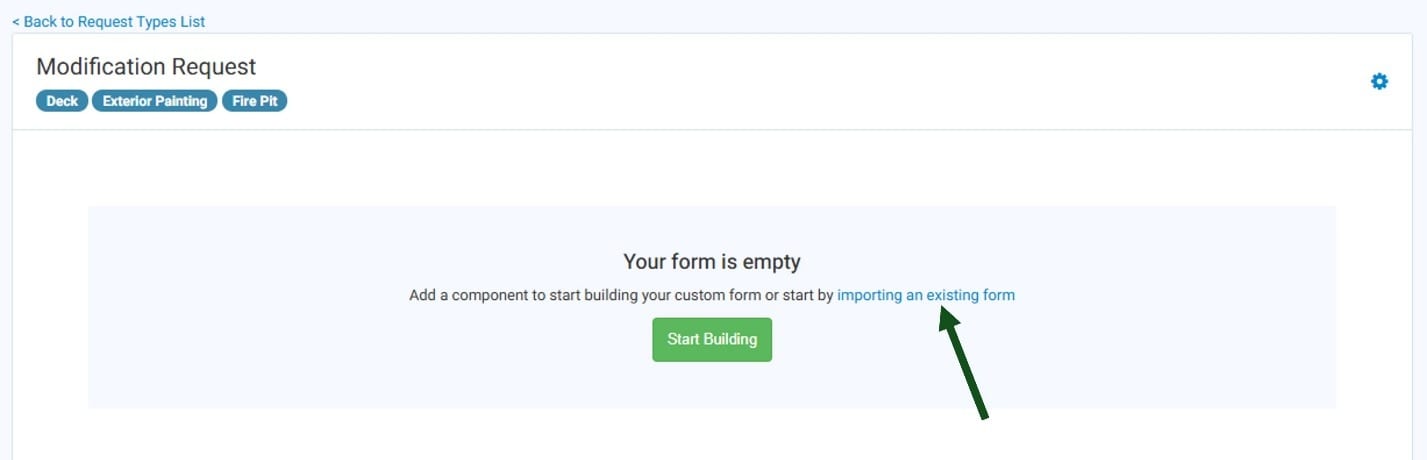
- Click
 next to form you want to assign
- You can make any community-specific configurations.
-
- You can add fields by clicking

- You can add fields by clicking
-
- You can delete fields by clicking
 on a specific field
- You can delete fields by clicking
-
- You can re-order your fields by clicking and holding
 on a field and dragging it where you want it
- You can re-order your fields by clicking and holding
- Click Save Form. (This does not make the form available to the residents yet, allowing you the opportunity to build out, assign, and review your forms before publishing.)
III. Publishing Forms for Resident Use
Once your forms are ready for community use, they will need to be published at the community level. This action will change the user experience from the old submission process to the new one.
- Navigate to Accounting Settings, then ARC Forms
- Click Manage Forms

- Click
 to publish. Once this is clicked, your residents will see the form when creating a submission for that request type.
- If you need to unpublish a form for any reason, you can do so by clicking
 which will hide it from the residents.
- If you need to unpublish a form for any reason, you can do so by clicking
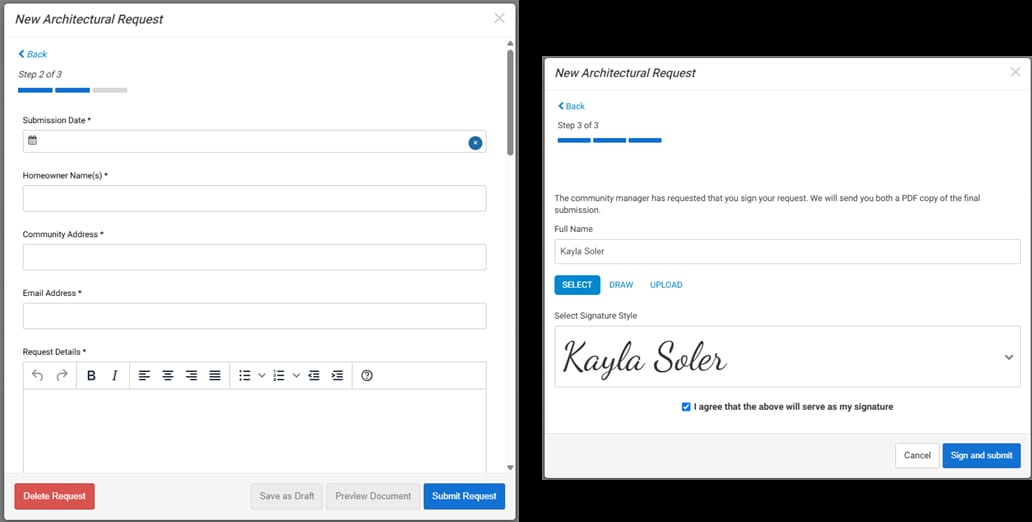
From the resident perspective, when they create a new architectural request they will be able to complete the form you built depending on the request type selected. Before submission, they will also be prompted to provide a digital signature to e-sign their request. Once the request is submitted, their completed form and digital signature will be converted to a PDF document and attached to the architectural record in Caliber.