
Creating Coupons
We’re updating this article. Some screenshots or names may look older than what you see in the product.
Running Coupons
To run coupons, go to Accounting > AR > Statements > Create Coupons.From this window, you have to select a Billing Record Start Date and the Billing Record(s) for the client(s) in question. If a specific client does not have a Billing Record to select, check that the Billing Record Start Date entered is after the Start Date used in the Billing Record itself when it was created. You will either need to change the Billing Record Start Date, or check the ‘Print Partial for Current Year’ option, and then select the number of months that coupons are to be generated for.
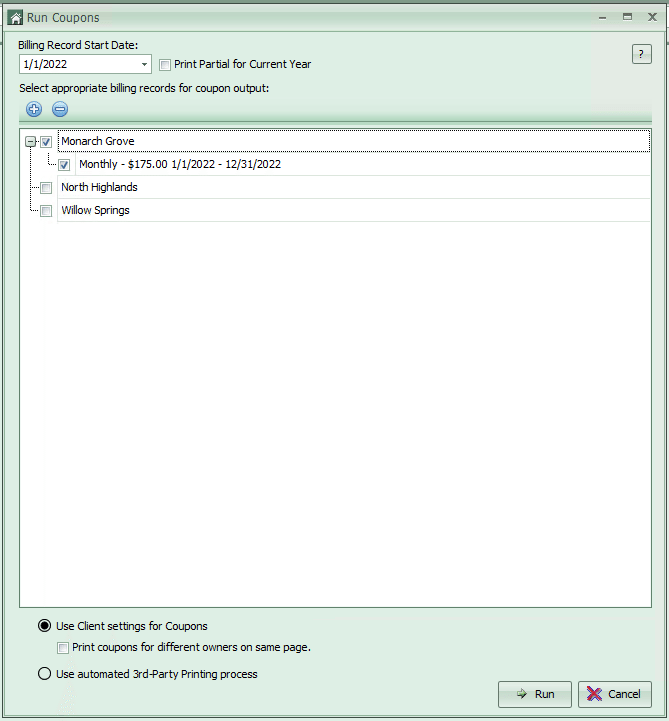
NOTE: You must configure your output before generating coupons. .
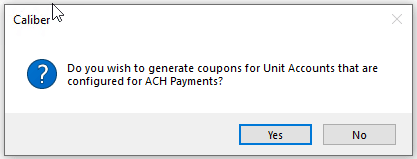
You will be asked if you want to generate coupons for Unit Accounts that are on ACH:
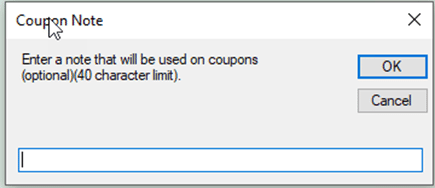
You will also be asked if you want to enter a note that will be used on coupons. This is option and is only for coupons printed in-house:
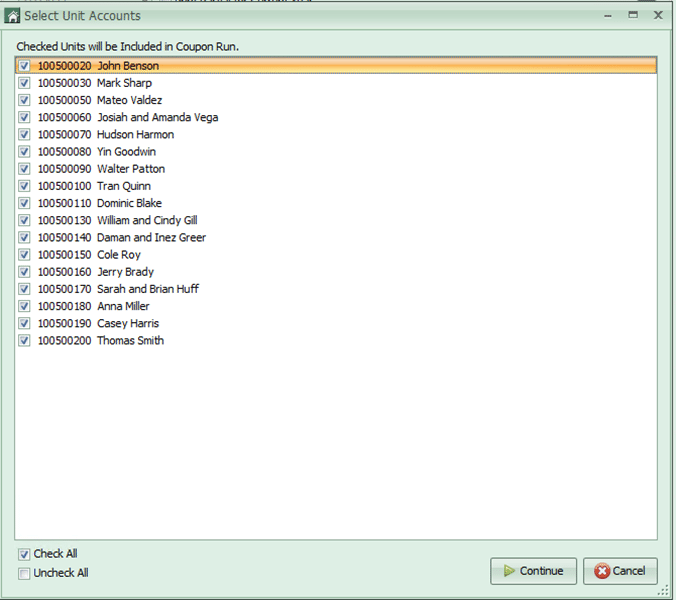
If your selected output is ‘In-House,’ you will be asked to select the Unit Accounts that are to be included:
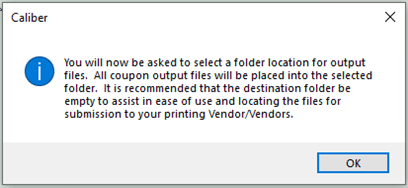
For the other selected outputs, you will be asked where the coupon file is to be saved on your computer:
If In-House was selected you will be asked which printer to use.
When the file has been saved or sent to the printer, an ‘Operation Complete’ message will be displayed.
If you selected a 3rd party option and you will be taken to the place where the file was saved. You can then send the file to your 3rd party printer.