
Manager - Creating and Managing Surveys
We’re updating this article. Some screenshots or names may look older than what you see in the product.
Surveys can be created by Managers (and Directors with permissions enabled) for purposes of soliciting information from residents that can be answered through one question. For example, managers may want input on the type of holiday party they should hold for the community. The survey provides voting options, the results of which can be viewed online or downloaded into a report.
From the Manager Dashboard, select Community Communications, then select Surveys.
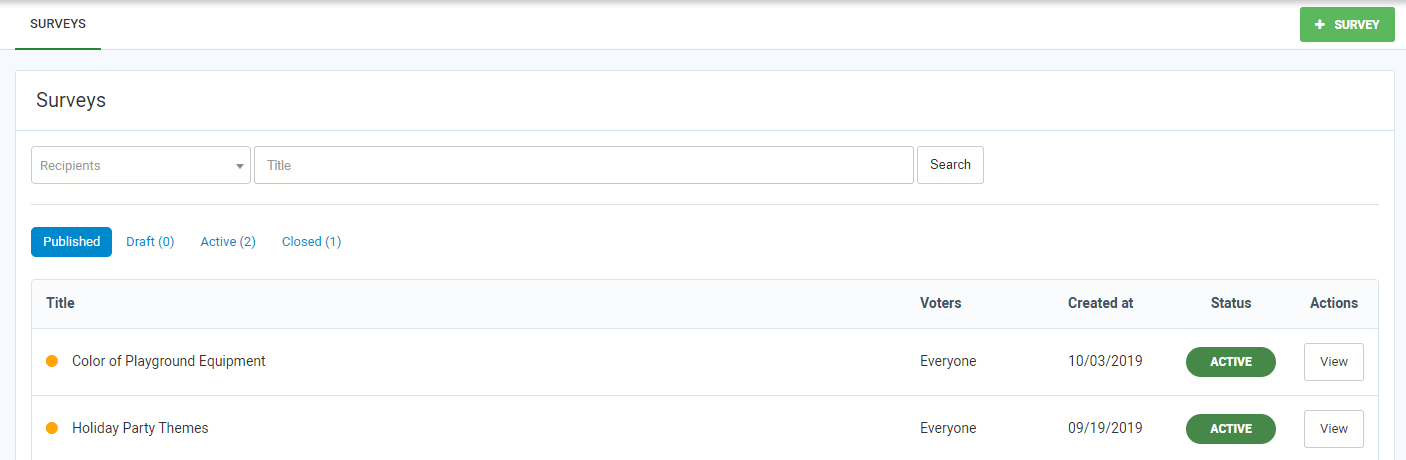
To review survey details and results, select the View option next to the survey.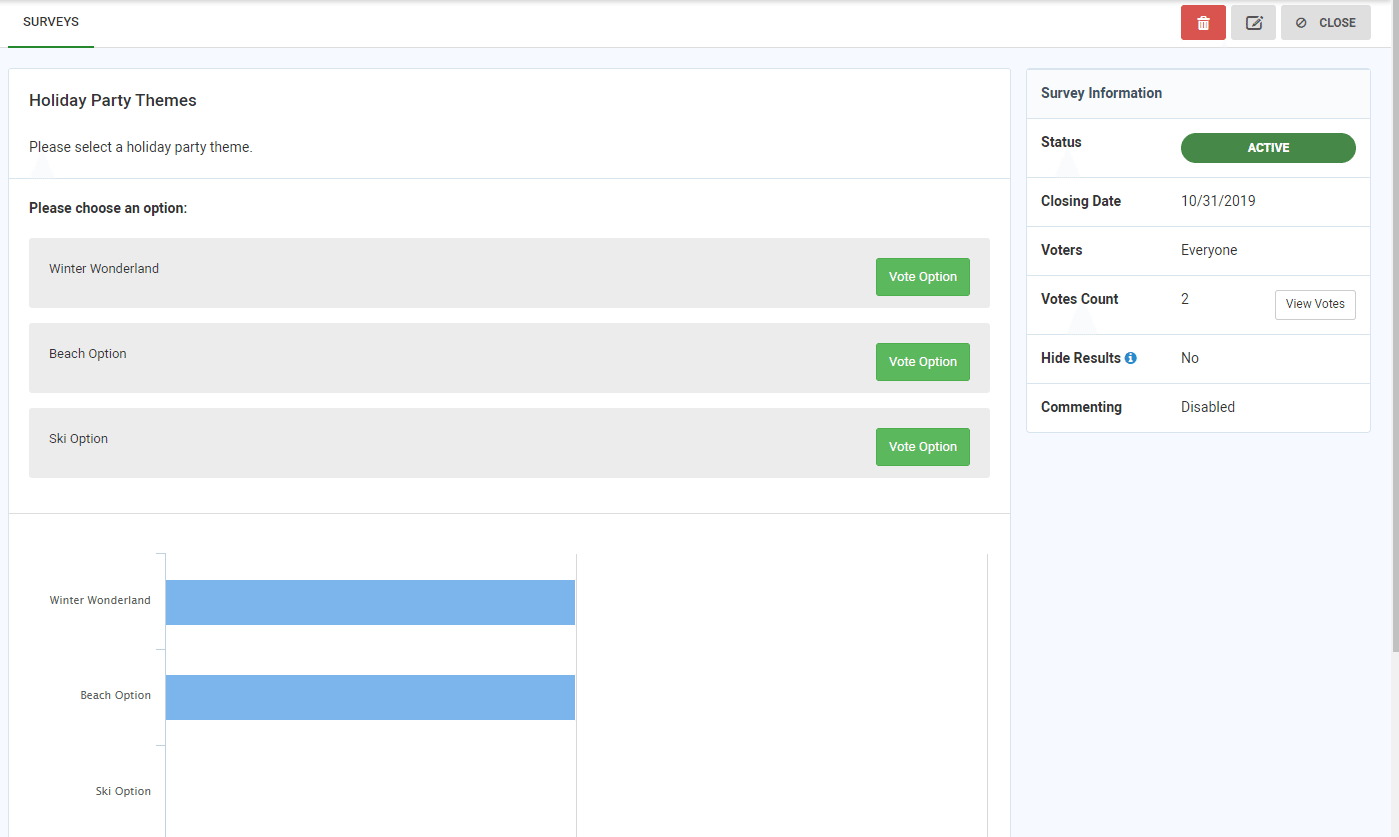
To Edit the survey, select the option.
To Delete the survey, select the option.
To close the survey before the designated survey closing date, select the option.
To add a new survey, from the Surveys home page, select the option.
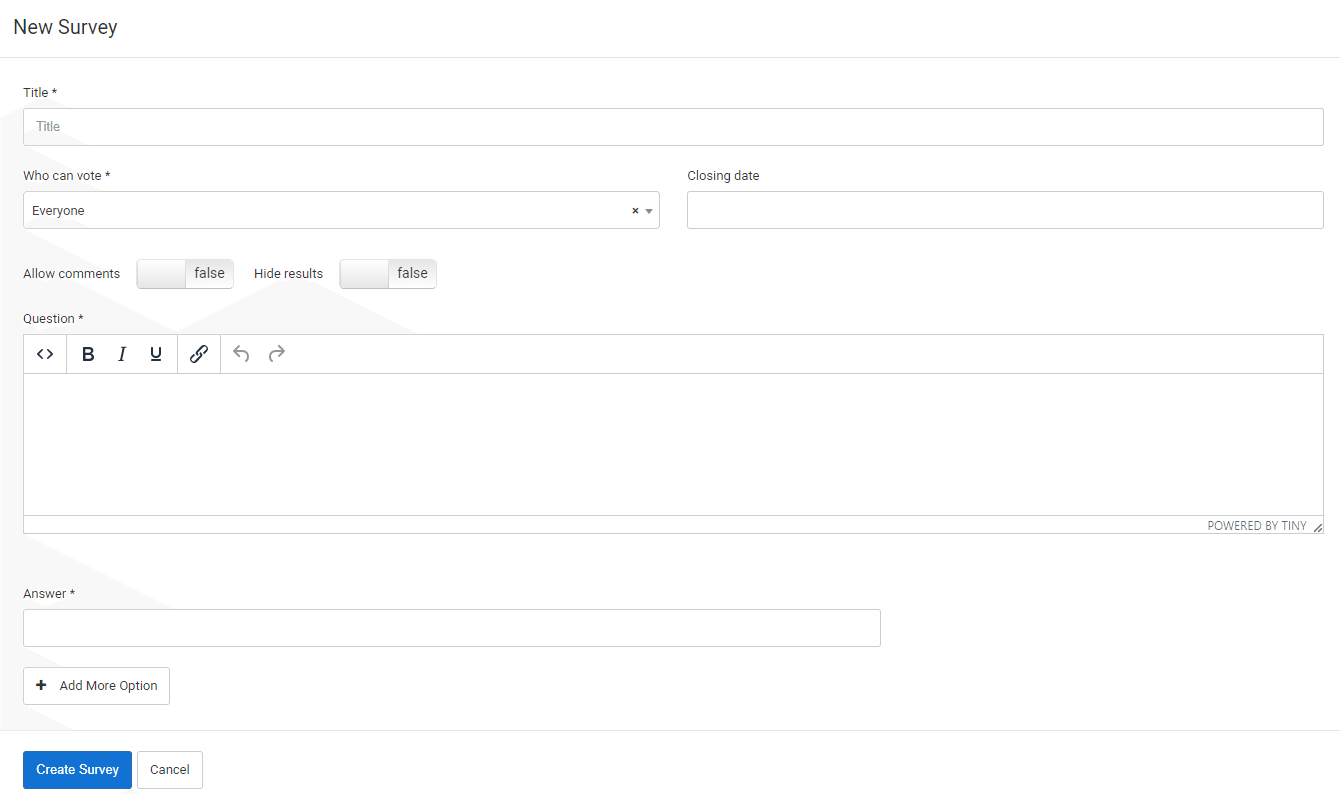 1. Complete the survey Title.
2. Select who can vote on the survey from the Who Can Vote user drop-down list.
3. To have the survey automatically close on a specified date, select the date from the Closing Date field.
4. To Allow comments on the survey, change the option to True.
5. To Hide results of the survey from non-Manager or non-Director users, change the option to True.
6. Add the survey Question.
7. Add the first survey Answer, then select + Add More Option to add the next answer. Repeat as necessary.
8. When you are satisfied with the survey information, select .
.
9. On the Survey review screen select the option. The survey has been posted to users' portals for response.
From the Manager Dashboard, select Community Communications, then select Surveys.
To review survey details and results, select the View option next to the survey.
To Edit the survey, select the
option.To Delete the survey, select the
option.To close the survey before the designated survey closing date, select the
option. To add a new survey, from the Surveys home page, select the
option. 1. Complete the survey Title.2. Select who can vote on the survey from the Who Can Vote user drop-down list.
3. To have the survey automatically close on a specified date, select the date from the Closing Date field.
4. To Allow comments on the survey, change the option to True.
5. To Hide results of the survey from non-Manager or non-Director users, change the option to True.
6. Add the survey Question.
7. Add the first survey Answer, then select + Add More Option to add the next answer. Repeat as necessary.
8. When you are satisfied with the survey information, select
. 9. On the Survey review screen select the
option. The survey has been posted to users' portals for response.