
Manager - Creating an eForm
In FRONTSTEPS, eForms are an alternative to Surveys, enabling Managers to gather information from residents for which a simple Survey may not be sufficient.
Note: efForms are not currently available through the Community mobile app and submitting eForms through the mobile app is not currently supported.
A setup wizard is available to simplify the eForm creation process.
From the Manager Dashboard, select Community Communications, then select eForms.
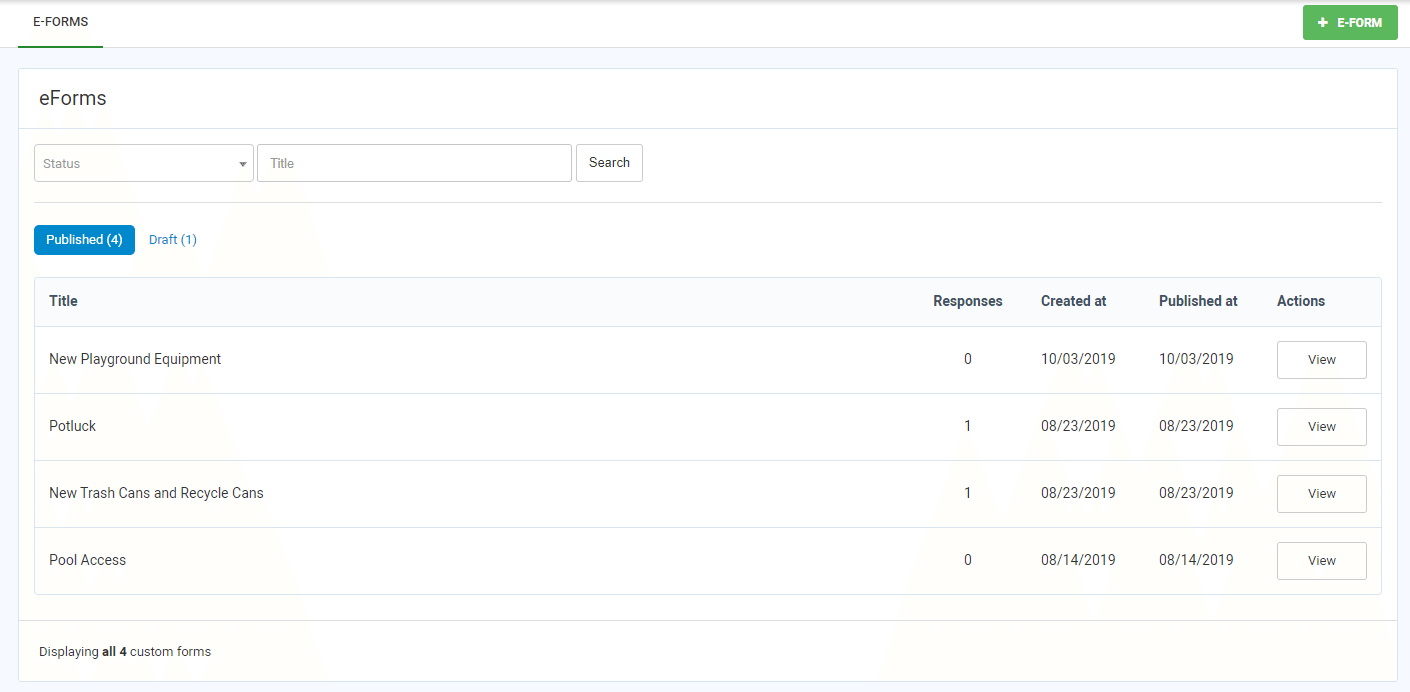 1. To add a new eForm, select
  .
.
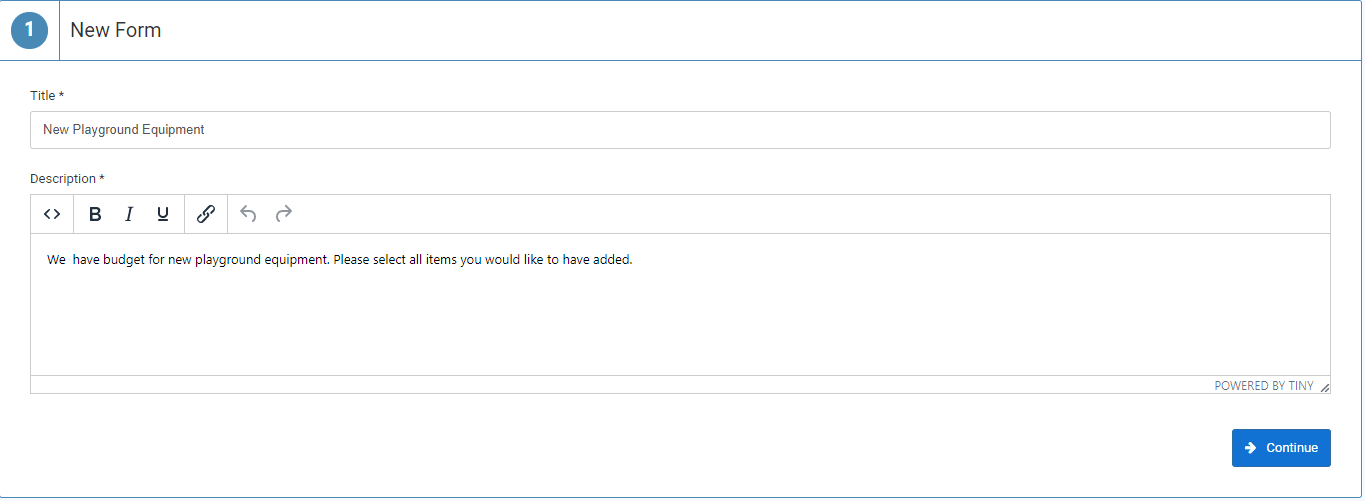
2. In the New Form section, complete the title and description. Select Continue to advance to the Design section.

 3. In the Field Selection drop-down list, select the type of field you want to add. Available field types are Email, Date, Long Text, Short Text, Time, Checkbox, Radio, Dropdown, File upload. Select the + Add Field option.
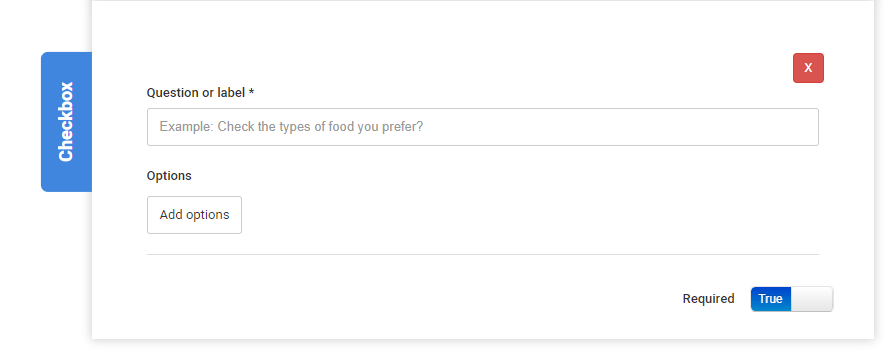 4. Complete the Question or label information (required).
5. Complete the information associated with each option. Continue to add option information until complete. For example, if you are adding checkboxes, add the information for each checkbox until complete. Select Continue to advance to the Audience section.
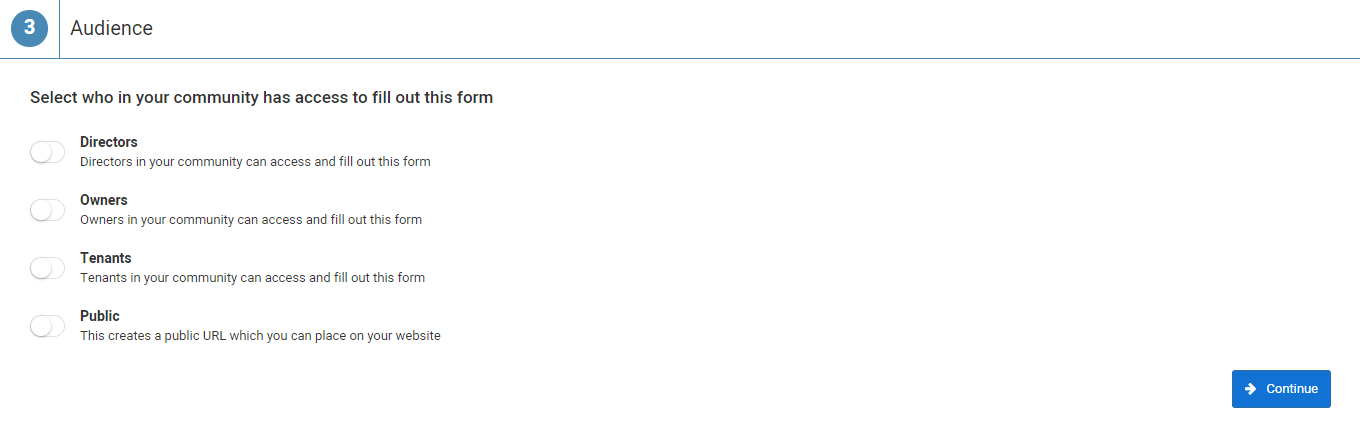 6. Select the types of users to whom the eForm will be made available for completion. Select Continue to advance to the Manager Notification section.
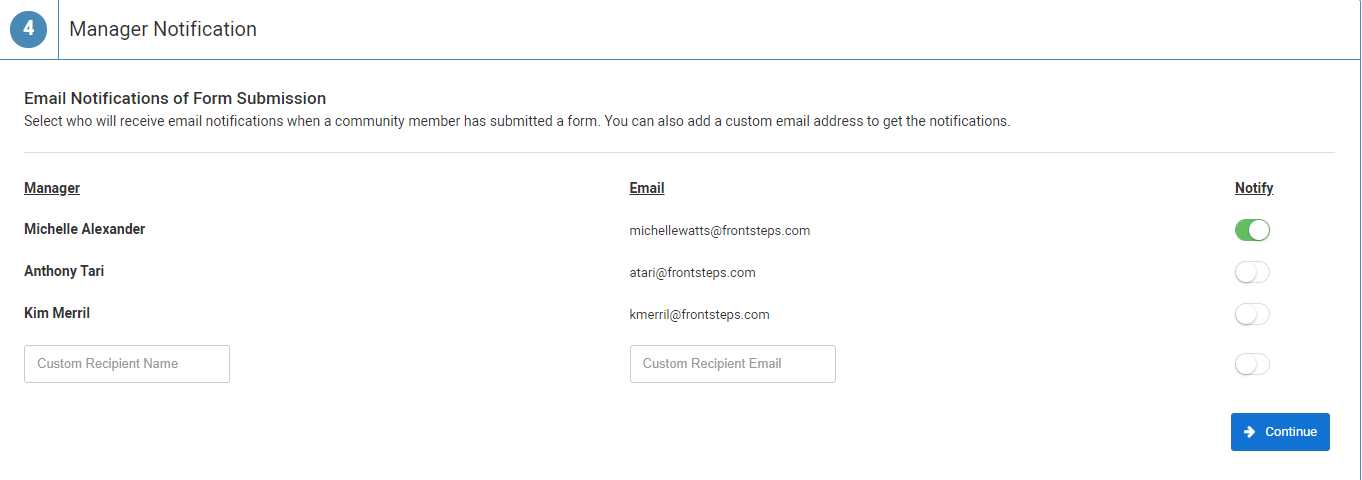 7. Select all Managers who will receive notifications when the eForm is completed by recipients. Select Continue to advance to the Publish section.
 8. Select Publish Now to make the eForm available for completion by the selected users. Or select save as draft and close to send the eForm at a later time. Once published, the eForm is available in the users' Community Communications section of their portals.
eForms themselves can not be downloaded or printed but any eForm responses can be downloaded to a CSV file.
Note: efForms are not currently available through the Community mobile app and submitting eForms through the mobile app is not currently supported.
A setup wizard is available to simplify the eForm creation process.
From the Manager Dashboard, select Community Communications, then select eForms.
1. To add a new eForm, select .2. In the New Form section, complete the title and description. Select Continue to advance to the Design section.
3. In the Field Selection drop-down list, select the type of field you want to add. Available field types are Email, Date, Long Text, Short Text, Time, Checkbox, Radio, Dropdown, File upload. Select the + Add Field option.4. Complete the Question or label information (required).5. Complete the information associated with each option. Continue to add option information until complete. For example, if you are adding checkboxes, add the information for each checkbox until complete. Select Continue to advance to the Audience section.
6. Select the types of users to whom the eForm will be made available for completion. Select Continue to advance to the Manager Notification section.7. Select all Managers who will receive notifications when the eForm is completed by recipients. Select Continue to advance to the Publish section. 8. Select Publish Now to make the eForm available for completion by the selected users. Or select save as draft and close to send the eForm at a later time. Once published, the eForm is available in the users' Community Communications section of their portals. eForms themselves can not be downloaded or printed but any eForm responses can be downloaded to a CSV file.