
Manager - Creating an Approval Request
We’re updating this article. Some screenshots or names may look older than what you see in the product.
The Approvals feature is used by Managers to send items such as community invoices to Board members for approval.
From the Manager Dashboard, select Work Orders & Approvals, then select Approvals.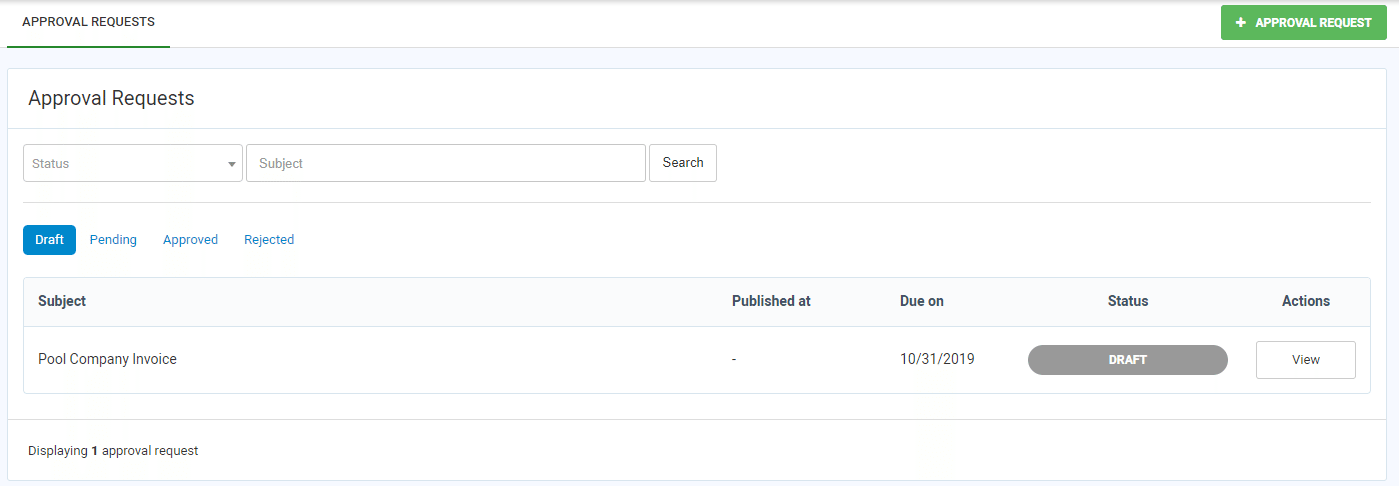
Search by Subject, or by Pending, Approved or Rejected statuses
Filter your search on Draft, Pending, Approved or Rejected requests.
To add an Approval Request, select .
.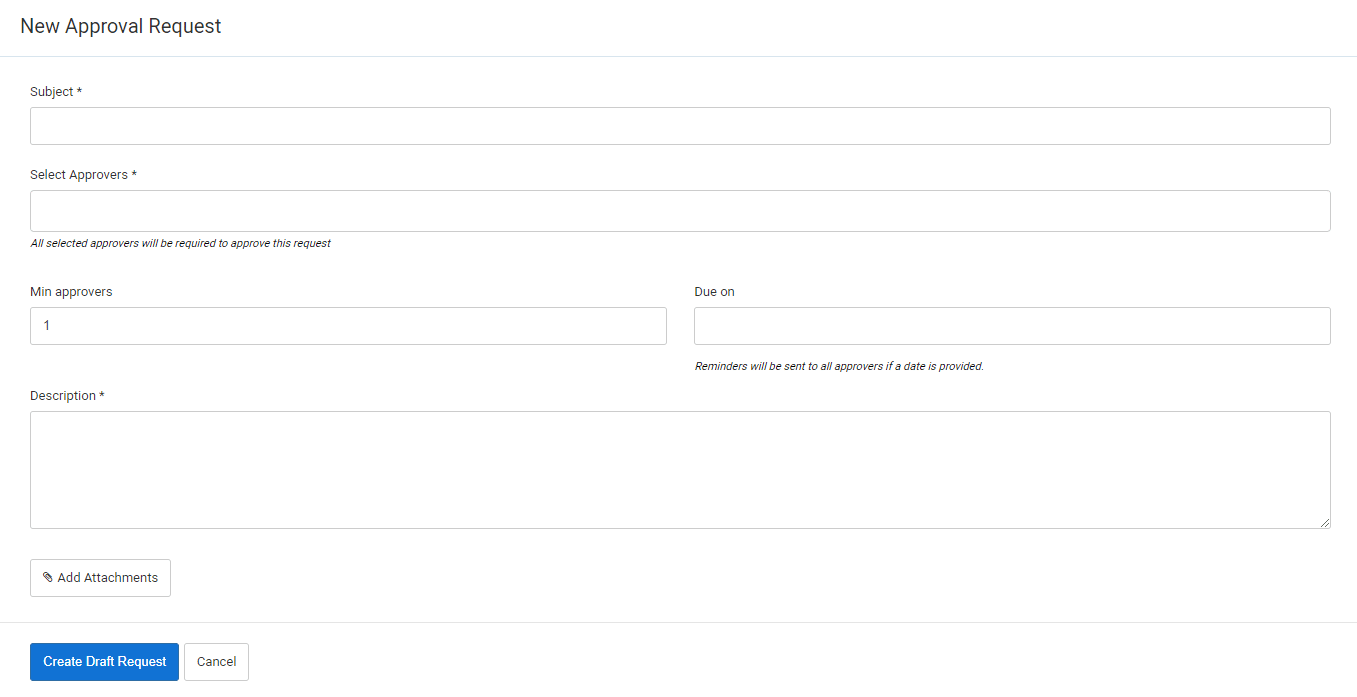 1. Complete the Subject information.
2. Select Approver names from the Directors drop-down list.
Note: All selected approvers are required to approve the request.
3. Complete the minimum number of approvers.
Note: You must select at least the same number of Approvers as is selected from the Directors drop-down list.
4. Select a Due On date if required.
5. Complete the Description information.
6. To add an attachment, such as an invoice to be approved, select the Add Attachments option, then download the attachment to the system from your computer.
7. Select the option. The new Approval's review screen will appear.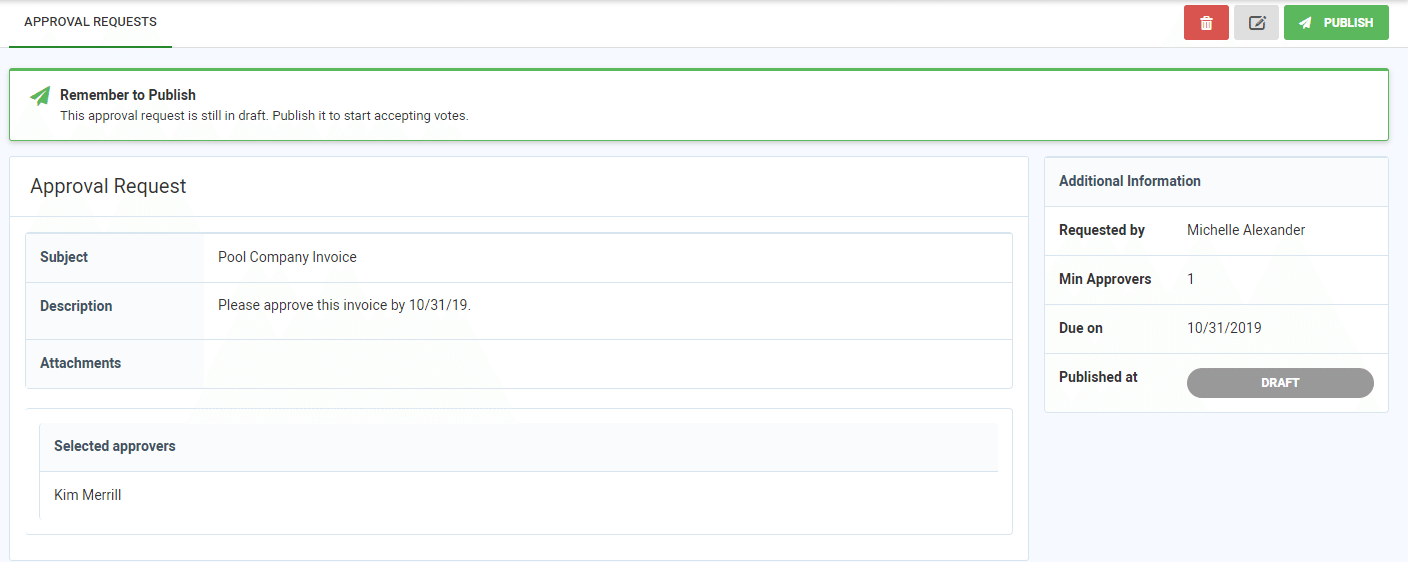
8. Select the option to edit the Approval request.
9. Select the option to delete the Approval request.
8. Select the option to send the Approval request to Approvers.
From the Manager Dashboard, select Work Orders & Approvals, then select Approvals.
Search by Subject, or by Pending, Approved or Rejected statuses
Filter your search on Draft, Pending, Approved or Rejected requests.
To add an Approval Request, select
.1. Complete the Subject information.2. Select Approver names from the Directors drop-down list.
Note: All selected approvers are required to approve the request.
3. Complete the minimum number of approvers.
Note: You must select at least the same number of Approvers as is selected from the Directors drop-down list.
4. Select a Due On date if required.
5. Complete the Description information.
6. To add an attachment, such as an invoice to be approved, select the Add Attachments option, then download the attachment to the system from your computer.
7. Select the
option. The new Approval's review screen will appear.8. Select the
option to edit the Approval request.9. Select the
option to delete the Approval request. 8. Select the
option to send the Approval request to Approvers.