
Resident - Creating a Photo Gallery
Add Group Page Photos by creating a Group photo gallery. Once created, simply upload images to view and manage photos.
- Click on a Group Page

- In the Photos section of the group page, click the Add Gallery button
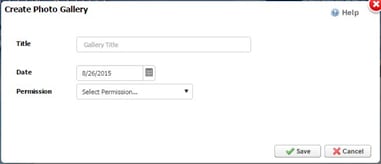
- The Create Photo Gallery window opens with the following options:
- Title: Name of gallery
- Date: Specify when photos were taken
- Permissions:
- Anyone: Anyone who can see this group page can see this event
- Site Directory: Must be able to see this group page and be in the directory
- Group Members: Must be a group member to see this event
- Click Save when finished.

- The gallery will appear in the Photos section of the Group Page and the options configured in step 3 can be changed by clicking the Edit button.
- NOTE: The galleries will be listed in alpha-numeric order by Title.