
Manager - Creating a Classified Ad
We’re updating this article. Some screenshots or names may look older than what you see in the product.
Managers and residents can create classified ads to sell or items to other residents. Classifieds can also be posted for items they are 'In Search Of'
From the Manager Dashboard, select Community Communications, then select Classifieds.
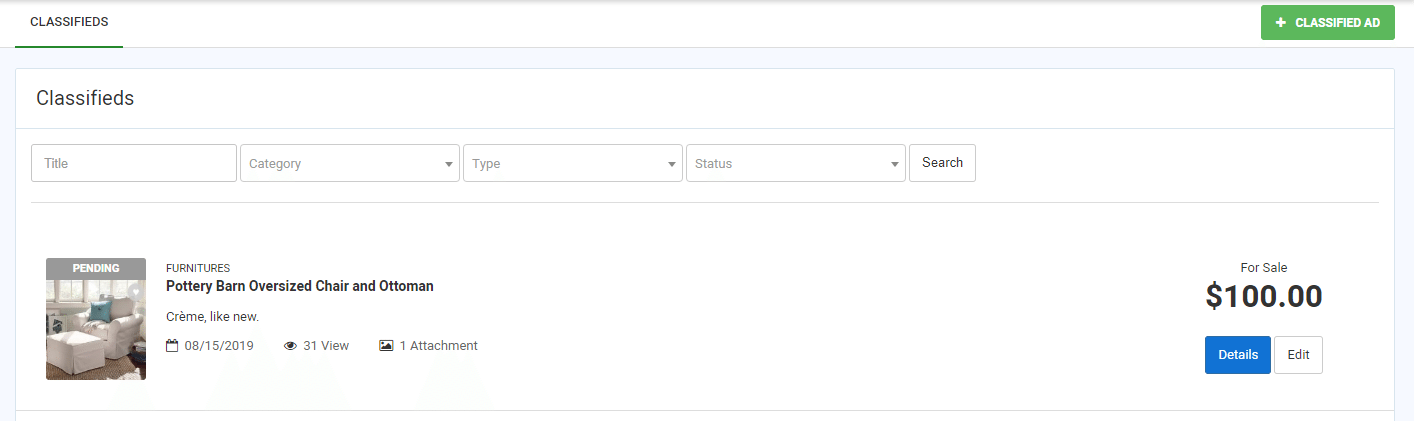 Select the +Classified Ad option.
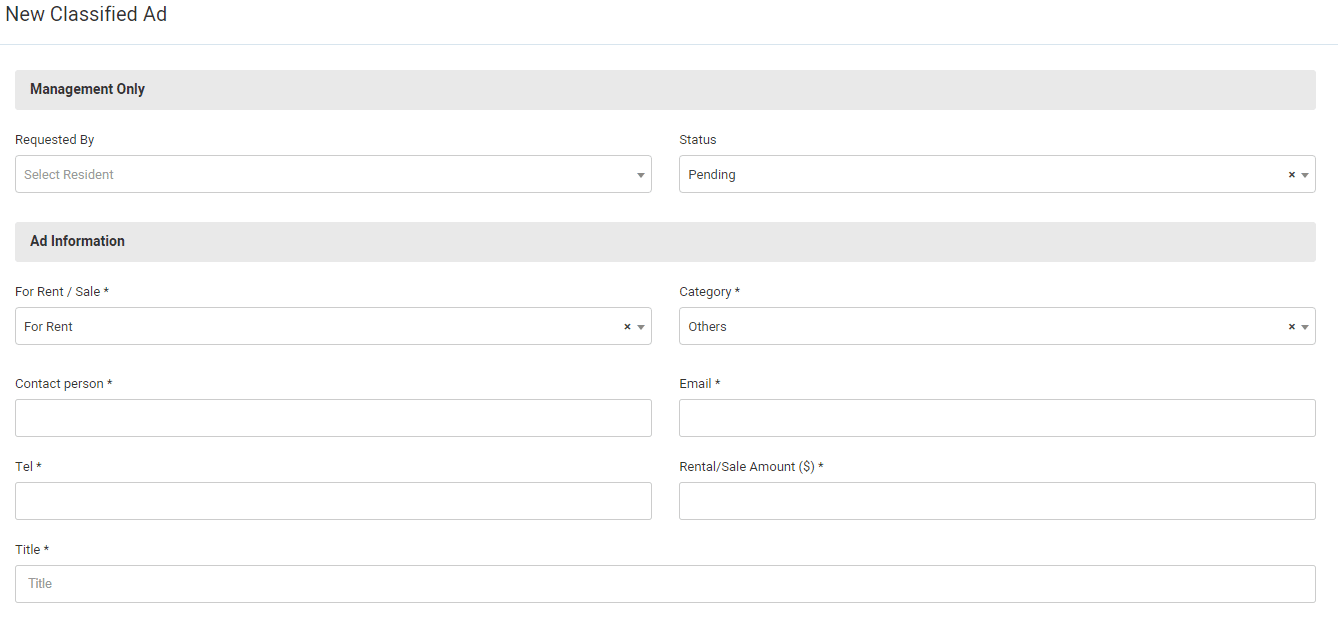
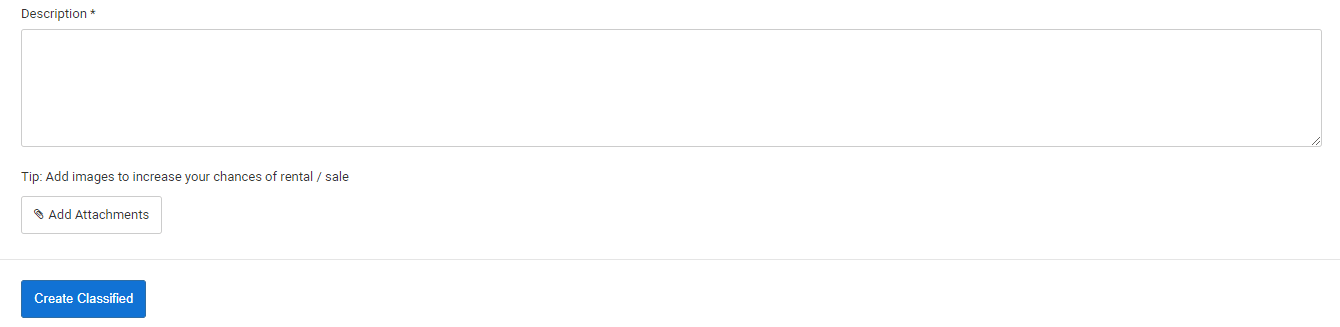 Complete the information.
To automatically approve and post the classified ad, select the Approved status from the Status drop-down list.
To add an attachment, such as a photo of the item for rent or sale, select the Add Attachments option and download the photo from your computer.
Select Create Classified.
Note: If you created the ad with an Approved status, the ad will automatically post to users' dashboards and menus. If you created the ad with a Pending status, or if a Resident submits an ad to you for approval, you will need to approve the ad for posting.
From the Manager Dashboard, select Community Communications, then select Classifieds.
Select the +Classified Ad option. Complete the information. To automatically approve and post the classified ad, select the Approved status from the Status drop-down list.
To add an attachment, such as a photo of the item for rent or sale, select the Add Attachments option and download the photo from your computer.
Select Create Classified.
Note: If you created the ad with an Approved status, the ad will automatically post to users' dashboards and menus. If you created the ad with a Pending status, or if a Resident submits an ad to you for approval, you will need to approve the ad for posting.