
Community Admin-dwellingLIVE- Parties
We’re updating this article. Some screenshots or names may look older than what you see in the product.
Background
The Visitor Management module now integrates with the FRONTSTEPS Community module.Notes
- The feature is available to all users as follows:
- Community Admins with dwellingLIVE
- Availability - This enhancement will be activated and available to all customers who purchase the Visitor Management Product integration.
Features
- Community Admins can add and manage parties on behalf of homeowners.
The Management Company Admin can add Parties on behalf of the homeowner.
Case use scenarios for this are as follows:
- The homeowner does not have current access to their FSC mobile device or FSC web portal.
- The community has set the settings to not allow homeowners access to the functionality.
Note: Admins cannot print passes or record entries like Guards.
To Add a Party for a Homeowner:
- Select the Administration tab>Community Directory.
- Select the Unit.
- Select Guest List.
- Select the Add Party link from the Guest List page.
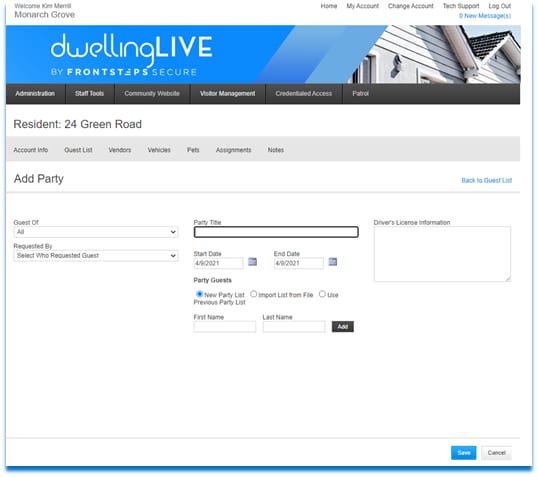
- Select who the Guest is visiting from the Guest Of dropdown.
- Select who requested the Guest from the Requested By dropdown.
- Enter the Party Title.
- Enter the Start and End Dates of the Party.
- Party Guest may be entered from a
- New Party List
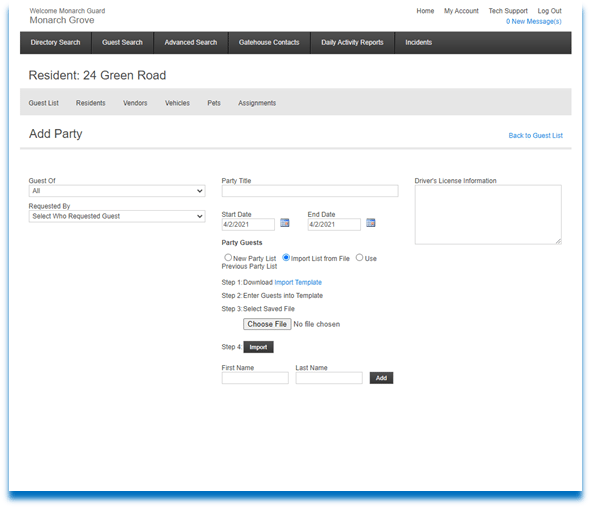
- Imported from a File
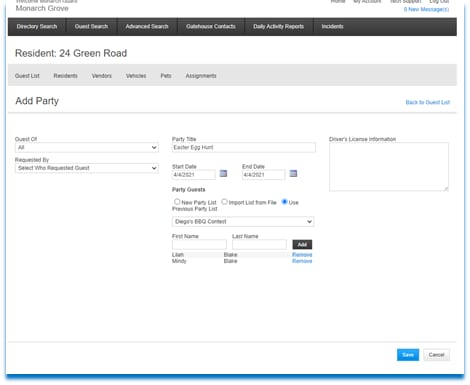
- Previous Party
To Create a New Party Guest List:
- Select the New Party List radio-dial.
- Add the First and Last Name of the Guest.
- Select Add.
- Once added, Guests can be removed from the Party List using the Remove link.
- Select Save.
To Import Guests from a File:
To Use Guests from a Previous Party List:
- Select the Import from File radio-dial.
- Select the Import Template link. An Excel spreadsheet will open.
- Enter the Guests into the Excel Template.
- Save the file.
- Choose the file from your files.
- Select Open.
- Select Import.
- The Guest names will display below.
- Select the Use Previous Party List radio dial.
- Select the previous party from the dropdown.
- The Guest names from the previous Party will auto-populate.
- Select Save.