
Community Admin-dwellingLIVE- Manage Guests
We’re updating this article. Some screenshots or names may look older than what you see in the product.
Background
The Visitor Management module now integrates with the FRONTSTEPS Community module.Notes
- The feature is available to all users as follows:
- Community Admin with dwellingLIVE
- Availability - This enhancement will be activated and available to all customers who purchase the Visitor Management Product integration.
Features
Community Admins may manage Guests in the following ways:
- Add, edit, or delete Guests.
The Management Company Community Admin can add Guests and Parties on behalf of the homeowner.
Case use scenarios for this are as follows:
Likewise, Approved Vendors for the homeowner can also be added by the Community Admin.
Note: Community Admins cannot print passes or record entries like Guards.
From the Home Page for the Management Company Community Admin: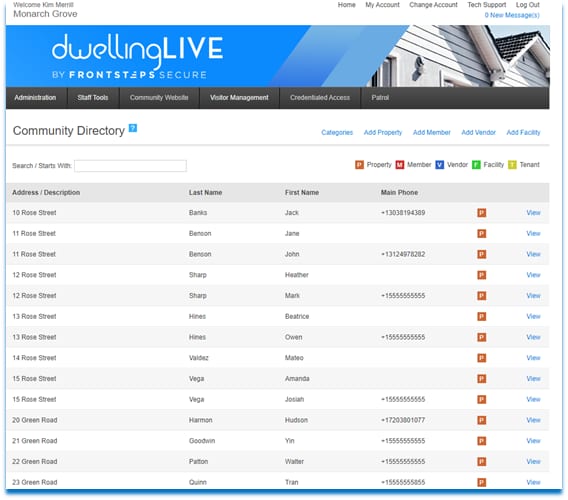
- The homeowner does not have current access to their FSC mobile device or FSC web portal.
- The community has set the settings to not allow homeowners access to the functionality.
Likewise, Approved Vendors for the homeowner can also be added by the Community Admin.
Note: Community Admins cannot print passes or record entries like Guards.
From the Home Page for the Management Company Community Admin:
- Select the Administration tab>Community Directory.
- Here the Community Admin can view the Community Directory and search for Addresses and homeowners.
- On the Community Directory, select the Unit.
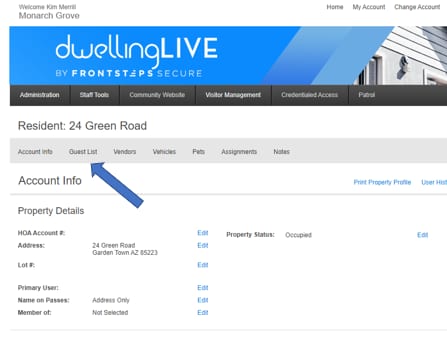
- Choose the View link.
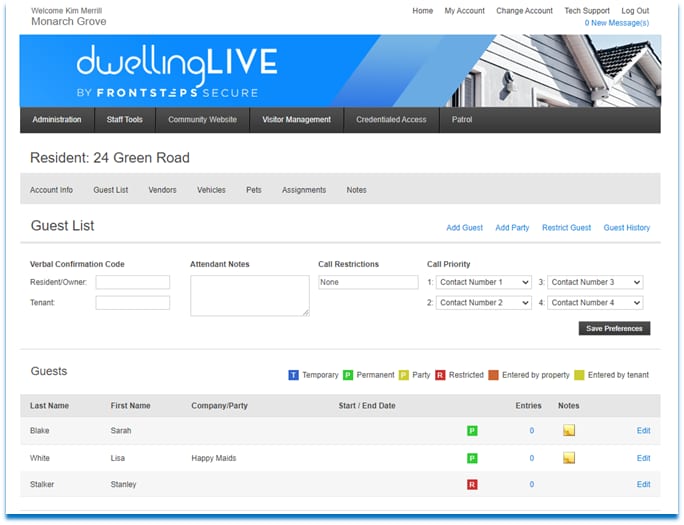
- Select the Guest List link.
- Here the Community Admin can see the homeowner’s Verbal confirmation code for the Resident and Tenants, respectively.
- Any Attendant Notes
- Call Restrictions
- Call Priority Phone Numbers.
- These can be added here and saved using the Save Preferences button, or the homeowner can add and update this information on either the FSC web portal or mobile app.
To Add a Guest for a Homeowner:
To Edit or Delete the Guest: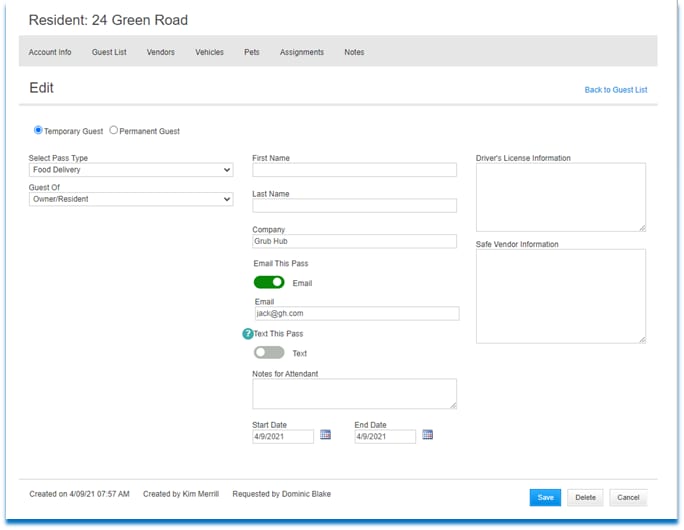
-
Select the Administration tab>Community Directory.
- Select the Unit.
- Select Guest List.
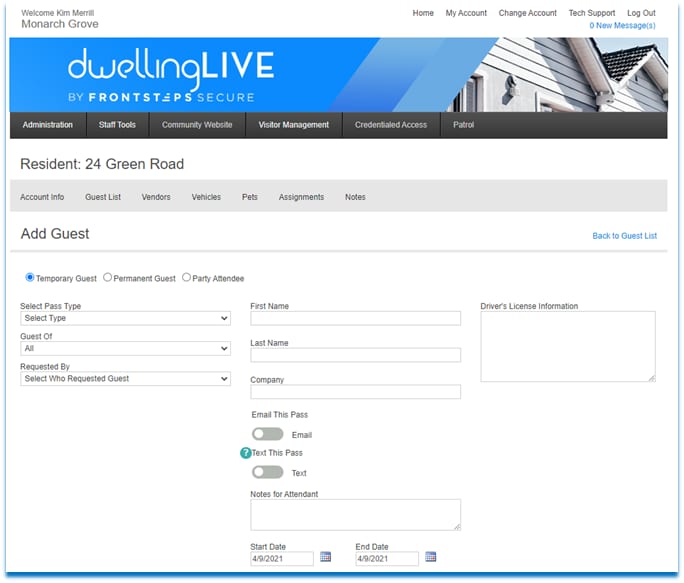
- Select the Add Guest link from the Guest List page.
- Select the type of Guest using the radio-dial.
- Select the Pass Type. Note: Pass Types are customizable and can be used for temporary Vendors, such as a food delivery service. These are set up from Visitor Management> Pass Types.
- From the dropdown, enter who the Guest is visiting
- From the dropdown, enter who requested the Guest
- Enter the License Plate Number of the Guest.
- Enter the First and Last Name of the Guest.
- Driver’s License Information may also be entered.
- Use the toggle to choose if the Pass will be emailed or texted to the Guest.
- Write any note for the Attendant in the box provided.
- Enter the Start and End Date of the Visit.
- Select Save.
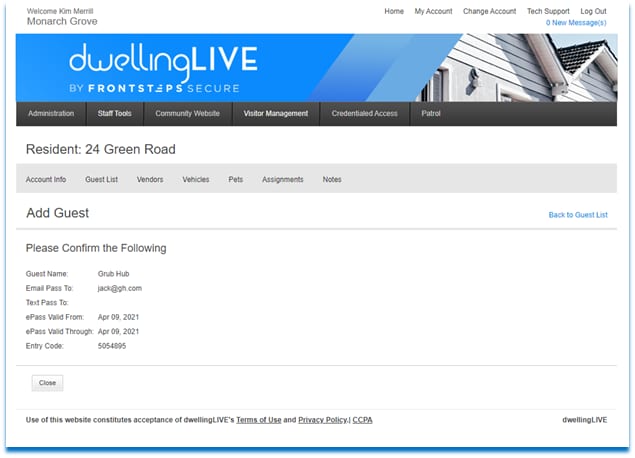
- The Confirmation window appears.
- Select Close.
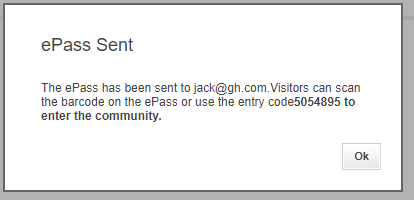
- Then the ePass is sent.
- Select Ok.
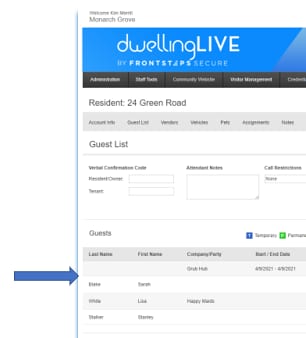
- The Guest then displays on the Guest List for the homeowner
To Edit or Delete the Guest:
- Select the Edit link next to the Guest’s name.
- From the Edit window, you can:
- Edit the Guest information and select Save to save those changes.
- Delete the Guest, using the Delete button.