CIT Bank Advanced Integration
 CIT Bank Integration
 Introduction
CIT Bank has new integration features that work through the Caliber API. Each time data is requested, Caliber makes a call to the bank’s server through the API to obtain it. An API User Configuration login is not required.
This integration requires a Client ID, Client Secret, Management Company ID, and Base URL, all of which will be provided by the bank. CIT Bank may refer to the Management Company ID as the ‘PMC Coupon ID.’ This information must be sent to Caliber Support to activate the feature. New Caliber customers can contact their representative in Implementation for assistance, and current Caliber customers can contact Support to begin this process.
It is required that the associations in Caliber Desktop using this integration have a Posting Code that is linked to the bank, that Posting Code is marked to Allow for Lockbox, and it has a unique Lockbox Code entered. This is only required for the associations using this integration.
Review the following sections for a list of features, required setup steps, and how to use the features within Caliber Desktop.
Integration Features Summary
- Auto-Lockbox and ePayments
- Auto-Reconciliation Files
- Bank Balance Look-Up
- Bank Statements
- Bank Transfers
- Check Images for Accounts Payable
- Check Images for Accounts Receivable
- Positive Pay Files
- Stop Payments
Integration Features Setup
Master Bank List SetupEnables Auto-Reconciliation, Bank Balance Look-Up, Bank Statements, Bank Transfers, Check Images for AP, Check Images for AP (requires Auto-Lockbox setup as well), and additional Auto-Lockbox features.
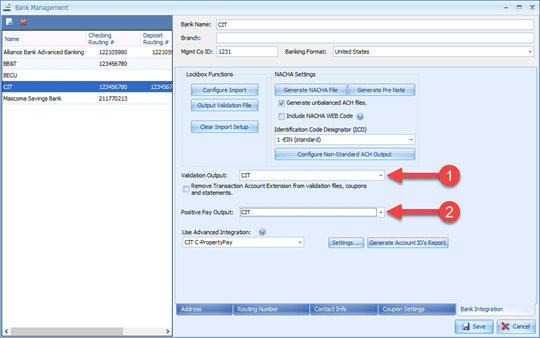
From the Master Bank List, CIT Bank must be selected as the advanced integration and as the integration partner, and credentials from the bank must be entered. If CIT has not been previously added to the Master Bank list, that will need to be done now.
Go to the top ribbon, click Accounting > Setup > Master Bank List.
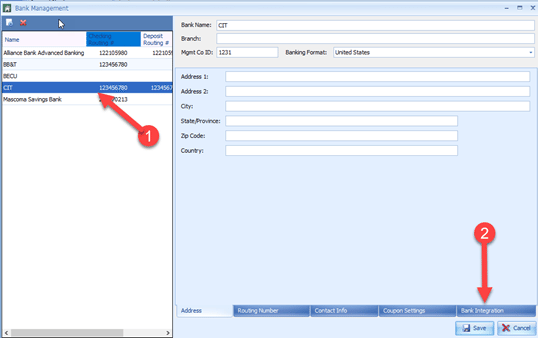
- Select CIT Bank from the Bank List on the left (#1 below).
- Select the Bank Integration tab (#2 below).
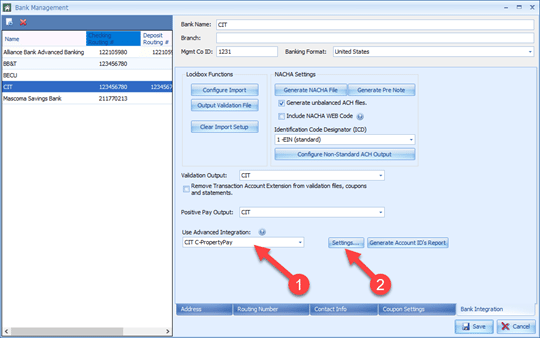
- From the Use Advanced Integration dropdown, select CIT Bank (#1 below).
- Click Settings (#2 below).
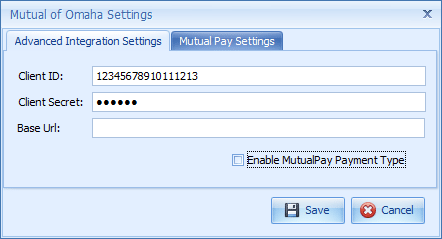
NOTE: You do NOT need to check the ‘Enable MutualPay Payment Type’ checkbox that appears on the window below.
Auto-Lockbox Setup
The CIT Bank Auto-Lockbox feature requires the Automated Banking Integration Scheduled Task and requires that Alerts be configured and subscribed to.
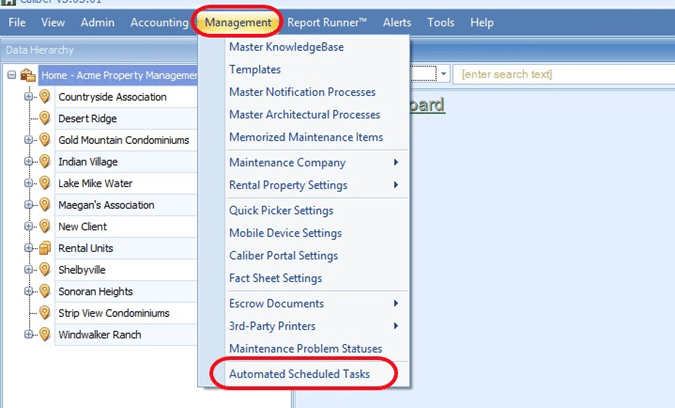
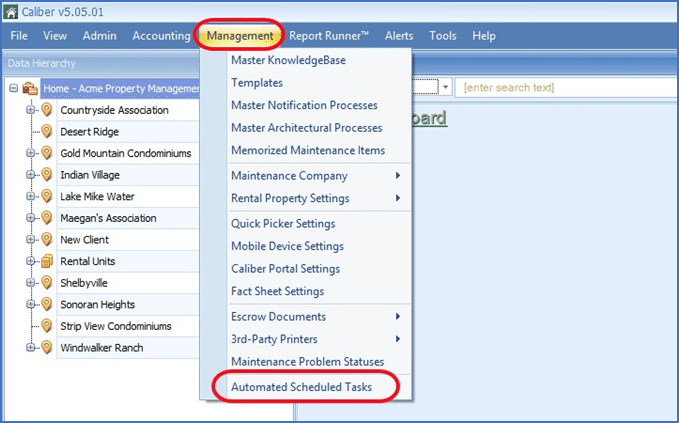
Go to the top ribbon, click Management > Automated Scheduled Tasks.
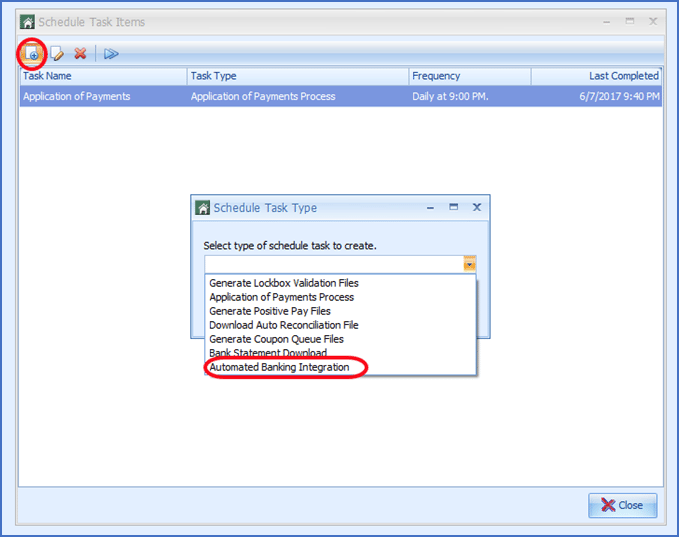
- Click Add New.
- From the dropdown, select Automated Banking Integration.
-
- Interval Type: must be Daily at specified time and set no earlier than 2:00 AM, Pacific Time. This is the earliest that the files will be available from the bank for import. If the time is set earlier, there will be no data for Caliber to process. Make sure the Active box is checked.
-
- Processing Start Date: should be set for the next day, at the earliest. This is to prevent the process from importing payments from a file you have already imported. As of the start date, you will discontinue manually importing lockbox files.
-
- The Send alert if process hasn’t completed by box will send an Alert (discussed in the next section) to users that the process has not been completed (users must subscribe to these Alerts). Caliber will continue to run the process until it has completed.
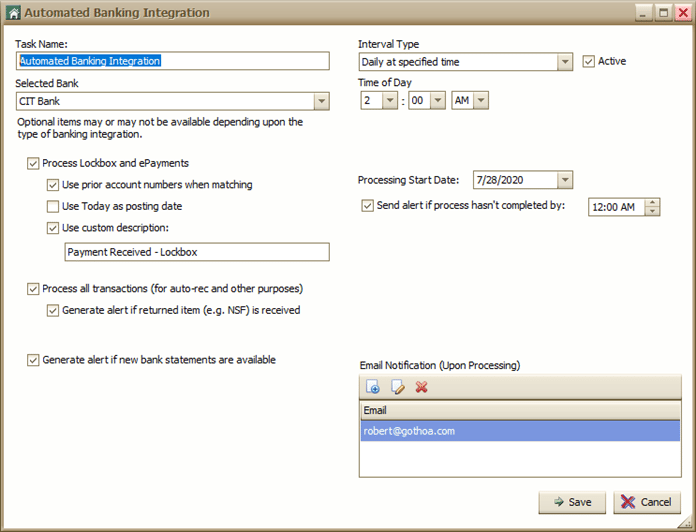
4. Click Save when complete.
Auto-Lockbox Alerts
To receive Auto-Lockbox Alerts, you must first configure, or activate, Auto-Lockbox Alerts so that your users can then subscribe to them. Each Caliber Desktop user must subscribe to these Alerts individually.
Configure Alerts
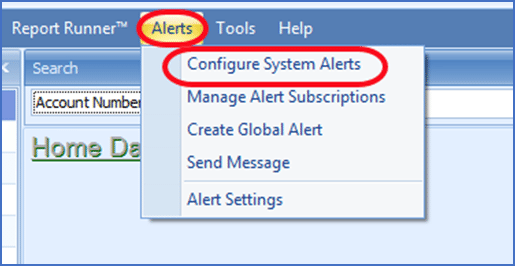
Go to the top ribbon, click Alerts > Configure System Alerts.
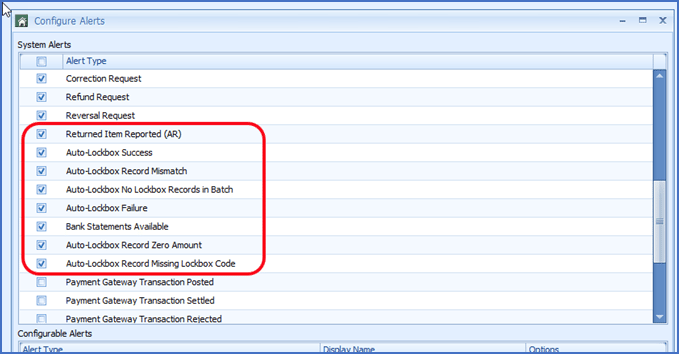
- Check the boxes for all Auto-Lockbox options, including Returned Item Reported (AR) and Bank Statement Available options.
Subscribe to Alerts
Go to the top ribbon, click Alerts > Manage Alert Subscriptions.
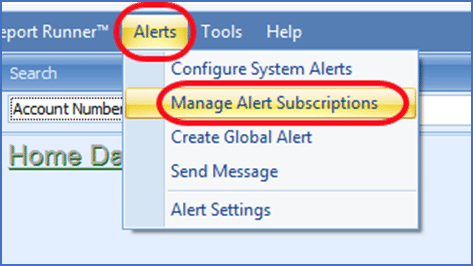
- Check the boxes for all Auto-Lockbox options, including Returned Item Reported (AR) and Bank Statement Available options. NOTE: Alert options will be displayed only after they have been configured.
- Click Save when complete.
Auto-Lockbox Processing
As of the Processing Start Date, Caliber will contact the bank’s server at the specified time to pull in the
lockbox files. Do not continue importing the files manually. This will result in double postings.
Your Caliber lockbox reports will be available as they were previously.
Go to the top ribbon, click Accounting AR > View Past Lockbox Reports.
The report can also be viewed in the Alerts Toolbox, provided that the user is subscribed to these Alerts.
You will want to review these reports daily to make sure that no payments show in the Failed Items section of the report. If an item is listed there, it will need to be posted manually.
Auto-Reconciliation Setup
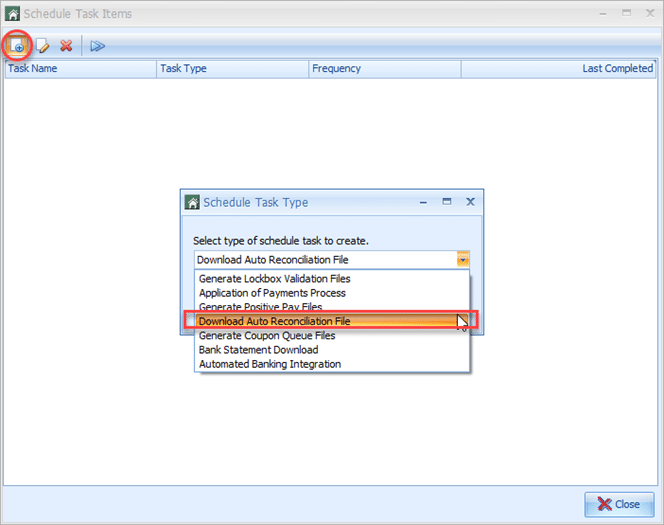
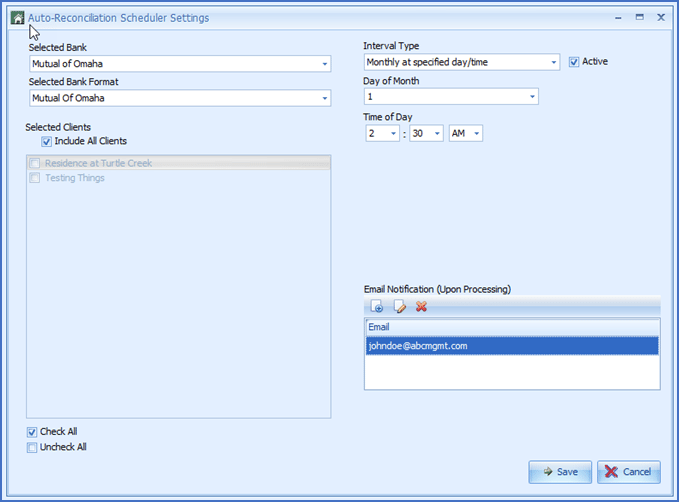
The CIT Bank Auto-Reconciliation feature requires the Download Auto Reconciliation File Scheduled Task.
Go to the top ribbon, click Management > Automated Scheduled Tasks.
- Click Add New.
- From the dropdown, select Download Auto Reconciliation File.
-
- Time of Day: should be no earlier than 2:00 AM, Pacific Time. This is the earliest that the files will be available from the bank for the work of the prior day. If the time is set earlier, there will be no data yet for that day.
- Make sure the Active box is checked.
Positive Pay Setup
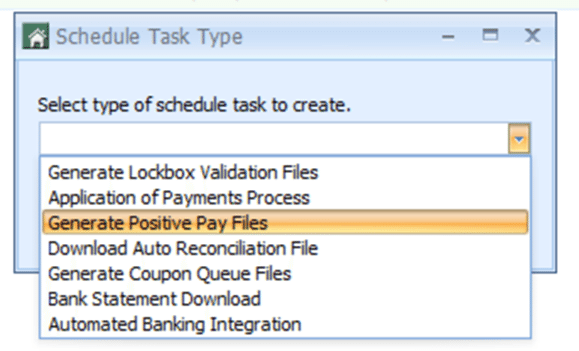
The CIT Bank Positive Pay feature requires the Generate Positive Pay Files Scheduled Task.
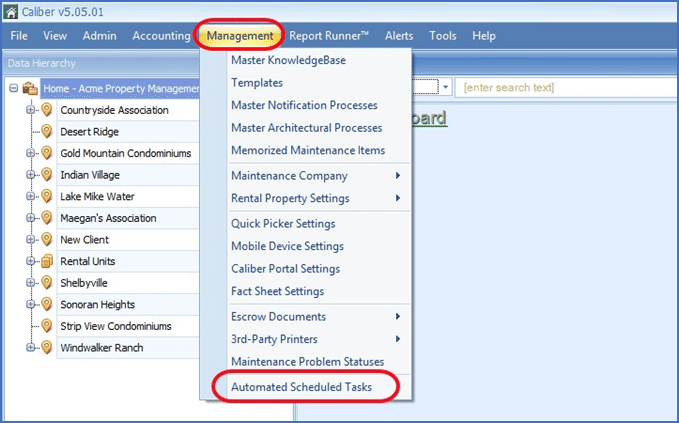
For the Positive Pay to be transmitted to the bank, an automated schedule task must be set up. Go to Management at the top ribbon, then Automated Scheduled Tasks.
Go to the top ribbon, click Management > Automated Scheduled Tasks.
- Click Add New.
- From the dropdown, select Generate Positive Pay Files.
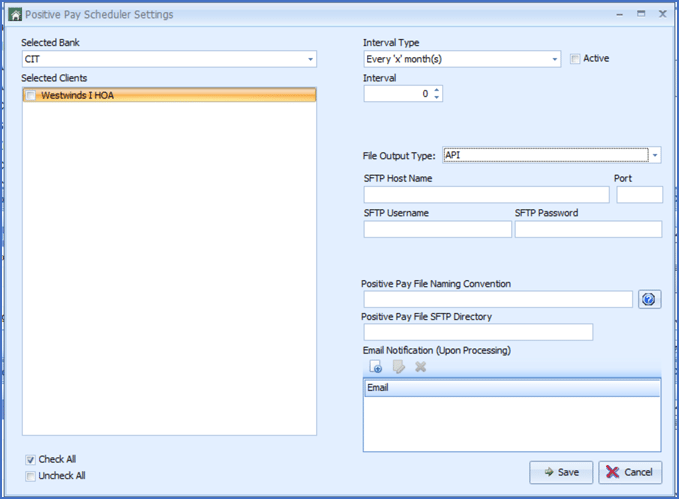
-
- Selected Bank: select CIT
-
- Interval: select an appropriate interval type and date. Make sure the Active box is checked.
-
- File Output Type: select API - this will ensure that the scheduled task will use the advanced banking integration.
-
- Selected Clients: select all Clients that should be included in the Positive Pay file
-
- Enter a Positive Pay File Naming Convention. This is usually:
Using the Integration Features
Viewing Bank Balances
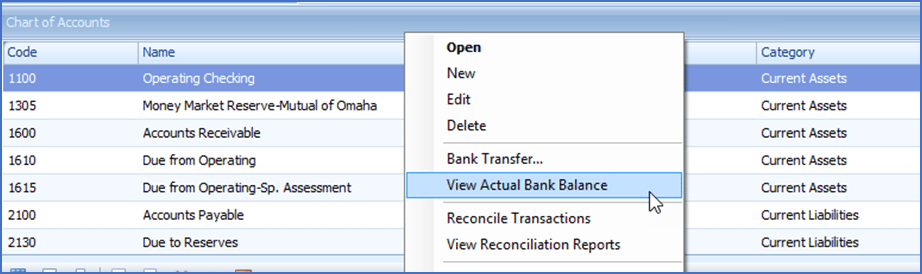
To access this information, right-click on the CIT Bank account in the Chart of Accounts > View Actual Bank Balance. A new toolbox will open showing the bank balance in the selected account.
NOTE: The balance provided is as of the close of the last business day.
Bank Statements
On the Client Dashboard, right-click on the CIT Bank account > View Bank Statement. This will reveal a sub- menu with bank statement dates (might take a second or two). Select the statement date you desire and a PDF of that bank statement will be downloaded and displayed on your screen.
Making Bank Transfers
Journal entries for the transfer will automatically be generated in Caliber. Both accounts involved in the transfer must be for the same client. Cross client transfers cannot be done.
If there are insufficient funds available to make a transfer, a warning message will appear. If an error occurs on the bank side after the transfer process has been completed in Caliber, the journal entry will still exist, even though the transfer did not complete at the bank.
To make a transfer from one CIT Bank account to another, go to the client’s Chart of Accounts and select the account that the funds are being transferred from. Right click on the account and select Bank Transfer.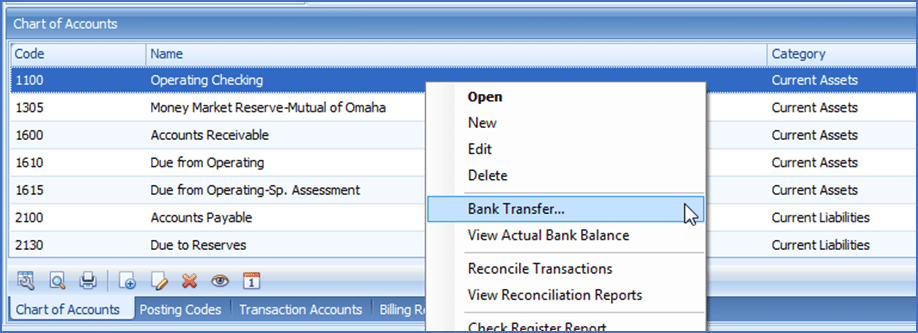
A Bank Transfer Toolbox will come up. Here you will select the account that the funds are being transferred to and the amount to be transferred. You also must check the Post transfer directly to bank box if you want Caliber to forward the transfer request to the bank.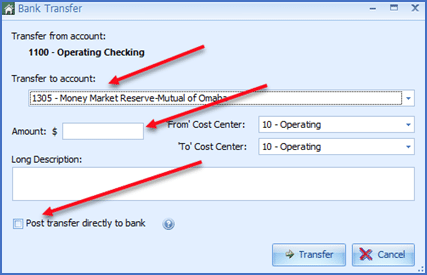
If you do not select this checkbox, the transfer will only be booked in Caliber, and it will not be forwarded to the bank. Once your selections have been made, click the Transfer button.
Check Images for AP and AR
Checks can be viewed at various places within Caliber once they have cleared the bank. These locations include:
-
- When viewing a payment from the invoice screen in Caliber.
- From the Payment Viewer screen.
- From the GL Viewer screen.
- From the Invoices tab in Vendor Management.
In each of the above locations, a context-menu (popup menu) will appear with the View Check option. If you don’t see View Check, it means that the selected payment isn’t linked to a check record and therefore, no check image is available. This is most likely because the check hasn’t cleared the bank yet.
Positive Pay
Positive Pay helps with fraud detection. Each time a customer presents a check, the Positive Pay tool will check the account number, the dollar amount of the check and check number to ensure accuracy.
This works by having the company transmit a file of all the checks they issued. As the issued checks are presented to the bank to be cashed or deposited, they will be compared to the transmitted check file, all of which is done completely electronically. The check will be verified by account number, check number and check amount.
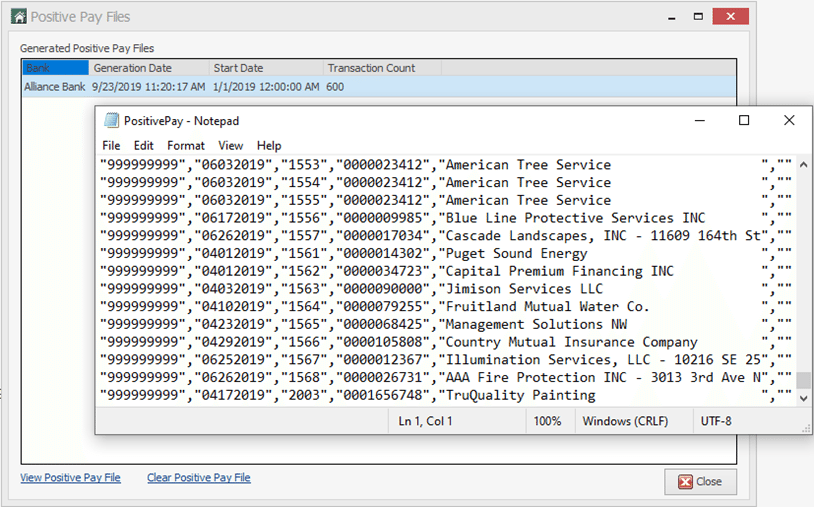
You can manually generate a Positive Pay file if needed and review prior Positive Pay files.
- From the Top Ribbon, click Accounting > AP > Positive Pay > View Past Positive Pay Operations.
- Click View Positive Pay File.
- The Positive Pay text-only file will open listing all outgoing AP payments.