
Check Layouts
We’re updating this article. Some screenshots or names may look older than what you see in the product.
Setting the Default Check Layout
The check layout editor gives management companies the ability to customize checks based on company preferences, bank requirements, and the type of check stock used. To begin setting up the default check layout, go to Accounting > Setup > Check Layouts.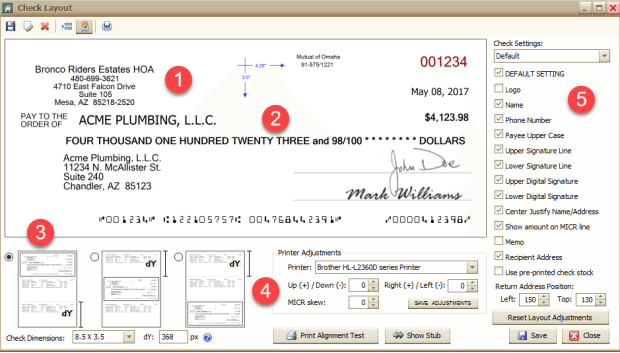
1. Almost all fonts can be changed. To change the font for a specific item on the check, hover the mouse over the text and right-click. A font option box will come up for the user to make the necessary adjustments.
2. The Pay To The Order Of and Written Amount lines also include placement adjustments that can be accessed by clicking on the line. An additional Layout Adjustments box will appear below the Printer Adjustments box.
3. There are three options to choose from for check stock based on the location of the check and the stub. Check Dimensions and dY options are also available.
4. The adjustments made in this box are per printer and per user. Each user that will be printing checks must have this information set up on their computer. Make sure to click the Save Adjustments button after making changes to this box.
5. These are all of the available options to be included on the check. There is also an option at the top to add additional check formats so they can be tailored to each community if needed.
Clicking on the Show Stub button at the bottom will bring up the options available for the stub.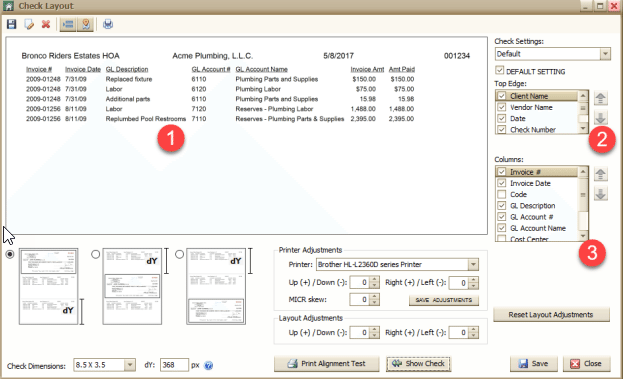
1. The fonts here are also adjustable by right-clicking on them.
2. The options here are for the line that goes across the top of the stub. The user can choose to include as much (or as little) information as needed.
3. Numerous columns are available to be added to the stub. These columns can also be rearranged with the arrows on the right.
Once all changes have been made to the check image, click Save. For bank verification, the user can print a test check by clicking on the printer icon at the top of the screen and sending it to the bank.