
Charts Toolbox
Community Managers and Admins who use FRONTSTEPS Caliber, can now access Violation, Maintenance, Delinquency and Invoice graphs using the ‘Charts’ toolbox.
The ‘Charts’ toolbox is available at all 5 dashboards, which include the Home, Division, Client, Group and Account dashboards.
The graphs within the ‘Charts’ toolbox display current counts and statuses of Violation, Maintenance, Delinquency and Invoice items for the respective dashboard level you are at upon opening the toolbox.
If you open the ‘Charts’ toolbox at the Home dashboard, the charts will represent data from all Clients.
If you open the ‘Charts’ toolbox at the Division dashboard, the charts will represent data from just the Clients in that Division.
If you open the ‘Charts’ toolbox at the Client dashboard, the charts will represent data from that specific Client.
If you open the ‘Charts’ toolbox at the Account dashboard, the charts will represent data for that specific Account (also referred to as Unit).
Opening the Toolbox
To access the ‘Charts’ toolbox, right click anywhere in the Dashboard. This will display a list of available toolboxes.
Click the box to the left of ‘Charts’ to open. 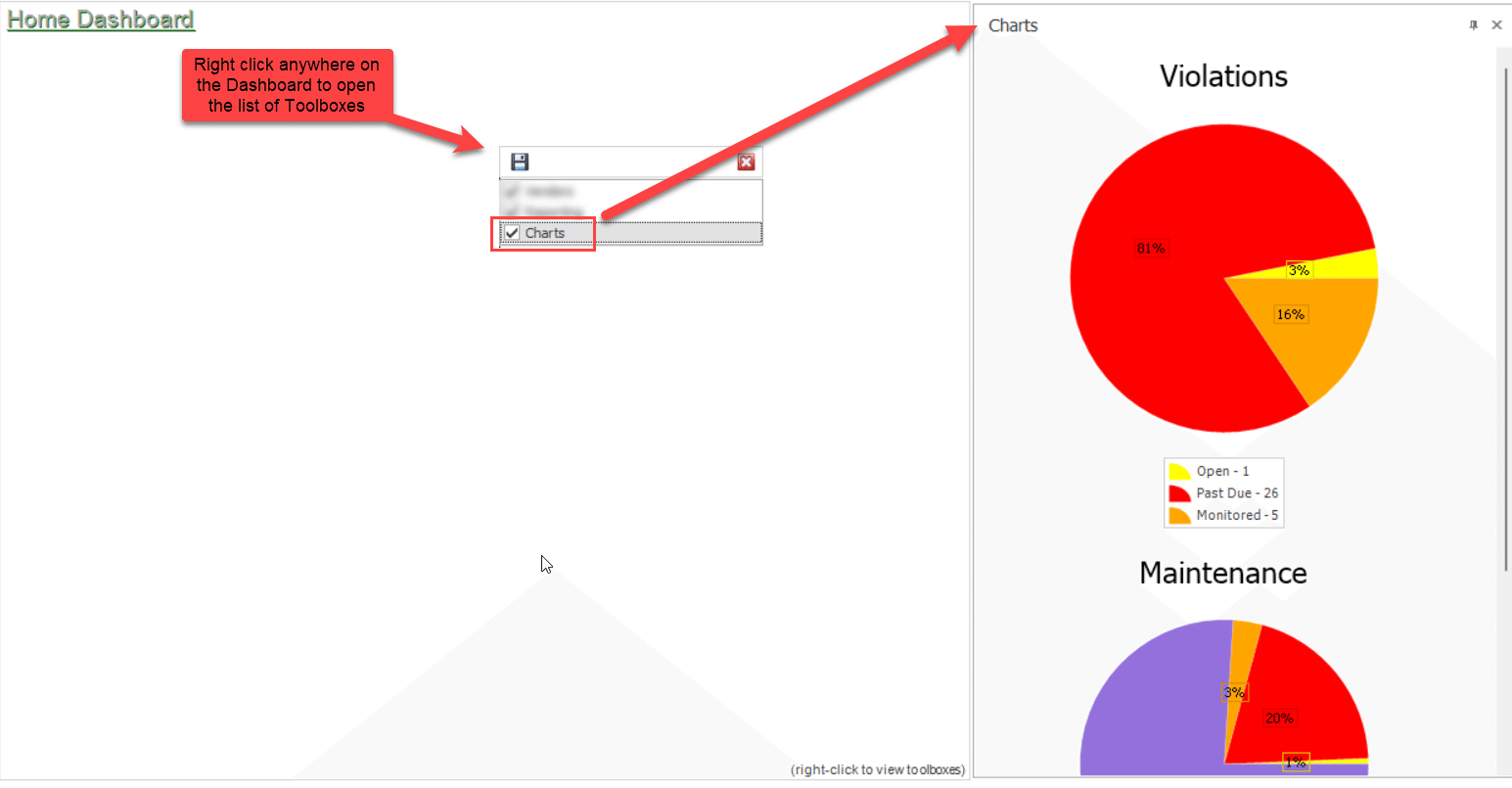
Within the toolbox you can see a graph of Violations, Maintenance, Delinquency & Invoice items as well as the percentage of items in a particular status.
If you would like to see a list view of items in a specific status, double click on the section of the pie chart matching the color of that status. For example, to see all Past due Violations I would double click on the red portion of the Violations graph.
This will open the viewer and have it filtered to show you those items.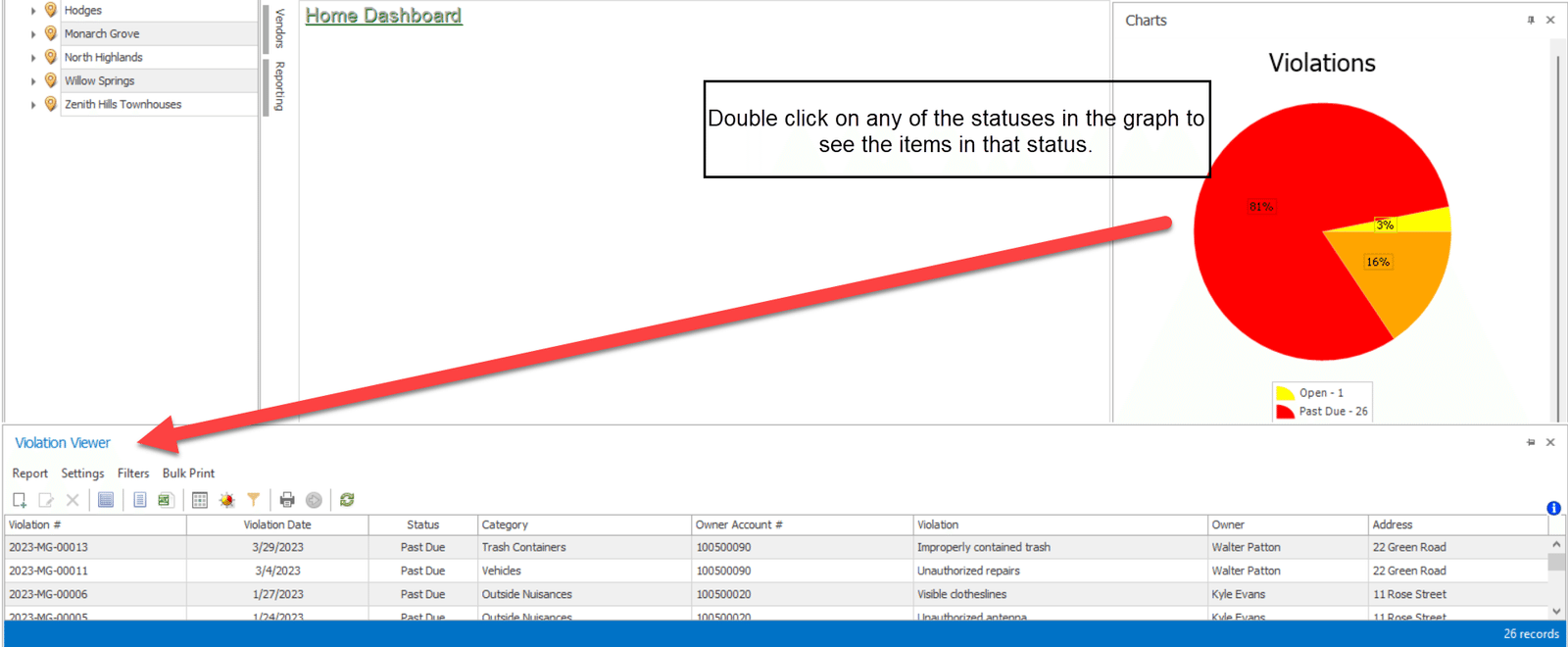
If you would like to view a video walkthrough on how to open the toolbox click here.