FRONTSTEPSHELP CENTER
Home / Getting Started & Account Access / Homeowner - Changing Email Address or Password to Link Multiple Accounts
How-to FRONTSTEPS Dwelling Residents

Homeowner - Changing Email Address or Password to Link Multiple Accounts

Article 000001628 · Updated Jul 6, 2022

We’re updating this article. Some screenshots or names may look older than what you see in the product.

Changing Email Address or Password to link multiple Accounts


If you own two or more properties within a single dwellingLIVE community or you own two or more properties in two or more communities, dwellingLIVE allows for these accounts to be managed under a single login. Below are the steps to setting this up.


  1. First, choose the user account credentials you would like to use for managing your dwellingLIVE user account. 

 
  1. Go to https://community.dwellinglive.com/login.aspx and enter the credentials of the account(s) you will be modifying 

/var/folders/18/lqzmzyxj5hq98ktsb5znlc5h0000gp/T/com.skitch.skitch/DMD5246AC52-CAEF-45EC-838D-405906F5F5C0/dwellingLIVE.png

 
  1. Once logged into dwellingLIVE, navigate to the top menu and choose My Account


/var/folders/18/lqzmzyxj5hq98ktsb5znlc5h0000gp/T/com.skitch.skitch/DMDBE6047A7-454D-49BA-9FE3-69DDE5B4D773/https___community_dwellinglive_com_visitormanagement_guestlist_aspx.png


(cont. on next page)

 
  1. Choose the User Account you are going to update the Email and Password for and click Edit

/var/folders/18/lqzmzyxj5hq98ktsb5znlc5h0000gp/T/com.skitch.skitch/DMDB37A1385-60BB-4D8E-9AB3-7158C34B5778/https___community_dwellinglive_com_homesite_account_aspx.png

 
  1. From the User Details page, update the Email and Password/Confirm Password fields to match the credentials chosen in Step 1, When finished click Save
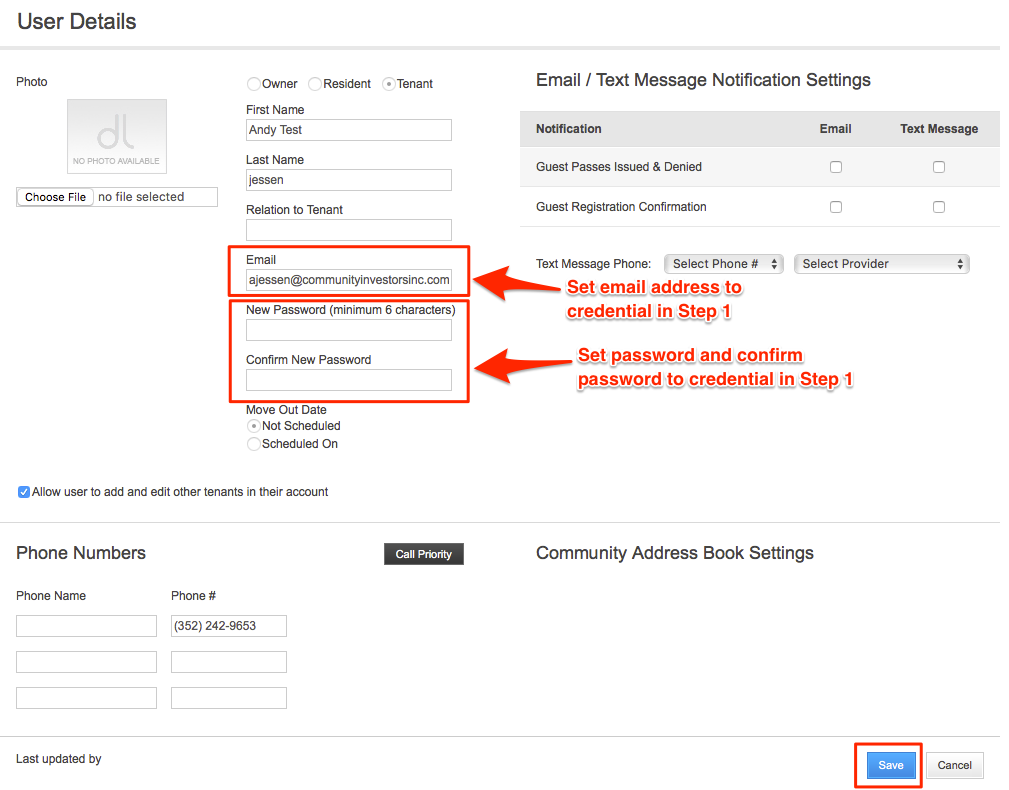
 

/var/folders/18/lqzmzyxj5hq98ktsb5znlc5h0000gp/T/com.skitch.skitch/DMD28EDBE97-887F-4187-8F7A-B3367D3B8E80/https___community_dwellinglive_com_homesite_user_aspx_u_vKDD3jYqScURjQHr_2b2g4qw_3d_3d.png

 
  1. In the Top Menu, choose Log Out

/var/folders/18/lqzmzyxj5hq98ktsb5znlc5h0000gp/T/com.skitch.skitch/DMDA10A46C8-026F-4A1D-ABF6-A0C944B9A3F1/https___community_dwellinglive_com_homesite_account_aspx.png


(cont. on next page)

  1. Next, Login with the Email and Password that were entered in Step 5

/var/folders/18/lqzmzyxj5hq98ktsb5znlc5h0000gp/T/com.skitch.skitch/DMD4129355D-CAD2-4EC0-A972-EB01D6019250/dwellingLIVE.png

 
  1. Choose the Property to manage by clicking Select. Now you will be managing that specific property. 

/var/folders/18/lqzmzyxj5hq98ktsb5znlc5h0000gp/T/com.skitch.skitch/DMD15AC7445-AB23-4386-982F-4215431BA940/Select_Account.png

 
  1. To manage another property, from the Top Menu click the Change Account and choose the property you would like to manage by clicking Select

/var/folders/18/lqzmzyxj5hq98ktsb5znlc5h0000gp/T/com.skitch.skitch/DMD87F32C24-F5B2-430D-A2FE-4EB8F1CA679E/https___community_dwellinglive_com_visitormanagement_guestlist_aspx.png


If you have multiple accounts, repeat Steps 2-5 for each account.