
CC&R Entry and Linkage
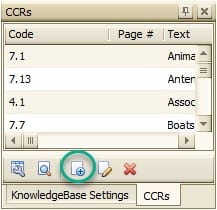
The process will begin by entering data into the CCRs toolbox. You have the option of entering the CC&Rs manually or using our sample spreadsheet for importing. That spreadsheet can be found in the Import Spreadsheets folder titled Violation CCR Sample Import.
To enter them manually, select the New CCR icon at the bottom of the toolbox.
A blank screen will appear for you to enter data. All of the fields in this screen, Code, Page #, Text, and Comment, can be used in your Violation templates. Please refer to the Field Code list available in Management > Templates > File > Print Field Code List. (Screen shot on next page)
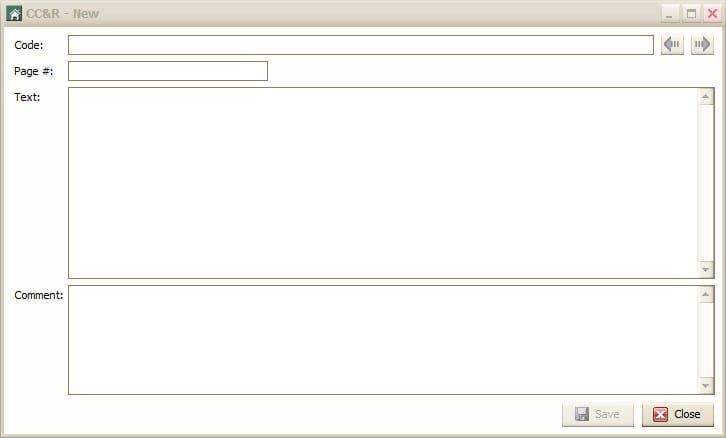
The easiest way to populate this screen may be to Copy & Paste from your actual CC&R document. The text section is for the actual legal language in the CCR document. The Comment section is a place to enter more common phrases. Example: Please remove weeds. You do not have to use all of these fields. Use the ones that you determine are important and will accomplish what you need in your letter.
If you would like to use the import option, contact Caliber Support for specific instructions.
Field Codes
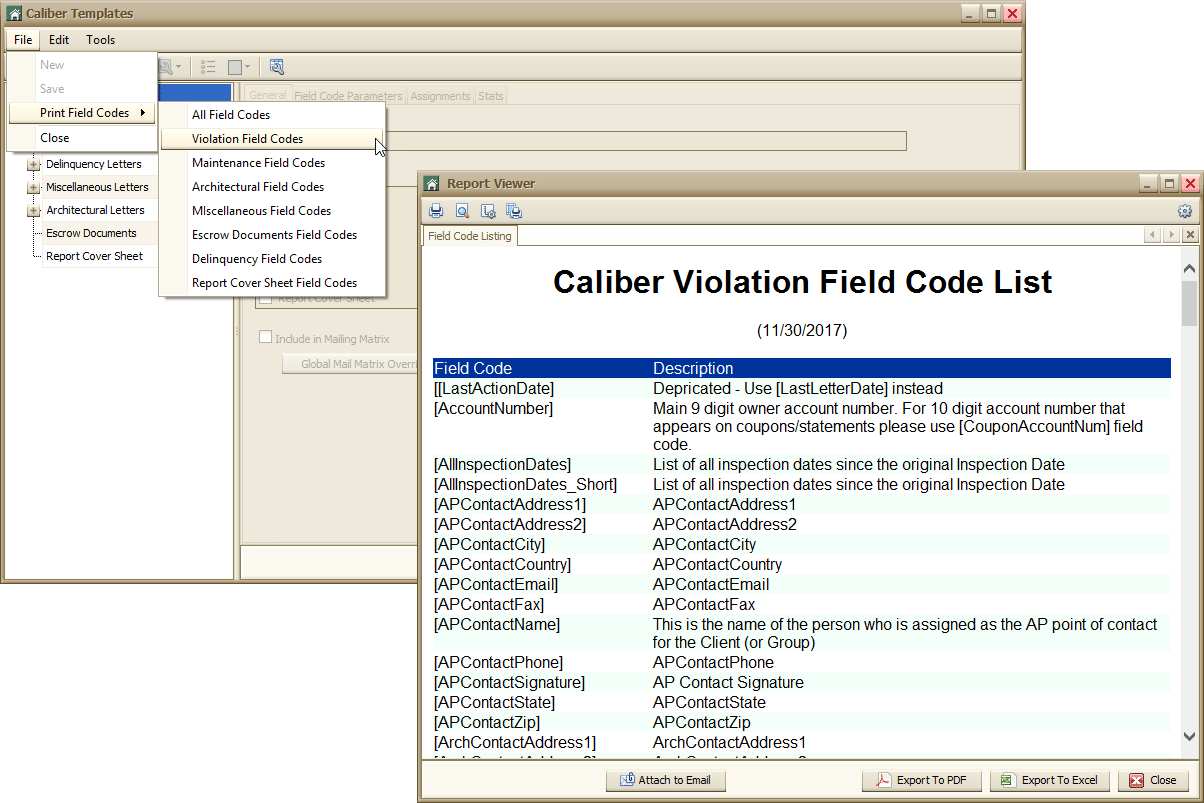
To access the Field Code list, go to Management > Templates. Once the templates window opens, choose File > Print Field Codes > Violation Field Codes. It is recommended to print a copy of this list for yourself as you setup templates. We add to this list periodically, so you might want to browse or print a new list every couple of months.
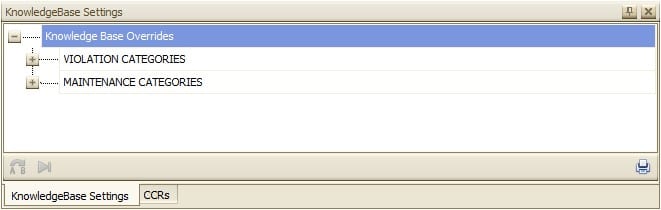
Now that the CCRs are setup, you will access the Client KnowledgeBase toolbox to create any overrides and link them to the corresponding Violation item.
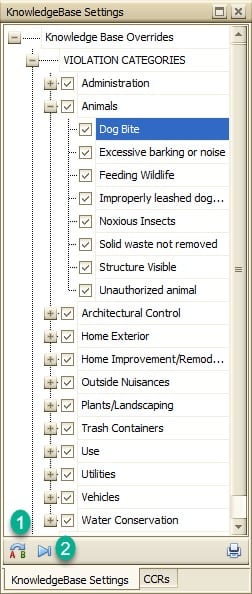
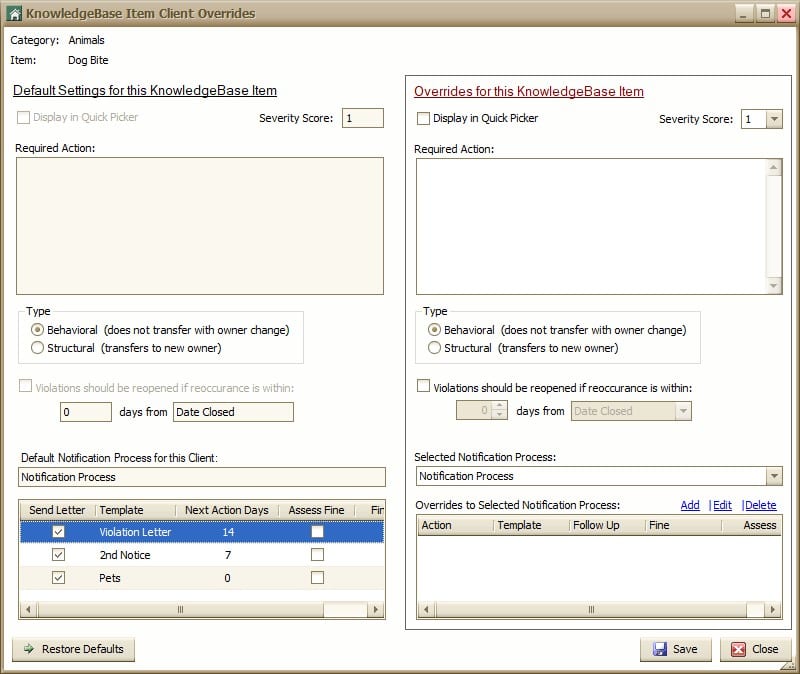
- The Override button on the Client KnowledgeBase toolbox allows you to set unique Notification Process for this particular Violation item, for this Client only. You will see the Master Default settings displayed on the left side of the screen. You then have the opportunity, on the right side of the screen, to select a completely different process for this item to follow.
2. Selecting the CC&R Link button will open a screen for you to make the connection from the Violation item to a CC&R item that you choose. Place a check mark in the box of the CC&R that matches the Violation Item. You will need to repeat this process for each Knowledgebase item that you wish to link to a CC&R.
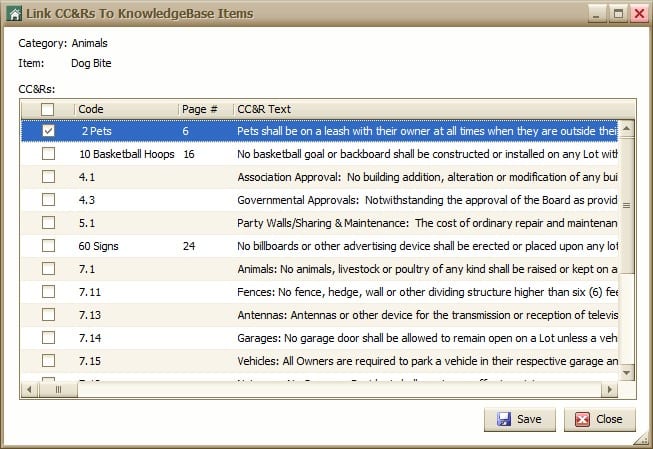
The setup is complete for this Client. Any time you select a Violation item that you have linked to a CC&R that text will populate on the letter if those field codes are being used.