
Caliber to FRONTSTEPS Community Portal Sync
This guide outlines how contact records in Caliber sync to the FRONTSTEPS Community Portal, including the supported (good path) configurations and the common misconfigurations (bad path) that prevent a successful sync. Use it as a reference when setting up or troubleshooting portal access for owners and occupants.
Contents
1. Contact Types and Role Setup
Name Formats
Role Types
Owner Checkbox Options
2. Occupants (Tenants)
Requirements for Tenants to Sync
3. Third Party Contacts
4. Email Requirements in Caliber
No Email on File
Email on File — Criteria for a Successful Sync
5. Good Paths and Bad Paths
Owners and Occupants
6. Tips: Multiple Contacts and Access
1. Contact Types and Role SetupMultiple Deeded Owners
Entities / Organizations or Combined Names
Every contact in Caliber is created at the unit level. Setup starts with the name format, followed by the role type assigned to the contact.
Name Formats
• Person, or Person and Spouse/Partner
• Entity / Organization, or Combined Names
Role Types
After entering the name, each contact is assigned one of the following role types:
• Owner• Occupant• Third PartyOwner Checkbox Options
When a contact is set as an Owner, the following additional checkboxes may apply. These are Caliber-side settings used for record keeping and reporting:
Checkbox | Purpose |
Primary Owner | Caliber-side setting used for record keeping and report-running purposes. |
Occupant | Caliber-side setting indicating the owner is also the occupant of the unit. |
Primary Occupant | Caliber-side setting indicating the owner is the primary occupant of the unit. |
 2. Occupants (Tenants)
When a contact is a tenant, the role type is set to Occupant. Only the following checkboxes apply to an Occupant contact record:
Occupant
Primary Occupant (optional)
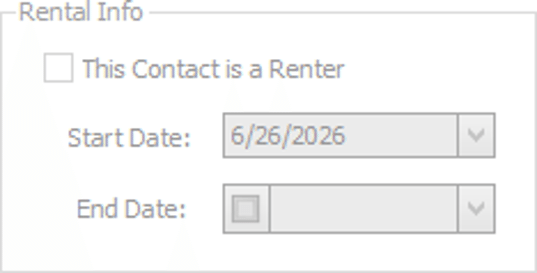
Selecting Occupant adds an Other Info tab to the contact record. Within that tab is a Rental Info area containing a checkbox to label the contact as a renter, along with optional start and end dates.
Requirements for Tenants to Sync
For a tenant to sync to the FRONTSTEPS Community Portal, the contact record must meet all of the following:
Be labeled as an Occupant.
Have the “This contact is a renter” checkbox checked on the Other Info tab.
PORTAL-SIDE REQUIREMENT “Allow tenants to move in” must be enabled on the FRONTSTEPS Community Portal side. This is configured by FRONTSTEPS during onboarding, or by request to the FRONTSTEPS Support team. |
NOTE: RENTER END DATE If an end date is added to the renter information, the tenant will be suspended from portal access on that date. |
 3. Third Party Contacts
NOT SUPPORTED FOR AUTOMATED SYNC
4. Email Requirements in CaliberThird Party contacts are not supported for automated syncs to the FRONTSTEPS Community Portal currently. There is no role option in the portal that provisions third party access.
Each contact or role type has one of two possibilities for email:
No email address on file in Caliber.
An email address on file in Caliber.
No Email on File
If no email address is on file for a contact, and they are set up correctly in all other areas, they will sync to the FRONTSTEPS Community Portal as OFFLINE with a system-assigned placeholder email address.
Email on File — Criteria for a Successful Sync
If an email address is on file, the following additional criteria are required for the sync to fully succeed:
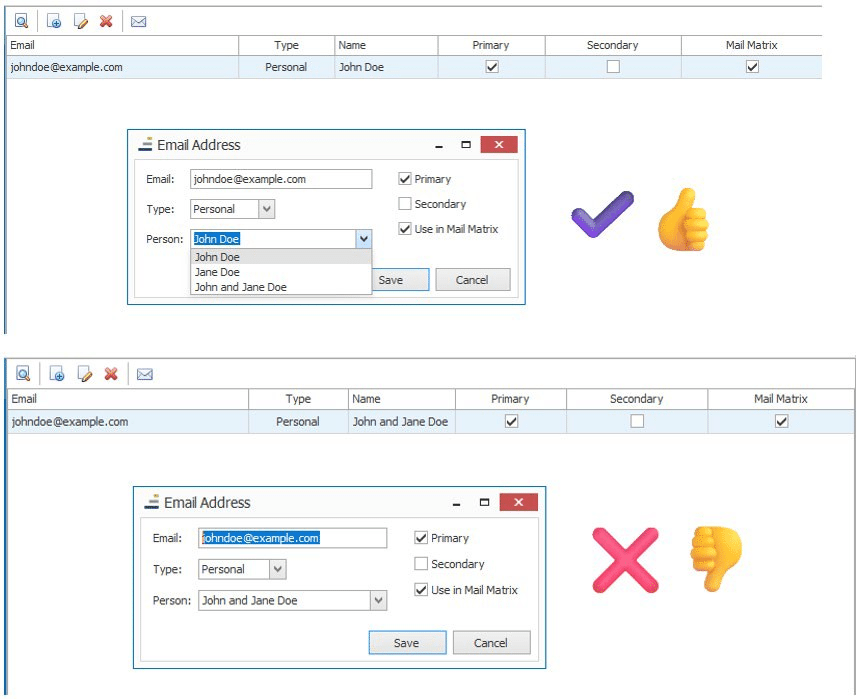
A single person's name must be assigned to the email address on the contact record under the Email tab.
On the Email tab, the Primary checkbox must be selected, and applied to only one email address per user.
Assigning a Name When Two Names Are on FileMULTIPLE EMAIL ADDRESSES
You can keep multiple email addresses on file in Caliber for a user, but it is strongly recommended that only one is marked Primary (used for portal access) and all others are marked Secondary.
When the contact record uses Person and Spouse/Partner (two names), the Email tab will offer three options for assigning a name to the email address:
Each person's name, individually (two options).
Both names combined, for example: John and Jane Doe.
5. Good Paths and Bad PathsIMPORTANT
To sync to the portal properly, do not select the option that lists both names. Assign the email to a single individual. This applies to both Owner and Occupant (Tenant) users.
The tables below summarize how each configuration behaves when synced to the FRONTSTEPS Community Portal.
Owners and Occupants
Configuration | Result | What Happens |
Occupant labeled as renter + renter checkbox checked + “allow tenants to move in” enabled | GOOD | Tenant syncs and is provisioned for portal access. |
Email on file, assigned to a single name, marked Primary | GOOD | Contact syncs as an active portal user. |
No email on file (all else correct) | PARTIAL | Syncs as OFFLINE with a system placeholder email. |
Email assigned to both names combined (e.g., John and Jane Doe) | BAD | Will not sync to the portal properly. |
Primary checkbox applied to more than one email | BAD | Ambiguous record; prevents a clean portal login. |
Occupant missing renter checkbox | BAD | Tenant will not sync to the portal. |
Renter end date reached | EXPIRES | Tenant is suspended from portal access on that date. |
Third Party contact | BAD | Not supported for automated sync; no portal role exists. |
 6. Tips: Multiple Contacts and Access
The following recommendations help with smooth, successful syncing when more than one person needs portal access for a unit.
Multiple Deeded Owners
Suppose you have three deeded owners. There are several valid ways to enter this in Caliber, ut the recommendations below produce the cleanest sync. Caliber only allows two names on the main owner account entry, so:
Create the owner record using Person or Person and Spouse and list two of the three owners' names here.
On the Email tab, add their email addresses and assign each to the correct individual (mark Primary as needed), then Save.
From the Account Dashboard, go to the Contacts tab to add additional contacts (additional owners, tenants, third party contacts, etc.).
To add the third owner: enter their name in the Person area, mark Owner (plus Occupant / Primary Occupant if needed), then go to the Email tab, add their email, assign it to them, and mark Primary if they need portal access.
COMMON QUESTION
Q: What if I need all correspondence (violations, letters, bills, etc.) to list all of the owners?
A: On the owner account entry where you listed the first two names, use the “Correspondence should be addressed as follows (Display Name)” field and enter exactly how correspondence should be addressed. Example: John Doe, Jane Doe, and Jack Doe.
Entities / Organizations or Combined Names
This works much like the multiple-owners flow, except the long name, entity name, trust, or LLC is entered in the Entity / Organization or Combined Names area on the owner account entry.
If a single contact maintains all information and records for the entity, apply that email address on the Email tab, assign it to the entity/organization name, and mark it Primary. This gives the user a portal login under the entity name.
Multiple Contacts for an EntityNOTE: ENTITIES
For entities, only one email address can be designated on the owner account entry and provisioned for portal access. The system recognizes the entity as one user, and like owners and occupants, each user can have only one portal login.
This is common. After establishing the owner account entry for the entity, go to the Contacts tab on the Account Dashboard and add as many contacts as needed. If a contact is an owner (able to make payments and submit or maintain online records through the portal for the unit), make sure they are marked as Owner on the contact record.