
Caliber Portal Registration
We’re updating this article. Some screenshots or names may look older than what you see in the product.
Create a New Login
At the Portal login screen and/or the smaller login screen, select Create login

OR
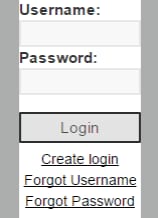
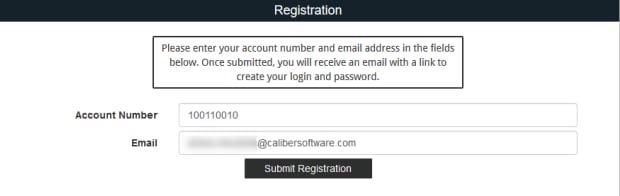
Registration screen:
1. Enter your Account Number (Account Numbers can be provided to you by your management company)
2. Enter the Email Address that is associated with your account.
3. Select Submit Registration.
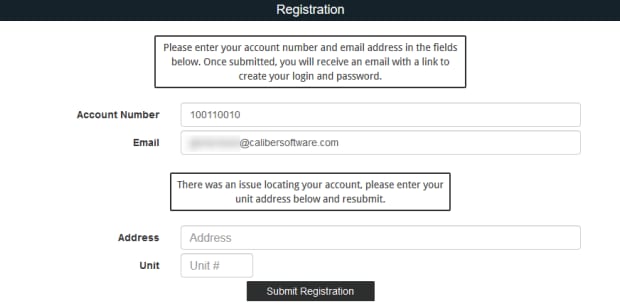
4. After clicking Submit Registration, if the email address is not on file with your management company, you will be prompted to enter your Unit Address that is associated with your account. The unit address must match what is in the system.
5. Select Submit Registration
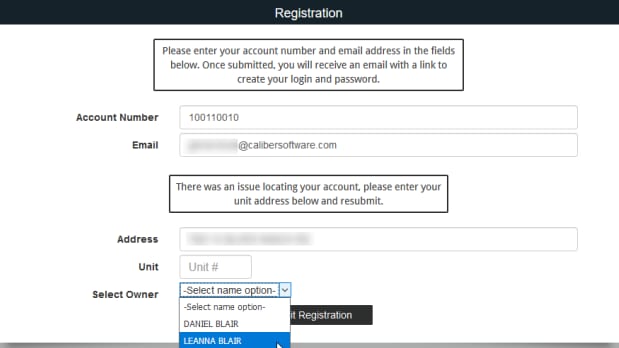
6. If there is more than one Owner, a drop down will appear allowing you to select the appropriate person.
7. Select Submit Registration.
Once you have selected Submit Registration:
1. Verify that you received the message “You will receive an email containing a link to create your login and password shortly.”
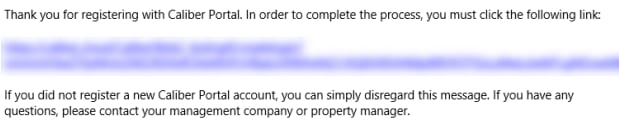
2. Go to your email inbox for the email address you provided and locate the email sent to you with the subject, “New Account Registration.”
3. Click on the link provided.
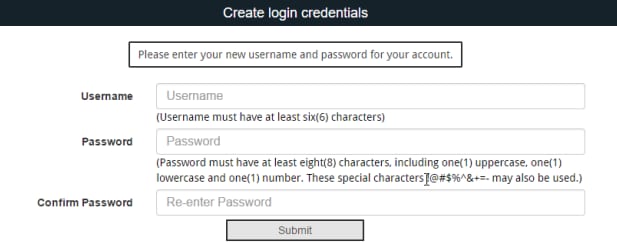
Create Login Credentials:
1. Enter a Username of your choice. (Usernames must be at least six (6) characters.
2. Enter a Password of your choice. (Passwords must be at least eight (8) characters and contain at least one (1) uppercase letter, one (1) lowercase letter, and one (1) number.)
3. Confirm Password.
4. Select Submit
5. If your username is already in use, you will be required to select another username until you enter one that is available.
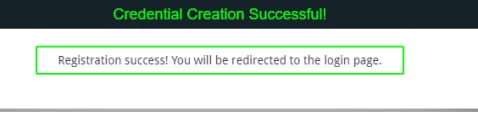
Once you have selected Create Account, you will receive, “Registration success!”:
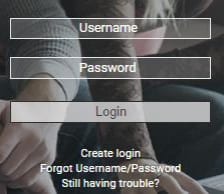
1. Enter your: Username
2. Enter your: Password
3. Click Login.
You have successfully created your new account!
At the Portal login screen and/or the smaller login screen, select Create login
OR
Registration screen:
1. Enter your Account Number (Account Numbers can be provided to you by your management company)
2. Enter the Email Address that is associated with your account.
3. Select Submit Registration.
4. After clicking Submit Registration, if the email address is not on file with your management company, you will be prompted to enter your Unit Address that is associated with your account. The unit address must match what is in the system.
5. Select Submit Registration
6. If there is more than one Owner, a drop down will appear allowing you to select the appropriate person.
7. Select Submit Registration.
Once you have selected Submit Registration:
1. Verify that you received the message “You will receive an email containing a link to create your login and password shortly.”
2. Go to your email inbox for the email address you provided and locate the email sent to you with the subject, “New Account Registration.”
3. Click on the link provided.
Create Login Credentials:
1. Enter a Username of your choice. (Usernames must be at least six (6) characters.
2. Enter a Password of your choice. (Passwords must be at least eight (8) characters and contain at least one (1) uppercase letter, one (1) lowercase letter, and one (1) number.)
3. Confirm Password.
4. Select Submit
5. If your username is already in use, you will be required to select another username until you enter one that is available.
Once you have selected Create Account, you will receive, “Registration success!”:
1. Enter your: Username
2. Enter your: Password
3. Click Login.
You have successfully created your new account!