
Caliber Portal- Board Member/Online Invoices
We’re updating this article. Some screenshots or names may look older than what you see in the product.
When you first log into Caliber Portal you will have your Home Screen.
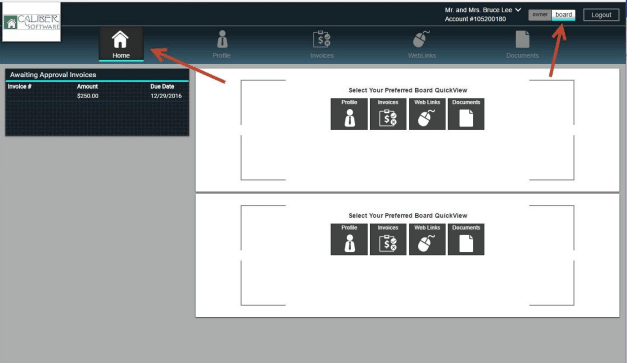
You will select the Board button in the top right hand corner of the screen. In that area, you will then select the icon that says Invoices.
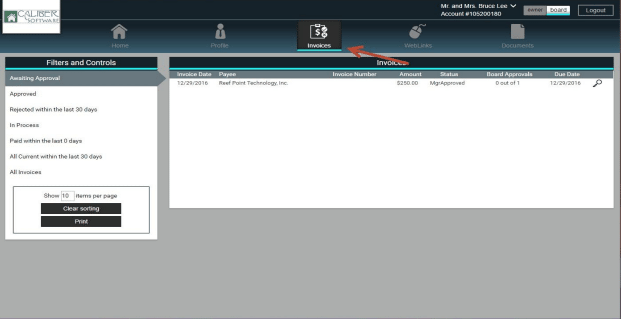
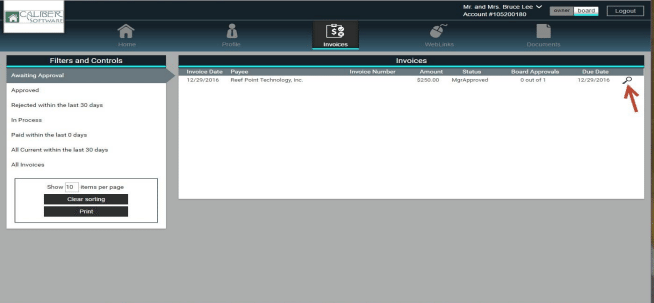
After you have selected Invoices, you will then be taken to a screen that shows all the invoices that are awaiting board approval. At this screen, you will select the invoice that you want to approve/reject by selecting the details button (magnifying glass icon).
Once you have selected the details button a smaller screen will appear. This will give the details of the invoice. In that screen, there is an option to approve or reject an invoice. Once either option has been selected you can then move on to the next invoice awaiting approval.
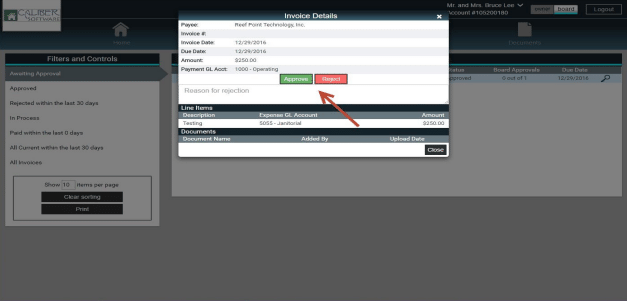
If you reject the invoice you can put in a reason as to why you have rejected this invoice. You can see all of you rejected invoices by selecting “Rejected within the last 30 days” on the left-hand side of the screen.
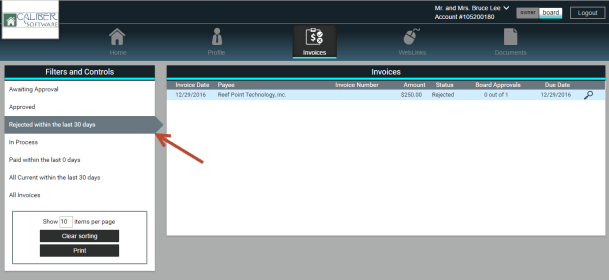
You can view the reason why this invoice was rejected by select the details button (magnifying glass icon).
You will select the Board button in the top right hand corner of the screen. In that area, you will then select the icon that says Invoices.
After you have selected Invoices, you will then be taken to a screen that shows all the invoices that are awaiting board approval. At this screen, you will select the invoice that you want to approve/reject by selecting the details button (magnifying glass icon).
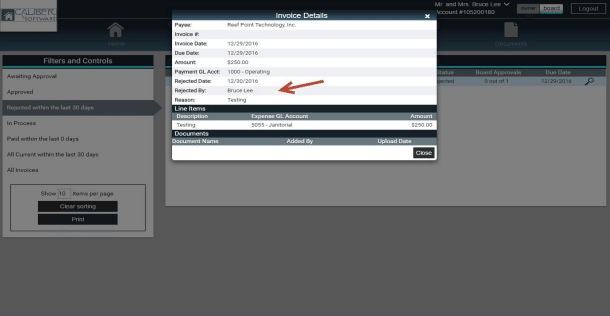
Once you have selected the details button a smaller screen will appear. This will give the details of the invoice. In that screen, there is an option to approve or reject an invoice. Once either option has been selected you can then move on to the next invoice awaiting approval.
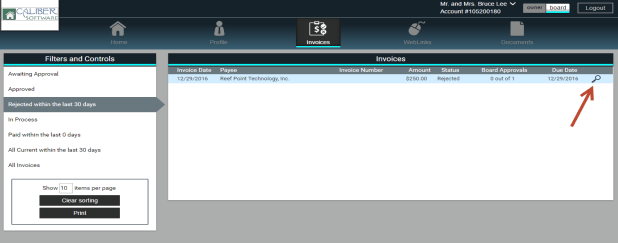
If you reject the invoice you can put in a reason as to why you have rejected this invoice. You can see all of you rejected invoices by selecting “Rejected within the last 30 days” on the left-hand side of the screen.
You can view the reason why this invoice was rejected by select the details button (magnifying glass icon).