
Budget Planning Report
Budget Planning Report
This is a new report that is intended to assist customers in presenting proposed budgets for the following year to their clients.
The report does not create or generate new budgets. It does allow the user to compare the following items in Caliber against each other:
Ending balances for up to the two most recent prior years
Current year budget
Current Year to Date actual balances through the selected month
Current Year Projected ending balances (explained below)
Up to two proposed budgets that have been previously entered into Caliber for the following year
The Budget Planning Report does work with Cost Centers if they are being used.
Be aware that for the proposed budgets for the following year to be included in the report, they must have been previously entered into Caliber in the normal manner. They can be ‘Locked,’ but should not be marked as ‘Approved.’
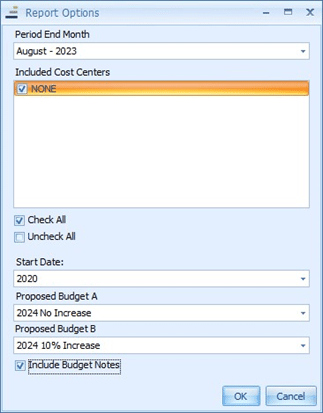
For the Period End Month (the YTD Actuals) any prior period for the current year can be selected. The current period cannot be selected. The period selected can be either open or closed.
Regardless of the Start Date selected, only the two most recent prior years can be included. By selecting different years, the report can include two prior years, one prior year, or no prior years.
The Proposed Budgets can be any budget for the following year that has been previously entered into Caliber. No more than two can be selected. As previously mentioned, these budgets can be locked, but should not be marked as Approved.
Checking Include Budget Notes will add the Notes column from all Proposed Budgets selected.
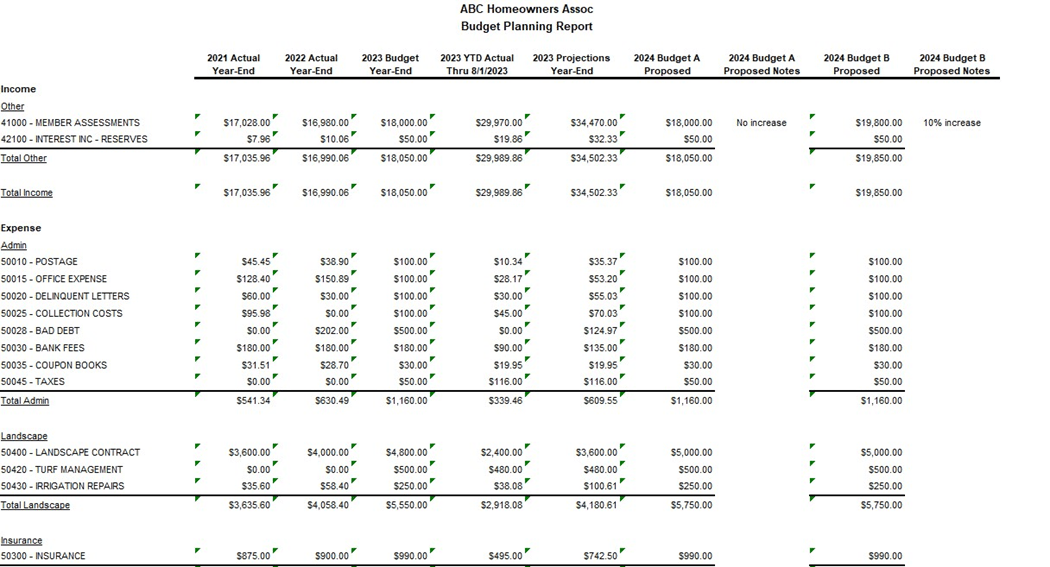
The first column will list the client’s Income and Expense type accounts, in the same manner as a normal Budget Report. Any account that has a zero balance for all columns in the report will not be displayed.
Assuming that the two most recent Prior Year Ends have been selected, these will be in the second and third column, respectively.
If that is the case, the fourth column will be the Current Year Budget for the entire year.
The fifth column will be the Current Year to Date Actuals through the end of the Period End Month selected when generating the report.
The sixth column will be the Current Year Projected Year End amounts. This is calculated by adding the amounts in the fifth column to the remaining Current Year Budget. Using the image above as an example, this calculation would be the Current Year to Date Actuals through the end of August (as selected) and the budgeted amounts for September 1 through the end of the year.
The next two columns would be the first Proposed Budget (Proposed Budget A) selected when generating the report and the Notes for that budget (if that option was used).
The final two columns would be the second Proposed Budget (Proposed Budget B) selected when generating the report and the Notes for that budget (if that option was used).
As with any other Caliber report, the Budget Planning Report can be emailed and/or exported to the Web Portal, a PDF, or Excel.
This is a new report that is intended to assist customers in presenting proposed budgets for the following year to their clients.
The report does not create or generate new budgets. It does allow the user to compare the following items in Caliber against each other:
Ending balances for up to the two most recent prior years
Current year budget
Current Year to Date actual balances through the selected month
Current Year Projected ending balances (explained below)
Up to two proposed budgets that have been previously entered into Caliber for the following year
The Budget Planning Report does work with Cost Centers if they are being used.
Be aware that for the proposed budgets for the following year to be included in the report, they must have been previously entered into Caliber in the normal manner. They can be ‘Locked,’ but should not be marked as ‘Approved.’
Generating the Report
In the Client Dashboard, go to the Reporting Toolbox and select the Budget Planning Report.For the Period End Month (the YTD Actuals) any prior period for the current year can be selected. The current period cannot be selected. The period selected can be either open or closed.
Regardless of the Start Date selected, only the two most recent prior years can be included. By selecting different years, the report can include two prior years, one prior year, or no prior years.
The Proposed Budgets can be any budget for the following year that has been previously entered into Caliber. No more than two can be selected. As previously mentioned, these budgets can be locked, but should not be marked as Approved.
Checking Include Budget Notes will add the Notes column from all Proposed Budgets selected.
The Report Itself
The first column will list the client’s Income and Expense type accounts, in the same manner as a normal Budget Report. Any account that has a zero balance for all columns in the report will not be displayed.
Assuming that the two most recent Prior Year Ends have been selected, these will be in the second and third column, respectively.
If that is the case, the fourth column will be the Current Year Budget for the entire year.
The fifth column will be the Current Year to Date Actuals through the end of the Period End Month selected when generating the report.
The sixth column will be the Current Year Projected Year End amounts. This is calculated by adding the amounts in the fifth column to the remaining Current Year Budget. Using the image above as an example, this calculation would be the Current Year to Date Actuals through the end of August (as selected) and the budgeted amounts for September 1 through the end of the year.
The next two columns would be the first Proposed Budget (Proposed Budget A) selected when generating the report and the Notes for that budget (if that option was used).
The final two columns would be the second Proposed Budget (Proposed Budget B) selected when generating the report and the Notes for that budget (if that option was used).
As with any other Caliber report, the Budget Planning Report can be emailed and/or exported to the Web Portal, a PDF, or Excel.