
Board Members and Managers - Detail view Architectural Requests and Work Orders and Violations
We’re updating this article. Some screenshots or names may look older than what you see in the product.
Background
FRONTSTEPS is building out the director experience as part of our best-in-class integration between FSC web portal and Caliber Desktop. To help stay informed and on top of all community issues, FRONTSTEPS is introducing the ability for Board Members/directors to view the same level of detail about maintenance items submitted by homeowners as they can view for their own maintenance items they have submitted. Maintenance items include architectural requests, work orders and violations.Notes
- The feature is available to all users as follows:
- Board Members/Directors: Board Members/Director Permissions do not have to be enabled. It only requires the homeowner to be designated as a Board Member/Director from the Directory. Board Members/Directors can view all Architectural Requests, Work Orders and Violations for their community.
- Managers: Managers also can view all Architectural Requests, Work Orders and Violations.
- Homeowners (Residents) will continue to have the ability to view their own Architectural Requests, Work Orders and Violations.
- Web portal and Mobile view- This update allows for items to be viewed either in the FSC web portal or a mobile device.
- This feature is for communities integrated with the Caliber Desktop system. It is not available with other Accounting Integration Systems (AIS).
- Availability - This enhancement will be activated and available to all customers who have this feature, as well as Caliber Desktop Accounting.
Features
This enhancement provides the following features:
- View – This feature will allow Board Members to view Architectural Requests, Work Orders and Violations for the entire community.
- New Menu Option- A new link has been added to the menu options-Board Member/Approvals.
- Director Designation-Users must have the Director designation in the Directory to access this feature.
- Data Display-Data for the past 6 months will display, with the newest data at the top of the list.
- Filters -will sort by Status and Type for Work Orders. For Violations=Status for ACR=Status.
- Search- Search is available by number, description or type for Work Orders. For Violations, search is available by number, type or description. For Architectural Requests search capability is availabler by the number or project name.
- Action Dropdown to View Details-this feature is only available with Caliber integration.
Enabling View Community Records Tab for Managers
The ability to view community maintenance items must be enabled by a community manager. A manager will enable/disable the ability for directors to view community maintenance items from the Director Permissions feature located in Manager Settings on the web.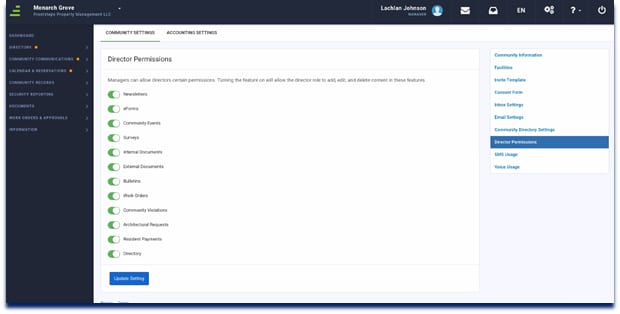
To turn this on, click the cog icon
 in the top right corner. Then select Communication Settings > Director Permissions.
Board Members and Managers Detail View- Architectural Requests
- Go to Community Records
- Go to ACRS. Architectural Requests for the community will display here.
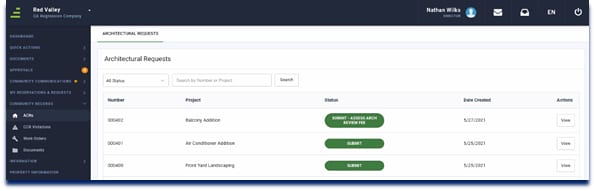
- Board members and Managers can search for the number, type, or description of an architectural request. Also, filtering can be done by status.
- To view more details, click the View button in the Actions column.
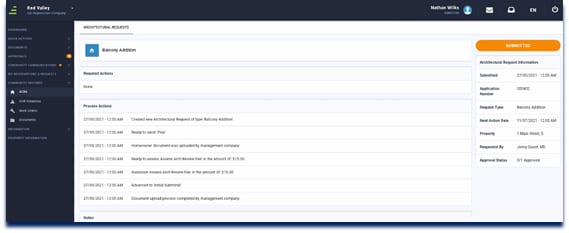
Note: This is view only and cannot be edited.
Architectural Request Mobile View
Once logged into the mobile application, the view appears as shown below.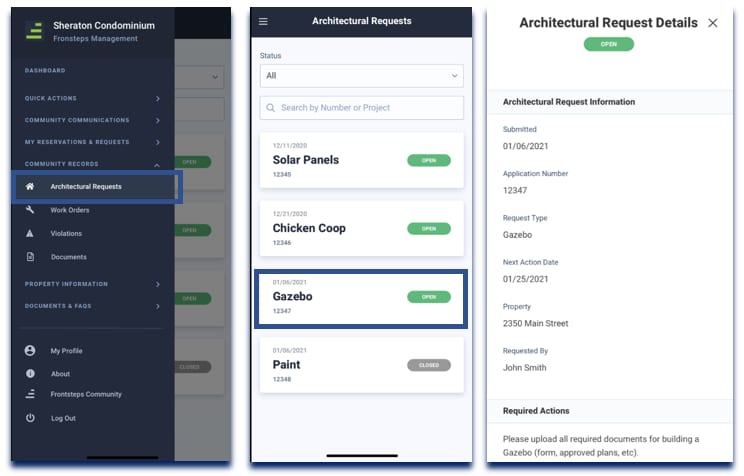
Board Members and Managers Detail View- Work Orders
- Go to Community Records
- Go to Work Orders. Work orders for the community will display here.
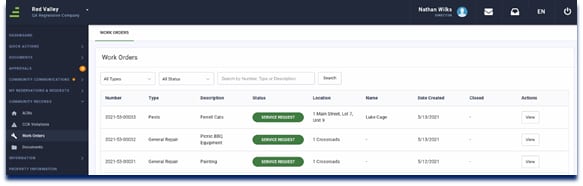
- Board members and Managers can search for the number, type, or description of an architectural request. Also, filtering can be done by status.
- To view more details, click the View button in the Actions column.
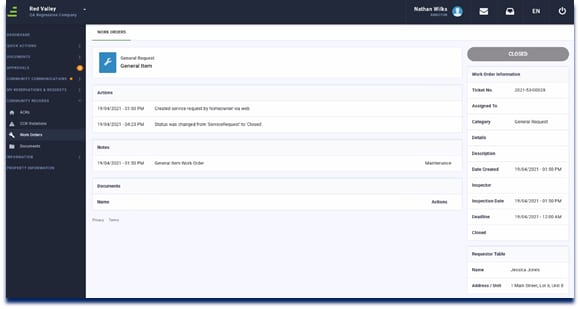
Note: This is view only and cannot be edited.
Work Orders Mobile View
Once logged into the mobile application, the view appears as shown below.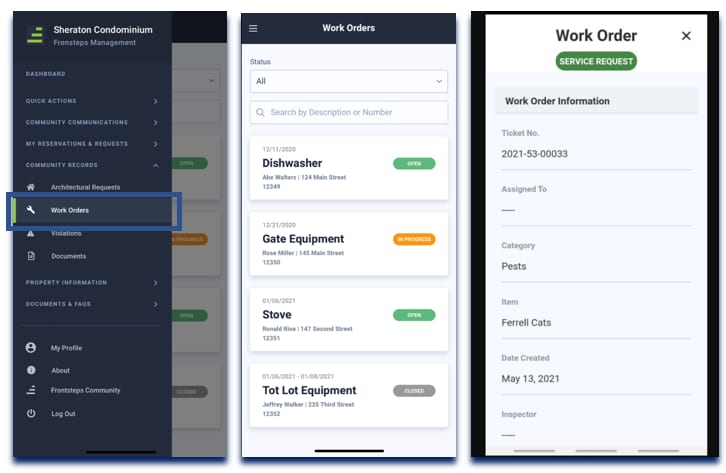
Board Members and Managers Detail View- Violations
From the Dashboard, select Board Members/Approvers>Violations.- Go to Community Records
- Go to Violations. Violations for the community will display here.
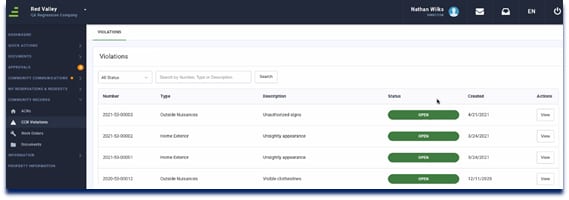
- Board members and Managers can search for the number, type, or description of an architectural request. Also, filtering can be done by status.
- To view more details, click the View button in the Actions column.
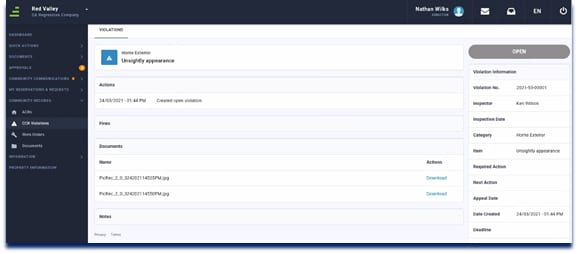
Note: This is view only and cannot be edited.
Violations Mobile View
Once logged into the mobile application, the view appears as shown below.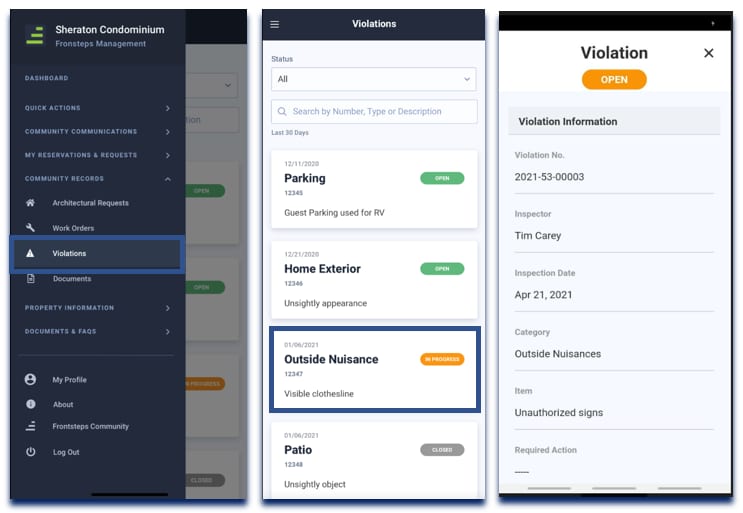
Designation of Director
For a user to have this feature, the Management Company must have the feature turned on, and the user must be designated as a Director.To Designate a user as a Director (Board Member):
- The Manager navigates to Directory > Directory
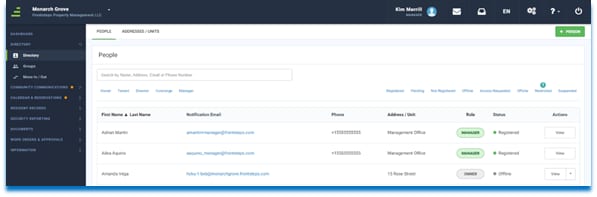
- Selects the user.
- Selects the View button.
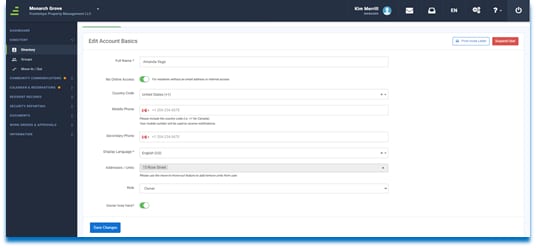
- Selects the Role drop-down.
- Choose Director.
- Selects Save Changes.