
Bank Reconciliations
 Bank Reconciliations
To reconcile a bank account in Caliber, go to the Client Chart of Accounts Toolbox at the Client Dashboard. In the Chart of Accounts Toolbox, choose the account to be reconciled, right click, and select ‘Reconcile Transactions.’
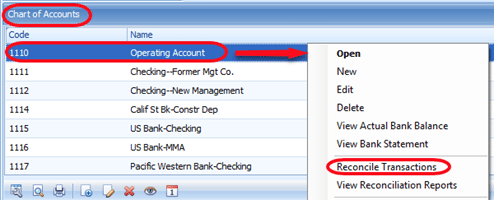
This launches the Account Reconciliation Toolbox.
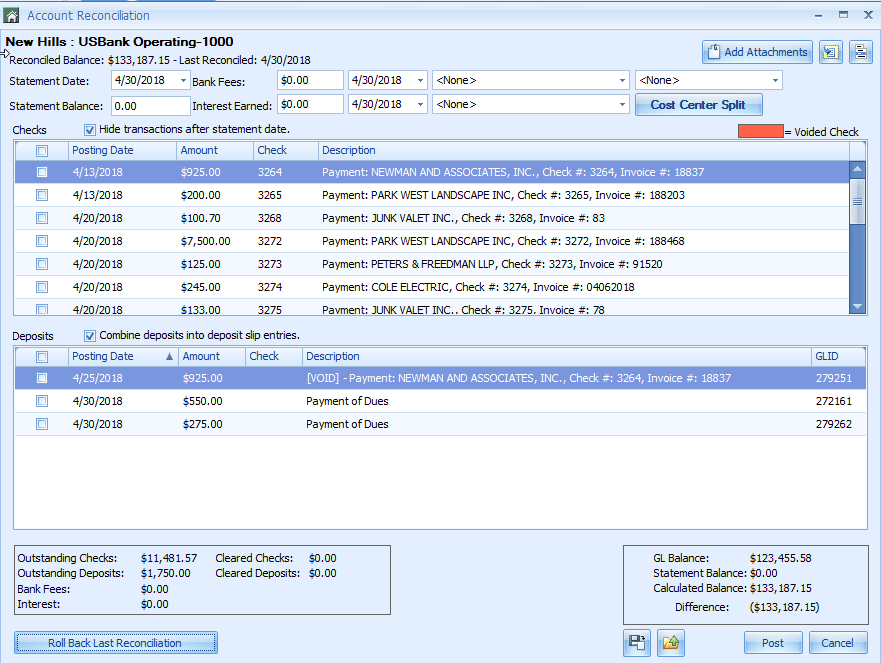
At the top of the Toolbox, there are several fields where information required for the reconciliation process will be entered.

Most of these fields are completed with information taken from the bank statement. If your bank is one that Caliber has Advanced Integration with, some of this will be automatically populated.

Statement Date (#1): The ending date of the bank statement. The field will default to the last day of the month for the most recently ended month. The date can be entered as far back as needed, depending on the period being reconciled. This is a required field.
Statement Balance (#2): The ending balance shown on the bank statement. If the balance on the statement shows as a negative, the amount entered here will be entered as a negative. This is one of only a two places in Caliber that a negative amount should ever be used. This is a required field.
Bank Fees (#3): If any fees or charges were posted on the bank statement, they can be entered here. Caliber will automatically create a Journal Entry to post the amount using this field, along with field numbers 5, 7, and 9. The entry is not made until the completed reconciliation is posted.
Interest (#4): If any interest earned was posted on the bank statement, it can be entered here. Caliber will automatically create a Journal Entry to post the amount using this field, along with field numbers 6, 8, and 10. The entry is not made until the completed reconciliation is posted.
Bank Fees Posting Date (#5): It is used to create the Journal Entry that posts any bank fees, and is taken from the bank statement. Normally, this date is the same as the Statement Date. This is a required field if the Bank Fees field (#3) is used.
Interest Posting Date (#6): This is required if the Interest field (#4) is used. It is used to create the Journal Entry that posts any interest earned, and is taken from the bank statement. Normally, this date is the same as the Statement Date. This is a required field if the Interest field (#4) is used.
Bank Fees Expense GL Account (#7): Select the expense GL account that the bank fees are to be posted to. This is a required field if the Bank Fees field (#3) is used.
Interest Income GL Account (#8): Select the income GL account that the interest is to be posted to. This is a required field if the Interest field (#4) is used.
Bank Fees Cost Center (#9): Select the Cost Center that the bank fees are to be posted to. The bank fees cannot be split between Cost Centers. This is a required field if the Bank Fees field (#3) is used and Cost Centers are being used for this client.
Interest Cost Center (#10): Select the Cost Center that the interest is to be posted to. The interest can be split between Cost Centers if necessary. This is a required field if the Interest field (#4) is used and Cost Centers are being used for this client.
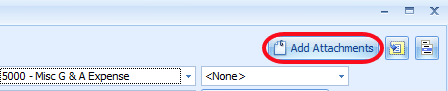
Attachments can be added to the Reconciliation Toolbox. Click on the ‘Add Attachments’ button at the top right.
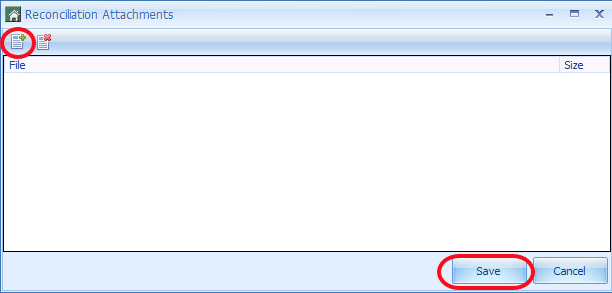
A Toolbox will be opened where Attachments can be added or deleted. Once this has been done, click ‘Save.’
To the right of the Add Attachments button, there are two icons. They are used with Auto-Reconciliation. This feature is only available with certain banks. Please see our Auto-Reconciliation document for more information.
Finally, the Hide Transactions option needs to be selected before starting the actual reconciliation:

If checked, this option hides all outstanding transactions that have a Posting Date later than the Statement Date (#1, above) during the reconciliation. In addition, it suppresses these transactions on the Reconciliation Reports generated at the end of the Reconciliation process.
If it is not checked, all outstanding transactions are displayed regardless of their Posting Date. Also, these transactions will appear on the Reconciliation Reports.
It is recommended that this option always be used.
Reconciling the Account
There are two sections in the Reconciliation Toolbox that will display transactions. The upper one, ‘Checks’ is a list of all outstanding checks, on-line payments, reversals of owner payments, and any other transaction that had the effect of decreasing the balance in the account
The lower section, ‘Deposits’ is a list of all outstanding deposits, voided AP checks, and any other transaction that had the effect of increasing the balance in the account.
The box to the left of each item that can be reconciled is checked. Those items that will remain outstanding should they be left unchecked.
A display at the lower right will show the Difference remaining before the account is in balance and ready to be reconciled. As each item is checked, this amount will automatically update.
In the image below, those items indicated with a green check mark have been marked as cleared. The items indicated with a red cross will be left as outstanding for the next month.
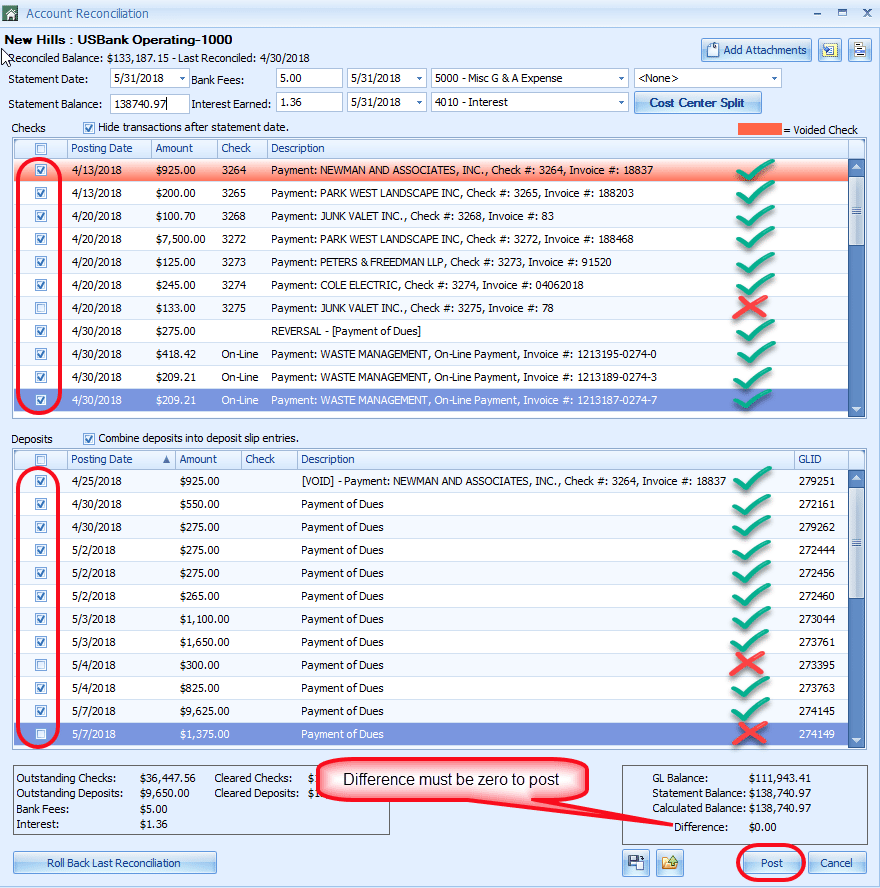
When the Difference reaches zero, the account has been reconciled and the reconciliation can be posted by selecting the ‘Post’ button at the lower right. When the reconciliation is posted, the checked items will be marked as reconciled in the database, and Reconciliation Reports will be generated. The checked items will not appear again in the Reconciliation Toolbox.
You will not be able to post the reconciliation unless the difference is zero. If it is not, verify the balance forward entered at the top is correct, and that the correct items have been checked for the reconciliation.
Until the ‘Post’ button is selected, exiting the Reconciliation Toolbox will cause all work completed to that point to be lost unless the session is saved. There is a ‘Save Session’ icon next to where the Difference is displayed. Clicking on this will allow you to save a datafile with the session information on your computer. Once that is done, you can leave the Reconciliation Toolbox.
To go back to the saved session, open the Reconciliation Toolbox as normal, and use the ‘Restore Session’ icon to browse to where the session was previously saved. When selected, the datafile will repopulate the items and data contained in saved reconciliation, and reconciliation can be resumed.
Reconciliation Reports
When a reconciliation is posted, Caliber automatically generates two separate Reconciliation Reports. The first report is the Outstanding Items Report, and it is a summary report that displays only those items that remain outstanding after the just completed reconciliation.
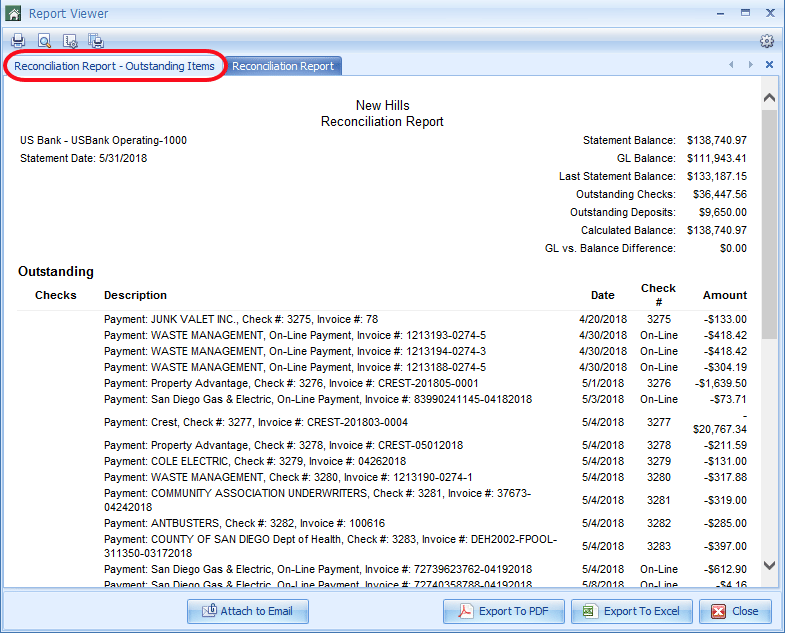
The other Report is a full Reconciliation Report that displays both cleared and outstanding items.
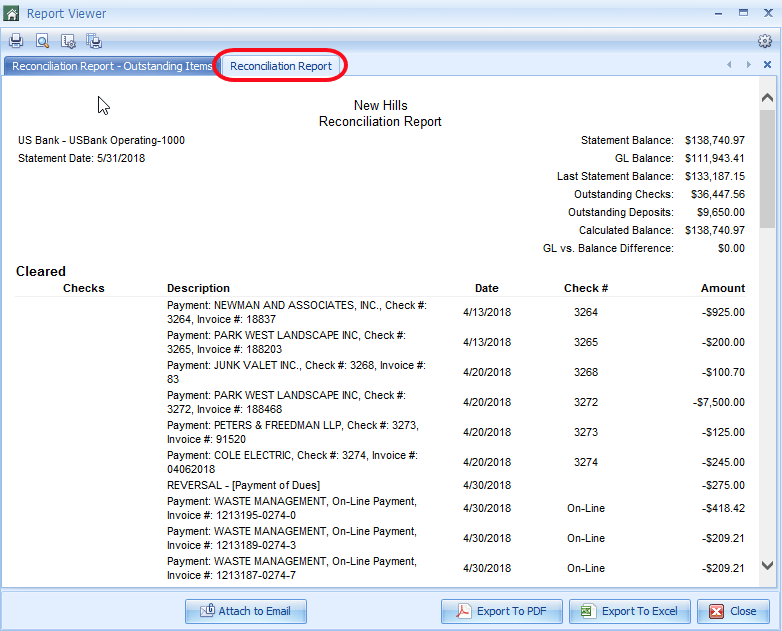
Like most reports in Caliber, these can be printed, e-mailed, or exported, as needed. The reports can also be included in a Report Group through the Report Runner.
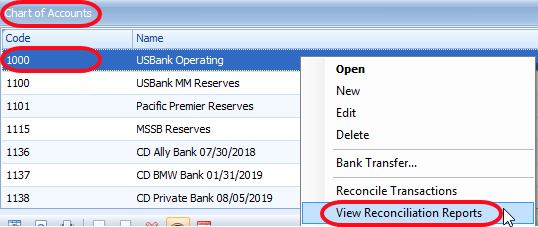
All Reconciliation Reports are saved in Caliber, and can be retrieved at a later date, regardless of age. To pull up the list of Reconciliation Reports for an account, choose the account in the Chart of Accounts, right click, and select View Reconciliation Reports.
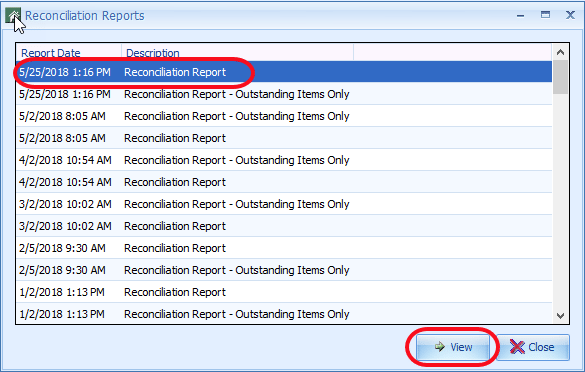
A list of all completed Reconciliation Reports will be displayed. Select the one you want, and click the ‘View’ button.
The selected report will then be displayed. It can be printed, e-mailed, or exported as normal.
Rolling Back a Completed Reconciliation
If a previously completed reconciliation needs to be rolled back, you would open the Reconciliation Toolbox as normal. Once in the Toolbox, click on the ‘Roll Back Last Reconciliation’ button at the bottom left corner.
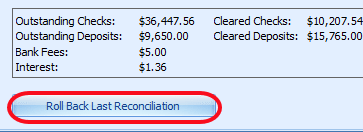
You will be asked if you are sure that you wish to roll back the reconciliation. If you do, click ‘Yes.’
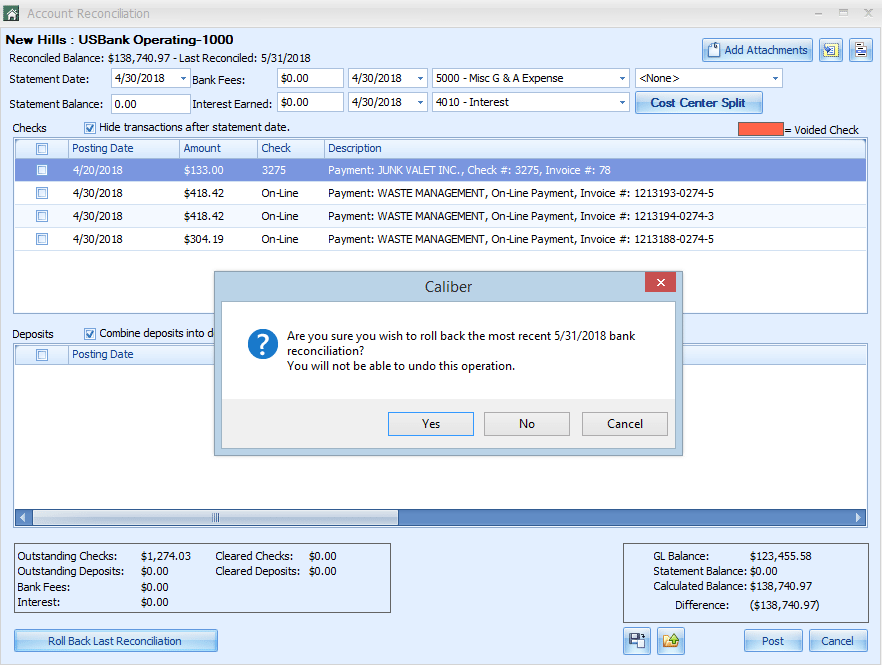
When the roll back has been completed, you will receive a message confirming that.
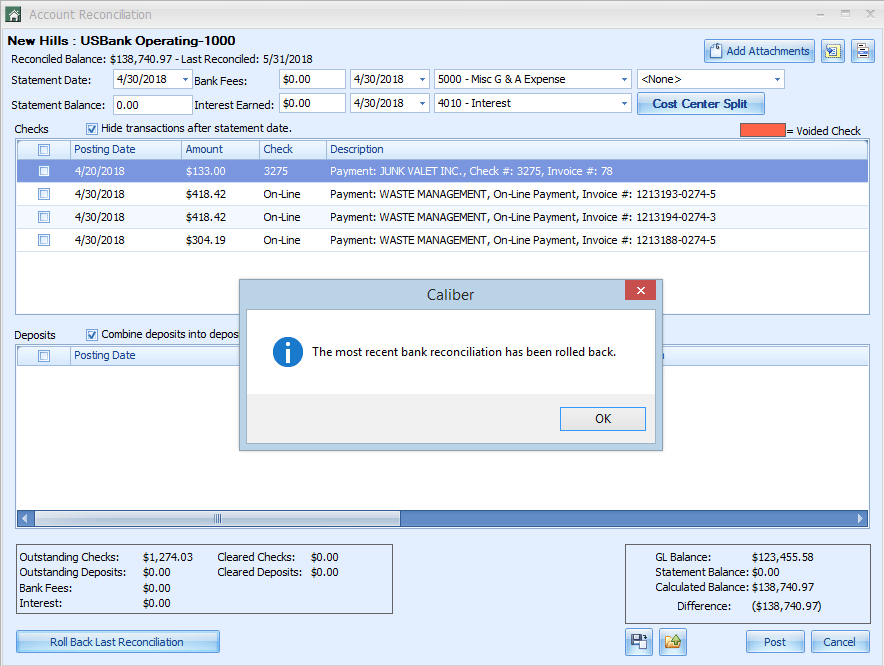
You can now recomplete the reconciliation as normal.
If any bank fees or interest were posted through the original reconciliation, they will be reversed as well, provided that the reconciliation for that period has not been previously rolled back.
If the reconciliation for that period has been completed once, rolled back, and then recompleted, any additional roll backs will not cause bank fees interest to be reversed. If this occurs, the user must be careful that they do not reenter the fees or interest again, or a double posting will result.
Also, be aware that reconciliations must be rolled back in order. The user will not be able to pick and choose specific ones. If the January, February, and March reconciliations have all been completed, the January reconciliation cannot be rolled back unless first the March reconciliation, and following that, the February reconciliation have been rolled back. Only then will it be possible to roll the January reconciliation back.