
Balances Forward into Caliber
Introduction
After guiding people through this for years, Caliber has come up with a general pathway to convert accounting data that is simple, clean, and easy to follow. By following the steps outlined in this document you should be able to complete this task with a minimal amount of trouble.
This task can be accomplished in three stages: entering the AR balances forward (Prepaids and Aged), the AP outstanding invoices or checks that have not cleared the bank, and the GL, which represents the Year to Date Income Statement and Balance Sheet numbers.
A final step is to complete an initial bank reconciliation. This is just an internal reconciliation used to clear the balance forward entries, keeping the reconciliation clean for the client.
We do have a tool to import AR transactions into Caliber, but unless you have a large client with many outstanding items (approximately 80 to 100 line items), the setup of that import would take longer than using our Billing Entry toolbox to enter these in manually.
Accounts Receivable Balances
To begin converting accounting data, the client must be set-up, all units and owners loaded into Caliber, and the Generate Account Numbers process completed. If account numbers have not been created in Caliber, the AR transactions will all post to a single account.
The most common mistake when entering balance forward records is the failure to make sure that all the transactions were posted using the correct date. Remember, you will always use the last day of the month prior to conversion. (1/31 in this example).
If necessary, you can go to the owner’s ledger to reverse the entry and repost with the correct date to remedy this situation. Should you need to do this, be sure that the reversal is done using the same date as the item being reversed was posted with. (for example, if the item was posted as of 1/1 instead of 1/31, the reversal would be done with the 1/1 date)
Owners with Prepaid (Credit) Balances
- Print a Prepaid Report out of Caliber using the same date as you are going to use when entering the prepaid balances into Caliber (example – if the balances are to be brought in as of 1/31, run the report using a 1/31 date).
- Go to the Billing Entry Toolbox.
- There you will enter a batch that contains a separate line for every owner with a prepaid balance for their total prepaid balance. The entry will use the ‘Payment’ Posting Code, and the date will be the one selected in step #1. The Payment Posting Code tells Caliber to post this as a credit to the owner ledger, so you do not enter the amount as a negative.
- If an owner does not have a prepaid balance, you do not need to enter anything for them at this time.
- Only enter the prepaid balances here – do not include any other entries in the batch.
- Once all of the individual prepaid balances are entered, use the printer icon at the top left to print a batch report.
- Post the batch using the ‘Post’ button at the lower right corner. When the posting process is complete, close the Billing Entry Toolbox.
- Go to the Make Journal Entries Toolbox
- Select the client that the prepaid balances were just entered for, and change the date to the one selected in step #1.
- Go to the first line below the date and select either the Prepaid Income account, or your Assessment Income account.
- You can determine which one to use by looking at your ‘Payment’ Posting Code. The account listed as the credit account on the Posting Code is the one you will use.
- In the Debit column, enter the total amount of all prepaid balances. In the
- Go to the first line below the date and select either the Prepaid Income account, or your Assessment Income account.
- Select the client that the prepaid balances were just entered for, and change the date to the one selected in step #1.
Notes column enter ‘Clear Prepaid Balances Forward.’
-
-
-
- You can find the total of all prepaids by looking at the Batch Report that was printed in step 2d.
- Go down to the next line and select the Operating bank account GL. You will enter the same amount as used above, but this time in the Credit column. The note will be the same. iv. Post the journal entry. After it has posted, you can close the Make Journal Entries toolbox.
-
-
- Print a new Prepaid Report out of Caliber as you did in step #1.
- Compare this report against the data used when entering the individual balances. You want to confirm that the correct owners and balances were entered.
- If there are owners listed on this new Prepaid Report, review the one generated in step #1 to see if they had been previously entered into Caliber.
- If all owners and balances are now accounted for, you can continue.
- If there are any remaining discrepancies, you will need to review everything entered to find the difference. Adjusting entries would then have to be made to the owner(s) account(s) until all balances are accounted for.
- When you do the first reconciliation on the Operating bank account, you will mark all of the prepaid balance forward entries in the top section as ‘cleared.’ You will do the same with the adjusting journal entry in the bottom section. All of these items will offset each other on the reconciliation for a zero net change.
All steps will need to be completed regardless of the Accounts Receivable accounting basis.
Owners with Aged (Outstanding) Balances
Let’s say you were converting balances forward as of 1/31 for a start date in Caliber of 2/1, and you have an owner with the following outstanding transactions:
|
4/1/14 |
Assessment $100.00 |
|
4/15/14 |
Late Fee $25.00 |
|
5/1/14 |
Assessment $100.00 |
|
5/15/14 |
Late Fee $25.00 |
|
5/20/14 |
Violation Fine $50.00 |
|
6/1/14 |
Assessment $100.00 |
|
6/15/14 |
Late Fee $25.00 |
|
Total Balance |
$425.00 |
Our recommended AR balance forward entry would be to post an entry using the ‘Assessment’ Posting Code of $300, another using ‘Late Fees’ of $75, and finally a ‘Fine’ for $50, all with a 1/31 date. This results in only three entries, so it is much less work than trying to enter every outstanding transaction as an individual item, especially if numerous transactions are involved. True, you do lose your AR Aging this way, but it does preserve the breakdown of the outstanding balances by Posting Code for the client.
You could also just post that balance as a single $425 entry, but you lose the breakdown by Posting Code because the balance would be posted using a single posting code. This makes it more difficult to identify items for delinquency processing as the account progresses.
Also, when trying to bring in an entire account, including charges and payments, the payments may end up being applied in a different manner than was originally done in your prior software. This can cause your accounts to show a different makeup of the outstanding balance, affecting delinquency processes in a negative way.
- Print an AR Aging Report out of Caliber using the same date as you are going to use when entering the aged balances into Caliber (example – if the balances are to be brought in as of 1/31, run the report using a 1/31 date).
- Go to the Billing Entry Toolbox.
- There you will enter a batch that contains a separate line for every owner with an aged balance for each Posting Code balance owed (see above)
- The entry will use the Posting Code that is appropriate for the balance being entered. If it is an assessment, use the Assessment Posting Code. If it is a late fee, use the Late Fee Posting Code, etc. (see above).
- The date to be used for these entries will be the transition date (see above).
- If an owner does not have an aged balance, you do not need to enter anything for them at this time.
- Only enter the aged balances here – do not include any other entries in the batch.
- Once all of the individual aged balances are entered, use the printer icon at the top left to print a batch report.
- Post the batch using the ‘Post’ button at the lower right corner. When the posting process is complete, close the Billing Entry Toolbox.
- Print a new AR Aging Report out of Caliber as you did in step #1.
- Compare this report against the data used when entering the individual balances. You want to confirm that the correct owners and balances were entered.
- If there are owners listed on this new AR Aging Report, review the one generated in step #1 to see if they had been previously entered into Caliber.
- If all owners and balances are now accounted for, you can continue.
- If there are any remaining discrepancies, you will need to review everything entered to find the difference. Adjusting entries would then have to be made to the owner(s) account(s) until all balances are accounted for.
- If the client is using cash basis accounting for Accounts Receivable, you are done. If on accrual basis, continue to step #5.
- Go to the Make Journal Entries Toolbox.
- Select the client that the aged balances were just entered for, and change the date to the one selected in step #1.
- Go to the first line below the date and select the income account used for the first Posting Code entered in step #2.
- You can determine which one to use by looking at your various charge type Posting Codes. The account listed as the credit account on the Posting Code is the one you will use.
- In the Debit column next to the account selected above, enter the total amount of that type of item for all owners. In the Notes column enter ‘Clear Aged
- Go to the first line below the date and select the income account used for the first Posting Code entered in step #2.
- Select the client that the aged balances were just entered for, and change the date to the one selected in step #1.
Balances Forward.’
-
-
-
- You can find the total of all aged items by looking at the Batch Report that was printed in step 2f.
- Go down to the next line and select the Accounts Receivable account. You will enter the same amount as used above in the Credit column, and the note will be the same. iv. Post the journal entry. After it has posted, you can close the Make Journal Entries toolbox.
-
-
Only steps 1 through 3 need to be completed if Accounts Receivable is on cash basis accounting. If on accrual basis, all steps must be completed.
Accounts Payable Balances
The easiest way to handle these are to either pay all outstanding AP items or to void/delete all outstanding AP invoices before moving balances into Caliber. The invoices will need to be entered into Caliber anyway, and voiding them first eliminates the need to make adjusting journal entries. Make sure that this has been completed before bringing GL balances (explained below) into Caliber.
If you have any checks that have been written, but have not cleared the bank as of the date of the transition, we recommend entering them as a GL entry, as shown below. The entry will create outstanding check entries that can be used for reconciliations in Caliber, but will not affect the actual cash balance in the account.
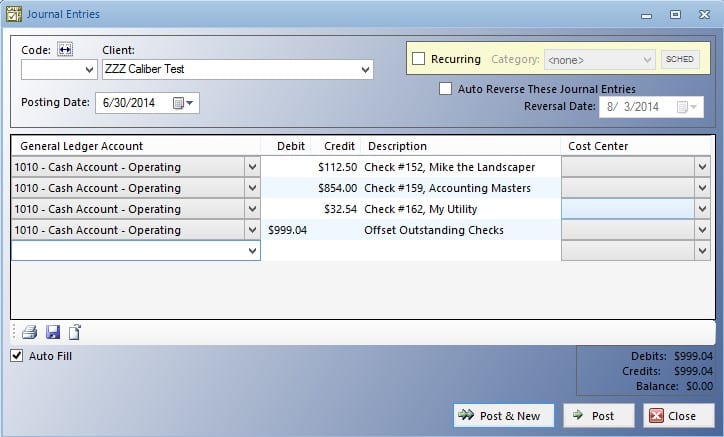
This will need to be completed regardless of the Accounts Receivable accounting basis.
General Ledger (Client) Balances
- Print a Balance Sheet and Income Statement/Budget Comparison Report out of Caliber using the same date as you are going to use when entering the GL balances into Caliber (example – if the balances are to be brought in as of 1/31, run the report using a 1/31 date).
- Match the GL account number from the old software to the corresponding account number in Caliber and record them. You will need to do this for all accounts on the Balance Sheet and on the Income Statement.
- If you do not already have one, it is suggested that you create a new GL account in Caliber called ‘Cash due from Prior.’ This can be set-up as an Asset type account.
- All cash balances from the Balance Sheet will be entered into this account. As funds are received from prior management or software, make a journal entry moving that amount from this Cash Due account and into the appropriate bank GL account.
- This will allow you to track the cash balances so that you can be sure all funds were received and entered in Caliber. When this account is at zero, everything has been accounted for.
- This will also allow you to reconcile your Operating bank account in Caliber since these entries should have a corresponding deposit on the bank statement.
- All cash balances from the Balance Sheet will be entered into this account. As funds are received from prior management or software, make a journal entry moving that amount from this Cash Due account and into the appropriate bank GL account.
- If you do not already have one, it is suggested that you create a new GL account in Caliber called ‘Cash due from Prior.’ This can be set-up as an Asset type account.
- Go to the Make Journal Entries Toolbox.
- Select the client that the GL balances forward are to be entered for, and change the date to the one selected in step #1.
- Go to the first line below the date and enter a separate line for every item listed on the Balance Sheet that you are entering balances off of.
- You do not need to enter the Current Year Net Income from the Balance Sheet, but all other items should be. The Current Year Net Income is the difference between all current year income and expenses, and this amount will automatically come over when those items are entered.
- Assets will have their balance entered as a Debit unless the balance is a negative one. In that case, enter that balance as a Credit instead.
- Liabilities and Equity will have their balance entered as a Credit unless the balance is a negative one. In that case, enter that balance as a Debit instead.
- When all items have been correctly entered, your journal entry will be out of balance by an amount that exactly matches the Current Year Net Income. This will come over when all of the current year income and expenses are entered, as described below.
- After you have made entries for all Balance Sheet items, switch to the Income Statement/Budget Comparison Report. You will enter a separate line for every item listed there like you did with the Balance sheet.
- Income will be entered as a Credit unless the balance is a negative one. In that case, enter that balance as a Debit instead.
- Expenses will be will have their balance entered as a Debit unless the balance is a negative one. In that case, enter that balance as a Credit instead.
- When all items have been correctly entered, your journal entry will be in balance and have a zero difference.
- Post the journal entry. After it has posted, you can close the Make Journal Entries toolbox.
- Go to the first line below the date and enter a separate line for every item listed on the Balance Sheet that you are entering balances off of.
- Select the client that the GL balances forward are to be entered for, and change the date to the one selected in step #1.
- Print a new Balance Sheet and Income Statement/Budget Comparison Report out of Caliber as you did in step #1.
- Compare these reports against the data used when entering the GL balances. You want to confirm that the correct accounts had he correct balances entered.
- If these report balances do not match, review the reports generated in step #1 to see if they had previously been entered into Caliber.
- If all balances are now accounted for, you are done.
- If there are any remaining discrepancies, you will need to review everything entered to find the difference. Adjusting journal entries will then have to be made to the GL accounts until all balances are accounted for.
All steps will need to be completed regardless of the Accounts Receivable accounting basis.
Initial Bank Reconciliations
The entries described above for the owners with prepaid balances forward, for any outstanding Accounts Payable checks, and the General Ledger forward will show in your bank reconciliations. To clear these, we recommend doing a bank reconciliation for each bank account.
- Go to the Bank Reconciliations Toolbox.
- Enter the statement date. This will be the date used when entering the balances forward (example – if the balances were brought in as of 1/31, use that date as the statement date).
- Enter the statement balance. This will be the amount used when the General Ledger account balances were entered.
- Check off the entries that offset each other.
- The entries for the prepaid balances forward will show in the ‘Deposits’ section of the Reconciliation Toolbox.
- The items above will be offset with the adjusting journal entry made in step #3 of the Owners with Prepaid Balances section (above). This will be a single entry that will show in the ‘Checks’ section.
- Check the bank account balance forward entry.
- This is the balance that was entered as step #3 of the General Ledger section (above). It will be found in the ‘Deposits’ section of the Reconciliation Toolbox. There will be no offsetting entry for this item.
- Check the Accounts Payable adjusting entries.
- These are the items that were entered as adjustments in the Accounts Payable section.
- Mark only those check entries that are found in the ‘Deposits’ section of the Reconciliation Toolbox.
- Do not mark the check entries that are in the ‘Checks’ section of the Reconciliation Toolbox. Those will remain until the actual check clears the bank. Only then will those get marked off.
- These are the items that were entered as adjustments in the Accounts Payable section.
- Confirm that the difference at the lower right corner of the Reconciliation Toolbox is zero before clicking on the ‘Post’ button. This will complete the reconciliation.
All steps will need to be completed regardless of the Accounts Receivable accounting basis.