
Architectural Master Setup
Create a New Master Architectural Process
At the Global Menu, select Management > Master Architectural Processes.
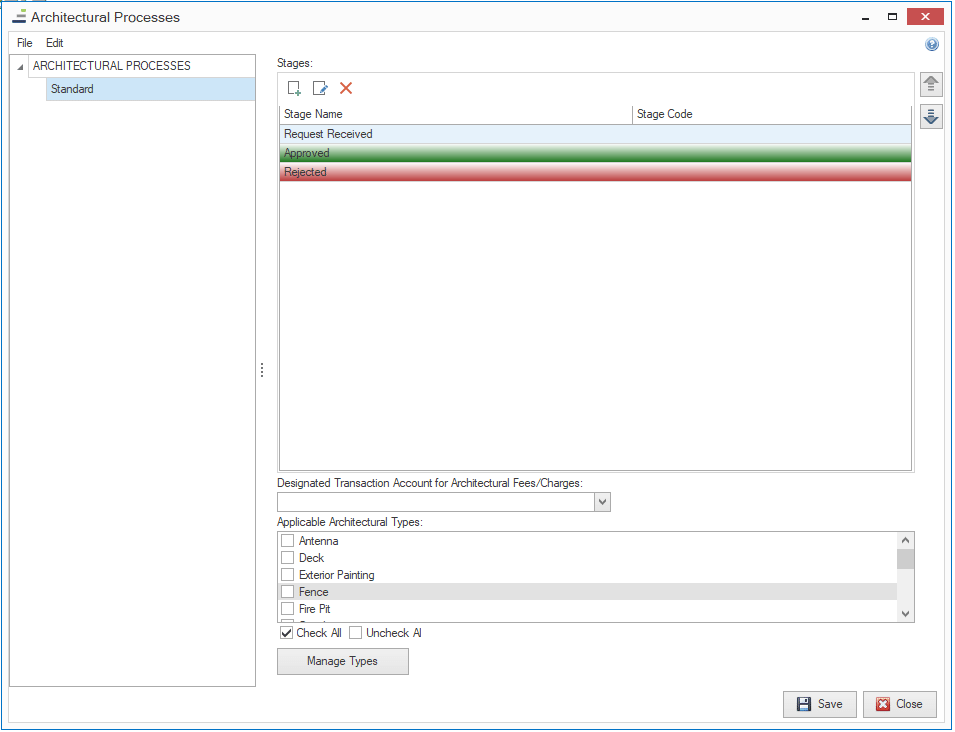
To create a new Master Architectural Process:
- Right click on Architectural Processes to add a New Architectural Process.
- Choose a name for the process and click Save.
Once the new process name shows under the Architectural Processes header on the left, stages can be added to the process. Click on the Add icon at the top of the window  ) to create the first Stage. Fill in the information at the top of the window and choose the Standard Stage radio button.

Once the Stage has been named, Steps will need to be created for that Stage. To do this, click on the Add icon at the bottom left of the screen.
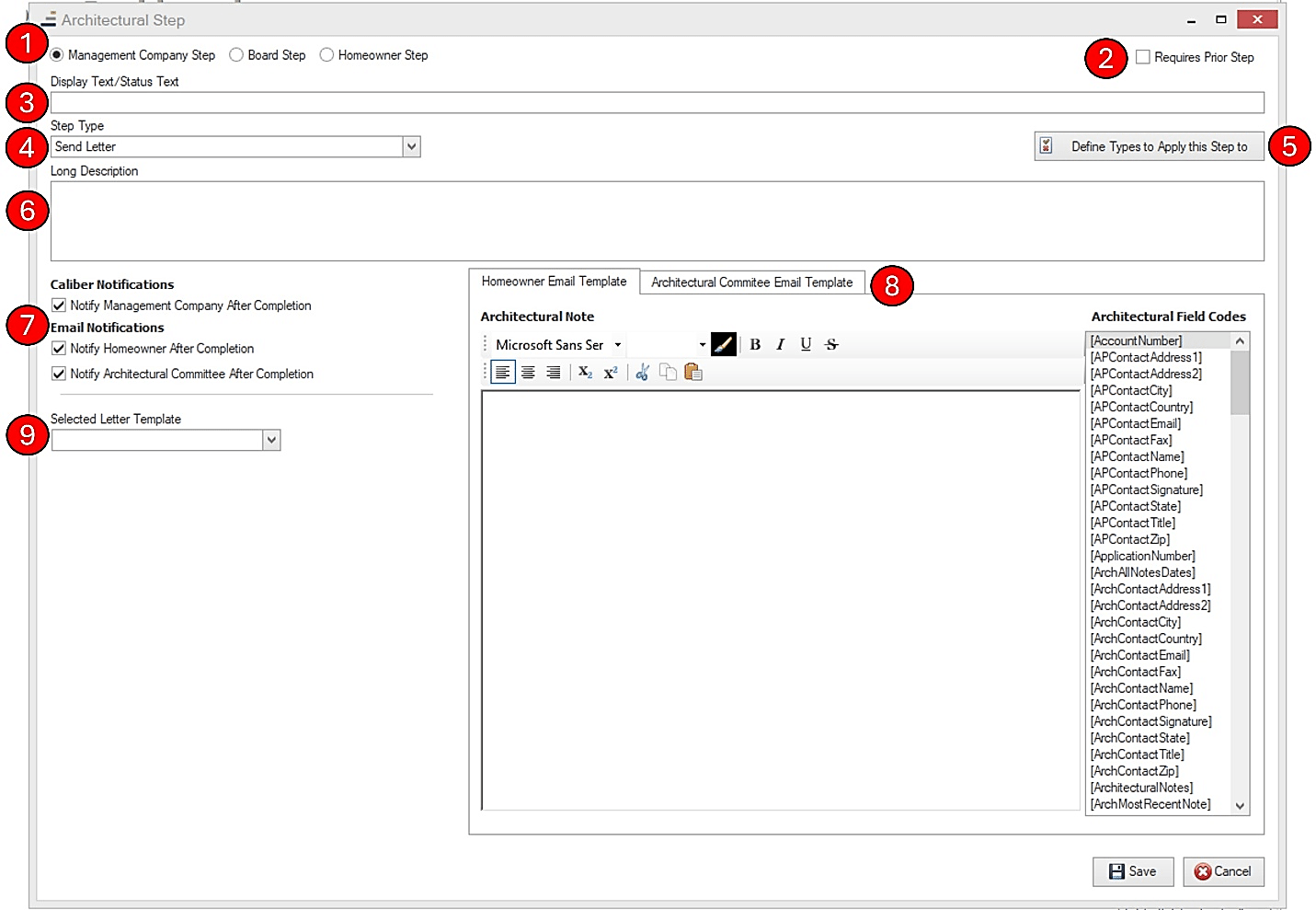
- Choose who needs to complete this step.
- Select whether the prior step needs to be completed before this one. This is used for subsequent steps after the first.
- Create a name for this step.
- Choose the purpose of the step. The options available are Checklist Step, Assess Fee, Board Approval, Send Document, Send Letter, and Homeowner Document Upload.
- Choose what types of Architectural Requests this step applies to. By default, ‘Applies to All’ is checked.
- Enter a full description of what takes place during this step.
- Choose who needs to be notified upon completion. N8
- If notifications are enabled, you can customize the verbiage of the email they will receive based on the recipient (a message specific to the homeowner, and a different message for the Architectural Committee). You can also use the field codes on the right when creating your verbiage by double-clicking on the ones you want to include.
- The options shown here change depending on what you select in Step 4. For this example, Send Letter was chosen so a template for that letter must be selected.
Repeat the process of adding new steps until the stage is completed.
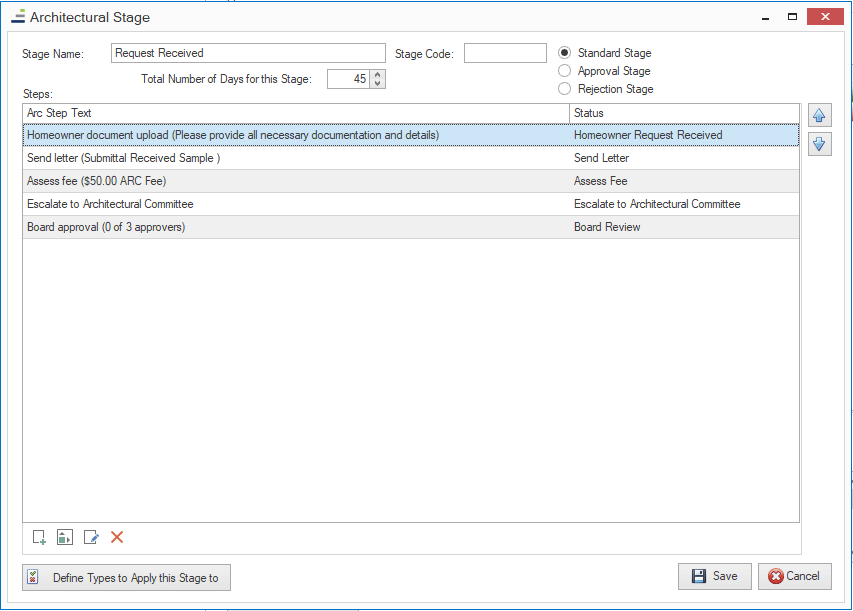
Once all steps have been added, click the Save button. This stage will now display in the list of Stages on the Architectural Processes screen.
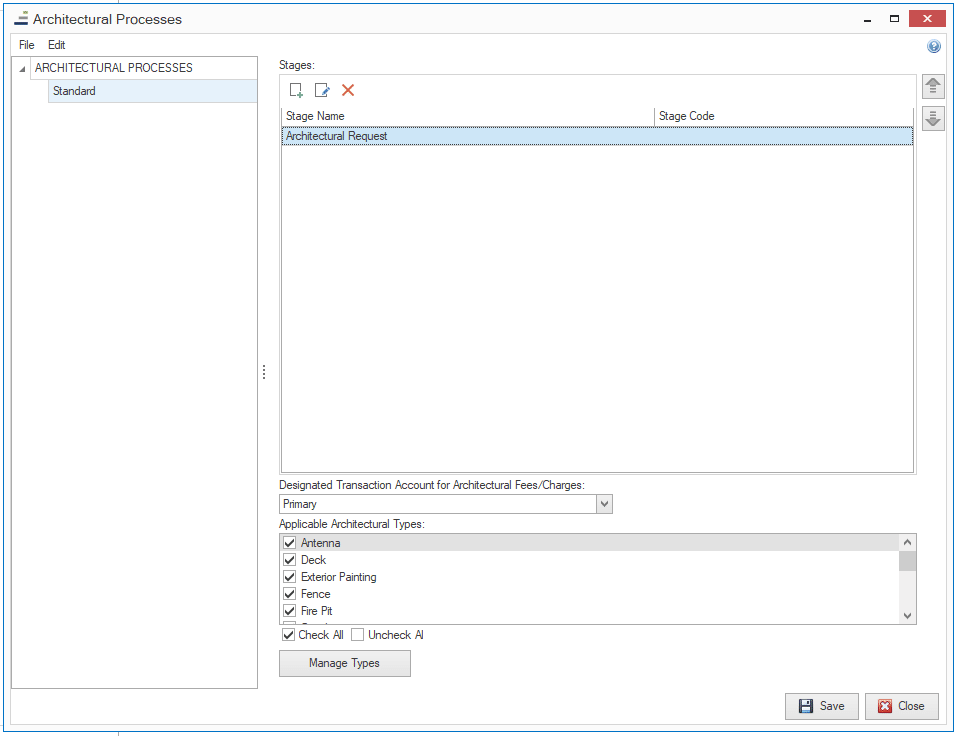
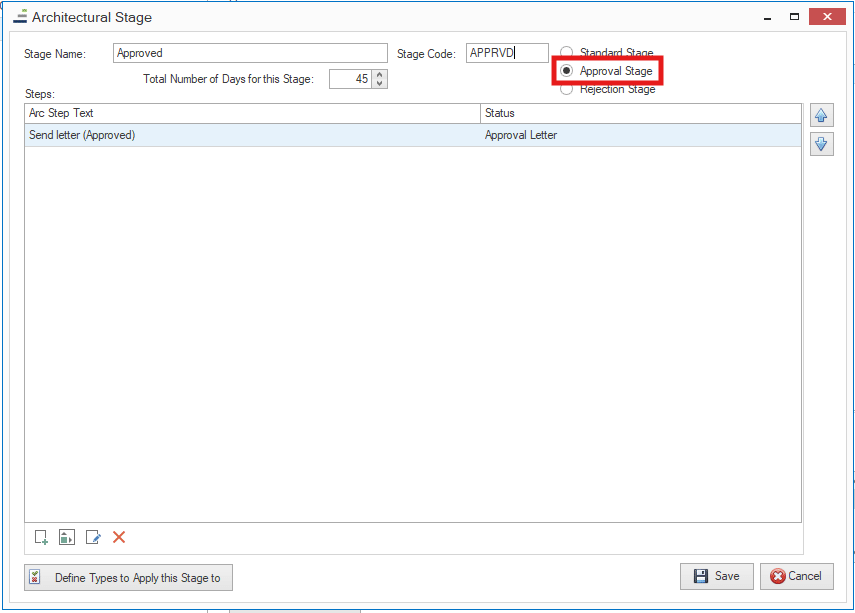
This same process will be repeated for an Approved Stage:
And a Rejection Stage:
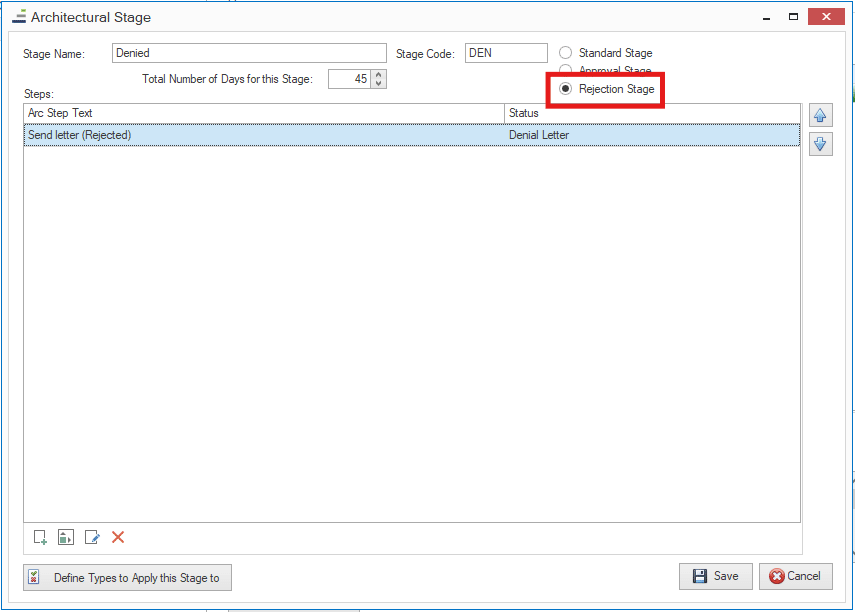
The Approval and Rejection Stages may not require as many steps to be added. After they have been completed, the Stage list should look similar to this example:
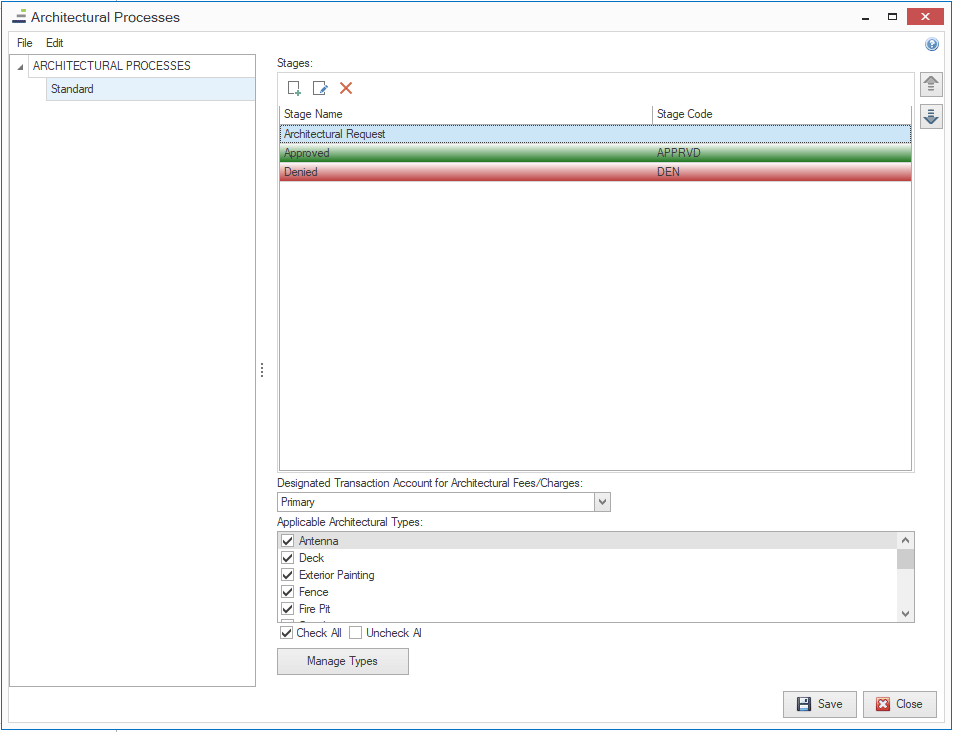
The remaining options under the Stages section allow the user to choose a default transaction account for any architectural fees/charges to be applied to, choose specific types of architectural requests to use this process with, and the ability to add additional architectural types if needed.
Be sure to Save after the setup has been completed.
*There is no limit to the number of master processes that can be added. However, since overrides are available at the client level, it is typically recommended to limit the number of master processes created so that they are easier to keep track of.