
ALLi - General FAQ
ALLi - General FAQ
ALLi is an AI assistant built directly into FRONTSTEPS Manager to help you work faster, find answers more easily, and stay focused on your day-to-day workflows.
You can use ALLi to ask questions about your communities, summarize information, review documents, and complete tasks without leaving Manager. ALLi continues to evolve with new features and improvements designed to make your work more efficient.
Quick Takeaway: ALLi helps you quickly find information, complete tasks, and streamline your workflow directly inside FRONTSTEPS Manager.
Getting Started with ALLi
What is ALLi?
ALLi is an AI assistant available inside FRONTSTEPS Manager that helps you quickly find information, complete tasks more efficiently, and get support without leaving your workflow.
Where do I find ALLi?
After signing into FRONTSTEPS Manager, click Ask ALLi located at the top of the left-hand navigation.

What does the ALLi window look like?
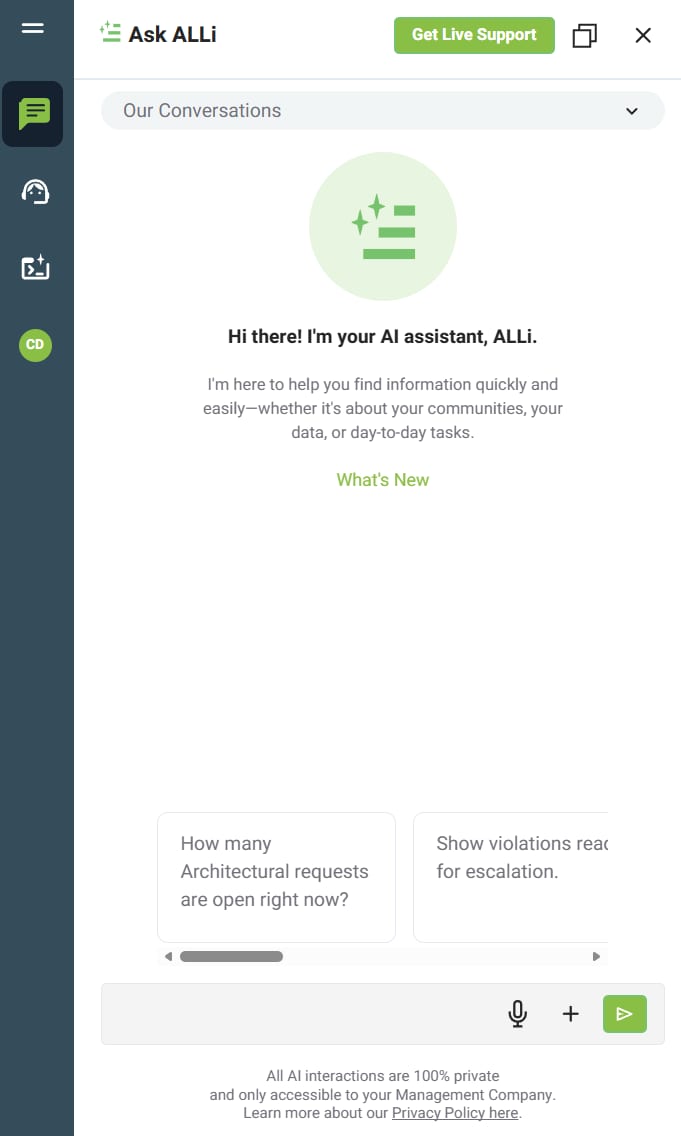
When you open ALLi, it launches in a panel where you can view conversations, browse prompts, and type or speak your questions.
Managing the ALLi Panel
Can I move the ALLi panel?
Yes. Click and hold near the top of the panel, then drag it anywhere on your screen.
Can I resize the ALLi window?
Yes. Move your cursor to any edge of the panel, then click, hold, and drag to adjust the size.
How do I maximize the panel?
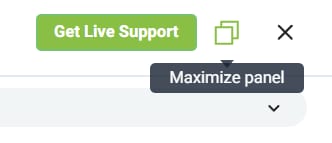
Click the maximize panel button at the top of ALLi.
How do I restore the panel?
Click restore panel size to return to the previous view.

How do I close ALLi?
Click the X in the top right corner of the panel.

Working with Conversations
What is “Our Conversations”?
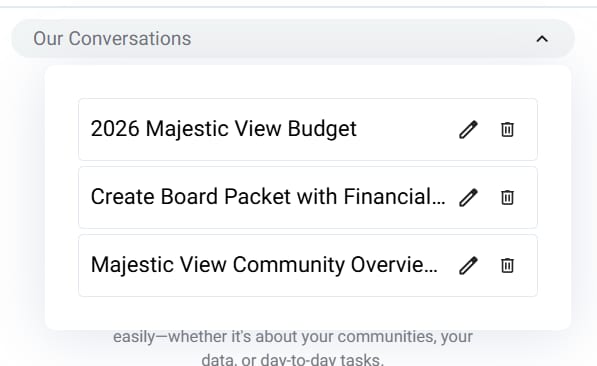
This is a list of your previous chats with ALLi. You can return to earlier conversations, continue where you left off, and reference past responses.
How do I continue a conversation?
- Click Our Conversations
- Select a conversation
- Continue chatting in the same thread
Can I start a new conversation?
Yes. Click Start New Conversation to open a new thread.

Can I rename or delete conversations?
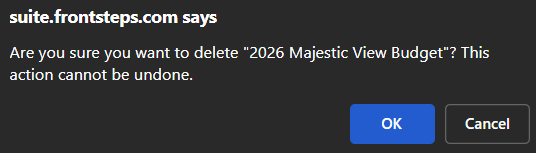
Yes. Use the pencil icon to rename or the trash icon to delete.

Can I export a conversation?
Yes. Use the download/export option to save as a PDF.

Tip: You can continue conversations to refine results instead of starting over. This helps you get more accurate and useful responses.
Memory and Personalization
How does memory work?
ALLi can retain helpful context over time, such as preferences, frequently asked questions, and common workflows to improve future responses.
Can I manage memory?
Yes. Memory can be managed or reset, giving you control over what ALLi retains.
Note: Memory is designed to improve efficiency, but you remain in control of what is retained and used in future responses.
Prompts, Input, and Interaction
What are Recommended Prompts?
Recommended prompts are starter suggestions that appear above the prompt box to help you quickly begin common tasks.

How do I start a chat?
- Type your request in the prompt box
- Click the green Send button

Can I use voice?
Yes. Click the microphone icon to speak your request and interact more naturally.
Can I upload documents?
Yes. Click the + icon to upload files including PDFs, Word, Excel, CSV, and text files.
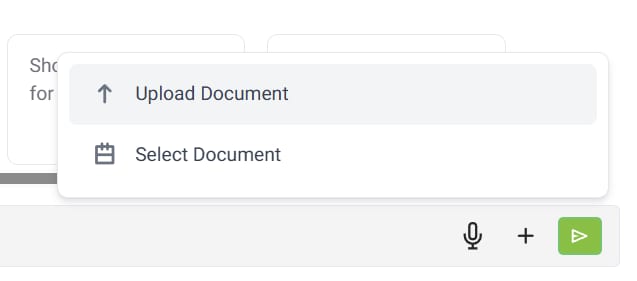
Can I use Caliber documents?
Yes. You can select documents directly from Caliber without uploading them again.
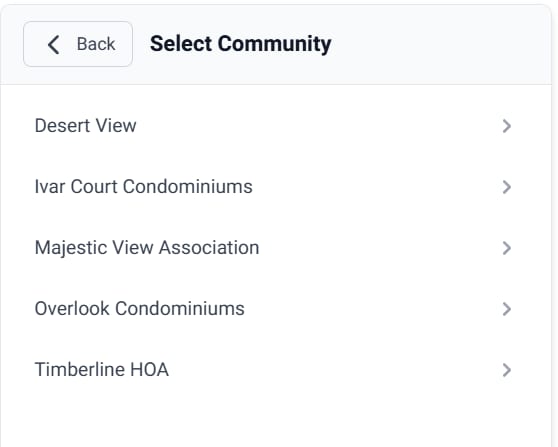
Do I need to select a community?
In some cases, yes. ALLi may prompt you to choose a community for more accurate results.
Working with Responses
During a conversation, you can interact with ALLi’s responses using built-in tools.
- Thumbs up / thumbs down to provide feedback
- Copy to reuse content
- Download as PDF to save or share

Privacy and Support
Are conversations private?
Yes. ALLi interactions are private and accessible only within your management company.

Is ALLi being updated?
Yes. ALLi is continuously evolving with new features, integrations, and improvements.
Need help or want to share feedback?
Use the support option within ALLi or email [email protected].

Looking for more details?
Review the ALLi Privacy & Data Policy FAQ.