
Advanced Automation
Introduction
Advanced Automation is the new feature that will manage all of Caliber’s Scheduled Tasks. Currently, this feature supports Automated Lockbox and Auto-reconciliation. Support for additional tasks and banks will be included in upcoming Caliber releases.Benefits
Consistency and ClarityAll task setup screens between task types will have a consistent and clear layout. It will be easy to see if a task is active and when it is set to run.
Scalability
Behind the scenes, this is a new implementation of scheduled tasks built on a platform that will grow with Caliber and that will give users an unprecedent amount of visibility into the outcomes of each scheduled run.
Features
Where to Find It
| The new Advanced Automation feature must first be activated by Caliber. Contact Caliber Support to have this done. After activation. The Advanced Automation feature can be found under ‘Management’ at the top ribbon. It will be just below the current ‘Automated Scheduled Tasks’ option. Selecting the ‘Advanced Automation’ menu item will bring up the ‘Task List’ Toolbox. | 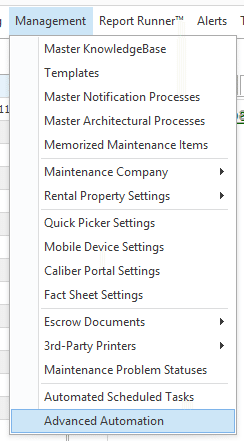 |
Task List Toolbox
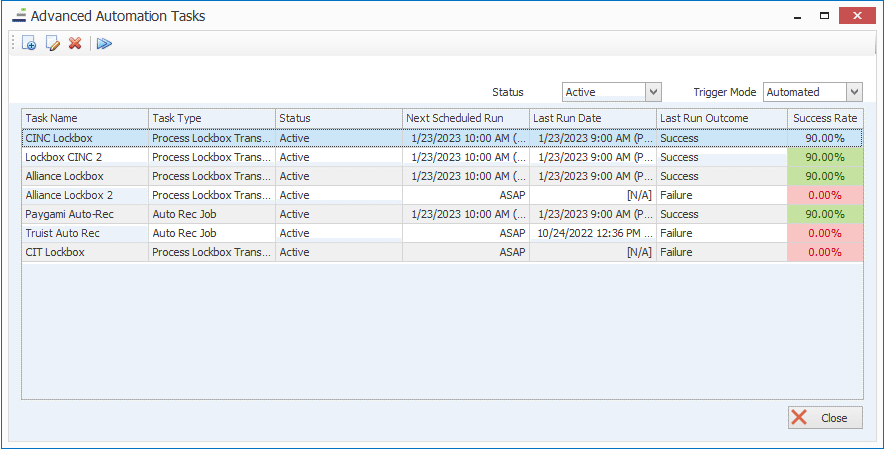
This Toolbox will allow users to manage and create tasks. A list of all currently configured tasks will be shown.- Task Name: name given to the task. For automated tasks this is determined by the user.
- Task Type: type of task, e.g., Lockbox
- Status: Active / Inactive
- Frequency: when and how often the task runs
- Last Run Date: Date and time of last run.
- Success Rate: % success of last X runs.
View History
Clicking the ‘Edit Task’ button after selecting a task will bring up a settings window. Click the link titled ‘View History’ to bring up the Job History Toolbox, which will display the list of task runs.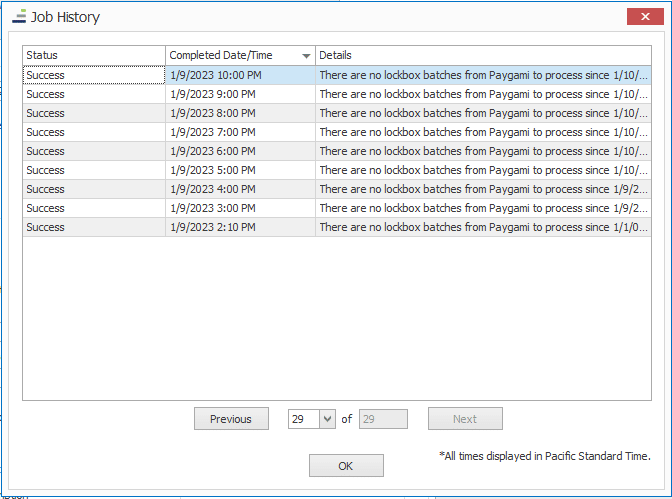
- Status: Success/Failure
- Completed Date/Time
- Details: Message about the run. For failures, there will be a message describing why the run failed to complete.
Creating a New Task
Click on the ‘Add New’ icon to bring up a list of tasks to create.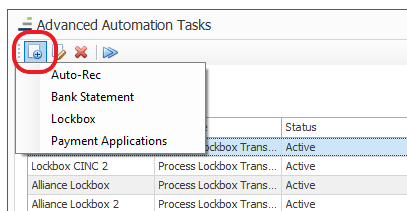
Global Scheduled Task Settings
The following fields will be common to all scheduled tasks:- Task Name: Name given by the user.
- Description: System information about this task. This is not editable by the user.
- Active/Inactive Toggle:
- When set to Active, this task will run on the configured schedule.
- When set to Inactive, the button will toggle red, clearly denoting that the task is in the inactive state.
- View History: Displays a list of dates when the task was run.
- Clients: If applicable the task will run only for selected Clients. For tasks that do not require it, such as lockbox, the component will be disabled.
- Schedule
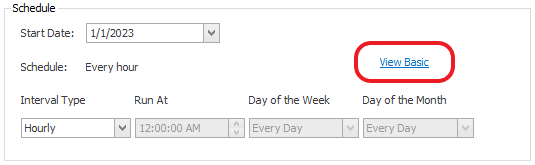
- If you are using the ‘Basic’ schedule, simply select the start date. The scheduled task will then be scheduled to run automatically every night. If you require more specific timing and frequency, select ‘Advanced’ to reveal more options.
- Start Date: Date when the task should begin.
- Schedule: timing- see ‘Advanced ‘for additional options.
Advanced Scheduling
If your service requires a more specific time or custom schedule, click ‘Advanced’ to reveal the full complement of scheduling options. If the advanced options are visible, you can click ‘View Basic’ to return to the basic scheduling option.
Task Specific Settings
Lockbox Settings
This task is for retrieving lockbox postings for the selected provider. It is analogous to checking the “Process Lockbox” option in the current Automated Banking Integration scheduled task. When creating this task, be sure to uncheck the lockbox option in the Automated Banking Integration scheduled task if you are currently using that task for lockbox.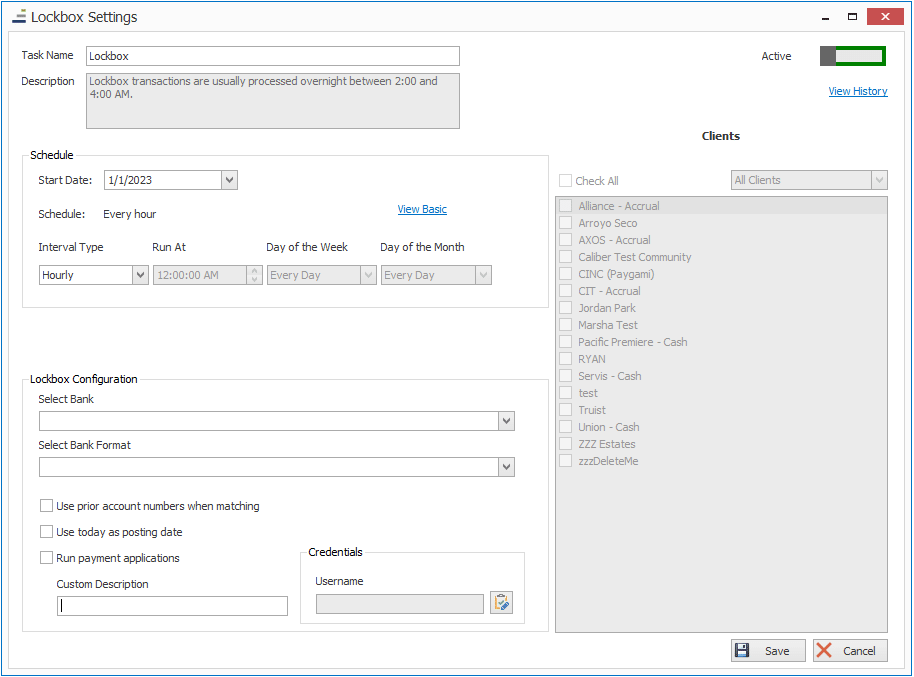
- Lockbox Configuration
- Select Bank: List of banks from the Master Bank List.
- Select Bank Format: Choose the advanced integration provider.
- Custom Description: Custom description, if desired.
- Additional Options
- Use prior account numbers when matching.
- Use today as posting date.
- Run payment applications.
- Credentials: Click the icon to manage the credentials for your bank’s service. This is managed in the Master Bank List.
Auto-Reconciliation Settings
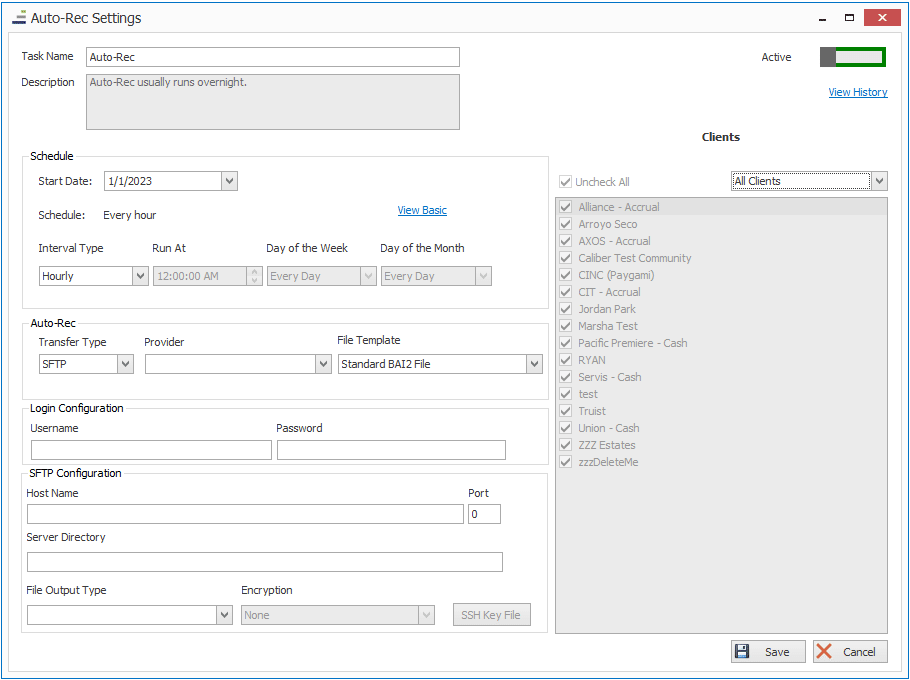
Auto-Rec (SFTP)
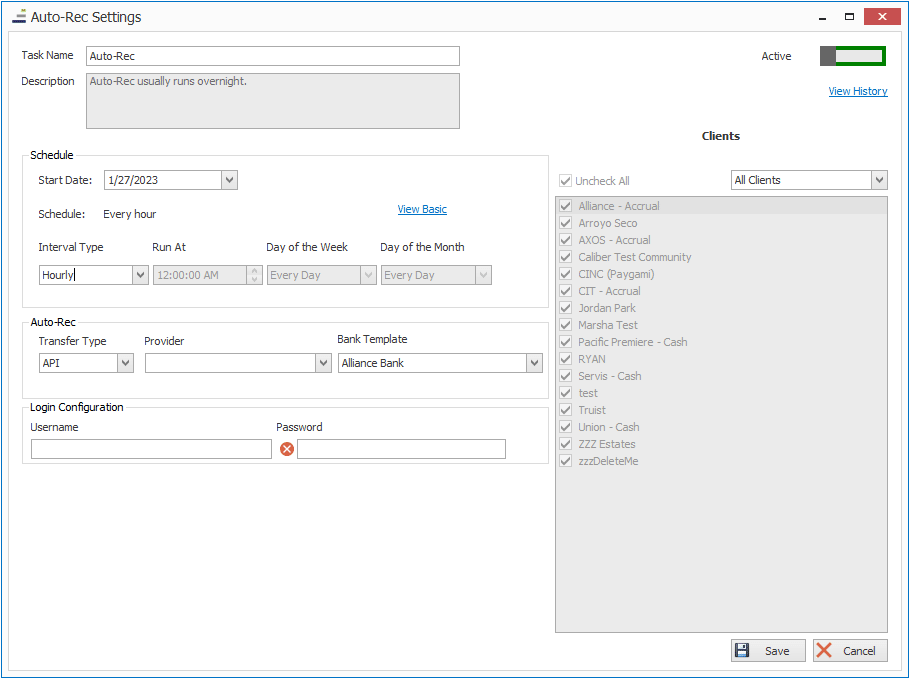
Auto-Rec (API)
- Auto-Rec Configuration
- Select Transfer Type: SFTP / API.
- Select Provider: Choose the advanced integration provider.
- If the transfer type is ‘SFTP,’ this will always be ‘FRONTSTEPS.’
- If the transfer type is ‘API’ select your bank partner.
- File Template:
- If the transfer type is ‘SFTP’
- If the provider you are working with has a specific format that is supported by Caliber, it will appear here. Additionally, support for the Standard BAI2 file format is offered.
- If the transfer type is ‘API,’ this field does not need to be set.
- If the transfer type is ‘SFTP’
- SFTP Configuration – all information below should be provided by the bank or lockbox provider.
- Host Name
- Port
- Username / Password
- Server Directory
- File Output Type – additional SFTP transfer options, will be determined by bank.
- SFTP over SSH, if selected, user will need an SSH key file, provided by the bank which can be uploaded by selecting the SSH Key File button.
- FTPS (FTP over TLS) – another option, rarely used.
- API Configuration – all information below should be provided by the bank or lockbox provider.
- Provider – Bank / Integrator.
- Bank Template – should match the provider.
- Username / Password – API Credentials from provider.