
Admin/Manager- Leases
The Leases feature allows Managers to view and add Leases for the community. Residents will be able to view any leases associated with their property(s).
Please note that this feature must enabled to show in the ‘Quick Actions’ menu by the Community Manager in order to be visible to Residents.
Managers:
Managers can view and manage all leases for the community, filter the data and add new leases.
To access this feature navigate to the ‘Directory’ menu and select ‘Leases’.
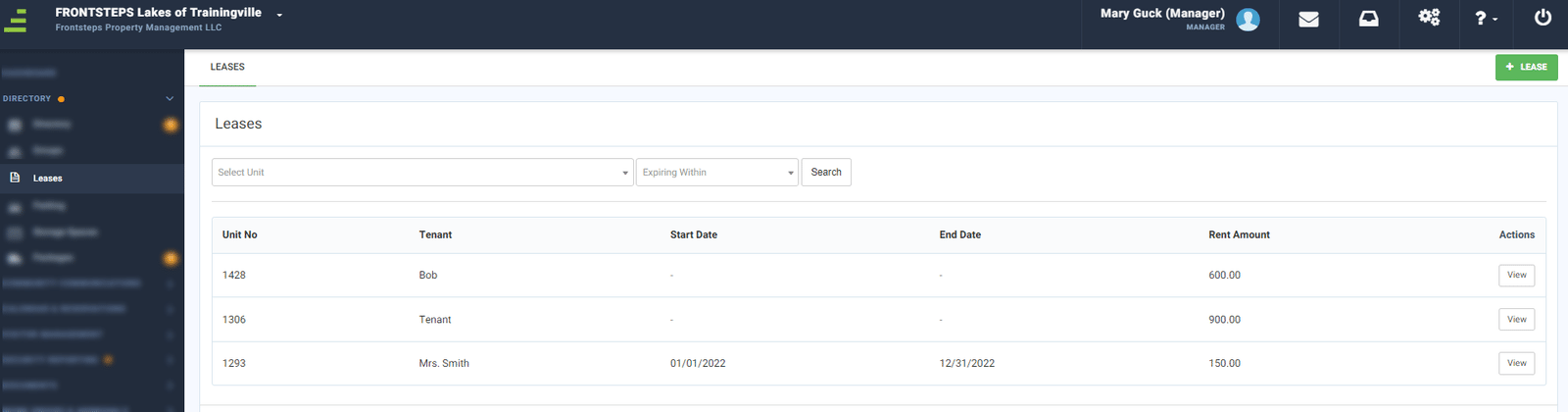
To view lease details, edit the lease, add comments or attachments, or to delete the lease, click the ‘View’ button.
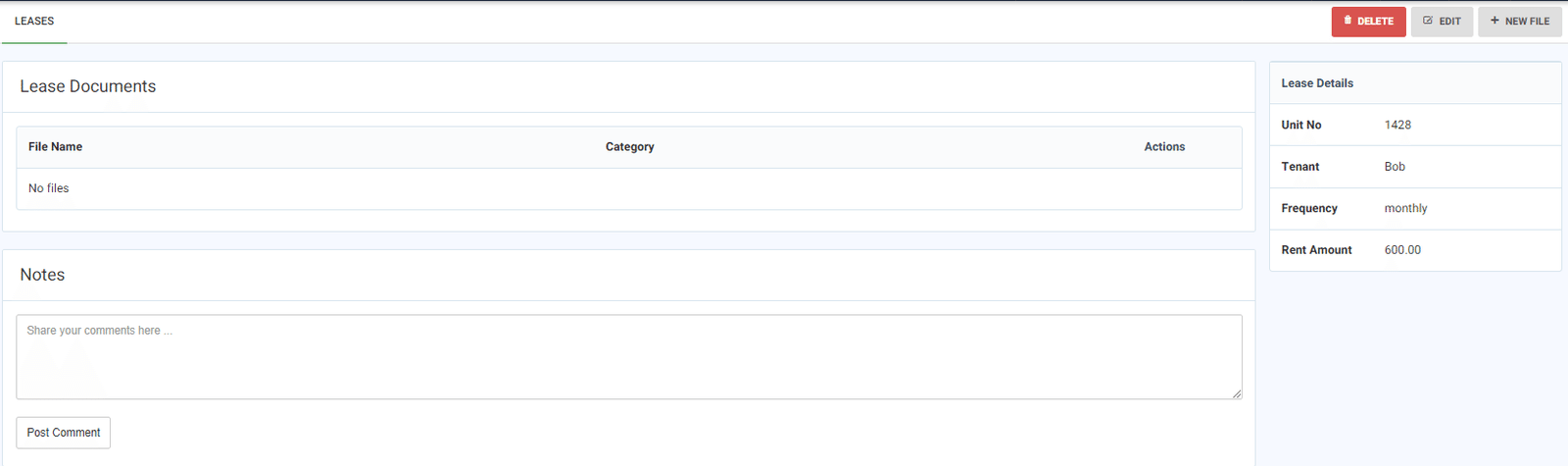
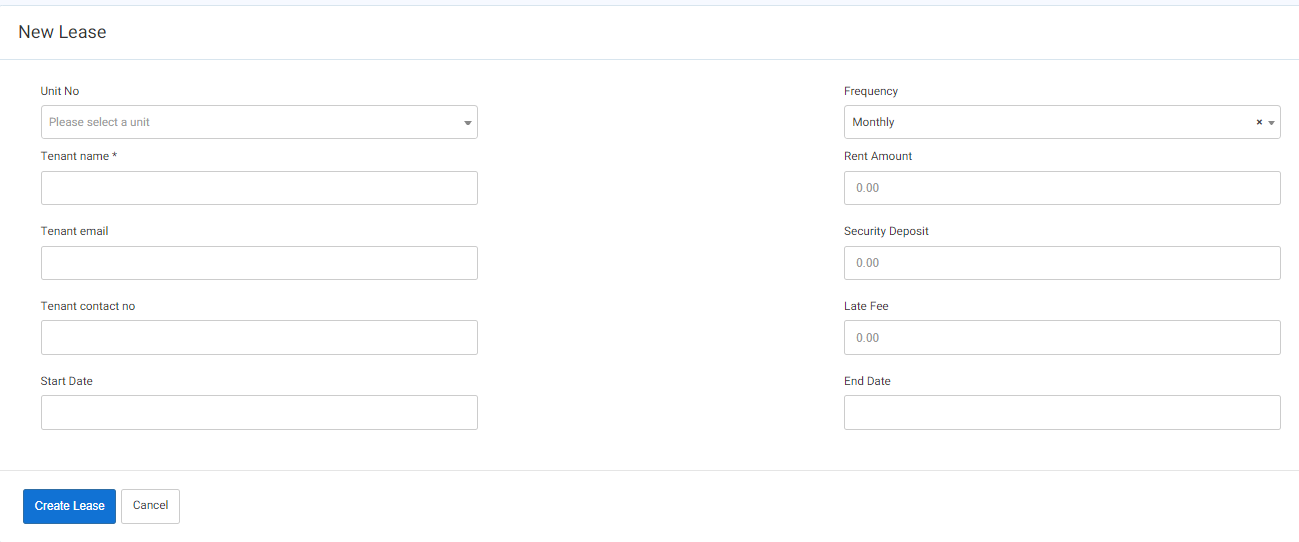
To add a new lease, click the green ‘+Lease’ button in the upper right corner. Enter in the Unit, Tenant information, rent amount, any fee information and start/end date. Click ‘Create Lease’ when complete.
Resident View:
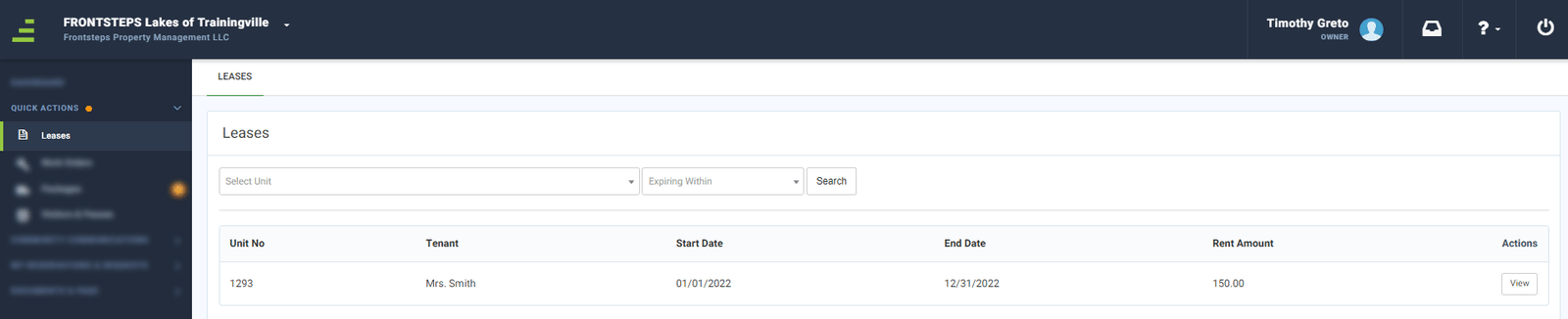
Residents can view leases that are associated with their property.
To view leases, navigate to the ‘Quick Actions’ menu and select ‘Leases’.
Please note that this feature must enabled to show in the ‘Quick Actions’ menu by the Community Manager in order to be visible to Residents.
Managers:
Managers can view and manage all leases for the community, filter the data and add new leases.
To access this feature navigate to the ‘Directory’ menu and select ‘Leases’.
To view lease details, edit the lease, add comments or attachments, or to delete the lease, click the ‘View’ button.
To add a new lease, click the green ‘+Lease’ button in the upper right corner. Enter in the Unit, Tenant information, rent amount, any fee information and start/end date. Click ‘Create Lease’ when complete.
Resident View:
Residents can view leases that are associated with their property.
To view leases, navigate to the ‘Quick Actions’ menu and select ‘Leases’.